Introduction
The purpose of this document is to assist you in getting the most out of the Vericut online Help System. It will describe how to find the specific information that you need within this extremely large help system.
There are three main methods of finding Help documentation quickly:
-
Using F1 in an open window or tab to navigate directly to the relevant section of the Help. It is best used when you're working in Vericut and want documentation for the feature you are already using.
-
Using the Global Search feature to narrow down possible pages where the information may appear. It is best used when you know what you're looking for but don't know where it is.
-
Using the Page Search feature to find specific information within your current page. It is best used when you've reached the correct page but still need to locate the proper subsection or line.
The following sections will explain each of these methods in greater detail.
Using F1 Help
Pressing the F1 key while working in a Vericut window causes the software to open the Help to the correct section that pertains to the window that you are currently working in. You can click any open window to shift the software's “focus” to it and then press F1. If the window has tabs, Vericut will display the Help page related to the current tab.
📝 NOTE: F1 is the preferred method of finding specific Help information for Vericut features. If it fails, then you should attempt a Full Help Library Search.
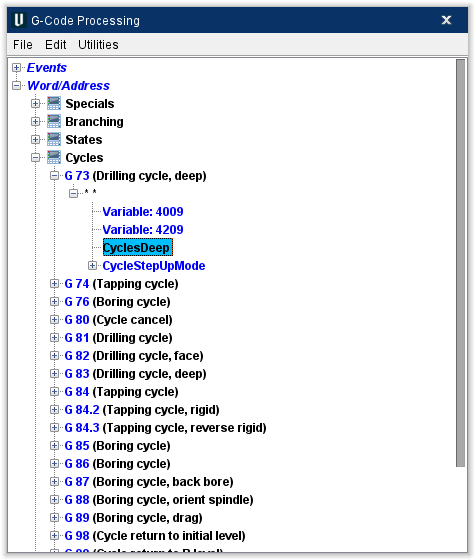
F1 can also be used to access specific documentation for macros, conditions, and functions. For example: in the G-Code Processing window, highlighting a macro in the table as shown below and then pressing F1 will open the Vericut Macros documentation page that contains information about the macro. In the example below, the page containing information on the CyclesDeep macro is displayed after F1 is pressed.
Additionally, you can hover your mouse over a button in the Menu ribbon. While that button is highlighted, pressing F1 will open the Help to the section that pertains to that button and its features.
Help Library Search
The Help Library provides two ways to search for information: Global Search and Page Search (Find in Page).
Global Search looks through all pages in the entire Help Library. Use this when you are not sure where the information is located.
Page Search looks for a word or phrase only within the page you currently have open.
Global Search
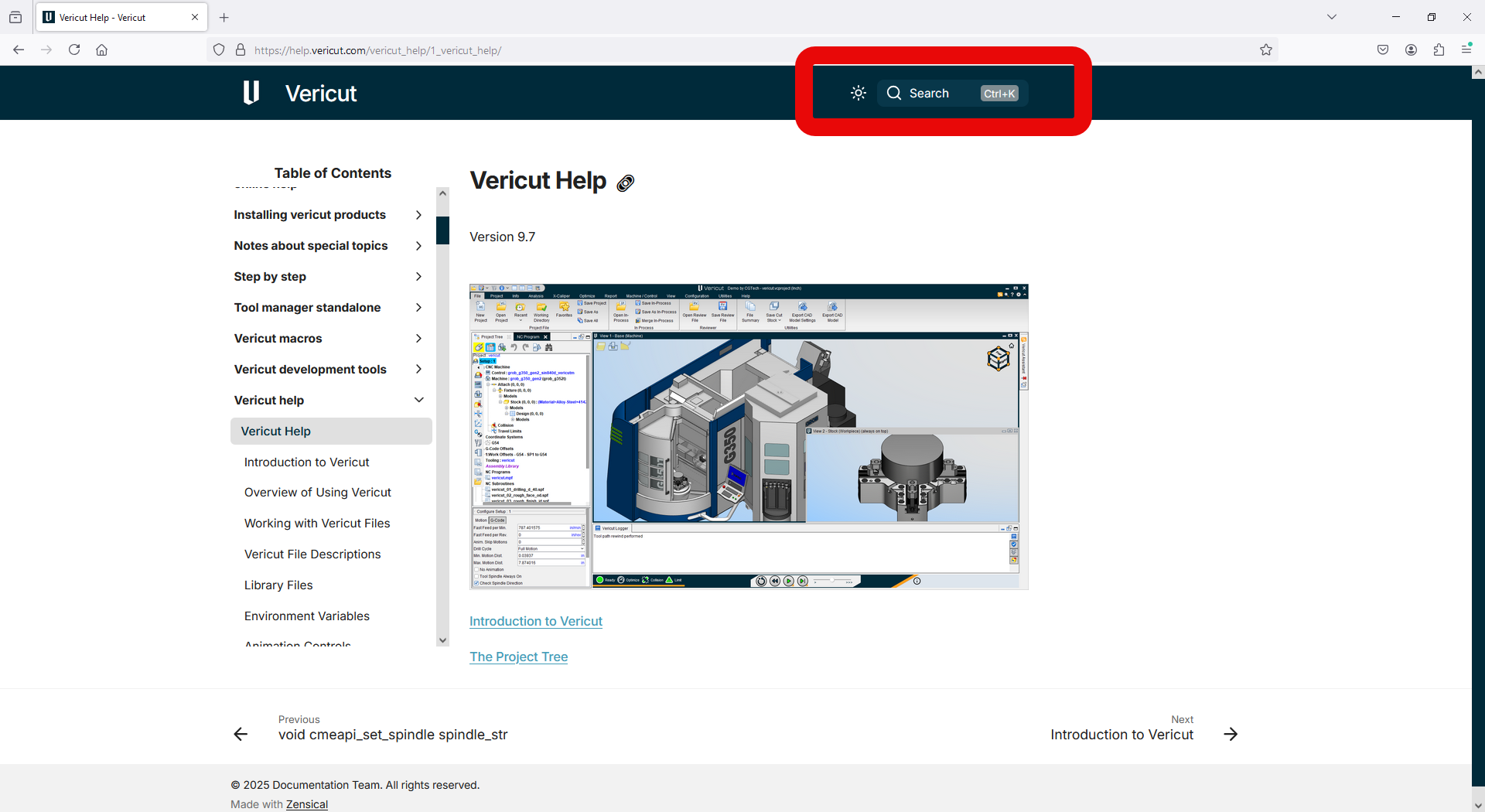
To search the Vericut Help Library, click the search bar in the upper middle of the screen, shown below.
💡 Tip: Press Ctrl + K from anywhere in the Help Library to instantly open the search bar.
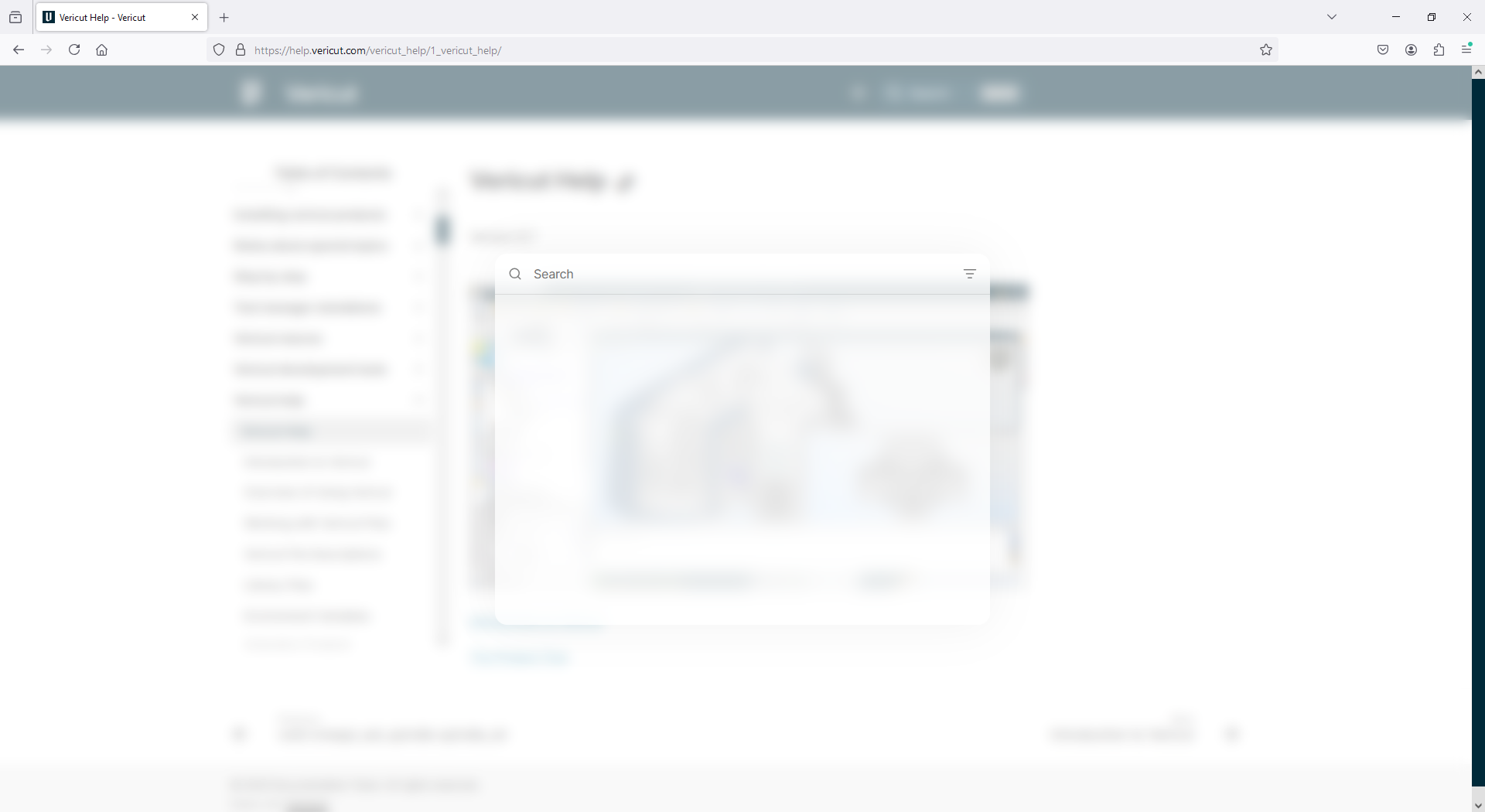
A larger search window will appear in the center of the screen.
Type the word or phrase you want to search for. The search results update automatically as you type.
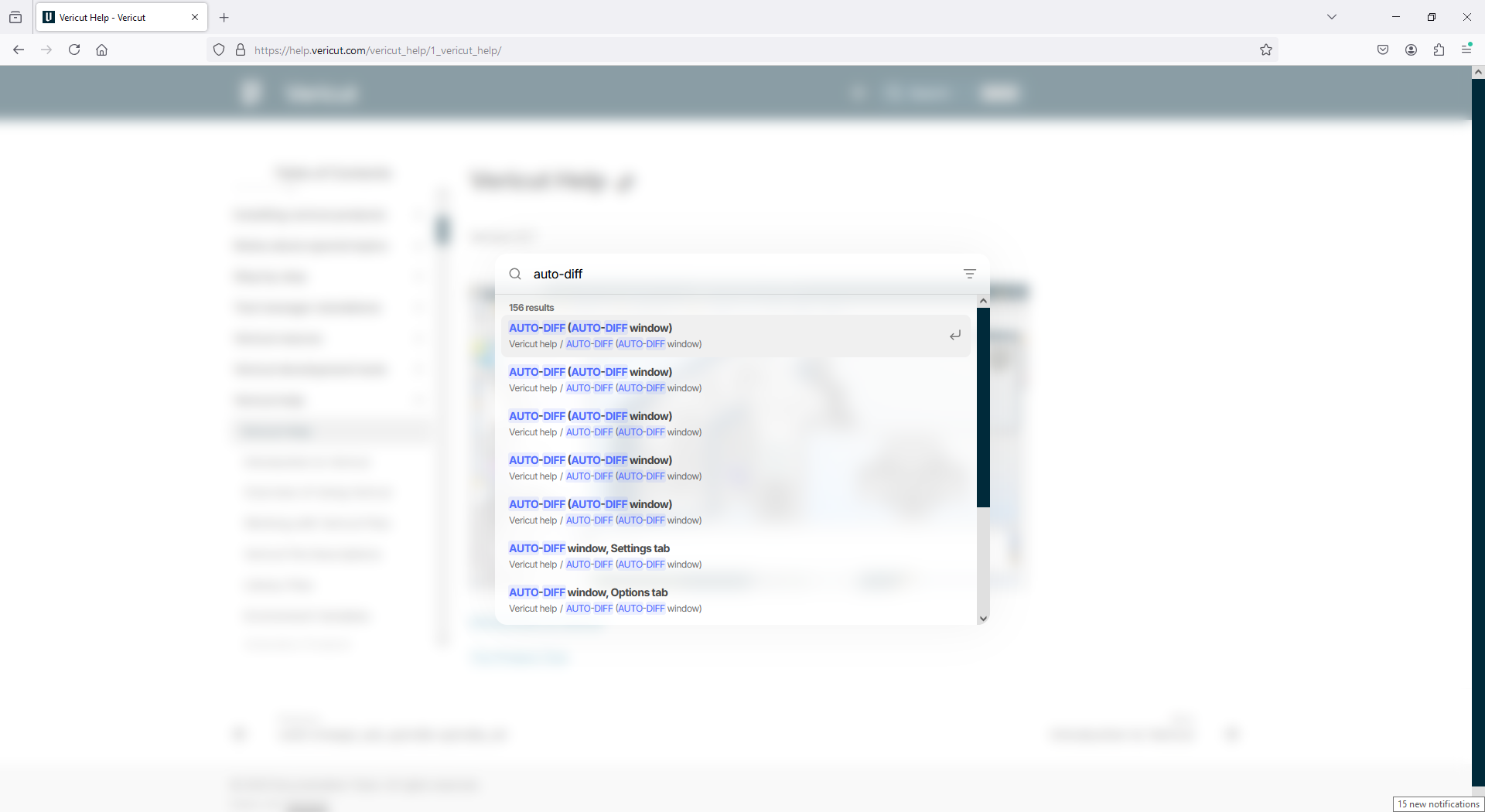
If you enter an exact phrase, such as "AUTO-DIFF", results are displayed so that pages containing the exact phrase appear first. Pages with the highest number of exact or partial word matches may also appear higher in the results.
Click any result to open the corresponding page. When you open a result:
-
The exact phrase is highlighted in orange
-
Partial word matches are highlighted in yellow
- If a possible spelling correction is detected, the suggested word appears with a blue wavy underline
- The page automatically scrolls to the section containing the best match
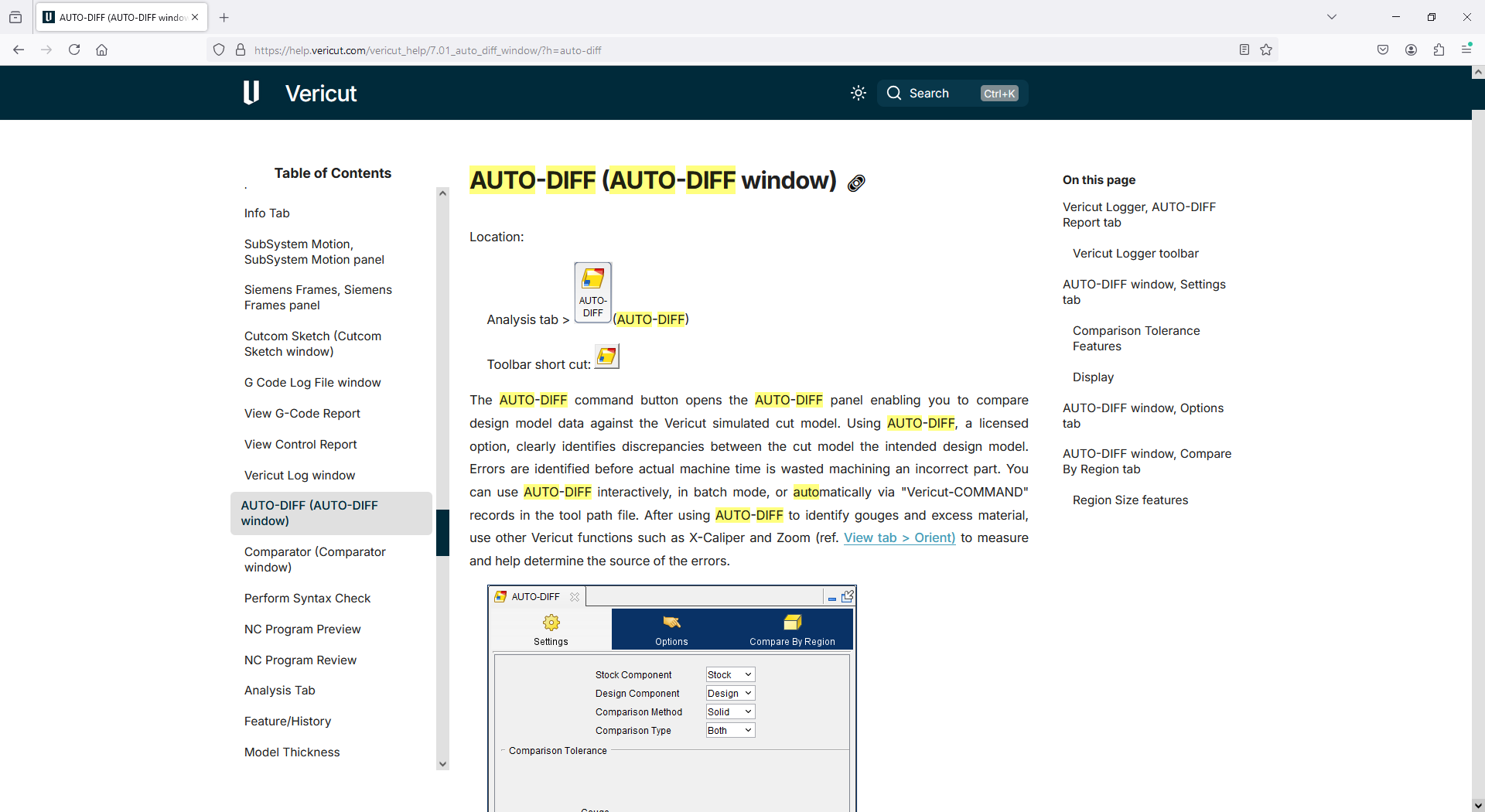
📝 NOTE: The system automatically highlights matching terms and scrolls to the most relevant section of the page so you can quickly locate the information you need.
Page Search (Find in Page)
To find a word or phrase within a page:
-
Press Ctrl + F in your browser.
-
Type the word you want to find.
- The browser highlights matches on the current page only.
📝 NOTE: Use Page Search when you already know you are on the correct page but want to quickly locate a specific word or phrase.