NC Program Colors window
The NC Program Colors window is accessed from the NC Program panel by selecting Colors, in the Utilities menu.
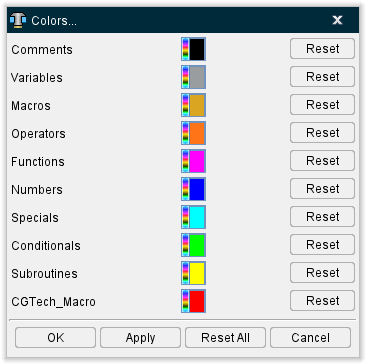
The NC Program Colors window enables you to specify colors for specific features (comments, variable, macros, etc.) in the NC Program listing in the NC Program (Info) window. Vericut uses the definitions in the Word Format table, for the current control file, to determine what words go into each of the NC program feature categories. The following are the Word Format settings that Vericut uses:
-
Comments: Anything that falls between "Begin Comment" and "End Comment"
-
Variables: Type "Special", Sub Type "Variable Name" or "Variable Tag"
-
Macros: Type "Macro" with "Word" related Subtype
-
Operators: Type "Math" or Type "Condition" with a math related Subtype, or Type "Special" with SubType "Separator", or Type "Special" with SubType "Begin/End Type II"
-
Function: Type "Function", or Type "Type II"
-
Specials: Type "Special" with SubType = "Skip", "End of block", "Begin/End Data", "Console Message", "Ignore", "Sin84D_*", and "Num VAR Define"
-
Conditionals: Type "Conditional"
 (Color Palette) — The Color Palette icon next to each NC program feature, enables you to specify a color for that particular NC program feature.
The right side of the Color Palette icon shows the current color of the NC program feature. To change the color for the NC program feature, click on the (Color Palette) icon to display the color palette window shown below.
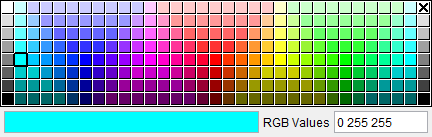
Click on a color in the color palette window, to specify the color for the NC program feature. The color palette window will close and the right side of the (Color Palette) icon in the NC Programs Color window will update to reflect the selected color.
To close the color palette window without changing the color, click on the  in the upper right corner of the color palette window.
When you have finished with color selection, use the OK button, described below, to apply the colors to the NC program listing in the NC Program (Info) window.
Reset — Use the Reset button next to each NC program feature to return the color for the particular feature back to its default color.
OK — Applies the color settings to the to the NC program text displayed in the NC Program (Info) window and closes the NC Program Colors window.
Apply — Applies the color settings to the to the NC program text displayed in the NC Program (Info) window and leaves the NC Program Colors window.
Reset All — Use the Reset All button to return the color for all NC program features back to its default color.
Cancel — Ignores your color setting changes and closes the NC Program Colors window.