TDM Interface window
Locations:
Tool Manager > Tool Bar > Import tab >  (TDM)
(TDM)
The TDM Interface provides access to the information stored in TDM Systems', Tool Data Management (TDM) system database. Cutting data can also be read in from TDM when during the import process for use in toolpath optimization within Vericut and Tool Manager to run additional checks on your simulation.
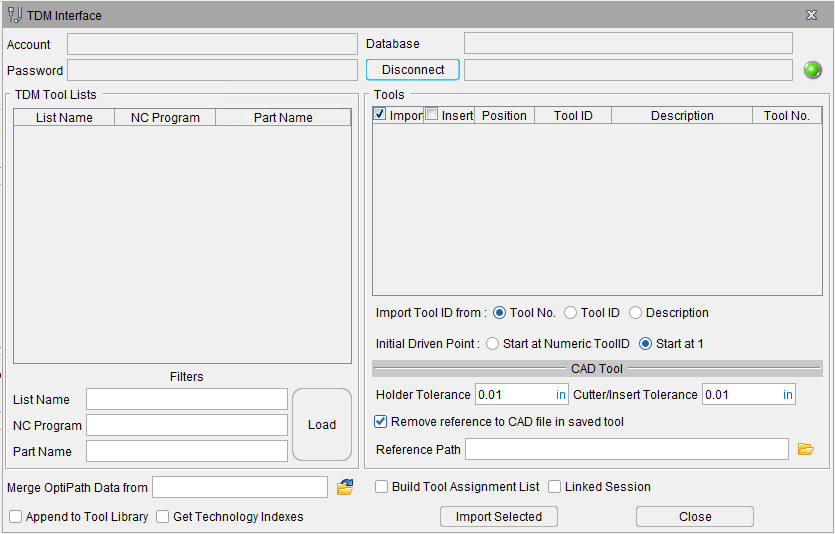
Account — Use to enter or TDM account ID.
Password — Use to enter your TDM account password.
Database — If the TDM database is installed on your local computer the Database text field can be left blank. Otherwise enter the name of the server where the database is located.
Connect — Click on the Connect button to log into your TDM account. If there are any problems, an error message will display in the text field to the right of the Connect/Disconnect button.
The values you enter for Account, Password and Database are saved and automatically re-used the next time you enter this dialog, so it should not be necessary to click on the Connect button again.
📝 NOTE: A red light designates a connection is not made. A green light designates a connection is made to the database.
TDM Tool Lists — The TDM database will contain tool lists of tools that pertain to jobs or machines. The List Name, NC Program, and Part Name columns populate with information from the TDM database. All tool lists from the TDM database will be placed in the TDM Tool Lists table.
Filters — Use the following filters to specify the tool lists that you want displayed in the Lists table. You can use "*" and "?" as wild cards in the filter (in the normal Vericut manner) or use "%" as you would with TDM.
List Name — Use to enter a TDM list name to be used as a filter.
NC Program — Use to enter an NC program name to be used as a filter.
Part Name — Use to enter a Part name to be used as a filter.
Load — Displays the tool lists from the TDM database in the TDM Tool Lists table. If filters are used, click on the Load button to filter the TDM Tool Lists based on the filter criteria.
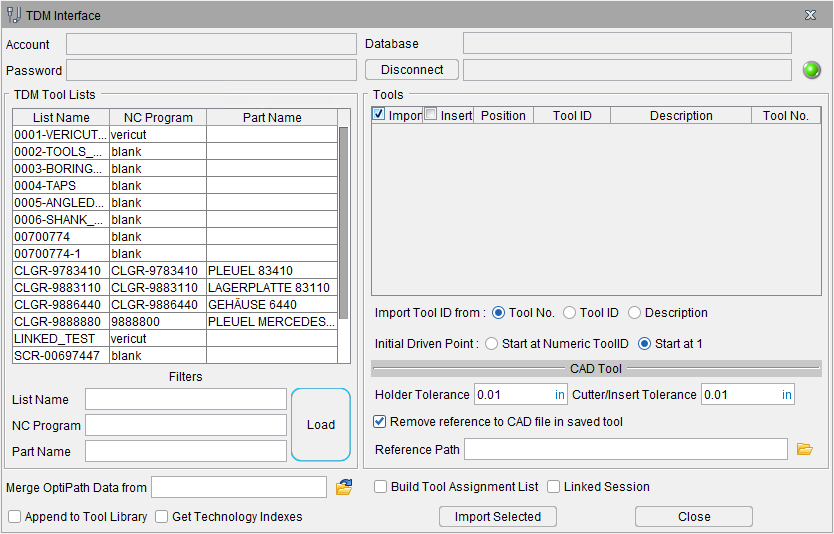
Pick the tool list that you need from the TDM Tool Lists table and the tools contained in that tool list will display in the Tools table as shown in the picture below.
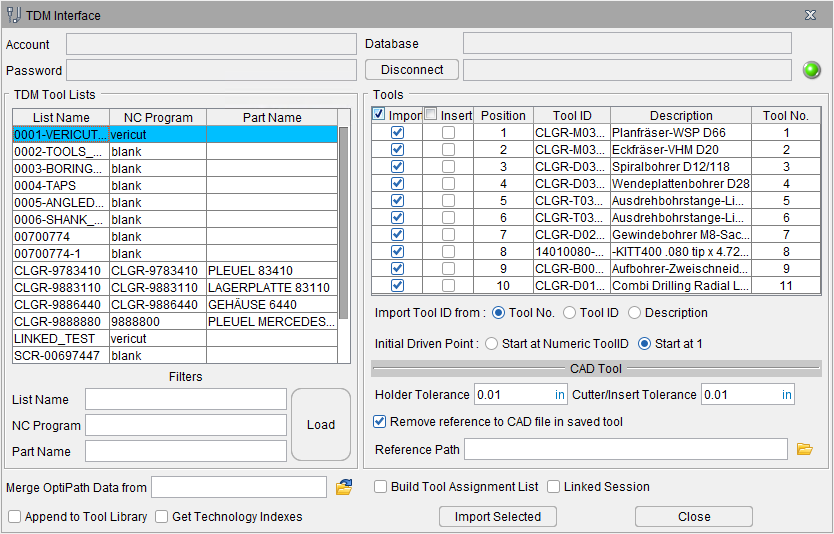
Tools table — The tools that are part of the TDM Tool List are displayed in this table. The column headings in the Tools table correspond to the TDM field names, but the content of the Tool No. column gets used as the Tool ID in Tool Manager, and the TDM Tool ID and Description fields are combined to form the tool’s Description in Tool Manager.
-
Import — Toggle on (checked) to ensure that the selected tool is imported when Import is clicked.
-
Insert — Toggle on (checked) to import a tool so the cutter is defined as an insert (cutter) component.
📝 NOTE: for this option to work, TDM 3D tooling model needs to be created using specific steps. Contact Technical Support for more details. -
Position — Uses the Position field of the TDM Tool List for that specific tool from the TDM database to populate the Tool ID in Tool Manager
-
Tool ID — Uses the tool’s ID field of that specific tool from the TDM database to populate the Tool ID in Tool Manager
-
Description — Uses the Tool Assembly Descr. 1 field of that specific tool from the TDM database to populate the Tool ID in Tool Manager
-
Tool No — Uses the T number field of that specific tool from the TDM database to populate the Tool ID in Tool Manager
Import Tool ID from —
-
Tool No — (Default) Uses the Tool No field of that specific tool from the TDM database to populate the Tool ID in Tool Manager
-
Tool ID — Uses the Tool ID field of that specific tool from the TDM database to populate the Tool ID in Tool Manager
-
Description — Uses the Description field of that specific tool from the TDM database to populate the Tool ID in Tool Manager
Initial Driven Point — Enables you to select between two choices (Start at Numeric ToolID and Start at 1). This is the same setting use in Tool Manager on the Utilities tab under Preferences. Changing the value in one location changes the setting in both settings.
-
Start at Numeric ToolID specifies that a Tool’s initial driven point will be named by their ToolID. Additional driven points will be named as described below for the Start at 1 option. The Start at Numeric ToolID feature only applies to numeric Tool IDs. Tools that have Alpha or Alphanumeric Tool IDs will be named as described below for the Start at 1 feature.
-
Start at 1 specifies that a Tool’s initial driven point will be named numerically starting with 1. Additional driven points will be named 2, 3, etc.
Holder Tolerance — Enables you to specify the Holder Tolerance by entering the tolerance value in the Holder Tolerance text field. The default value is read from the Tool Manager > Utilities ribbon > Preferences dialog.
Cutter/Insert Tolerance — Enables you to specify the Cutter/Insert Tolerance by entering the tolerance value in the Cutter/Tolerance text field. The default value is read from the Tool Manager > Utilities ribbon > Preferences dialog.
Build Tool Assignment List — When toggled on (checked) and there are tools with “TURRETINDEX” and “SPINDLE” defined in TDM a tool list will be built in the tool library file. A message “Tool list has been updated.” will be output to the Tool Manager logger after the import.
In cases where no matching tool component index is found with given turret index, the record in the assignment list will be shown as if it was a single channel/single turret system (no subsystem name). The tool list will be incorrectly built and the user is responsible correcting the problem.
Remove reference to CAD file in saved tool — This feature is used to specify the format that the imported tool is to be saved in. When toggled "on" (checked), the default, the imported tool components are saved as Vericut Polygon files. When toggled "off" (un-checked), the imported tool components are stored in the same CAD format that they were imported in. This feature is for TDM import only and the setting is saved in the project file.
Reference Path — Option to control where the .ply files from imported tools are stored.
-
If there is no .tls file saved/present prior to when tools are first imported, the .ply files by default go to the working directory.
If a .tls file is saved/present prior to when tools are imported, the .ply files default to the location of the .tls file (may not be the current working directory). -
By default, the Reference Path field will not display a path until
 (Browse) is opened and a path is selected.
 -
If "Remove reference to CAD file in saved tool" is UNCHECKED, "Reference path" option is greyed out and not available (will reference where .stp files currently reside).
Get Technology Index — when toggled on (checked), the Get Technology Indexes option enables you to access TDM’s technology Indexes (cutting limits and optimization settings) of tools to use in optimization of the NC Program. This option remains modal until changed by the user. See Getting Technology Data for Use in Optimization for additional information.
Append to Tool Library — When toggled on (checked), the Append to Tool Library option enables you to add the tools from the selected TDM list to those present in the currently accessed library. If there is a conflict between tool IDs, the tools already in the library will prevail. When this option is active, there will be no link between the project file and the TDM list, because the set of tools accessed by the project file is more comprehensive than the content of the TDM list.
Import Selected — Imports all of the selected tools into Vericut’s Tool Manager.
Close — Closes the TDM Interface window.
Saving the TDM Tooling Data for Use in a Vericut Simulation — There are two options to work with/save the TDM tool data for use in a Vericut simulation:
'Linked' session — No .tls file is saved. This option directly connects to the TDM database each time the Vericut simulation is opened/run to pull the tools from the selected, named TDM Tool List. If the connection cannot be established to the TDM database, the 3D cutting tools cannot be accessed or displayed.
📝 NOTE: This option only works with the tools as they are defined in TDM. No changes can be made to the tools in Vericut or Tool Manager in any way. The following options in the TDM Interface will not be saved when working in a 'linked' mode.
-
Import column — no individual selected tools. All the tools in the TDM Tool List will be read into Tool Manager.
-
Insert column — no selections will be saved.
-
Append to Tool Library — toggled off (not checked) is default.
-
Build Tool Assignment List — toggled off (not checked) is default.
-
Linked Session — toggled off (not checked) is default.
-
Remove reference to CAD file in saved tool — toggled on (checked) is default.
To save a 'linked' session, click the X in the upper right corner of the Tool Manager window without saving the .tls file to a location.
The TDM Tool List name will also appear in the Project Tree as shown below:

When reopening Tool Manager, the 'referenced' TDM list will display in the Tool Manager's title bar as shown in the example below:

The Link Session option remains modal until changed by the user.
Saved .tls file — .tls file is created and saved. This option creates a copy of the 3D tool(s) for use in the Vericut simulation and stores the tooling data and information in a .tls file. If changes are made to the tools in the TDM Tool List, the list will need to be read into Tool Manager again. All above options (Import/Insert column, Append to Tool Library, Build Tool Assignment List, Remove references to CAD file in saved tool, and any ‘manual’ changes to tools) will apply and be saved accordingly.
To save the .tls file, click the Save File icon from the Tools tab.
Getting Technology Data
The TDM database system has the option to store what is commonly known in Vericut as cutting limits and optimization settings along with the cutting tool geometry information. In TDM these cutting limits and optimization settings are referred to as Technology Indexes for each tool assembly. This Technology Data can be used in Vericut and Tool Manager to run additional checks on your simulation as well as be utilized with Force.
If you intend to run these additional checks and perform optimization (Force) on your NC Program, you will need to have the cutting limits and optimization settings for a particular tool assembly being used on a specific CNC machine cutting a specific material. These performance parameters may also be specific to each application of how that tool assembly is being used (I.e. roughing, semi-finishing, finishing, etc.)
The cutting limits and optimization settings are stored in Vericut’s Tool Manager in Stock Material Records, attached to the cutter of each Tool ID. Each Tool ID could have just one Stock Material Record or multiple depending on how the tool is used in your facility.
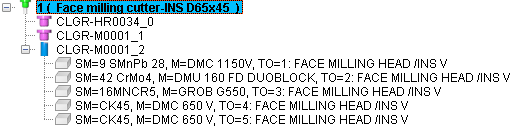
The name of the Vericut Stock Material Record is comprised of the following 3 pieces of information that is entered into the Add Stock Material Record window:
• SM = (Stock Material) Name of the material that is being cut
• M = (Machine) CNC machine name
• TO = (Tool/Operation Description) Description of the application for this situation
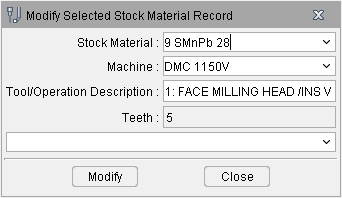
When the Stock Material Record is created it is necessary to match the Stock Material and Machine names may not exactly match what is entered into the TDM software to what is entered in Vericut. The matching of the CNC machine and material names is necessary once you get into the optimization process in order to correctly match the Force Material File.
For the above described reasons, when Get Technology Indexes is toggled ON and the Import Selected button is clicked in the TDM Interface window, it will open the Machine and Material Mapping window.
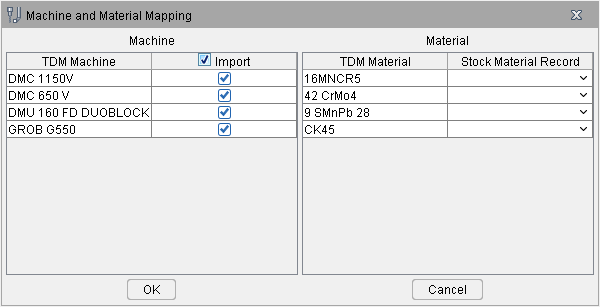
TDM Machine — This will populate with all the CNC machine names relating to all the tools from that Setup Sheet
Vericut Machine — This pulldown will display all machine names listed in Vericut under the Optimize ribbon > Optimize Control > Optimization tab > Machine. The list will also allow for a name to be typed in. The default will display empty field. If Tool Manager is being run as stand-alone (not launched from Vericut) there will not be any machine names listed under the pulldown.
TDM Material — This will populate with all the material names relating to all the tools from that Setup Sheet
Stock Material Record — Displays the Stock Material Record names that are available from the Force Material File Directory in Vericut and any Stock Materials listed in Tool Manager. A new Stock Material name can be entered in this field if desired. This optional selection is intended to align existing Stock Material Records within Vericut to a Workpiece Material name. This option is for use with Force and Optimization. The default will display empty field. If Tool Manager is being run as stand-alone (not launched from Vericut) there will not be any material names listed under the pulldown.
OK — Will continue to read in each tool from the Setup Sheet and create Stock Material Records for all records with a Machine and Material mapped. If either the Machine or Material is not mapped for that specific application, the tool will be generated without a Stock Material Record.
Cancel — Closes the Machine and Material Mapping window without creating any tools in Tool Manager and returns to the TDM Interface window.
📝 NOTE: The mapping of only a certain CNC machine name or a certain material name versus mapping every CNC machine name and material name will depend on your workflow. If you are only concerned with getting Stock Material Records for a specific CNC machine and material you are simulating then only map the specific desired CNC machine and material you need. If you are doing a master tool library where you want any and all CNC machines and materials for a given tool, then all map all the CNC machines and materials accordingly to read in all Stock Material Records along with your tools.