Component Branch
Right-click on a Component branch in the Project Tree panel to display the following menu:
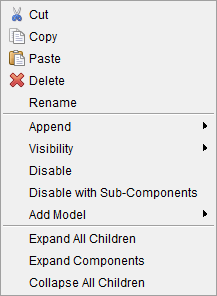
Cut — Cuts the highlighted component branch from the Project Tree and puts it in the paste buffer.
Copy — Copies the highlighted component branch from the Project Tree to the paste buffer.
Paste — Uses the contents of the paste buffer to replace the highlighted component branch in the Project Tree.
Delete — Deletes the highlighted component branch from the Project Tree.
Rename — Use to rename the highlighted component branch.
Append — Use to connect the selected component to the Attach Component (ref. Component Type in the Configuration Component menu, Component tab section for complete list of component types). Hold the cursor over the  at the bottom of the components list to view additional components.
Add Model — The Add Model pull-down list contains the model types that can be added to an Attach Component. Select from the listed model types (ref. Model Type in the Configure Component menu, Common Features section for complete information on each model type).
Visibility — Use the Visibility features to specify whether or not a component branch is visible, and in what views. A check indicates “visible” in the view.
📝 NOTE: The Visibility feature is not available in right mouse button shortcut menu for Tool Component branches. See Holder Visibility and Cutter Visibility section of Vericut Help for information on controlling tool component visibility.
Disable — Use to make the selected model active or inactive in the machining process.
Disable with Sub-Components — Use to make the selected model and all of its sub-components active or inactive in the machining process.
Expand All Children — Expands all branches of a Component branch.
Add Model — The Add Model pull-down list contains the model types that can be added to an Attach Component. Select from the listed model types (ref. Model Type in the Configure Component menu, Common Features section for complete information on each model type).
Expand Components — Expands all child branches of the selected (highlighted) component.
Collapse All Children — Collapses all branches of a Component branch.
If the Configure icon is toggled “on”, the Configure Component menu displays at the bottom of the Project Tree.