Save As (In Process file)
Location:
File tab >  (Save In-Process)
Toolbar short cut: 
The Save As command button opens the Save In-Process As window enabling you to save (or update an existing) In-Process file, or "IP file" (ref. In-Process File in the Getting Started section of Vericut Help), with the current Vericut model, including all currently processed data.
IP files contain all the data necessary to re-establish a Vericut session, including the current Vericut model (with previously processed data), user interface settings, and a copy of the Log file (ref. Log File in the Getting Started section of Vericut Help).
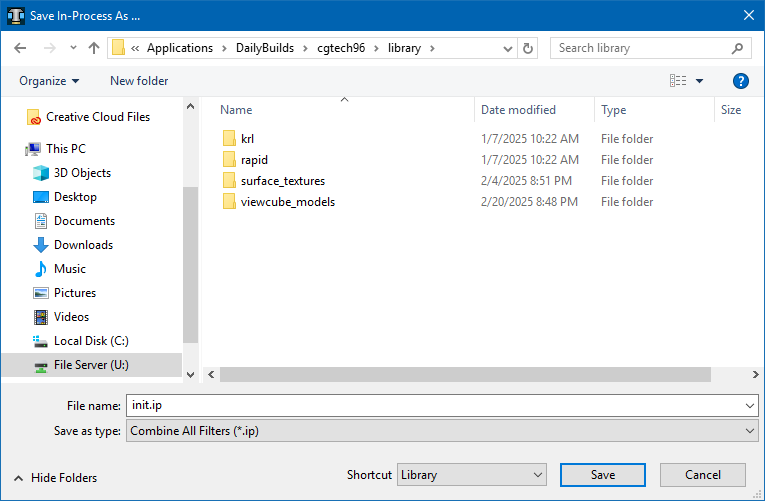
Most features on this window are standard file selection window features that enable you to navigate through directories, filter files, and type, or select, /path/filenames. A description of features specific to Vericut can be found in the Introduction to Vericut File Selection Windows in the Getting Started section of Vericut Help.
In Process (IP) files are by default compressed when they are saved. Vericut can read these compressed files directly.
To disable writing compressed IP files, set the environment variable CGTECH_COMPRESS=IP (ref. Environment Variables in the Getting Started section of Vericut Help for additional information).
Saving or Opening a Vericut In Process File
The 3-D Vericut model with all machine cuts intact is savable in an In Process file, or "IP file". You can also save IP files to "backup" the Vericut session, safeguarding against lost work if the session is interrupted by computer or power failure.
To save a new IP file or save an existing IP file with a different name:
- Click File tab > Save As (In-Process) in the Vericut main menu ribbon, or click on the (Save In-Process As) in the Toolbar to display the Save In-Process As file selection window.
- Use the Save In-Process As file selection window to type, or select the /path/filename of the file to save and then click Save.
The IP file is saved. You can open saved IP files as described below to reload the Vericut model and continue working.
To save an existing IP file under the same name:
- Click File tab > Save In-Process in the Vericut main menu ribbon, or click on the
 (Save In-Process) icon in the Toolbar.
 - The IP file is saved. You can open saved IP files as described below to reload the Vericut model and continue working.
To open an existing IP file:
- Click File tab > Open In-Process in the Vericut main menu ribbon, or click on the
 (Open In-Process) icon in the Toolbar to display the Open In-Process file selection window.
 - Use the Open In-Process file selection window to type, or select the /path/filename of the file to save and then click Open.
If the Vericut model was cut, choose Yes to reset the model and load the IP file data.
The IP file is opened and the Vericut model is restored.
💡 Tip: You can save IP files in batch mode using the Project tab > Settings > AutoSave tab: In-Process group.
See Auto Save tab section of Vericut Help for additional information.
For additional Information on Vericut In-Process Files, see In-Process File section of Vericut Help.