Savings Calculator (Optimization Savings Calculator window)
Location:
Optimize tab >  (Savings Calculator)
Toolbar short cut: 
The Savings Calculator command button opens the Optimization Savings Calculator window enabling you to enter shop specific information and use the information available from using the Optimization feature to optimize the current part to calculate the both the part savings, and the workshop savings associated with using Optimization. User entered settings are stored in the Preferences File (ref. Preferences File in the Getting Started with Vericut section of Vericut Help).
Optimization data must be available before you can open the Savings Calculator window. Trying to open the window before there is Optimization data will result in the message, “No Stock Material records found for any tool.”, being output below the Logger.
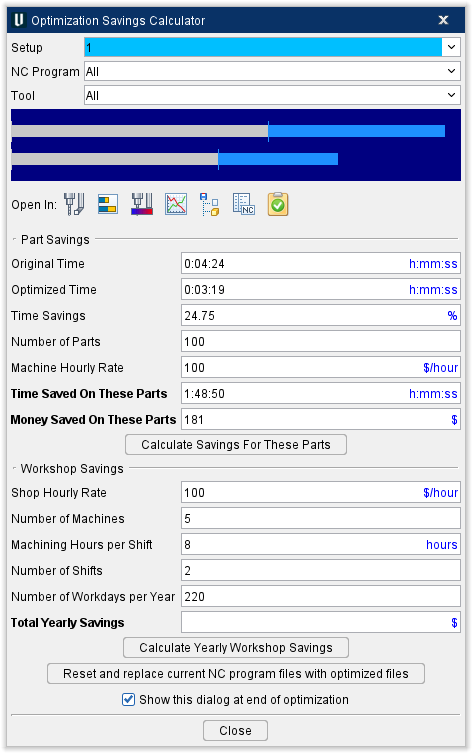
Setup — Use this dropdown to select which setup to calculate savings for.
NC Program — Use this dropdown to select which NC Program file to calculate savings for.
Tool — Use this dropdown to select which Tool to calculate savings for.
Part Savings
Original Time (hh ss) — Vericut automatically populates the Original Time field using the log file's Original Total Time: value as the default in the format Hours:Minutes. If the Original Total Time: value does not exist, zero is used as the default. You have can modify the value as appropriate. Once you modify the default, the value is stored in the preferences file and will be used by Vericut as the new default value.
Optimized Time (hhss) — Vericut automatically populates the Optimized Time field using the log file's Optimized Total Time: value as the default in the format Hours:Minutes. If the Optimized Total Time: value does not exist, zero is used as the default. You can modify the value as appropriate. Once you modify the default, the value is stored in the preferences file will be used by Vericut as the new default value.
Percent Time Savings (%) — Vericut automatically populates the Percent Time Savings field using the log file's Total Time Difference: value as the default. If the Total Time Difference: value does not exist, zero is used as the default. You can modify the value as appropriate. Once you modify the default, the value is stored in the preferences file will be used by Vericut as the new default value.
Number of Parts — Enter the number of parts to be made in this field.
Machine Hourly Rate ($/hour) — Enter the hourly rate of the machine to be used to cut the parts in this field.
Time Saved On These Parts (hhss) — Vericut displays the calculated time saved on these parts in this field in the following format Hours:Minutes. The value is calculated as follows:
- Time Saved On These Parts = (Original Time – Optimized Time) * Number of Parts
Money Saved on These Parts ($) — Vericut displays the calculated money saved on these parts in this field. The value is calculated as follows:
- Money Saved on These Parts = Time Saved On These Parts * Machine Hourly Rate
Calculate Savings for These Parts — Click on the Calculate Savings for These Parts button to calculate Time Saved On These Parts and Money Saved on These Parts.
Workshop Savings
Shop Hourly Rate ($/hour) — Enter your shop’s hourly rate in dollars per hour in this field.
Number of Machines — Enter the number of machines in your shop in this field.
Machining Hours per Shift (hours) — Enter the number of machining hours per shift in this field.
Number of Shifts — Enter the number of shifts per day in this field.
Number of Work Days per Year — Enter the number of working days per year in this field.
Total Yearly Savings ($) — Vericut displays your calculated yearly savings in this field. The value is calculated as follows:
- Total Yearly Savings = Shop Hourly Rate * Number of Machines * Machining Hours Per Shift * Number of Shifts * Number of Work Days Per Year * Percent Time Savings
Calculate Yearly Workshop Savings — Click on the Calculate Yearly Workshop Savings button to calculate Total Yearly Savings.
Reset and replace current NC program files with optimized files — Click on this button to convert existing NC program files to the optimized files.
Show this dialog at end of optimization — When toggled “On” (checked) this dialog is displayed at the end of Optimization processing.
Close — Closes the Optimization Savings Calculator window.