CAS Repair Utility
Location:
Utilities tab >  (CAS Repair Utility)
📝 NOTE: This function is not visible by default. It must be added via the Customize Ribbon menu before it is visible.
The CAS Repair Utility icon repairs Vericut Solid (VCT) cut stock model files saved with the Save CAS File Utility that are encountering compatibility errors with when loaded into CAS.
📝 NOTE: These incompatible files are overwritten by this system so be sure to only use this tool on the copies created by the Save CAS Utility.
Usage:
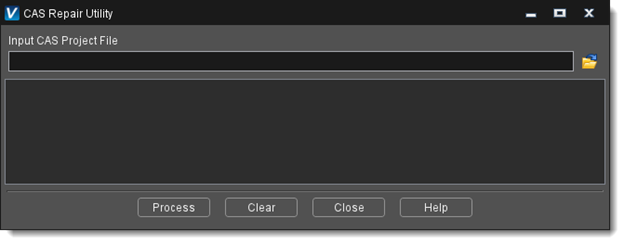
Input File — The CAS project (VCTMP) file. Enter the /path/filename in the Input CAS Project File text field or click on the  (Browse) icon to display the Select Input File file selection window and use it to specify the /path/filename.
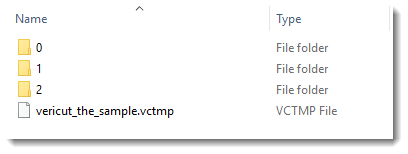
📝 NOTE: It is important that the numbered directories that contain files for different setups are in the same directory as the CAS Project file.
Process — Process (repair) the CAS File data. Error and informational messages from the process are sent to the CAS Repair Utility window message area.
Clear — Clears the CAS Repair Utility window message area.
Close — Closes the CAS Repair Utility window.
Help — Displays this Help page. (You can also use the F1 key to display this Help page.)