Configure NC Subroutines Branch menu
Location:
Project Tree > NC Subroutines branch (Configure “on”)
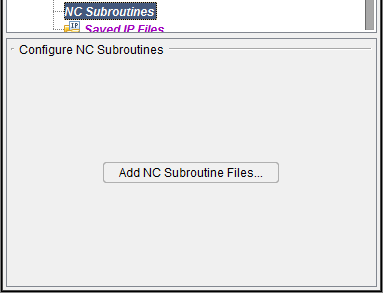
Add NC Subroutines Files — Opens the NC Programs file selection window enabling you to add one or more external subroutine files.
Configure NC Subroutine menu
Location:
Project Tree > NC Subroutine file (Configure “on”)
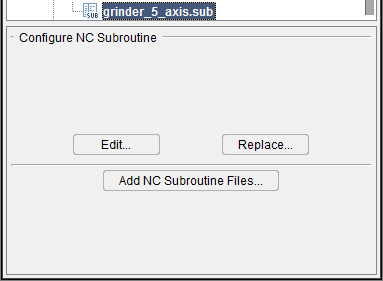
Edit — Opens the highlighted NC Subroutine in the NC Program Editor window.
Replace — Opens the NC Programs file selection window enabling you select one, or more external subroutine files to replace the NC subroutine files highlighted in the Project Tree.
Add NC Subroutine Files — Opens the NC Programs file selection window enabling you to add one or more external subroutine files.
Add, Modify, or Delete NC Subroutines
Subroutines, or "subs" for short, contain additional programming or machine commands, and can exist within a G-Code NC program file or reside in files separate from the main G-Code program. (See About Simulating Subroutines section of Vericut Help for additional information.)
To simulate data contained in external NC subroutine files, use the procedures described below to make Vericut aware of subroutine file names and locations.
To add a subroutine file to the NC Subroutines branch:
-
To add an NC subroutine file, in the Project Tree click in the NC Subroutines branch to display the Configure NC Subroutines menu, and then click on Add NC Subroutine Files to display the NC Programs file selection window.
You can also right-click on the NC Subroutines branch and select Add NC Subroutine Files in the menu that displays, or double-click on the NC Subroutines branch, to display the NC Programs file selection window. -
In the NC Programs file selection window that displays, select the NC subroutine file(s) to be added, then click OK. If needed, refer to Using the NC Programs file selection window section of Vericut Help.
The new NC subroutine file name(s) are added to the NC Subroutines branch.
To replace a subroutine file in the NC Subroutines branch with a different file:
- To replace an NC subroutine file with another, in the Project Tree right-click on the subroutine that is to be replaced and then select Delete from the menu that displays.
-
Click in the NC Subroutines branch to display the Configure NC Subroutines menu, and then click on Add NC Subroutine Files to display the NC Programs file selection window.
You can also right-click on the NC Subroutines branch and select Add NC Subroutine Files in the menu that displays, or double-click on the NC Subroutines branch, to display the NC Programs file selection window. -
In the NC Programs file selection window, type, or select the /path/filename of the replacement NC subroutine file, and then click OK.
The replacement NC subroutine file name is added to the NC Subroutines branch.
To delete a subroutine file from the NC Subroutines branch:
To delete an NC subroutine from the NC Subroutines branch, in the Project Tree right-click on the NC subroutine that is to be deleted and then select Delete from the menu that displays. The NC subroutine is removed from the NC Subroutines branch.
To delete all NC subroutines from the NC Subroutines branch, in the Project Tree right-click on the NC Subroutines branch and then select Delete All from the menu that displays. All subroutine are removed from the NC Subroutines branch.
Deleting subroutine files from the Vericut configuration does not delete the files from your computer.
To edit a subroutine from within Vericut:
-
To edit an NC subroutine, in the Project Tree right-click on the NC subroutine to be edited and then select Edit from the menu that displays.
-
The contents of the subroutine file will display in a text editor window. (see Text File in the Machine/Configuration tab section of Vericut Help for information about the text editor window). Edit the contents of the subroutine file as necessary. When finished editing, select File tab > Save Project (or Save As) in the text editor main menu to save your changes.
- Select Exit in the text editor main menu to close the text editor window.
Also see Advanced Control Options window: Subroutines tab and Add, Modify, or Delete Control Subroutines, in the Configure tab section of Vericut Help for information about "control" subroutines.
Also see Machine Settings window: Subroutines tab and Add, Modify, or Delete Machine Subroutines, in the Configure tab section of Vericut Help for information about "machine" subroutines.