Tool Manager window, Tool List Area and Coordinate Systems Area
The Tool List Area of the Tool Manager window contains a list of all tool assemblies and the components that make up each tool assembly for all of the tools contained in the current tool library file.
The Coordinate Systems Area of the Tool Manager window enables you to create and modify coordinate systems that can be used to orient tools and tool assemblies from within the Tool Manager. Both of these features are located on the left side if the Tool Manager window.
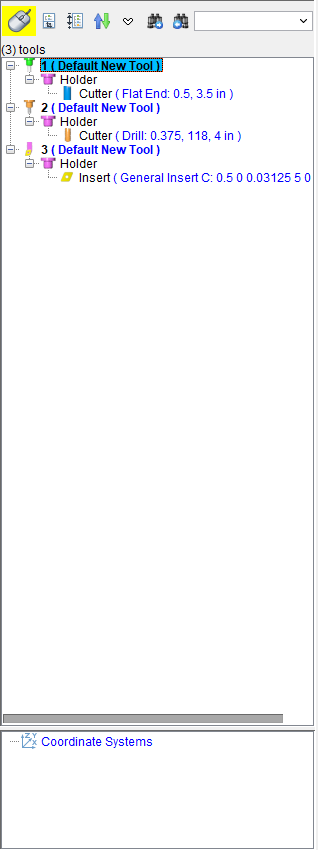
 /
/ Mouse Icon — When this icon is active (highlighted yellow), clicking on a part of the Tool Display window will cause the Tool List to highlight the relevant component. For instance, clicking the holder will cause the holder component line to become highlighted. When this icon is not active, this dynamic tracking is disabled.
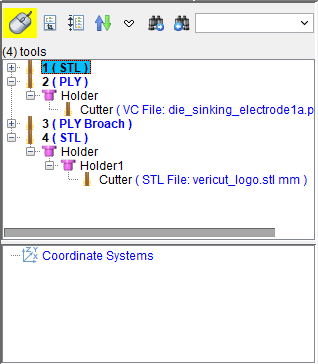
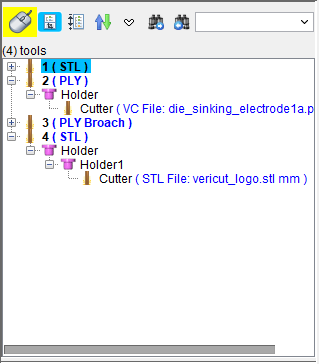
 (Expand/Collapse the Csys Window) — Click on the Expand/Collapse the Csys Window icon to hide the Coordinate Systems area from being displayed in the Tool Manager window. Click on the Expand/Collapse the Csys Window icon again to re-display the Coordinate Systems area in the Tool Manager window.
| Coordinate System area displayed | Coordinate System area not displayed |
|---|---|
 |
 |
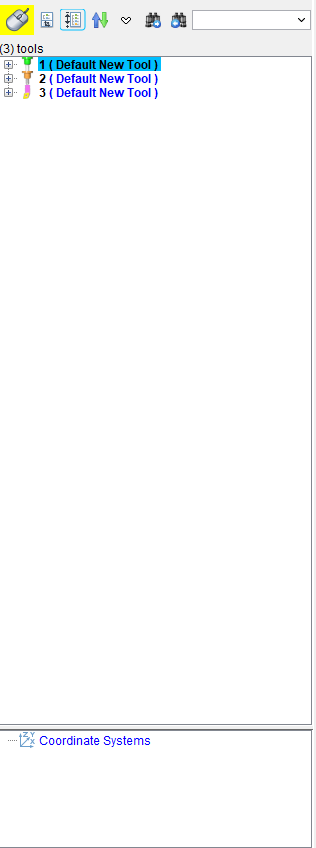
 (Expand/Collapse All Tool Components) — Click on the Expand/Collapse All Tool Components icon to display the tool components in the Tool List. Click on the Expand/Collapse All Tool Components icon again to remove the display of tool components in the Tool List.
| Tool components not displayed | Tool components displayed |
|---|---|
 |
|
 (Sort by Tool ID) — Use this feature to sort the tools in the Tool List Area.
Click on the Sort by Tool ID) icon to list the tools in the Tool List Area by Tool ID from lowest to highest. Click on the Sort by Tool ID) icon again to list the tools in the Tool List Area in the reverse order.
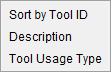
Click on the  to display a menu with the following options.
-
Sort by Tool ID — This feature provides the same functionality described above for the Sort icon.
Select Sort by Tool ID to list the tools in the Tool List Area by Tool ID from lowest to highest. Select Sort by Tool ID again to list the tools in the Tool List Area by Tool ID in the reverse order. -
Description — Use this feature to sort the tools in the Tool List Area by the tool descriptions.
Select Description to list the tools in the Tool List Area by description. Select Description again to list the tools in the Tool List Area in the reverse order. -
Tool Usage Type — Use this feature to sort the tools in the Tool List Area by the tool usage type (Mill, Hole Making, Turn, Probe, etc.).
Select Tool Usage Type to list the tools in the Tool List Area by tool usage type. Select Tool Usage Type again to list the tools in the Tool List Area in the reverse order.
 Search Forward — Searches forward in the Tool List for the text string specified in the Search Text field.
 Search Backward — Searches backward in the NC program listing for the text string specified in the Search Text field.
Tool Counter — Below the Mouse icon, a counter will display showing how many tools are in the Tool Manager.
Tool List Area
The Tool List Area provides a list of the tools/tool assemblies contained in the Tool Library. Each tool/tool assembly has a unique alpha-numeric text identifier (ID).
IDs typically correspond to tool or pocket numbers referenced by the tool change record that will call the tool from the library. For example, ID " " would normally be used for a tool called by a G-Code data block "T1M6", or an APT tool change record "LOADTL/1". However, you can use a tool list to cross-reference tools having IDs in a library that are different from those in the tool change record.
Hint: Use IDs and descriptions that make it easy for others to find the tools they need.
Each tool/tool assembly in the Tool Table includes information about the tool/tool assembly, tool components (cutters, holders, etc.) and other tool related records (Optimization, Driven Point, and Cutter Compensation) associated with it.
Tools
The following tool types are valid in a Vericut tool library file.
 Hole Making — Hole Making tools can have one, or more, of the following Tool Components associated with it: Revolved Cutters, Insert Cutters, and Holders. Hole Making tools can also have one, or more, of the following tool related records associated with it: Driven Point, and Cutter Compensation.
 Knife Tool — Knife tools can have one, or more, of the following Tool Components associated with it: Knife cutter and Holders. Knife tools can also have one, or more, of the following tool related records associated with it: Driven Point, and Cutter Compensation.
Tool Components
 Hole Making Tool — Hole Making Tool components are tools like drills, reamers, center drills and taps.
See Tool Component tab (Hole Making Tool) section of Vericut Help for additional information about taps.
 Knife — Knife components are used to define ultrasonic knife tools.
See Tool Component tab (Knife) section of Vericut Help for additional information about taps.
 Holder — Holder components are used to define a tool holder or the components of a tool holder assembly.
See Tool Component tab (Holder) section of Vericut Help for additional information about tool holders.
Tool Related Records
↘️ Shortcuts:
-
Double click a tool component in the Tool List Area to display the Tool Component tab to enable modification of the tool component.
-
Right-click in the Tool List Area to display a menu with the following features. The features that are available will vary slightly depending on the item that is highlighted.
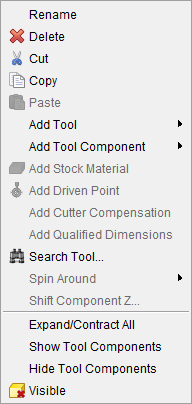
Rename — Use to rename the highlighted object in the Tool List Area.
Delete — Deletes the highlighted object from the Tool List Area.
Cut — Cuts the highlighted object in the Tool List Area and puts it in the paste buffer.
Copy — Copies the highlighted o in the Project Tree to the paste buffer.
Paste — Puts the contents of the paste buffer after the highlighted object in the Tool List Area. The Paste feature only becomes active after the Cut or Copy feature has been used.
Add Tool — Use to add a new tool assembly to the Tool List Area. Select the tool type from the menu that displays. Vericut will add a unique Tool ID but you can change it if you wish.
-
Hole Making — Adds a Hole Making Tool tool assembly after the highlighted tool in the Tool List and displays the Tool Component tab for Hole Making Tools enabling you to define the tool component in the new tool assembly.
-
Knife — Adds a Knife Tool tool assembly after the highlighted tool in the Tool List and displays the Tool Component tab for Knife cutters enabling you to define the knife cutter in the new tool assembly.
-
Standard Hole Making — Adds a Standard Hole Making Tool tool assembly after the highlighted tool in the Tool List and displays the Tool Component tab for Polisher tools enabling you to define the polisher tool in the new tool assembly.
Add Tool Component — Use to add a new tool component to an existing tool in the Tool List Area. Select the component type from the menu that displays.
-
Holder — Adds a Holder component to the highlighted Tool and displays the Tool Component tab for Holders enabling you to define the new holder component.
-
Cutter — Adds a Cutter component to the highlighted Tool and displays the appropriate Tool Component tab enabling you to define the cutter.
-
3DLive Holder Component — Adds a 3DLive Holder component to the highlighted Tool and displays the appropriate Tool Component tab enabling you to define the cutter.
Reference Tool — This option is only available when right-clicking a Tool Attachment Component. This feature allows you to reference one specific tool from a popup menu that generates. Reference tools must be defined in the tool library file.
Add Driven Point — Displays the Tool Information tab enabling you to add one or more a Driven Point records for the highlighted tool.
Add Cutter Compensation — Displays the Tool Information tab enabling you to add one or more Cutter Compensation records for the highlighted tool.
Search Tool — Displays the Search Tool window enabling you to search existing tool libraries for tools with specific attributes.
Spin Around — The Spin Around feature is only available for inserted tools. It enables you to specify whether to spin the tool around the Tool Axis (for example a right angle holder), or around the Machine Spindle axis.
Shift Component Z — The Shift Component Z feature displays the Z Offset window enabling you to specify an offset value for moving the highlighted tool component in the Z direction.
The Shift Component Z feature is not available under the following conditions:
- The highlighted tool component is part of a Turn tool assembly.
- When the highlighted item is an Stock Material record.
Expand/Contract All — Click on this feature to Expand (display all tool components) for all Tools in the Tool List Area. Click on it again to Contract (not display all tool components) for all Tools in the Tool List Area.
Show Tool Components — Use this feature to show all tool components for the highlighted tool in the Tool List Area.
Hide Tool Components — Use this feature to hide all tool components for the highlighted tool in the Tool List Area.
Visible — Use this to set the visibility of the Tool component.
Invisible — Use this to make several Tool components invisible at once. This feature is only available when multiple components are selected in the Tool List Area.
Z Offset window
The Z Offset window, accessed from the Tool Manager: Tool List Area right mouse button menu: Shift Component Z feature, enables you to specify an offset value for shifting the highlighted tool component in the Z direction.
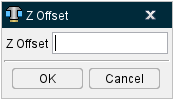
Z Offset — Use to specify an offset distance for shifting the tool component in the Z direction. Enter the offset distance in the Z Offset text field.
OK — Use OK to apply the specified Z offset distance and close the Z Offset window.
Close — Use to close the Z Offset window without applying the specified Z offset distance.
Coordinate Systems List Area
The features in the Coordinate Systems List Area enable you to create and modify coordinate systems that can be used to orient tools and tool assemblies from within the Tool Manager.
The Coordinate Systems area, located below the Tool List Area and above the Message area, is initially displayed empty as shown in the picture below.
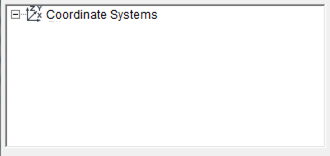
Once one or more coordinate systems are added, the Coordinate System area changes so that it is displayed in the following picture.
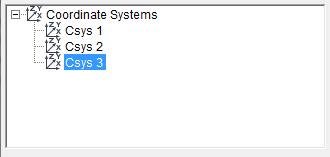
The Coordinate System area shows a list of all of the coordinate systems that have been created in Tool Manager.
↘️ Shortcut:
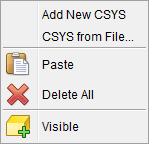
Right-click in the Coordinate System List area that has no coordinate systems defined to display a menu with the following features:
Right-click in the Coordinate System List area that has one or more coordinate systems defined to display a menu with the following features:
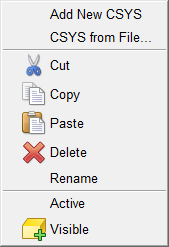
Add New CSYS — Adds a new CSYS to the Tool Manager, Coordinate Systems list. Vericut automatically provides a unique name for the CSYS. You can right-click on the default name and select Rename from the menu that displays to rename the CSYS if desired.
New coordinate systems are created with zero translation and rotation values and attached to the Tool origin. The newly added coordinate system is automatically selected in the Coordinate Systems list. Use the Configure Coordinate System menu to make any necessary modifications to the newly added CSYS.
CSYS from File — Displays a file selection box enabling you to specify the CSYS file to be used. Vericut will read the file and creates a CSYS attached to the selected tool.
Cut — Cuts the highlighted coordinate system in the Coordinate System list and puts it in the paste buffer.
Copy — Copies the highlighted coordinate system in the Coordinate System list to the paste buffer.
Paste — Puts the contents of the paste buffer after the highlighted coordinate system in the Coordinate System list.
Delete — Deletes the highlighted coordinate system from the Coordinate System list.
Rename — Use to rename the highlighted setup.
Visible — Use to make the highlighted coordinate system from the Coordinate System list visible, or not visible in the Tool Manager, Tool Display area. The Visible icon will indicate the visibility status of the coordinate system.  indicates "visible",
  indicates "not visible". Click on Visible to toggle between the two modes.
See Creating Coordinate Systems for Use in Tool Manager section of Vericut Help for information about using the Coordinate Systems area features.