PowerMill-to-Vericut Interface (PMV)
Overview
The PowerMill Interface is a licensed software tool that facilitates the seamless transfer of manufacturing data from PowerMill to Vericut
Software Requirements: PowerMill Interface
Licensing Requirements
CGTech Licensing:
PowerMill Interface
Installation & Configuration: PowerMill Interface
Using an Installer

To install the PowerMill-to-Vericut Interface (PMV), download the latest Vericut Software Release and run the powermill_interface_install.exe, then follow the step-by-step prompts to complete the installation.
You can download the installer from the Vericut website:
Request Latest Vericut Software Release
Environment variables: PowerMill Interface
To enable the PowerMill Interface to locate the necessary Vericut files, the following environment variables are available:
Environment Variables: Description & Example
CGTECH_INSTALL
Purpose: Defines the Vericut installation folder.
Example: For Vericut 9.7, set to: C:\Program Files\CGTech\Vericut 9.7
CGTECH_PRODUCTS
Purpose: Specifies the folder for the operating system running Vericut (windows64).
Example: For Vericut 9.7, set to:
C:\Program Files\CGTech\Vericut 9.7\windows64
LSHOST
Purpose: Defines the name of the license server computer.
Example: localhost
CGTECH_SINGLE_PLATFORM (Optional)
Purpose: Specifies if Vericut is running on a single platform.
Example: CGTECH_SINGLE_PLATFORM=YES
CGTECH_LOCALE (Optional)
Purpose: Used to set the Interface language. If you want the interface to use something other than US English, the variable can specify a file of localized text. If CGTECH_LOCALE is set to “abc” we take PowerMill.local from the “application\abc” folder. If CGTECH_LOCALE is not set English is the default.
Available Languages: French, German, Chinese, Czech, Portuguese, Nederlands, Italian and Japanese.
Example: CGTECH_LOCALE=French
Set up a Vericut icon: PowerMill Interface
To add an icon to the Toolbar
To access the Vericut Interface the Run Vericut  and Vericut Preferences
Steps to add the Vericut commands to the PowerMill Ribbon Bar:
-
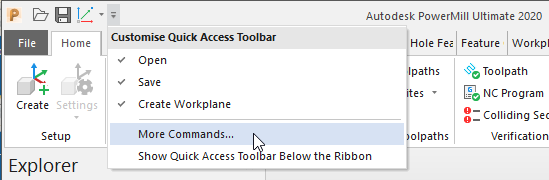
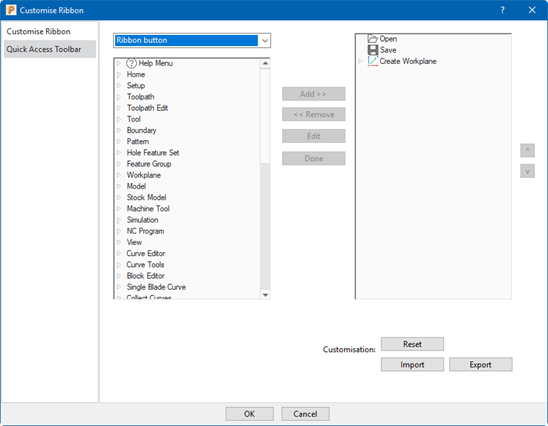
Select Customize Quick Access Toolbar > More Commands
-
Select Customize Ribbon
-
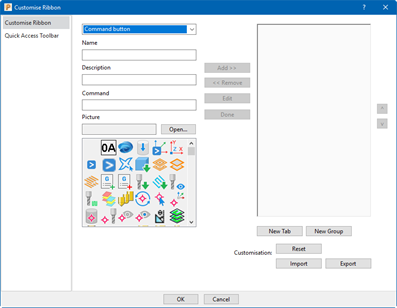
Select Command button
-
Select New Tab
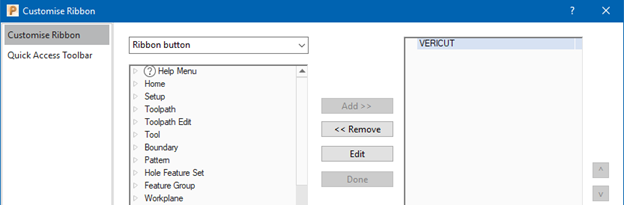
- Select Edit > Name: Vericut
-
Select Done
-
Select New Group
- Select Edit > Name: Vericut Interface
-
Select Done

-
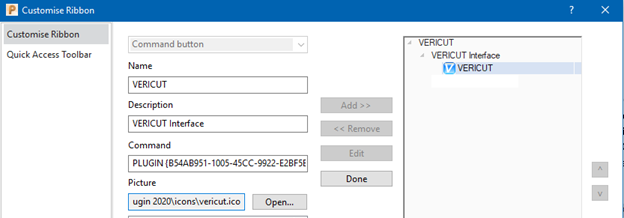
Add 2 Commands to the group
- Name: Export Projects
- Description: Vericut Interface
- Command: PLUGIN export project
- Picture: Select Open and browse
C:\Program Files\Autodesk\PowerMill Vericut Plugin\icons\vericut.ico -
Select Add
-
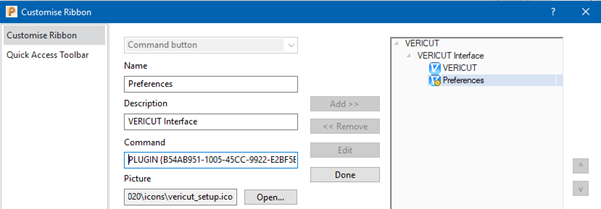
Name: Preferences
- Description: Vericut Interface
- Command: PLUGIN edit preferences
- Picture: Select Open and browse
C:\Program Files\Autodesk\PowerMill Vericut Plugin\icons\vericut_setup.ico -
Select Add
-
Select OK

Microsoft Redistributables: PowerMill Interface
The PowerMill-to-Vericut Interface (PMV) may require the installation of Microsoft Redistributables, specifically the Windows C++ run-time libraries. These libraries ensure compatibility and proper functioning of the interface, allowing seamless data transfer between PowerMill and Vericut for manufacturing simulation.
Note: A runtime library is a collection of low-level compiler support routines and functions that are used by virtually all programs compiled with GCC (GNU Compiler Collection) and can be downloaded here.
Documentation: PowerMill Interface
Overview: The PowerMill interface exports manufacturing data from PowerMill to Vericut, ensuring a seamless transition for simulation. It automatically configures the necessary Vericut setup requirements and launches the software, ready to process.
Vericut Setup Requirements:
To run a successful session in Vericut, the following steps must be completed:
1. Select a VMC (Vericut Machine Configuration) – Define the machine setup for simulation.
2. Select and Orient Stock, Fixture, and Design Models – Ensure correct positioning of components.
3. Select NC Programs & Subroutines – Load the necessary machining programs.
4. Define Cutting Tools – Specify the tools used in the machining process.
5. Define Work Offsets Tables – Configure coordinate systems for accurate machining.
Accessing the PowerMill-to-Vericut Interface
Overview
The PowerMill-to-Vericut Interface consists of two windows:
Run Vericut window and Vericut Preferences
Run Vericut: This window contains features that enable you to specify settings needed by the PowerMill-to-Vericut Interface to export a specific PowerMill part and associated machining data to a Vericut project file, save the settings and then run the project file in Vericut.
Vericut Preferences: This window contains features that enable you to specify how you want the Vericut window to be displayed and specify a list of Project Template files and a list of Setup Template files that will be displayed and available for selection in the Vericut window. It also contains features that enable you to specify what features that you want displayed in the Vericut window and what the default values for those features should be.
To activate the Vericut Interface, select Run Vericut icon from the ribbon
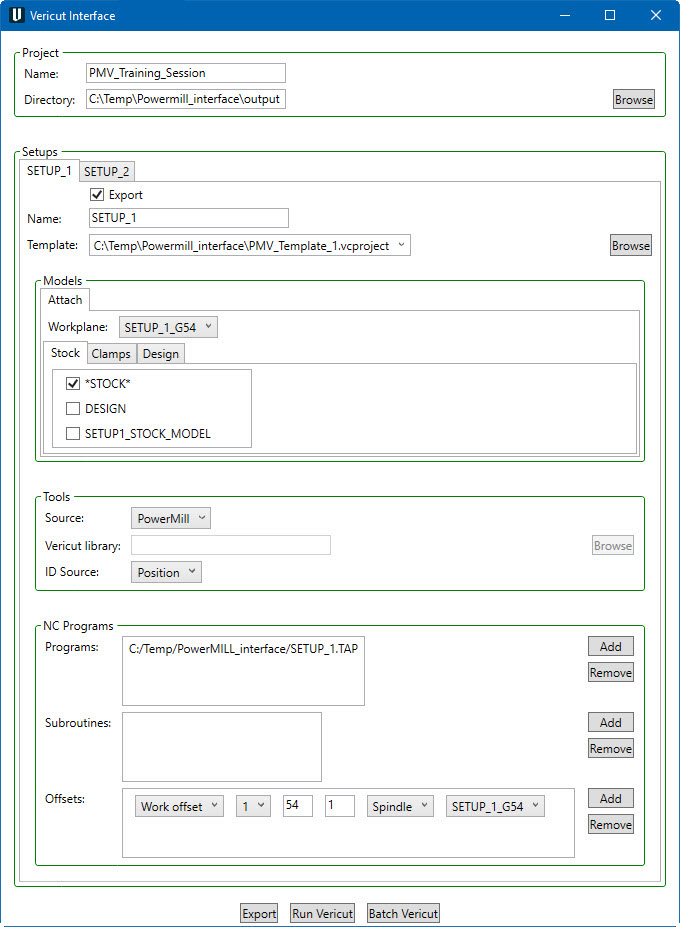
When you trigger PMV, you should see a window similar to this:
Important Note:
The PowerMill interface requires an active NC Manufacturing file to function properly with Vericut.
License Handling
- The interface checks out a license when opened.
- The interface checks in the license when closed.
Project
The Project section contains settings that apply to the entire project

Name: Use to specify the name of the Vericut project file to be exported. The project name will appear in Vericut, is used for the names of exported files, and may be used for the output directory.Enter the name for the Vericut in the text field. The default project name is the name of the PowerMill part.
Directory: Use to specify the full path to the output directory that files for the Vericut project will be written to. Enter the full path in the text field or click on the Browse button and use theBrowse for Folder window that displays to specify the path to the output folder. The default value is built from values specified in the Vericut Preferences window.
NOTE: The directory will be created if it does not already exist,but the parent directory must already exist.
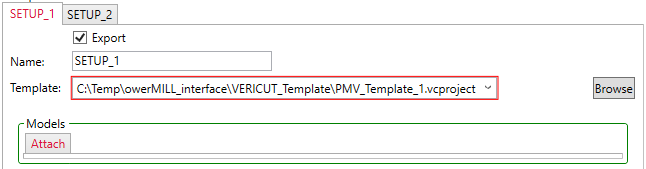
Invalid Settings in the Vericut window: When a setting in the Vericut window is not valid, it will be enclosed in a red box and a white exclamation mark in a red circle will be displayed. If the invalid setting is in the Setups section of the Vericut window, the tab showing the setup name will also be enclosed in a red box. In the case where there are multiple setups, all setups that have invalid settings will have the tab showing the setup name enclosed in a red box. If you hold the cursor over the enclosed area, an explanation of the problem will be displayed.
Making Multiple Selections in the PowerMill-to-Vericut Interface: To select multiple objects in the PowerMill-to-Vericut Interface, try these techniques:
-
Select multiple files in sequence: Click the first object in the sequence, then press and hold the Shift key while clicking on the last object in the sequence. The first, last and all objects between will become highlighted.
-
Select additional individual files: Press and hold the Control key while selecting each additional object. Each will become highlighted. With either method, selecting an object a second time,while holding down the Control key, un-selects the object.
Setups
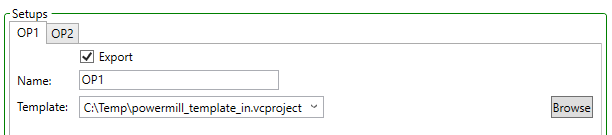
The Setup features are applicable to a specific setup. A PowerMill part can contain one or more setups. For each setup in the part, a Vericut setup will be written to the Vericut project file. The settings for each setup are displayed on a separate tab. The tab heading is the name of the PowerMill setup that these settings apply to. Click on the tab to change to a different setup.
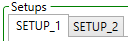
Tabs The tab heading is the name of the PowerMill sequence that these settings apply to. The name will be enclosed in a red box if any of the settings for the associated setup are not valid.
All of the PowerMill Setups Groups shown are available in thru tabs list. Use the tab to select the setup that you want selected settings to be applied to. When a setup is selected from the list, the Settings for setups is updated so you can see at a glance which operation you are selecting settings for.
Export: When toggled on (checked), the setup will be exported to the Vericut project file. This is the default. When toggled off (not checked) the setup will not be exported. This condition is useful to enable exporting only those setups that you are currently working on.At least one setup must be exported to the Vericut project file. When a PowerMill part contains no setup, and thus one setup, the export checkbox is automatically toggled on (checked) but is not be displayed except when you are in Full display mode.
Name: Use to specify the name of the Vericut setup. The setup name will appear in Vericut, and is used for the names of some exported files. The name can be modified in the Name text field. The default setup name is the name of the PowerMill setup.
Template: A Template is an existing Vericut project file to be used for the current setup. The setup template file contains information used by Vericut to display and simulate the machine used for the current setup. Select the setup template from the pull-down list of templates previously specified in the Vericut Preferences window that matches the machine used for the current sequence. If the appropriate setup template is not found in the pull-down list, click on the Browse button and use the Setup Template file selection window to specify the setup template. The setup template is always displayed if there is no default template, or if there is more than one template to choose from.
Models
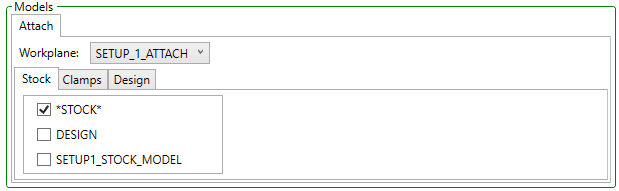
Attach: This section specifies how stock, fixture, and design models for the PowerMill part are to be attached to the Vericut machine. The resulting project file will direct Vericut to transform the PowerMill models so that the attach is aligned with the attach component (same position and orientation) of the machine.
Component: The name of an attach component in the Vericut machine file that the stock, fixture, and design models should be aligned with. Only displayed when there is more than one attach component in the Vericut machine file.
Workplane: Use this option to select a Workplane to represent the Vericut Attach component. Default is the one defined in the Setup parameters. Workplanes in a PowerMill part are transferred to a Vericut project as coordinate systems, which are hidden until the user selects them in the Vericut View Axes dialog. For each setup, only Workplanes which are referenced either in the corresponding PowerMill sequence,
Geometric Models: The PowerMill-to-Vericut interface transfers the geometric models for stock, fixtures, and design for the part inPowerMill to the Vericut project.
Stock: All selected stock models are output to all setups. Default is the one defined in the Setup parameters.
Clamps: Only active Clamps are outputted to a setup. Default is the one defined in the Setup parameters.
Design: All selected Design models are output to all setups.
Tools
This section contains settings that control where the tools for the tool library of the current setup are extracted from.

Source: Use the Source pull-down list to specify the where tool information should be obtained from. Choose one of the following:
- None: No tools will be exported.
- PowerMill: Tools will be extracted from the PowerMill part file.
- Vericut: Tools will be taken from the specified tool library.
- Merge: Tools will be extracted from both the PowerMill part and the specified Vericut tool library.
Vericut library: This feature is only active when Source is set to Vericut or Merge. Enter the path/filename of the Vericut tool library file in the text field or click on the Browse button and use the Vericut Tool Library file selection window that displays to specify the path/filename.
ID Source: Specifies what to use as the ID for tools:
- Position: Use the number of the tool defined in the PowerMill Tool definition
- Name: Use the name of the tool defined in the PowerMill Tool definition
- Description: Use the description of the tool, or the comment if the description is empty
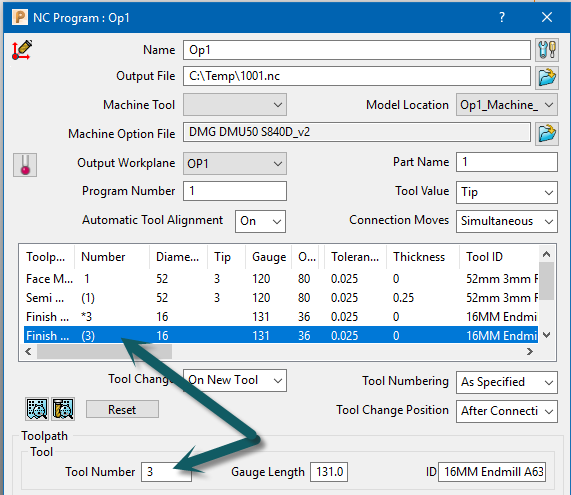
Note: If Position is selected interface will look in the corresponding NC program settings for output tool ID from the postprocessor. Based on this setting, the interface will create a ToolChange list in Vericut.
NC Programs
The NC Programs features enable you to add or removeNC programs, NC Subroutines, and G-Code offsets to be used for the current setup. This section is always displayed regardless of theDisplay mode set in the Vericut Preferences window.
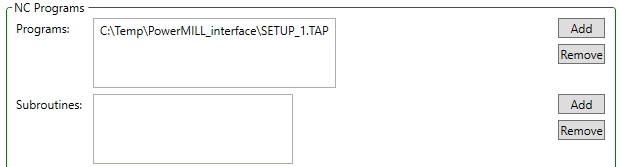
Programs: Use to specify the NC program files to be used for the current setup.
Subroutines: Use to specify the NC Subroutine files to be used for the current setup.
Add Selecting the Add button displays the file selection window enabling you to add file(s) to the list.
Remove After highlighting one, or more, files in the list,select the Remove button to remove the selected file(s) from the list.
Offsets
Optional list of G-Code offsets. The features in this section enable you to define Work Offset tables used to define the NC program origin. Available tables are Program zero, Work offset,and Base work offset

Table name for offset: Select the table name for the offset from the pull-down list. The following tables are available:
Program zero: The Program Zero table is used to specify the programmed zero location of a G-Code NC program file taking ToolLength Compensation into consideration.
Base work offset: The Base Work Offset table is used to specify the location from which work offsets are based.
Work offset: The Work Offsets table is used to store the work coordinate system offset (fixture offset) values.
Note: A Work offset must be defined.
Vericut subsystem: Select the Vericut subsystem from the pull-down list.
G-code register number: Enter the G-Code register number in the text field. This field is only active when G-Code offset type is set to Program zero and Work offset.
G-code subregister number: Enter the G-Code subregister number in the text field. This field is only active when G-Code offset type is set to Work offset.
From component: Select the component that represents the "from"point for determining the offset from the From component pull-down list. Vericut will use the origin of the specified component.
To coordinate system: Select the coordinate system name that represents the "to" point for determining the offset from the To coordinate system pull-down list. The coordinates of the coordinate system origin are used as the "to" point.
Tip: Hold the cursor over any of the information fields in the offset record for information about what the field represents.
Add: Use this button to add G-Code Offset records in the Offsets list
Remove: After highlighting one, or more, G-Code Offset records in the Offsets list, select the Remove button to remove the selectedG-Code Offset records(s) from the list.
Note: Select between the information fields or an inactive field to highlight the record.
See Making Multiple Selections in the Introduction to the PowerMill-to-Vericut section above for additional information.
Vericut Preferences
The preferences dialog shown allows control over the default values for the export settings, and over which settings are displayed by the Vericut dialog. These preferences apply to all PowerMill parts. The preferences need to be setup when the PowerMill-to-Vericut interface is installed, and typically do not need to be edited often. Customers need not be aware of the preferences if they are setup by customer support.
Options
The options mode, along with a series of "Show" checkboxes, control options which affect for the Vericut dialog.
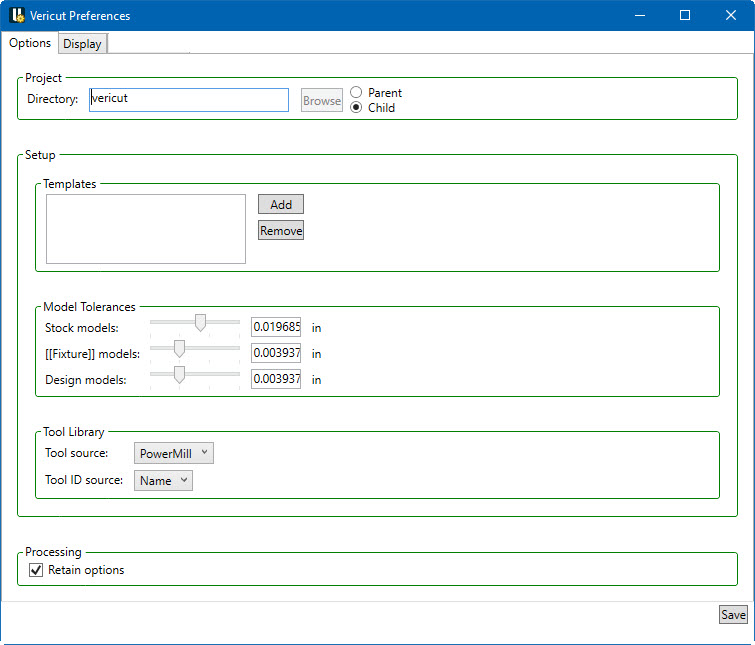
Project: The project section controls preferences for settings that apply to an entire project.
Directory: Specifies the part of the default value for the output directory. The full path of the output directory is built from two parts, a parent and a child, which are combined to form the path parent/child. If the Parent box is checked, then the value specified is used as the parent and the PowerMill part name is used as the child. If the Child box is checked, then the value specified is used as the child and the directory of the PowerMill part is used as the Parent.
Setup: The setup section controls preferences for settings that apply to each setup of a project.
Templates: Specifies a list of Vericut project files that can be used as setup templates. The field to left of each filename specifies which machine that the template can be used with. A single project file can be used with multiple machines by adding a separate entry in the list for each machine. The Vericut dialog will present only those templates that match the machine for the current setup.
Model Tolerances: Use the Model Tolerances to specify tolerance values for Stock, Fixture, and Design models
Tool Library: Specifies default settings for the tool library settings.
Retain options: The “Retain ptions” check box, if you hover over the text you will see a tool tip “Retain project options between sessions.” If the box is checked (the default), any changes to the project options (i.e. the options for exporting the project) are written into the PowerMill project, and if the part is subsequently saved then the project options are also saved inside the project. If the part is exported again in the future, the project options are loaded from the PowerMill project before showing the dialog to the user. If the box is not checked, then the project options are not read from the part and the dialog will show the options as if the part had never been exported before. Any changes to the project options will not be saved into the PowerMill project.
Save: The processing section controls preferences for running Vericut
Display
The display mode, along with a series of "Show" checkboxes, control which settings are displayed by the Vericut dialog.
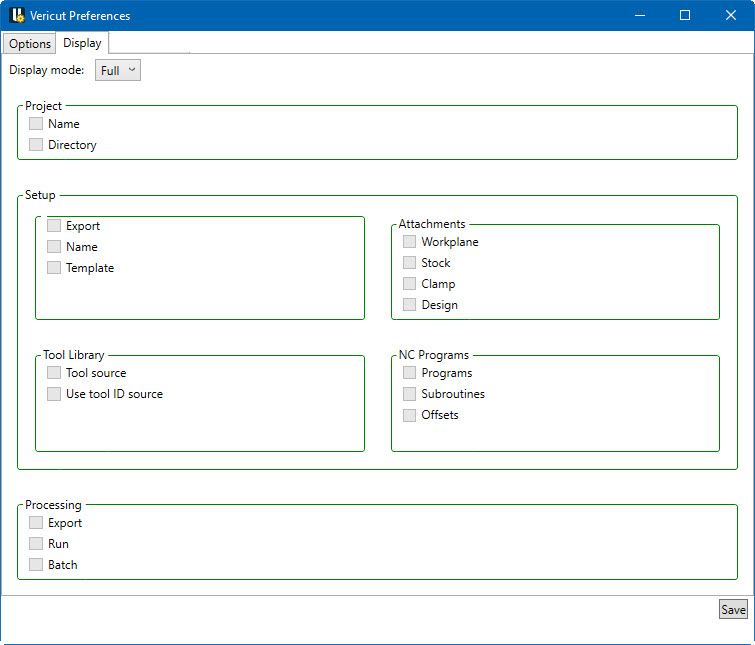
The following Display modes are provided:
Minimal: Only necessary settings are displayed, ignoring the "Show" preferences.
Custom: Settings that are checked are displayed, along with all necessary settings.
Full: All settings are displayed, ignoring the "Show" preferences. While the Full mode is useful for becoming familiar with the PowerMill-to-Vericut interface, either the Minimal or Custom mode should be used in production. A setting is considered necessary if the current value is not valid, if no default is available, or if more than one valid default is available. The "Show" preferences control which settings are displayed in the Custom display mode.
Project: The project section controls preferences for settings that apply to an entire project.
Setup: The setup section controls preferences for settings that apply to each setup of a project.
Processing: The processing section controls preferences for running Vericut
Save: The processing section controls preferences for running Vericut
Generate buttons
The processing section contains settings that control how Vericut is run.

Actions: The actions to be performed are determined by pressing one of the buttons in the bottom right corner of the dialog.
Export: Saves the settings to the PowerMill part, and then exports the part to a Vericut project. Does not run Vericut.
Run Vericut: Saves the settings to the PowerMill part, exports the part to a Vericut project, and then runs Vericut on the resulting project.
Batch Vericut: Use to specify the how you want to run Vericut. Then toggled on (checked), Vericut will be run in batch mode. When toggled off (not checked), Vericut will be run in interactive mode.
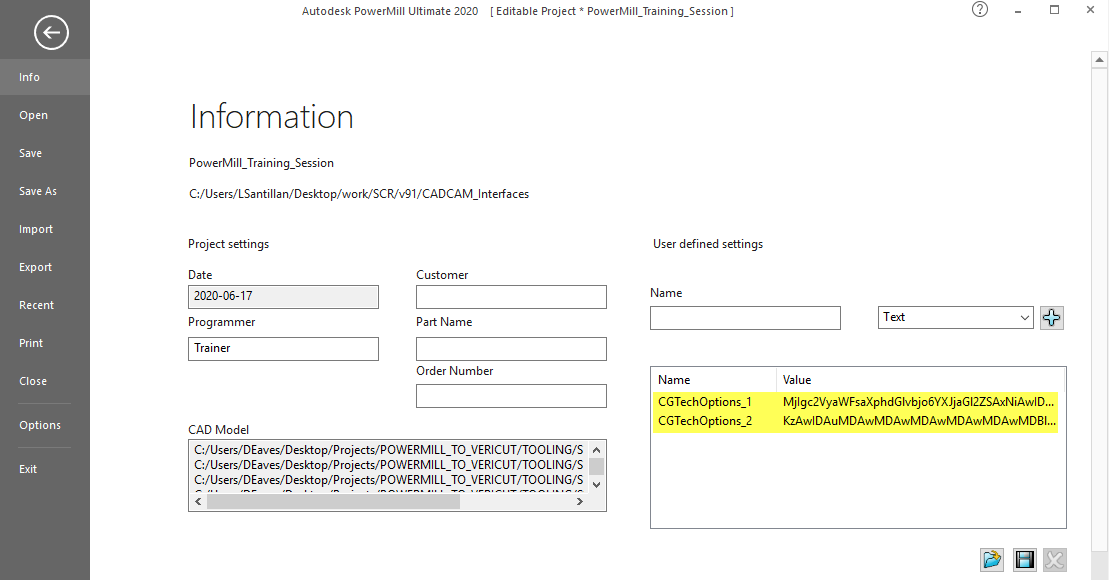
Note: On interface exit, it saves the settings to the PowerMill part, and then closes the dialog without taking any further action. Project settings (interface selection) are saved in the PowerMill user defined settings and cannot be monitored or changed by a user.
Preferences
Preferences File
Also known as 'prefs' file, stores all user specified 'global' settings for interface operation. The settings stored are called 'global' because they are responsible for overall look & feel and operational behavior of the interface. They are not tied to any specific PowerMill project. By default, 'Preferences' file is generated at:
C:\Users\username\AppData\Roaming\CGTech\PowerMillInterface\PowerMill_2020.0.0.prefs.
Log File
The PowerMill Interface writes a transaction log file (Vericut.log) to the PowerMill project folder.