File Summary window
Location:
File tab >  (File Summary)
Toolbar short cut: 
The File Summary command button opens the File Summary window that provides a summary of files with their creation dates, and environment directories, currently being used by Vericut. All standard text viewing features are supported, such as: search forward/backward, go to line number, print, etc.
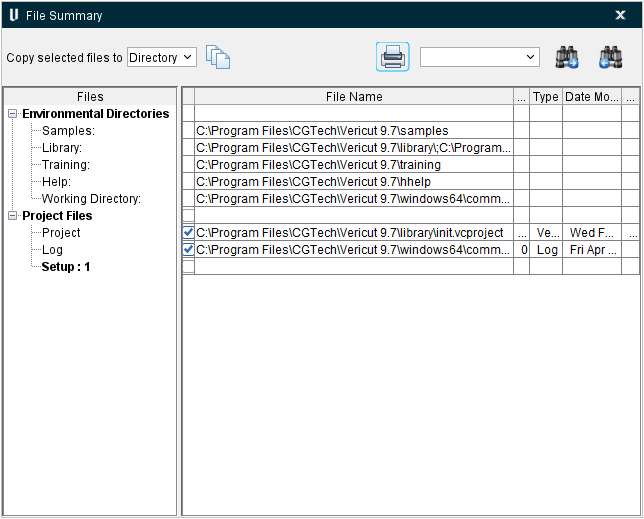
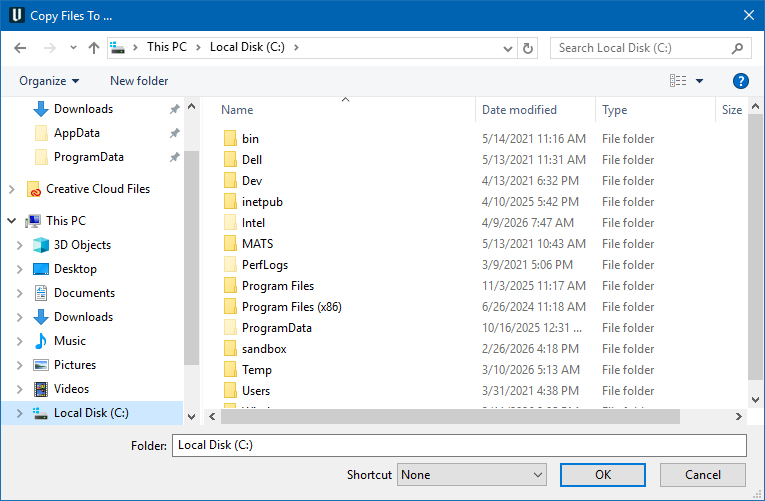
Copy selected files to — Use to specify where you want files copied to.
Directory — Select the folder from the pull-down list to copy selected files to.
Zip File — Select Zip File to copy selected files to a zip file.
Copy — Use to specify where you want the files copied to either Directory or Zip File.
 Print — The Print option opens a window enabling you to print the File summary window. Features on the window are standard print window features that enable you to access printer settings, specify number of copies, etc. Consult your printer documentation for more information.
Search Text — Use this text field to enter a string of text to search for.
 Search Forward — Searches forward in the file listing for the text string specified in the Search Text field.
 Search Backward — Searches backward in the file listing for the text string specified in the Search Text field.
 Close — Closes the File Summary window.
Files — The files column displays the directories and files currently being used in a tree type hierarchy similar to the Project Tree (ref. to the Project Tree section of Vericut Help for additional information).
Environmental Directories — Displays the *\path* to the Vericut directories (Samples, Library, Training and Help) and the *\path* to the Working Directory currently being used.
Project Files — Displays the files that apply to the whole project.
Setup: x — Displays the files associated with each setup.
Check Boxes — Click on the check boxes to select or deselect the files you want copied.
File Name — Displays the /path/filename if the file being used for the corresponding entity in the File Tree.
Size — Displays the size of the file being used.
Type — Displays the type of file (Control, Machine, Tool Library, etc.).
Date Modified — Displays the date and time that the file was last modified.
Units — Displays the units being used in the file.