Introduction to Run MyVirtual Machine (RMVM)
Overview
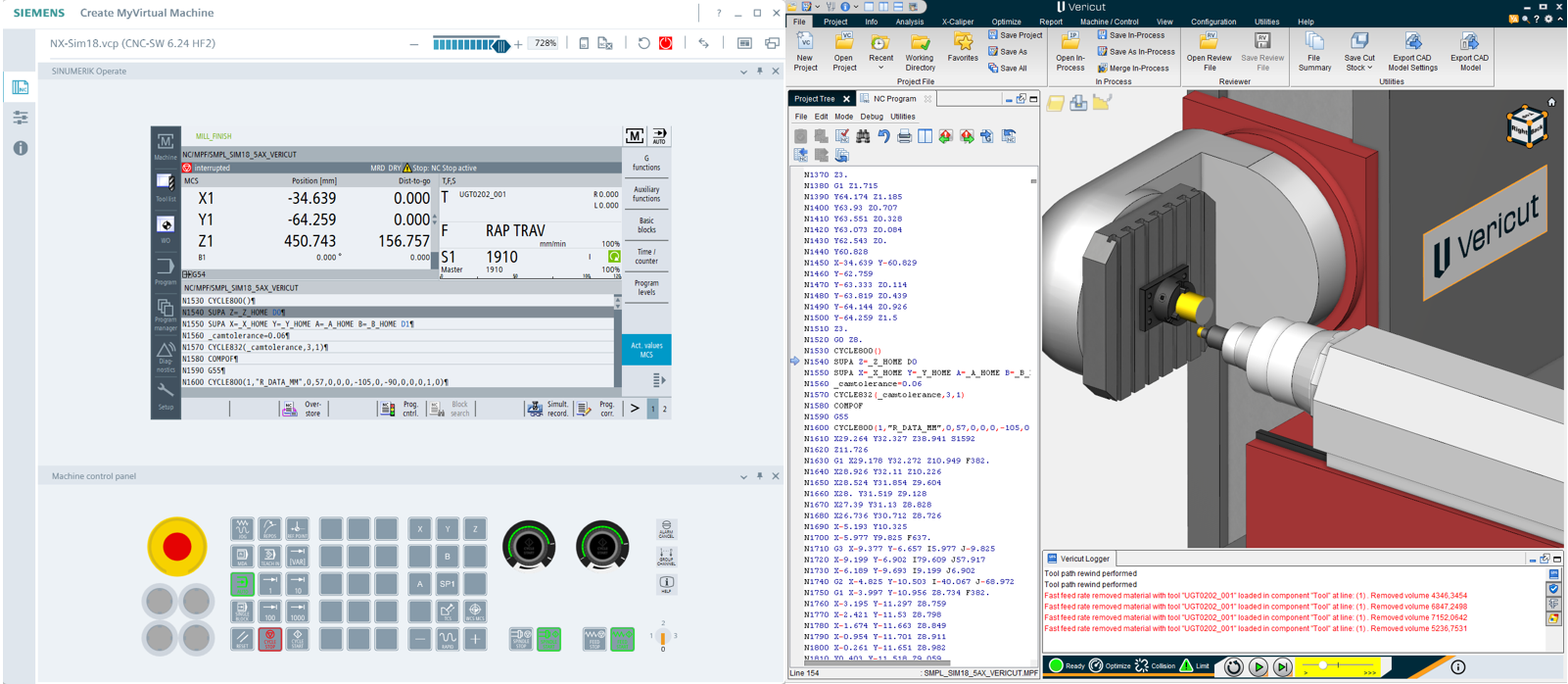
Run MyVirtual Machine (RMVM) enables Vericut to drive a Siemens MyVirtual Machine (MVM) digital CNC using real Sinumerik logic, PLC behavior, and machine‑specific NC archives.
This integration allows Vericut to simulate machining using the same control behavior that runs on the physical machine, providing highly accurate verification of kinematics, offsets, tool data, and cycle logic.
RMVM can be used alone or together with Create MyVirtual Machine (CMVM) when building or validating a VCP (Virtual Control Package).
Prerequisites
Software Requirements
Minimum Tested Version
- CMVM/RMVM 1.41 or later
Vericut Licenses
- Run MyVirtual Machine
- Standard simulation options:
- Verification
- Machine Simulation
- Multi-Axis
- Additional required simulation options
Siemens Licenses
RMVM
rmvm_openrmvm_operate
CMVM
cmvm_opencmvm_operate
Required Files
Vericut Machine Configuration (*.MCH)
Requirements:
- Kinematics must match the NC Archive exactly.
- Axis component names must match the
MACHAX_NAMEtable.
MyVirtual Machine Project (*.VCP)
Requirements:
- Provided by the Machine Tool Builder (MTB).
- Must include:
- NC Archive
- Generic PLC
If a VCP is not available, CGTech can create one using a Sinumerik One NC Archive (DSF) containing: - NC data - PLC data
Vericut Template Project
Requirements:
- Must contain the machine configured identically to the VCP.
- Kinematics must match the VCP configuration 1:1.
Workflow
1. Set Up MyVirtual Machine
Launch Run MyVirtual Machine or Create MyVirtual Machine.
In Project Overview:
- Select and load the VCP file.
- Click Boot project.
After booting:
- Set the Spindle Speed potentiometer to 100%.
- Set the Feedrate potentiometer to 100%.
- Confirm that no alarms appear.
2. Set Up the Vericut Project
- Open the Vericut project associated with the VCP.
- Navigate to Project Tree > NC Programs > Configure NC Programs.
- Set NC Program Type to Run MyVirtual Machine.
Vericut’s simulation controls switch to:
- Reset
- Pause
- Play
3. Running the Simulation
Reset
When Reset is pressed, Vericut sends a reset program to MVM.
The reset program:
- Clears transformations, such as:
G500CYCLE800TRAFOOF- Moves the machine to the Initial Machine Location defined in Vericut.
- Clears all tools.
Vericut does not display MVM’s reset motions to avoid unnecessary collision checks.
Play
When Play is pressed, Vericut configures the Sinumerik control with:
- G-code offsets
- Tools from Vericut’s Tool Library
- NC programs and subroutines
Vericut then instructs MVM to:
- Select the first main program.
- Enable spindle and feed.
- Begin execution.
Vericut receives and displays axis positions and tool data streamed from MVM.
Pause
When Pause is pressed, Vericut instructs MVM to pause execution.