Text File
Location:
Utilities tab >  (Text File)
The Text File command button opens a text editor window enabling you to open any ASCII text file and start editing. The following is a general description of the features available for searching for and editing text and tool path files throughout Vericut. The features available in a particular window may vary depending on the purpose of the window that they appear in.
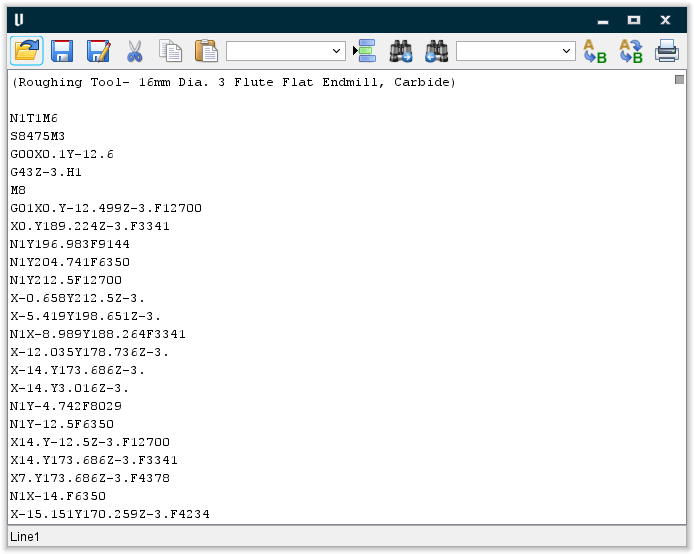
Icon Bar:

The items in the Icon Bar enable you to search for, and/or replace, specific items in the file listing, print the file, or exit the window. Moving the cursor over the icon will display name of the option. Each feature (from left to right) is described below.
 Open File — Open a file.
 Save File — Save the current file.
 Save As File — Save the current file under a different name.
 Cut — Cuts the highlighted text in the file listing and puts it in the paste buffer.
 Copy — Copies the highlighted text in the file listing to the paste buffer.
 Paste — Puts the contents of the paste buffer at the location of the cursor in the file listing.
Line Number or Search Text — Use this text field to enter a line number, or a string of text, to search for.
 Go to Line Number — Moves the cursor in the file listing to the line number specified in the Line Number or Search Text field.
 Search Forward — Searches forward in the file listing for the text string specified in the Line Number or Search Text field.
 Search Backward — Searches backward in the file listing for the text string specified in the Line Number or Search Text field.
Replacement Text — Use this text field to enter a "replacement text" string.
 Replace One — Replace one occurrence of text string in the Line Number or Search Text field (or the highlighted text in the file listing) with the text string in the Replacement Text field.
 Replace All — Replace all occurrences of the text string in the Line Number or Search Text field with the text string in the Replacement Text field.
 Print — Print the file.
 Close — Closes the window.
↘️ Shortcut: Right-click in the Text File Edit window to display the following menu:

These features provide the same functionality as those available under Edit in the menu bar.
Editing an ASCII Text File
Vericut provides a fast and easy way to edit any ASCII text file. All standard text editing features are supported, such as: copy/cut, paste, search, etc.
To edit an ASCII text file:
-
In the Vericut main Menu ribbon, click Utilities tab > Text File.
-
In the text editor window that displays, select Open Project in the text editor toolbar to display the Open file selection window.
-
In the file selection window, specify the /path/filename of the text file that you want to edit and then select Open. The contents of the text file will be displayed in the text editor window.
-
Edit the file as desired.
-
When finished editing the file, select File tab > Save Project in the text editor window menu bar to save the changes in the existing text file or select File tab > Save As (Project) in the text editor window menu bar to display the Save As file selection window and use it to specify the /path/filename of a new text file where you want the modified text saved.
Select File tab > Exit in the text editor window menu bar, or click on the (Close) icon in the text editor window toolbar to close the text editor window.