Call Stack, Call Stack panel
Location:
Info tab >  (Call Stack)
Toolbar short cut: 
The Call Stack panel enables you to track information like subroutine calls and which subsystem is currently active. The picture below shows the current status of three subsystems.
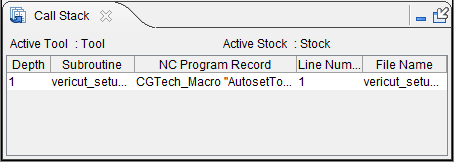
The Call Stack panel is one of the dockable panels enabling you to dock it inside the Vericut main window if you choose. See Personalizing the Vericut Main Window section of Vericut Help for additional information.
📝 NOTE: When the Call Stack panel is docked, make sure that you click in the panel so that it becomes the "active" panel before using F1 to get help specific to the panel. Otherwise F1 will go to the Vericut Help Library.
 (Close) — Located at the end of the tab, this icon enables you to close the Call Stack panel.
 (Close) — Closes the Call Stack panel. This icon is only displayed when the Call Stack panel is not docked.
The status of the record currently being processed:
Processing Current Record — The current record for the particular subsystem is still being processed. In the above Call Stack panel, subsystem 1 is still processing the current record. This feature corresponds to the  (Processing Current Record) marker used in the NC Program panel.
Finished Current Record — The current record for the particular subsystem has finished processing and is ready to go on to the next record. In the above Call Stack panel, subsystem 2 has finished processing the current record. This feature corresponds to the  (Finished Current Record) marker used in the NC Program panel.
Sync — The current record for the particular subsystem is a Sync code. The subsystem will remain in a “wait” state until the corresponding Sync code is encountered in the other subsystem(s). This feature corresponds to the  (Sync) marker used in the NC Program panel.
End Of File — The end of the NC program file for the particular subsystem has been reached.
Active Tool — Displays the name of the active tool component.
Active Stock — Displays the name of the active stock component.
📝 NOTE: The active stock defaults to the first stock in the component tree. If multiple stocks exist, the active stock needs to be specified.
Also see: ActivateToolSubsystem and SetActiveStockName, in the Vericut Macros section, in the Vericut Help Library.
Each record displays the following information:
Depth — Shows the depth, or level of subroutine calls. For example, in the picture above, Subsystem "2" shows 3 levels of subroutine calls. Depth 1 represents the main program, Depth 2 represents a subroutine (2001) which was called from the main program, and Depth 3 represents a subroutine (110) called from the Depth 2 subroutine.
Vericut supports up to 25 levels of nested subroutine calls.
Subroutine — Shows either the name of the main program, or subroutine, represented by the record.
NC Program Record — Shows the text of NC program record calling the subroutine.
Line Number — Shows the number of the line in the file represented by the record.
File Name — Shows the name of the file that the NC program, or subroutine, record is in.
💡 Tip:
The records in the Call Stack panel are linked to the NC Program (Info) panel. Clicking on the "calling" record in the Call Stack panel will highlight the corresponding block in the NC Program (info) panel. Clicking on a subroutine record in the Call Stack panel, highlights the first line in the subroutine in the NC Program (Info) panel.