NC Program Review
Location:
Analysis tab >  (NC Program Review)
The NC Program Review command button enables you to quickly and easily view, replay and edit a previously processed NC program (toolpath). NC Program Review can be accessed at any point in the verification process; however, only information related to the "current" setup is available for review. It does not interrupt the current verification status, so reset or rewind of the NC program is not necessary.
📝 NOTE: The following conditions must be met before a NC program can be viewed with NC Program Review:
-
The NC program must be processed far enough in Vericut so that a tool has been loaded and at least one tool motion has been processed after the tool is loaded.
-
There must be a model attached to the first "Stock" type component in the Component Tree.
- The first "Stock" type component must be visible in a workpiece view.
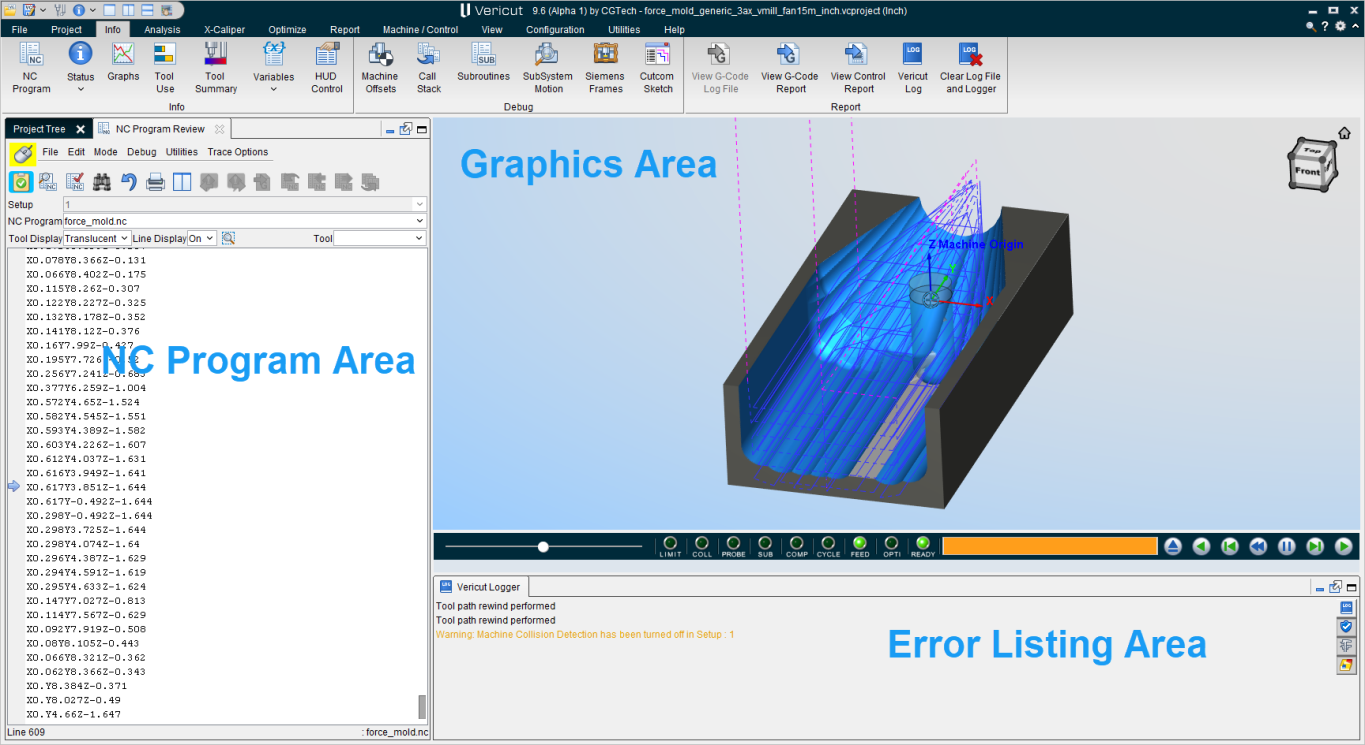
When you enter NC Program Review mode the Vericut main window changes in the following ways:
-
Some of the menus in the menu ribbon become grayed out and are no longer available. These include the File, Project, and Optimization tabs.
-
The icons in the Toolbar associated with the features in the menus listed above are also not available. If selected the message "Action not allowed in the NC Program Review panel" will display at the bottom of the Error Listing area.
- The graphics display will change and lines representing the actual tool paths will be displayed.
- The NC Program Review, Error Listing area, will replace the Vericut Logger.
- Two additional icons,
 (Step Backward) and
  (Play Backward) are added to the Simulation (VCR) Controls.
 - The NC Program Review panel will display. If the NC Program panel is already displayed, it will be replaced by the NC Program Review panel.
Each of these changes is described in detail in the sections that follow.
The NC Program Review main window is composed of three distinct areas, each with different user interaction. The window header displays the current NC program file. This window can be moved and resized like most other windows, via dragging the window header, sides or corners. In addition, the size of the NC Program Listing, Error Listing, and Graphics areas can be changed within the main window by dragging the adjoining sides of each area.
NC Program Review enables you to quickly and easily associate the NC program record, the motion resulting from it, and any errors that may be associated with it. The three areas of the window are linked together so that if you select a NC program record in the listing, the tool moves to the corresponding location in the graphics area. If you select a location in the graphics area, the corresponding NC program record is highlighted in the NC program listing. If you select an error in the error listing, the NC program record that caused the error becomes highlighted in the NC program listing and the tool moves to the position where the error occurred in the graphics area.
NC Program Listing — This area displays a listing of the NC program records. In this area you can manually edit, add, or delete NC program records. Save the modified NC program file or open another NC program file associated with the current project file. You can also set Start and End markers to define the range of NC program records that you want to review. For more information about this portion of the NC Program Review main window, see the NC Program Listing Area section below.
Error Listing — This area displays a list of the errors that Vericut found while processing the NC program. For more information about this portion of the NC Program Review main window, see the Error Listing Area section below.
Graphics Area — This area displays a visual representation of the motion associated with the records in the NC Program Listing. Here you can control how the tool is displayed, the method and direction of the replayed NC program as well as the speed of the replay. For more information about this portion of the NC Program Review main window, see the Graphics Area section below.
NC Program Review, NC Program Listing Area
The NC Program Review panel, or NC Program Listing panel, contains a listing of the NC program records. Features in this panel enable you to edit, save, or print the NC program, and define display characteristics, and ranges for replay of the NC program.
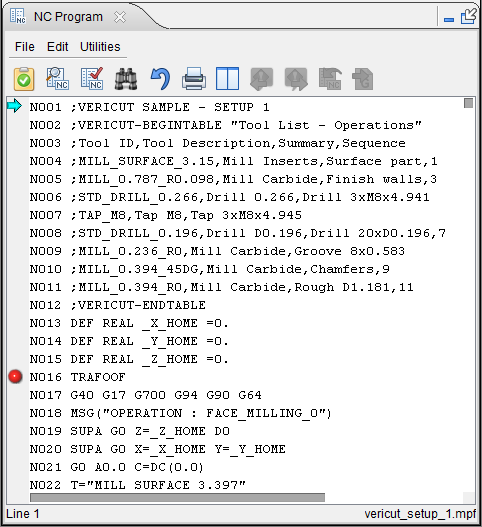
The NC Program Listing panel is one of the dockable panels enabling you to dock it inside the Vericut main window if you choose. See Personalizing the Vericut Main Window section of Vericut Help for additional information.
📝 NOTE: When the NC Program Listing panel is docked, make sure that you click in the panel so that it becomes the "active" panel before using F1 to get help specific to the panel. Otherwise F1 will go to the Vericut Help Library.
 (Close) — Located at the end of the tab, this icon enables you to close the NC Program Listing panel.
 (Close) — Closes the NC Program Listing panel. This icon is only displayed when the NC Program Listing panel is not docked.
Main Menu
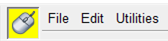
The menu located across the top of the NC Program Listing panel provides easy access to major NC Program Listing functions. Each menu contains groups of related functions. Left-click on any of the menu names to display the list of functions available in that menu. Click on the function in the pull-down menu that you want to use. The name of the current NC program file is also displayed in this area.
 (Mouse active to enable mouse tracking and picks, inactive to disable.) — Use this icon to designate that the NC Program Review panel is the panel that picks in the Vericut graphics area are to be applied to. When “Active”, the icon is displayed in the Mouse Pick Highlight Color specified in the Configuration tab > Preferences window. When “Inactive”, the
  icon is displayed.
File
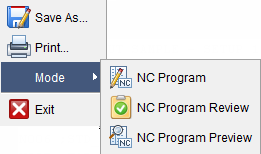
Save As — Save the current NC program file under a different name.
Print — Displays a window enabling you to specify print characteristics and print the NC program.
Mode — Use to specify the Vericut Simulation mode that you want to work in. Choose one of the following modes from the pull-down list:
-
NC Program
-
NC Program Review
-
NC Program Preview
Exit — Closes the NC Program Listing panel and returns to standard Vericut mode.
Edit
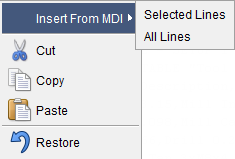
Insert from MDI — This feature is not applicable to NC Program Listing panel.
Cut — Cuts the highlighted text in the NC program listing and puts it in the paste buffer.
Copy — Copies the highlighted text in the NC program listing to the paste buffer.
Paste — Puts the contents of the paste buffer at the location of the cursor in the NC program listing.
Restore — use to remove all edits from the NC program listing restoring it to its pre-edited state.
↘️ Shortcut: You can also access the Edit menu features by clicking the right mouse button in the NC Program listing area.
Utilities
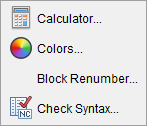
Calculator — Opens the Calculator window enabling you to do mathematical calculations and conversions inside Vericut. See Calculator window section of Vericut Help for additional information.
Colors — Opens the NC Program Colors window enabling you specify colors for specific features (comments, variable, macros, etc.) in the NC Program listing. See Colors window in the Info tab section of Vericut Help for additional information.
Block Renumber — Opens the Block Renumber window enabling you to renumber one, or more blocks, in the NC program and specify format characteristics to be used for block numbering. The formats specified must conform to the characteristics defined in the current control file. See Block Renumber window in the Info tab section of Vericut Help for additional information.
Remove Block Numbers — Removes all block numbers from the NC program file. Block numbers are identified by the characteristics defined in the current control file.
Check Syntax — Displays the Check Syntax window enabling you to check the displayed NC program for syntax errors. See Check Syntax window in the Info tab > NC Program section of Vericut Help for additional information.
Icon Bar

The items in the Icon Bar enable you access NC Program Preview or the Check Syntax window, search for specific items in the NC program listing, print the NC program listing, or exit NC Program Review. Moving the cursor over the icon will display the name of the option.
 (NC Program Review) — Use this icon to switch between standard Vericut mode and NC Program Review mode.
 (NC Program Preview) — Use this icon to put Vericut in NC Program Preview mode and display a tool trace represented by the NC program and the design model. This feature can be used without processing the NC Program first, as required by NC Program Review. See NC Program Preview section of Vericut Help for additional information.
 NC Program Syntax Check — Displays the Check Syntax window enabling you to check the displayed NC program for syntax errors. See Check Syntax window in the Analysis tab section of Vericut Help for additional Information.
 Search — Displays the search tools window as shown in the panel below.
💡 Tip: You can also use the Ctrl + “F” key to display the search tools window.

-
Line Number or Search Text — Use this text field to enter a line number or a string of text to search for.
-
 Go to Line Number — Moves the cursor in the NC program listing to the line number specified in the Line Number or Search Text field.
 -
 Search Forward — Searches forward in the NC program listing for the text string specified in the Line Number or Search Text field.
 -
 Search Backward — Searches backward in the NC program listing for the text string specified in the Line Number or Search Text field.
 -
Replacement Text — Use this text field to enter a "replacement text" string.
-
 Replace One — Replace one occurrence of text string in the Line Number or Search Text field (or the highlighted text in the NC program listing) with the text string in the Replacement Text field.
 -
 Replace All — Replace all occurrences of the text string in the Line Number or Search Text field with the text string in the Replacement Text field.
 -
 Close — Closes the display of the search tools window.
💡 Tip: You can also click on the (Search) icon again to remove the display of the search tools window.
 (Undo Highlighted Changes) — Use this feature to undo changes made to the NC program listing. Highlight the change and then click on the icon to "undo" the change.
 (Print) — Prints the NC program listing.
 /
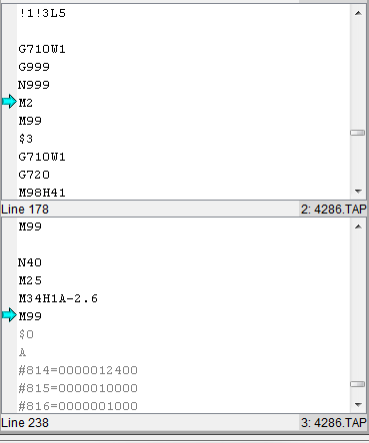
/ (Tile Horizontally/Tile Vertically) — When running 'sync' jobs that run multiple NC programs simultaneously, this feature enables you to tell Vericut that you want to view the NC program listings tiled horizontally as shown in the picture below.
 Go To Next Error — Navigates the NC Program to the next error and highlights the error for added visibility. This icon only appears when errors are present. Errors display in red.
 Go To Previous Error — Navigates the NC Program to the previous error and highlights the error for added visibility. This icon only appears when errors are present. Errors display in red.
 (Back to NC Program) — This icon is normally grayed out except under specific conditions.
On the All or RecentVariables panel, right clicking on a variable from a Control INIT File, a Machine INIT File, or a Run Time variable will display a pop-up menu. Selecting either the Define At or Last Updated option from the menu will display the control INIT, Machine INIT, or NC program file where the variable was defined or last updated. The record where the variable was defined or last updated will be highlighted.
The Back to NC Program feature will become active and clicking on it will re-display the currently running NC Program in the NC Program panel.
 View G-Code Log File — Pulls up the G-Code Log File. This features is grayed out until the G-Code Log File is created and Debug settings are specified in the Settings window > G-Code Outputs tab.
(Tile Vertically) — When running 'sync' jobs that run multiple NC programs simultaneously, this feature enables you to tell Vericut that you want to view the NC program listings tiled vertically as shown in the picture below.
(Back to NC Program) — This icon is normally grayed out except under specific conditions. Refer to Back to NC Program Panel for more information.
(Close) — Closes the NC Program Listing panel and returns to standard Vericut mode. This icon is only displayed when the NC Program Listing panel is docked.
(Close) — Closes the NC Program Listing panel and returns to standard Vericut mode. This icon is only displayed when the NC Program Listing Area panel is not docked.
Other Features

Setup — enables you to specify the Setup that you want to review. Choose the desired setup from the pull-down list. All of the setups contained in the current project file will be displayed in the pull-down list.
NC Program — enables you to specify the NC program in the Setup selected above that you want to review. Choose the desired NC program from the pull-down list. All of NC programs contained in the selected Setup will be displayed in the pull-down list.
Line Display — enables you to specify whether or not to display the lines representing the tool's path in the graphics area while in NC Program Review. Choose Off (do not display), or On (display) from the pull-down list.
Tool Display — enables you to specify how the tool is to be displayed in the graphics area while in NC Program Review. Choose Off (do not display tool), Solid, or Translucent from the pull-down list.
Tool — enables you to select a tool by number which sets a start and end marker to the range of the tool being used. Field is initially left blank.
NC Program Listing Area
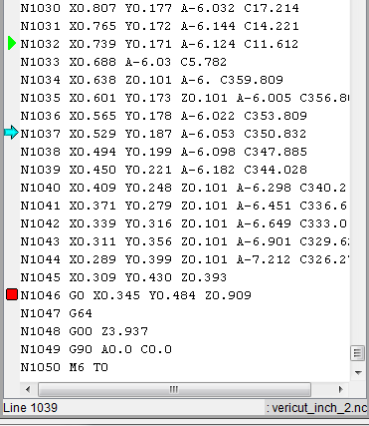
The line number of the "current" NC program record and "current" NC program is displayed at the bottom of the NC Program Listing area.
Single NC program
Multiple NC programs (SYNC jobs)
NC Program Editing
The NC program listing area allows you to edit the NC program with a full function text editor.
You can use the keyboard to add, change, or delete portions of the NC program listing. You can also use the Cut, Copy, and Paste functions found under Edit in the main menu.
You can easily see the modifications that you have made to the NC program listing. Added, changed, and pasted text is displayed in blue and underlined. Cut and deleted text is displayed in red with a "strike through" font. Once you save the modified NC program, the red and deleted text is removed and the blue added, changed, and pasted text is returned to the original font.
Start/Current/End Markers
The Start/Current/End markers can be found along the left side of the NC Program Listing area. The Start marker is represented by the green triangle  , the Current marker is represented by the aquamarine arrow
  , and the End marker is represented by the red square
  . You can easily identify each marker by moving the cursor over it.
The Start and End markers are used to define the range of NC program records that will be replayed when using Play to End. The Current marker moves to the NC program record that is currently being replayed.
Set these markers by either selecting an NC program record in the NC program listing or the location in the graphics area where you want the marker placed. Then select the appropriate option (Set Start, Set Current, Set End) from the menu displayed by the Settings menu in the NC Program Review panel.
You can also set these markers by right-clicking an NC program record in the NC program listing or the location in the graphics area where you want the marker placed. Then select the appropriate option (Set Start, Set Current, Set End) from the menu that displays.
You can also click on the appropriate marker in the NC program listing and drag it to the desired NC program record.
↘️ Shortcut: Click the right mouse button in the NC Program Listing Area to display a menu with the following features:
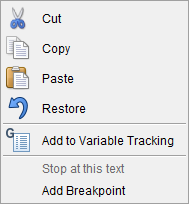
These features provide the same functionality described above in the Edit section.
NC Program Review, Error Listing Area
The Error Listing area replaces the Vericut Logger while in NC Program Review. It contains a list of the errors that were found while processing the NC program in Vericut.
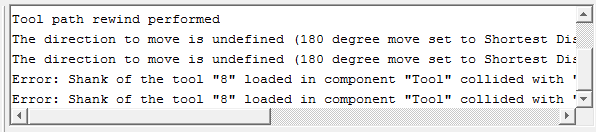
Selecting an error in the Error Listing causes the line in the NC Program Listing associated with the error to become highlighted. At the same, the tool display in the Graphics Area moves to the position where the error occurred. This enables you to quickly and easily associate the error with the position in the NC program and in the toolpath display.
💡 Tip: Click with the right mouse button in the Error Listing Area to display the following menu.

Its features enable you to specify whether or not to display only Errors, only Warnings, or both Errors and Warnings in the Error Listing Area. When toggled “on” (checked) the feature will be displayed. When toggled “off”, the feature will not be displayed. Click on the feature in the menu to toggle on/off.
NC Program Review, Graphics Area
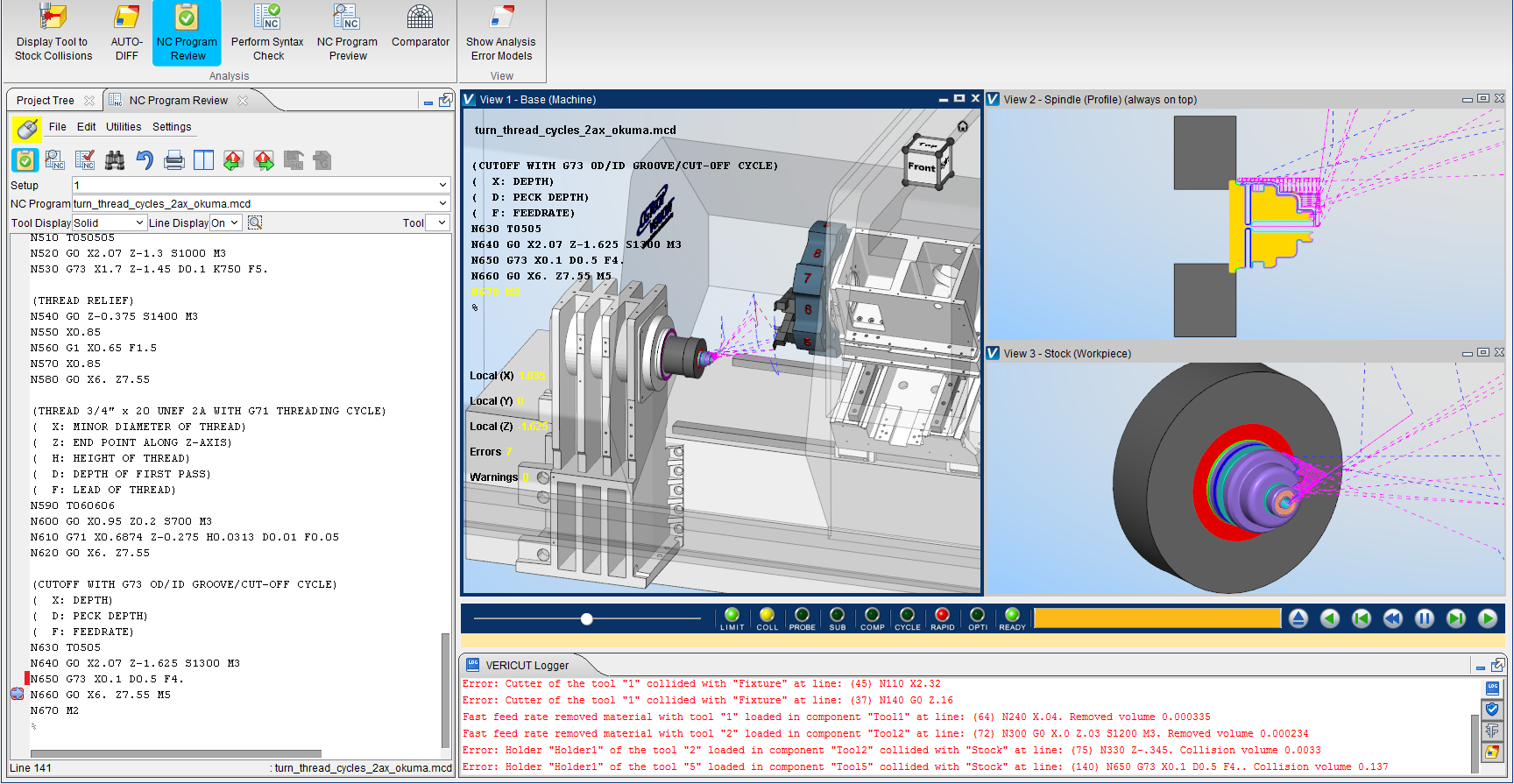
The graphics area displays the active views from the Vericut main graphics area. Also, many of the analysis, display and view manipulation tools in the Vericut Verification main menu are available for use while you are in the NC Program Review graphics area.
The Toolpath Display
As the NC program is replayed, a line representing the motion of the tool control point is displayed in the graphics area. By default, the tool motion display is only visible in a Workpiece view. You can also view the tool motion display on a Machine view by turning on Animate Machine When Stepping Back feature on the Project tab > Settings dropdown menu > Properties > Properties tab.
Motions that remove material are displayed as solid lines with a default color of the foreground color. Motions that do not remove material are displayed as dashed lines with a default color of magenta. The line representing the motion of the current NC program record is highlighted with a default color of red. The tool image is displayed at the location of the current NC program record.
The color of the lines can be changed using the Cut Line, Non-Cut Line, and Circular Motion options found in the menu that is displayed when using the right mouse button in the graphics area or the NC Program listing area in the NC Program Listing window.
Graphics Area Controls
Animation Speed Slider — Controls the speed of the toolpath replay. Move to the left to slow down the replay of the toolpath. Move to the right to speed it up. See Animation Speed Slider in the Getting Started section of Vericut Help for additional information.

Status Lights — Only the Ready/Busy status light is active when in NC Program Review mode.

Progress Bar — The Progress Bar is inactive when in NC Program Review mode.

Simulation (VCR) Controls — The simulation controls, also known as VCR buttons, located at the bottom-right corner of the graphics area control interactive tool path replay. Use these controls to start and stop the replay of the toolpath. To see what action is associated with a Simulation control icon, simply position the cursor over the icon and a tip appears.
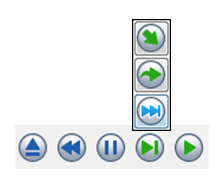
Right clicking  (Play Forward) brings up the Start At and Stop At Options window.
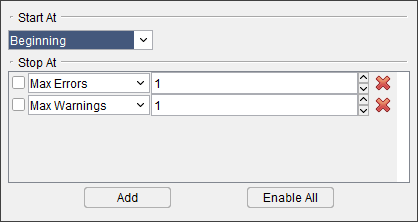
See Start At/Stop At Options window section for more details.
| Icon | Name | Function |
|---|---|---|
|
Play Forward | Replays from the Current position to the End position. |
 |
Step Forward | Replays the next NC program record ("single block"). |
 |
Pause | Pauses the replay during "Play" (after the current record displays) |
 |
Step Backward | Replays the previous NC program record ("single block"). See notes below. |
 |
Play Backward | Replays from the Current position to the Start position. See notes below. |
 |
Rewind to Start | Sets the Current marker to the record with the Start marker and clears the toolpath display from the Graphics area. |
 |
Rewind to Beginning | Sets the Start and Current markers to the first motion record in the NC program, sets the End marker to the last NC program motion record, and clears the toolpath display from the Graphics area. |
📝 NOTES:
-
You can see removed material replaced as you step back (Step Backward or Play Backward) through the NC program by turning on Replace Material When Stepping Back on the Settings window: Properties tab (Project tab > Settings). This feature can be turned on at any point in the simulation but Vericut will not start to store the information required to replace material while stepping back until Replace Material When Stepping Back is toggled "on". Cuts made prior to turning this feature on will not replace material while stepping back. Vericut will store up to 1000 cut records that remove material. If you step back more than the 1000 stored cut records, the message, "Material restored for the maximum 1000 steps back", will display in the temporary message area at the bottom of the Error Listing Area.
-
You can see machine animation as you step back (Step Backward or Play Backward) through the NC program by turning on Animate Machine When Stepping Back on the Settings window: Properties tab (Project tab > Settings). This feature can be turned on at any point in the simulation but Vericut will not start to store the information required to animate the machine while stepping back until Animate Machine When Stepping Back is toggled "on". Machine motions made prior to turning this feature on will not animate while stepping back. Vericut will store up to 1000 cut records that cause machine motion.
- Turning on Animate Machine When Stepping Back on also enables you to view the line representing the motion of the tool control point in a Machine view.
Graphics Area Right Mouse Button Shortcut Menus
Workpiece View
Right-click in the NC Program Review Main Window, Workpiece View to display a menu with the following features:
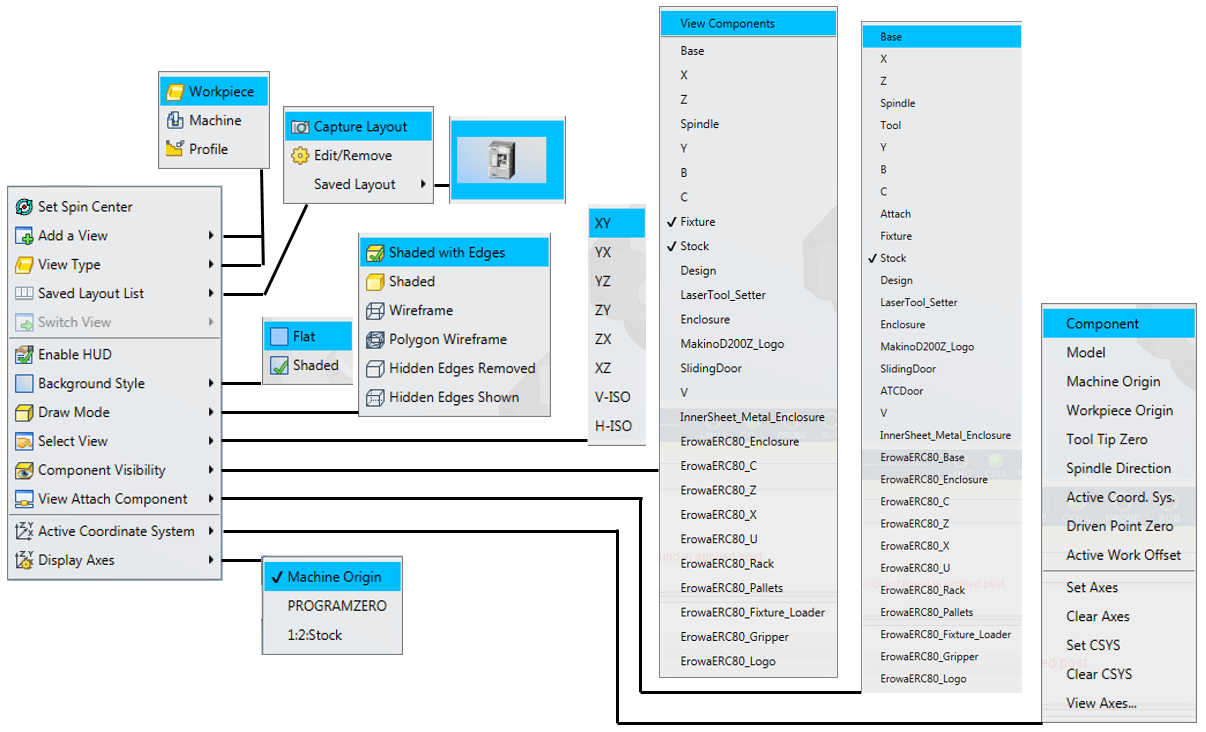
📝 NOTES:
-
See Workpiece View in the Graphics Area Right Mouse Button Shortcut Menus, in the Getting Started with Vericut section of Vericut Help, for specific information on features Add a View through Display Axes.
-
A check next to Accelerated (OpenGL), or any of the Display Axes features, indicates that the feature is toggled "On".
- A check next to any of the coordinate systems in the Active Coordinate System list indicates the coordinate system is the “active” coordinate system.
Machine View
Right-click in the NC Program Review Main Window, Machine View to display a menu with the following features:
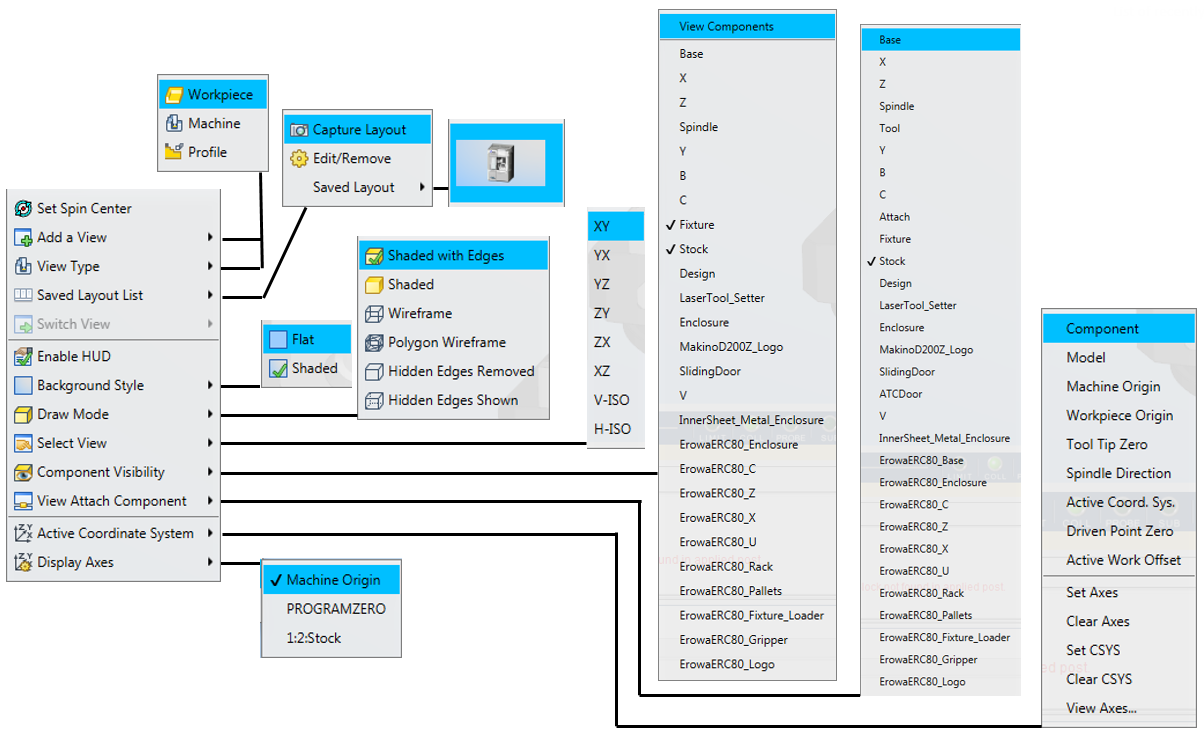
📝 NOTES:
-
See Machine View section of Vericut Help, for specific information on features Add a View through Display Axes.
-
A check next to Accelerated (OpenGL), or any of the Display Axes features, indicates that the feature is toggled "On".
- A check next to any of the coordinate systems in the Active Coordinate System list indicates the coordinate system is the “active” coordinate system.
- A check next to any of the Component Visibility features indicates that the feature is "visible".
- The Component Visibility, and Attach Component, feature lists will contain all components in the current machine. This is especially useful when using an encrypted machine as the Component Tree is not available. If the list of components gets too long to display on your screen, Vericut will automatically break up Component Visibility, and Attach Component, into multiple menu item/feature lists.
- The Select View feature list will contain all available standard and custom views.
Profile View
📝 NOTES:
-
See Profile View section of Vericut Help, for specific information on features Add a View through Display Axes.
-
A check next to any of the Display Axes features, indicates that the feature is toggled "On".