NC Program Preview
Location:
Analysis tab >  (NC Program Preview)
Toolbar short cut: 
NC Program Preview can also be accessed from the Info tab > NC Program panel, or from the NC Program Review panel: NC Program listing panel, by using (NC Program Preview) icon in either of these windows or in the Toolbar.
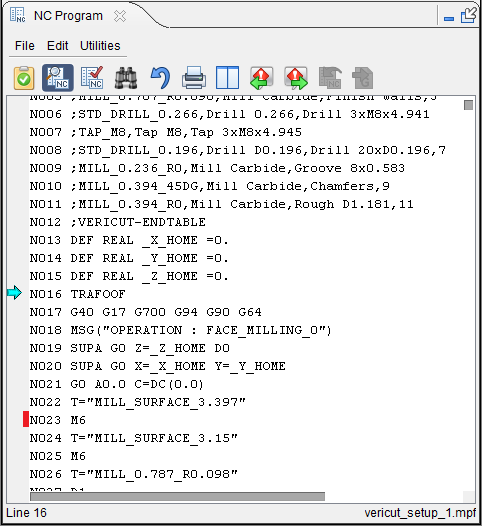
The NC Program Preview panel is one of the dockable panels enabling you to dock it inside the Vericut main window if you choose. See Personalizing the Vericut Main Window section of Vericut Help for additional information.
📝 NOTE: When the NC Program Preview panel is docked, make sure that you click in the panel so that it becomes the "active" panel before using F1 to get help specific to the panel. Otherwise F1 will go to the Vericut Help Library.
 (Close) — Located at the end of the tab, this icon enables you to close the NC Program Preview panel.
 (Close) — Closes the NC Program Preview panel. This icon is only displayed when the NC Program Preview panel is not docked.
NC Program Preview puts Vericut in NC Program Preview mode which is similar to NC Program Review mode except that it displays a tool trace representing the NC toolpath and the design model. NC Program Preview can be used without processing the NC program first, as required by NC Program Review. All of the Vericut features behave in the same way as described for NC Program Review.
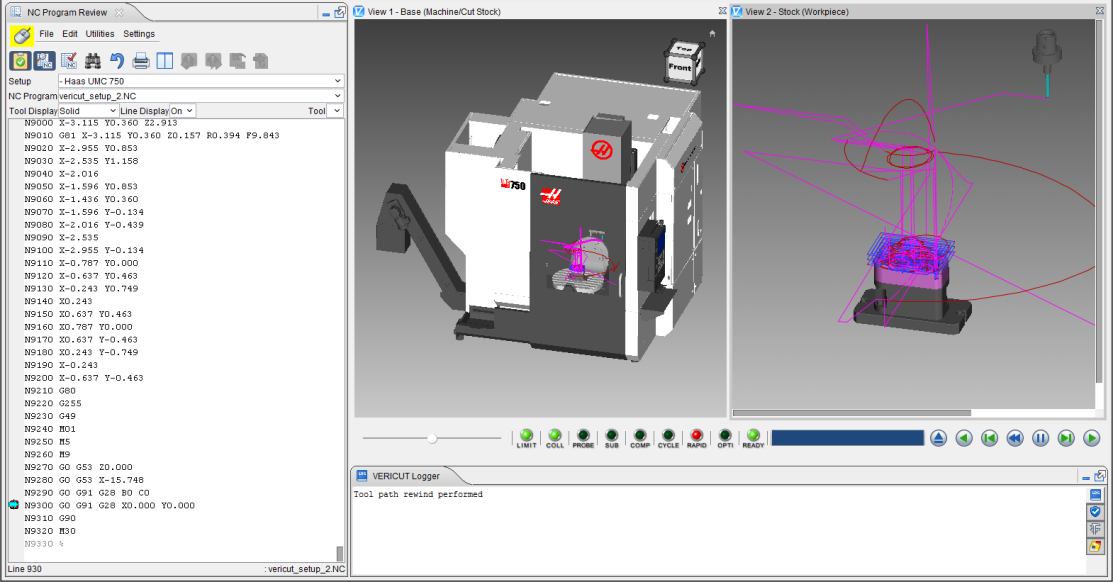
📝 NOTE: The NC Program Preview feature responds to the "Stop at ..." settings in the Configure Project menu: Start/Stop tab or set by clicking with the right mouse button on the  (Play Forward) VCR button in the Vericut main window.
See Simulation (VCR) Controls section or Configure Project menu: Start/Stop tab section of Vericut Help, for additional information on these settings.
↘️ Shortcut: NC Program Preview has the same right mouse button shortcut menus in the NC Program Listing Area, and in the Graphics Area, that are described for NC Program Review.