FANUC CNC GUIDE 2 Interface
Overview
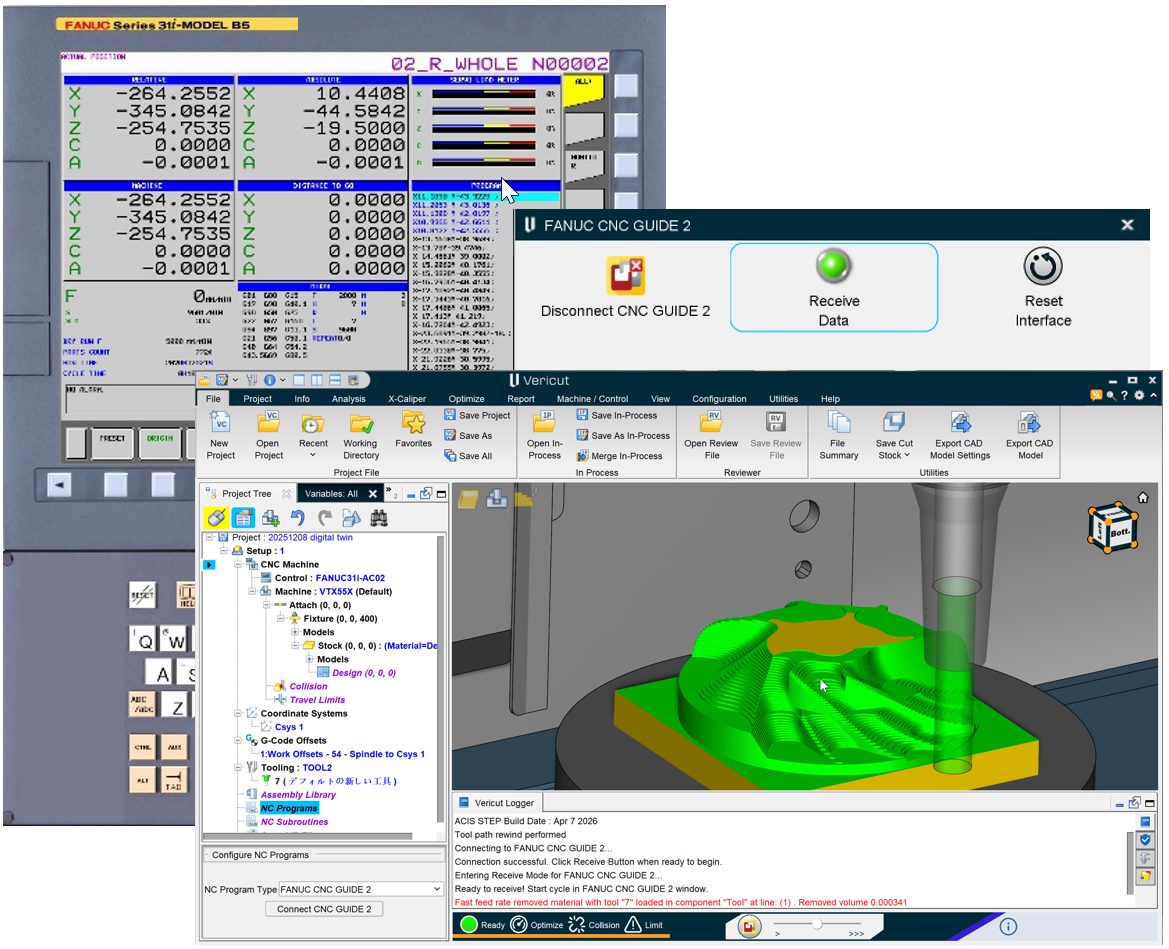
The FANUC CNC GUIDE 2 interface allows Vericut to receive machine motion directly from a FANUC CNC GUIDE 2 virtual controller. This enables highly accurate simulation of machine behavior, material removal, collision detection, and cycle time estimation using the same CNC logic and parameters as the physical machine.
FANUC CNC GUIDE 2 is FANUC's digital twin environment for CNC controls. It simulates CNC operation on a PC and can be connected directly to Vericut for machine simulation and verification.
Supported FANUC Controls
FANUC CNC GUIDE 2 supports the following control series:
- Series 0i
- Series 30i
- Series 31i
- Series 32i
- Series 35i
- Series 501
- Series 502
- Series 503
Note: Verify the exact FANUC control model before creating a CNC GUIDE 2 machine configuration.
How the Interface Works
Vericut receives axis motion commands directly from FANUC CNC GUIDE 2.
To simulate a program:
- Load the NC program into FANUC CNC GUIDE 2.
- Connect Vericut to FANUC CNC GUIDE 2.
- Configure Vericut to receive motion commands.
- Start program execution in FANUC CNC GUIDE 2.
Vericut performs:
- Material removal simulation
- Collision checking
- Machine visualization
- Error detection
The following data must be configured in FANUC CNC GUIDE 2 before simulation:
- NC program
- Subprograms
- Tool offsets
- Work offsets
Only a valid Vericut machine model and tool setup are required. Axis mapping is performed automatically.
Requirements
FANUC Software
The following FANUC software is required:
- FANUC CNC GUIDE 2 Version 34.0 or later
- FANUC Servo Simulation License
Vericut Licensing
The following Vericut license option is required:
- FANUC CNC GUIDE 2 Interface
Configuring Vericut
Select the NC Program Type
- Open the Project Tree.
- Expand NC Programs.
- Select NC Program Type.
- Choose Fanuc CNC Guide.
Open the FANUC CNC GUIDE 2 Interface
- Select the Fanuc CNC Guide 2 toolbar icon.
- Connect to the FANUC CNC GUIDE 2 session.
- Verify the interface is in Receive Mode.
Running a Simulation
- Start FANUC CNC GUIDE 2.
- Connect Vericut to the CNC GUIDE 2 session.
- Load the NC program and required offsets in CNC GUIDE 2.
- In FANUC CNC GUIDE 2, select:
AUTO > Cycle Start
- Vericut receives machine motion data and begins simulation.