Saved IP Files branch
Right-click on a Saved IP Files branch in the Project Tree panel to display the following menu:
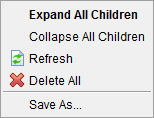
Expand All Children — Expands the Saved IP Files branch so that all of the IP files are shown.
Collapse All Children — Collapses the Saved IP Files branch.
Refresh — Updates the status of IP files in the list enabling you to see the status of IP files that have been manipulated (deleted, moved, renamed, etc.) outside of Vericut. IP files in the list that cannot be found are displayed with red text.
Delete All — Deletes all IP files from the Saved IP Files branch.
Save As — Opens the Save In-Process As window enabling you to save an IP file at the "current" state of processing.
↘️ Shortcut: Double clicking on a Saved IP Files branch in the Project Tree panel to expand the Saved IP Files branch so that all of the IP files are shown.
IP File
Right-click on an IP file in the Project Tree panel to display the following menu:
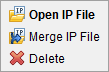
Open IP File — Opens (loads) the highlighted IP file.
Merge IP File — Merges the highlighted IP file into the current session. (ref. Merge (In Process file), in the File tab section of Vericut Help)
Delete — Deletes the highlighted IP file from the Project Tree.
↘️ Shortcut: Double clicking on an IP file in the Project Tree panel will open (load) the IP file in Vericut.