CATIA V5-to-Vericut Interface (CATV5)
Overview CATV5 is a licensed software tool that facilitates the seamless transfer of manufacturing data from CATIA V5 to Vericut.
Software Requirements: CATIA V5 Interface
Licensing Requirements
CGTech Licensing:
CATIA V5 Interface
Installation & Configuration: CATIA V5 Interface
User Configuration
No manual configuration required
The interface is pre-configured for seamless operation.
Installation Path
The interface installation files are located at:
C:\Program Files\CGTech\Vericut x.x.x\windows64\catv5
To access version details, use:
C:\Program Files\CGTech\Vericut x.x.x\windows64\commands\catv5.bat
Environment variables: CATIA V5 Interface

To enable the CATIA V5 Interface to locate the necessary Vericut files, the following environment variables are available:
Environment Variables: Description & Example
CGTECH_INSTALL
Purpose: Defines the Vericut installation folder.
Example: For Vericut 9.7, set to: C:\Program Files\CGTech\Vericut 9.7
CGTECH_PRODUCTS
Purpose: Specifies the folder for the operating system running Vericut (windows64).
Example: For Vericut 9.7, set to:
C:\Program Files\CGTech\Vericut 9.7\windows64
LSHOST
Purpose: Defines the name of the license server computer.
Example: localhost
CGTECH_SINGLE_PLATFORM (Optional)
Purpose: Specifies if Vericut is running on a single platform.
Example: CGTECH_SINGLE_PLATFORM=YES
CGTECH_CATV_LANGUAGE (Optional)
Purpose: If you want the interface to use something other than US English, the variable can specify a file of localized text.
Note: The application also provides the option to change the language directly from within the user interface.
Available Languages: French, German and Japanese
Example For Vericut 9.7, set to:
C:\Program Files\CGTech\Vericut 9.7\windows64\catv5\CATVFrench.local
CGTECH_CATV_FOLDER (Optional)
Purpose: set if the user wishes to have all files generated by CATV5 placed in a single nominated folder.
Example: CGTECH_CATV_FOLDER=C:\Temp
CGTECH_GCODE_EXTENSION (Optional)
Purpose: set if the user wishes the file extension ".mcd" to be used for the extension on all posted g-code files when post processing via CATV5.
Example: CGTECH_GCODE_EXTENSION=mcd
CGTECH_CATV_LATHE_HOLDER_PARENT_FOLDER (Optional)
Purpose: set folder which has a sub-folder per turning tool assembly, with the holders' CATParts in these sub-folders
Example:
CGTECH_CATV_LATHE_HOLDER_PARENT_FOLDER=path to Vericut tools parent folder
CGTECH_CATV_SKIP_OPTIPATH (Optional)
Purpose: set to “Yes” to avoid Optimization records being appended onto the tools being output.
Example: CGTECH_CATV_SKIP_OPTIPATH=Yes
CGTECH_BINARY_STL
Purpose: set if the user wishes to generate binary STL files instead of ASCII STL files.
Example: CGTECH_BINARY_STL=Yes
CGTECH_CATV_ALL_VISIBLE
Purpose: set if the user wishes to ignore hidden state of models in the CATProcess set.
Example: CGTECH_CATV_ALL_VISIBLE=Yes
Set up a Vericut icon: CATIA V5 Interface
To add an icon to the Toolbar
If you wish to have an icon ( ) on a CATIA V5 toolbar, the two icon files must be placed where CATIA V5 expects to find them.
The paths depend on where you have CATIA V5 installed, but typically you will find a "small" and "normal" folder under:
"C: Program Files\Dassault Systemes\Bxx\win_b64\resources\graphic\icons".
Place the two versions of the CATV5 icon, both called "I_CATV.bmp", in the appropriate folders.
Adding the CATV5 icon () to a CATIA V5 toolbar is a multi-step process;
- Get CATIA V5 running.
- Make the Advanced Machining workbench active, either by accessing an existing CATProcess file, or by initializing a new one. One or more of the Manufacturing toolbars are likely to be suitable locations for the CATV5 icon.
- Pick Tools > Macro > Macros from CATIA V5's menus.
- In the Macros dialog, pick Macro Libraries.
- In the Macro Libraries dialog, set the Library Type to Directories.
- Pick Add existing library ... and select the folder containing the CATV.CATScript file (for example "C:\Program Files\CGTech\Vericut x.x.x\Windows\catv5").
- Close the Macro Libraries dialog.
- Close the Macros dialog.
- Pick Tools > Customize ... from CATIA V5's menus.
- In the Customize dialog, bring the Commands tab to the front.
- Select Macros from the left-hand list of Categories.
- Pick CATV.CATScript from the right-hand list of Commands.
- Click on the Show Properties ... button.
- Pick the "..." button to the right of the Icon: label.
- In the Icon Browser dialog you need to step through the pages of icons until you find the one for CATV5 (). The icons are presented in alphabetic order of their names, which you can see by allowing the mouse cursor to sit over an icon for a brief period. The CATV5 icon () will probably be on the twelfth page. Pick it and Close the Icon Browser.
- Back on the Customize dialog, position the mouse cursor over the name of the macro, CATV.CATScript, in the right-hand list, depress the left mouse button, and drag the cursor to the toolbar where you want the icon to appear. It's counter-intuitive, but you drag the macro name, not the icon! Repeat this step if you want the icon to appear on more than one toolbar.
- Close the Customize dialog.
Microsoft Redistributables: CATIA V5 Interface
The CATIA V5-to-Vericut Interface (CATV5) may require the installation of Microsoft Redistributables, specifically the Windows C++ run-time libraries. These libraries ensure compatibility and proper functioning of the interface, allowing seamless data transfer between CATIA V5 and Vericut for manufacturing simulation.
Note: A runtime library is a collection of low-level compiler support routines and functions that are used by virtually all programs compiled with GCC (GNU Compiler Collection) and can be downloaded here.
Documentation: CATIA V5 Interface
Overview: The CATIA V5 interface exports manufacturing data from CATIA V5 to Vericut, ensuring a seamless transition for simulation. It automatically configures the necessary Vericut setup requirements and launches the simulation, ready to play.
Vericut Simulation Setup Requirements: To run a successful simulation in Vericut, the following steps must be completed:
1. Select a VMC (Vericut Machine Configuration) – Define the machine setup for simulation.
2. Select and Orient Stock, Fixture, and Design Models – Ensure correct positioning of components.
3. Select NC Programs & Subroutines – Load the necessary machining programs.
4. Define Cutting Tools – Specify the tools used in the machining process.
5. Define Work Offsets Tables – Configure coordinate systems for accurate machining.
Accessing the CATIA V5-to-Vericut Interface
1. Run Run the CATV5 batch file
- Navigate to: C:\Program Files\CGTech\Vericut x.x.x\windows64\commands\catv5.bat
- Execute the file to initiate the interface.
2. Alternately, you can use the Vericut Icon
- Click on the Vericut icon to launch the interface.
Important Note: The CATIA V5 interface requires an active NC Manufacturing file to function properly with Vericut. If the CATV5 Interface is launched and CATIA V5 is not running, The CATV5 Interface will ask if you wish to start CATIA V5.
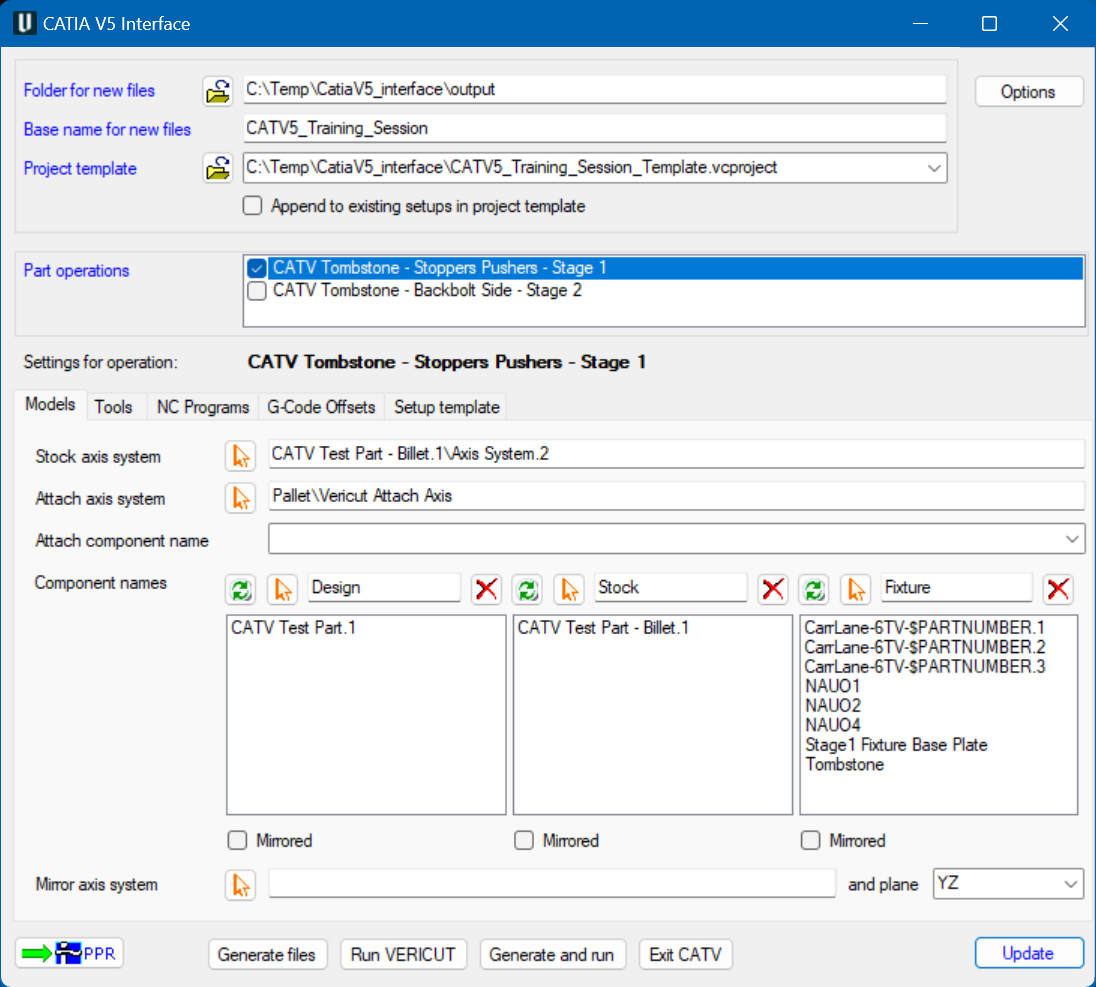
When you trigger CATV5, you should see a window similar to this:
License Handling
- The interface checks out a license when opened.
- The interface checks in the license when closed.
Important Note:
The fields in Black are Part operation specific while the Blue fields are common to all Part operations
Project Settings

CATV5 will generate several files to pass CATIA V5 information to Vericut. For verification or simulation of one CATProcess file, the following can be created:
- Several temporary files (with the ".VcTmp" extension)
- tool libraries (with the ".tls" extension)
- model files (STL format)
- NC programs (in APT or G-Code)
All these files will be placed in a single folder. If you have defined the CGTECH_CATV_FOLDER environment variable, the folder it references will appear in the upper text field of this pair. If not, the location of the CATProcess file will be presented so that you can keep all the related files in one place. In either case you can override the suggested folder, by entering a different location, or by browsing ( ) for one.
The names of created tool libraries, model files and NC programs depend on the names of the corresponding CATIA V5 objects (CATParts, and Part Operations). But the temporary files, the final Vericut project, and its log file are given the same name, which is provided by the lower text field of this pair. By default it will be filled in with the CATProcess name, but you can override it if you wish.
Project Template

The files generated by CATV5 are intended to be "add-ons" for existing Vericut projects that contain much more detail than is present in a CATProcess file. For example, you may have a machine and control fully specified in a project file, and simply wish to place the CATProcess stock and fixtures on this machine before verifying the new NC programs.
In this field you can specify a template file for the project. Normally such a file has the extension ".VcProject". Note that you can also specify a different template for each CATIA V5 part operation (called a "Setup" in Vericut).
If you do not specify a project template, either "init.VcProject" or "initm.VcProject" will be used, depending on whether CATIA V5 has the unit of length set to "inch" or "millimeter".
If you wish to append the part operations from a CATProcess file to the setups that are already defined in your project template, you can click on the check-box under the template field. Otherwise, and more typically, the imported part operations will be the only setups in the generated project.
Note: CATV5 uses the Catia setting for Length to determine output units.
Setting Length Units in CATIA V5
CATIA V5 allows you to define the unit system (e.g., millimeters, inches) for your parts and assemblies. This is crucial for consistency across design and manufacturing.
How to Set Length Units
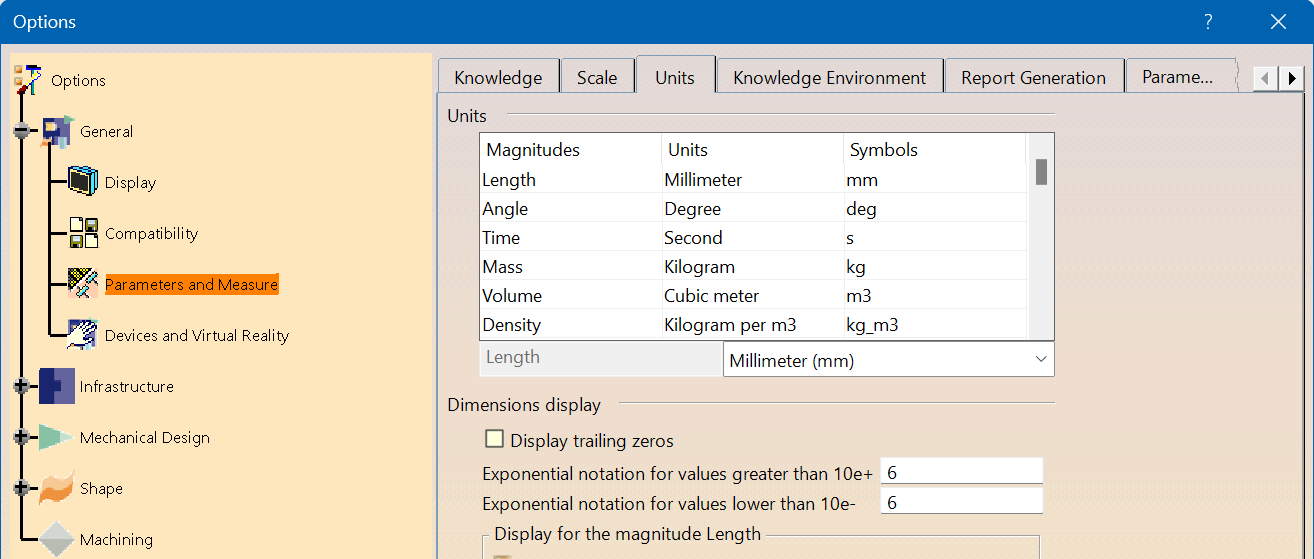
1. Go to Tools → Options
2. Navigate to General → Parameters and Measure
3. Under the Units tab, you can set:
- Length (e.g., mm, cm, inch)
- Mass, Time, etc.
4. Apply changes and restart CATIA if needed
Part operations

The Part operations list contains the names of all the part operations found in the CATProcess file. Typically, you would leave each setup \"checked\" so that they will all be simulated, but you could cause any of them to be skipped by unchecking their names. When you select a setup name, most of the other elements of the interface will change to reflect the choices made for that setup. Items with blue labels are "project wide" and do not change.
Settings for operation: Displays the name of the currently selected Part operation. All configuration options available in the tabs below apply specifically to this selected operation.
Important: The interface supports exporting only one Part operation to Optimizer. Ensure that the desired Part operation is selected before initiating the export process.
Models
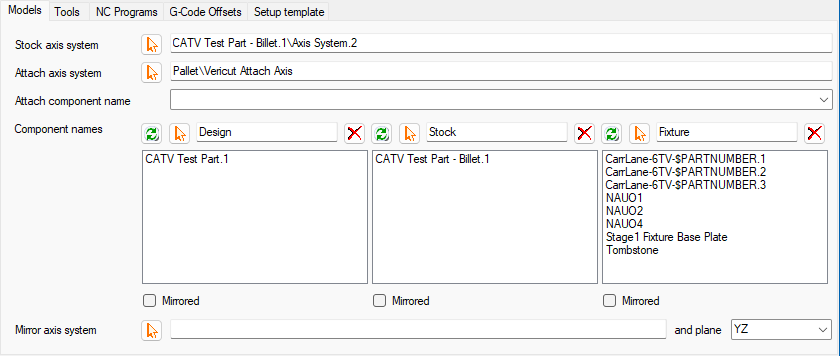
Stock axis system
CATProcess files with multiple part operations seem to exhibit two different operator styles. In the first style, the stock is represented just once and each setup contains a different set of fixtures, some of which will typically be instances of the same CATProduct or CATPart. The second style may or may not use a common set of fixtures, but will have multiple instances of the stock, probably in different orientations and locations. In Vericut, we need to know what happens to the stock between setups.
You need to pick an axis system in each setup which has the same relationship to the stock. Thus if the stock needs to be flipped over between setup one and two, you would pick an axis system for both, but two of the axes will probably be reversed in the second one. Typically the same axis system in the two instances of the stock model is adequate. To graphically select an axis system, click on the Pick  button, then pick a machining axis system or an axis system on a part. To exit selection mode without making a choice, use CATIA V5's "Edit" > "Undo" option. Note that you can reverse the selection sequence by picking an axis system first, then clicking the Pick button. The name of the selected axis system will appear in the field.
Attach axis system If the first of these two fields is left blank the setup\'s machining axis system will be placed on one of the Vericut machine's "attach" components. Note that a setup's machining axis system is the last such system encountered in CATIA V5's process tree before the setup's first active tool change. This is not always the axis system of the CATIA V5 machine. If the setup\'s machining axis system does not coincide with one of the Vericut "attach" components, you can pick a different axis system for the setup.
To graphically select an Attach axis system, click on the Pick button, then pick a machining axis system or an axis system on a part. To exit selection mode without making a choice, use CATIA V5's "Edit" > "Undo" option. Note that you can reverse the selection sequence by picking an axis system first, then clicking the Pick button. The name of the selected axis system will appear in the first of these two fields.
In the second field you can specify the name of the corresponding Attach component. If left blank, the default name "Attach" will be used.
For each setup you should specify the names of the components in Vericut in which the design, stock and fixture models will be placed. Default component names are simply "Design", "Stock" and "Fixture" or their localized equivalents.
You also need to specify which of the CATParts represent the design, the stock and the fixtures. Normally it is only necessary to have a stock model for the first setup, as it will get passed to subsequent ones in Vericut. Likewise, you will probably only nominate a design model in the last setup, to be used with AUTODIFF. But fixturing will often be different in each setup. If design, stock or fixture models have been specified in CATIA V5 for its video "simulation" capability, you can use the corresponding Refresh  button to wipe out any parts currently in the displayed list, and replace them with the parts used for CATIA V5's video.
Otherwise you can graphically select design, stock or fixture models, by clicking on the corresponding Pick button. Then you can pick a product from any level in CATIA V5\'s product list tree, or from the picture of the models. Note that the product must be within the major branch of the tree that is referenced by the setup\'s part operation. All instance names of all CATParts under the selected product in the tree will be placed in CATV5's list for this setup. To exit selection mode without making a choice, use CATIA V5's "Edit" > "Undo" option. Note that you can reverse the selection sequence by picking a product first, then clicking the Pick button.
If you decide that you don't want all the detailed parts, such as bolts, transferred to Vericut, you can remove names from any of the three lists by selecting them and clicking on the appropriate Remove  button. The "Shift" and "Ctrl" keys can be used in the normal way to select multiple names from the list so they can be removed together.
Each set of models, for the design, stock or fixtures can be individually Mirrored through one of the three orthogonal planes defined by a selected coordinate system.
Support for drag-n-drop between the 3 lists of parts Because a left-button mouse-drag could already be used to select multiple items in a list, you can use the right-button drag-n-drop. So you can select one or more items in a list with the left-button (using Shift and Ctrl keys if needed), do a right-button press in the same list, drag the cursor to the destination list, and release the button.
CATIA V5 CGR support CATV5 automatically sets Design, Stock and/or Fixtures when running the CATV on a new CATProcess that references a CGR. Success depends on the CATPart or CATProduct used to create the CGR being present in the same folder.
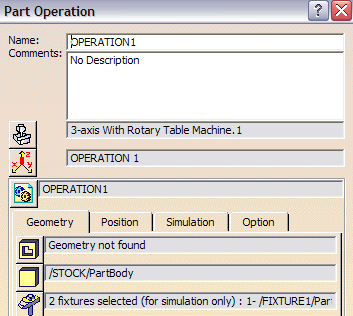
Design, Stock, and Fixture defaults
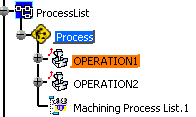
The Design, Stock, and Fixture fields are automatically populated based on data from the CATIA Part Operations interface. To access the Part Operations window, double-click OPERATION1 in the CATIA specification tree.
CATIA V5 "Hide/Show" Behavior and CATV Handling
CATV5 honors CATIA’s display state when generating geometry for export.
Specifically:
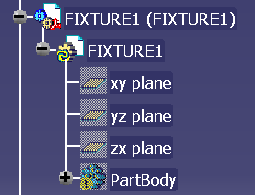
 If a CATPart or PartBody is in Show mode, CATV includes its geometry in the STL output.
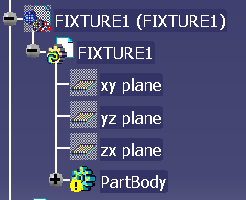
 If a CATPart or PartBody is in Hide mode, the STL file will be generated without that geometry.
Tooling
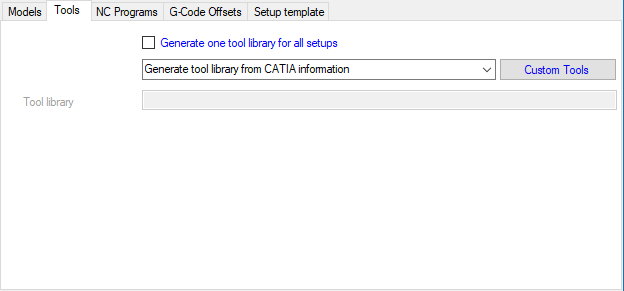
Typically you would have CATV5 generate tool libraries (with the ".tls" extension) from the tool data in the CATProcess file for each setup. If desired, you can request that all tools for all setups be placed in a single library. You can also elect, on a setup by setup basis, to merge the generated tools into the library which is referenced by your setup (or project) template file, to use that referenced library "as is", use an existing tool library by selecting it, or use a tool list from a TDM database by specifying its name.
Using any of these last three options implies that you are sure that the tool geometry present in the CATProcess file is accurately represented in the referenced library, selected library or specified TDM list.

Within the CATProcess file you can define the cutting geometry of a wide variety of tool types, and for milling tools define their holders as a stack of up to five cylinders and cones. If this is not adequate, you can define a milling tool\'s cutter and holder with a CATPart or CATProduct.
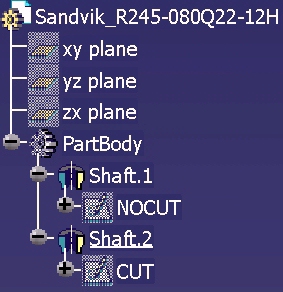
A CATPart would contain two sketches, with names "CUT" and "NOCUT" to define the half cross-section which is rotated around the tool's axis. Typically, the part can have shafts defined by the rotated sketches, but this is not essential.
A CATProduct can reference multiple CATParts, each with a named attribute, "CuttingType". Values of these attributes can be "CUTTER", "SHANK" or "HOLDER" and each CATPart should contain a sketch to define the half cross-section which is rotated around the tool's axis. Shafts can be defined by the rotated sketches, but this is not a requirement.
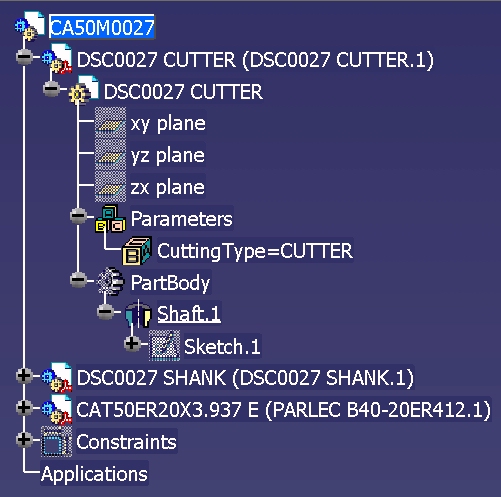
User Representations tool definitions, To make CATV5 aware of these custom milling tool profiles, click on the "Custom Tools" button, which is blue to reflect the fact that the connections that you make between tool names and CATParts or CATProducts will be "project wide". If the same tool is used in more than one setup, it is only necessary to specify once the CATPart or CATProduct containing its sketches. When you click on the blue button, another dialog is displayed.
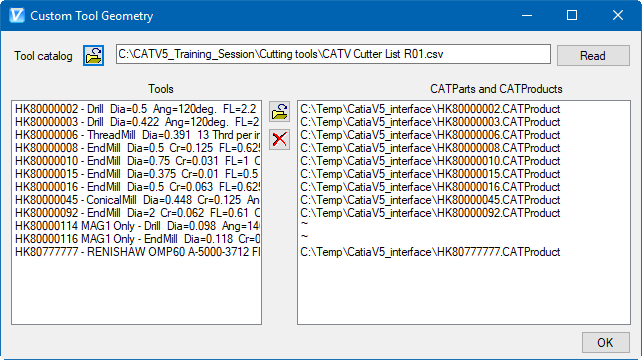
If your site uses one or more CATIA V5 tool catalogs, which most likely started life as Excel spreadsheets, and you have the ".csv" versions of those catalogs, then you can use them to populate the two lists in the "Custom Tool Geometry" dialog shown below.
Use the upper Browse button to browse for a ".csv" catalog. When you click on the "Read" button, the catalog is scanned for any of the tool identifiers in the left-hand list. When a tool is found, the reference to the CATPart or CATProduct that defines the tool geometry is copied from the tool's catalog entry to the right-hand list. You can repeat this process for each relevant catalog, assuming that if a tool appears in more than one catalog then its referenced CATPart or CATProduct will be the same in each.
To individually make the connection between a tool and its CATPart or CATProduct, select the tool's name in the list on the left, then click on the Browse button between the two lists. You will be offered the usual file selection dialog to pick a CATPart or CATProduct, and the file's name will then be displayed in the list on the right.
Repeat this sequence for all the tools that have corresponding CATParts or CATProducts. If you wish to break a connection, and revert to using the CATProcess file's definition of a tool's geometry, you can select the tool in the list and click on the Remove button. When you have all the pairings established, click on the "OK" button and the dialog will disappear.
NC Programs
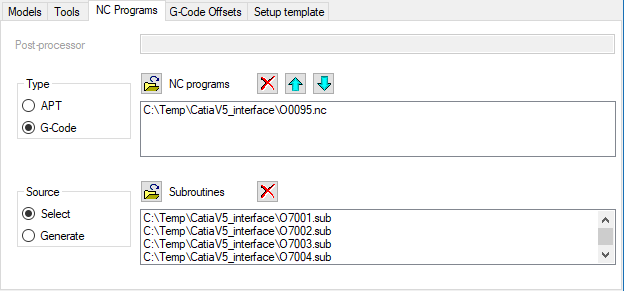
Post-processor
This field will only be enabled when you elect to generate G-Code programs. It should specify the post-processor to be used to convert APT to G-Code. Posts from three vendors are supported by CATIA V5; Cenit, IMS and ICAM. Their location is dependent on where CATIA V5 was installed, but will typically be in folders under "C:\Program Files\Dassault Systemes\Bxx\intel_a\startup\Manufacturing\". Cenit posts have the extension ".pp", IMS uses ".lib" and ICAM's have ".dmp". You can paste a post's full path and name into this field, or browse () for it.
Type Specify here whether the NC programs to be passed to Vericut are APT or G-Code. APT programs can be generated more quickly, since the post-processing step is not required, and are fine for initial program verification. G-Code is one of the prerequisites for machine simulation.
Determination of the fast feedrate, which will be set in the Vericut project file, is dependent on this choice. For APT programs, the first 5000 lines of the first program are scanned, and the fastest of the encountered feedrates is used, with the addition of a small increment (0.05 when the linear unit is "inch", 1.0 when it is "millimeter"). For G-Code programs, all the active machines in the CATProcess file are scanned, and the largest of their maximum fast feedrates is used.
Source CATV5 can cause CATIA V5 to Generate the NC programs defined in the CATProcess file. Alternatively you can choose to Select NC programs that have already been created. G-Code programs produced by a post that is not accessible within CATIA V5 would be a good example.
NC programs
If you choose to have CATV5 and CATIA V5 generate the NC programs, they will be listed here as they are created. Alternatively, you can Browse for existing programs. If you do so, it is important to ensure that the list is in the order of cutting. You can Remove programs from the list, or re-arrange them with the Move Up  or Move Down
  .
.
-
Tip: Browse
, use the pull-down in the "Select a G-Code File" window and toggle the Filter to "All Files"

-
Tip: If you would like to change the File Open extensions to default to edit C:\Program Files\CGTech\Vericut x.x.x\windows64\catv5\CATVEnglish.local "FltGcd:"

Subroutines
If you have G-Code programs that reference subroutines, you can Browse to select the existing subroutine files. You can also Remove subroutines from the list.
G-Code Offsets tab
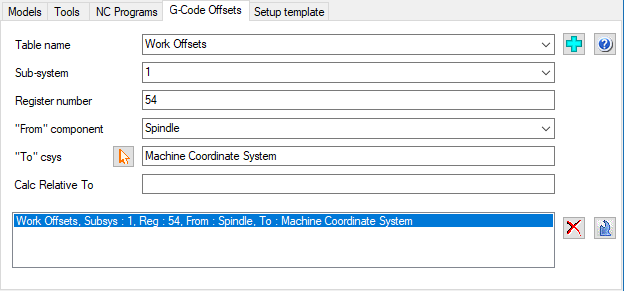
For each CATIA V5 part operation, the machining axis system defines the origin of the coordinates in the NC programs. Typically, this origin will be used to define the content of the "Program Zero" table in Vericut. But there are other tables that you could use to locate the NC programs relative to the machine axes. For example, you may wish to use a "Work Offsets" table for register 54. And you could associate the machining axis system to a different component of the machine, such as a head or turret. In the first of the four boxes in this dialog, you can enter the required parameters. There are four choices of table name in the drop-down list, but you can enter a different name if necessary. If you click on the Read G-Code tables  button, the list of table names will be populated by scanning the template for the setup or project. The first table encountered that has an associated sub-system, register number and "from" component will become the selected one. Use the Add
  Add icon to add a table. Make the appropriate selections and press the "Add". Use the Modify
  icon to modify an existing table. Select the table in the current list, make the appropriate changes and press the "Modify". Use the Remove icon to remove a table. Select it in the list and press the "Remove".
Select the desired table name from the Table List pull-down list. The Table List pull-down list contains the following Vericut G-Code tables: Program Zero, Work Offsets, and Base Work Offset. The Sub-system is used to specify the machine subsystem ID for which the table is being defined. Select the subsystem ID from the pull-down list. Register number is used to specify the table register number, example; for a G54 enter 54.
The "From" component pull-down list is used to select the name of the component that represents the "from" point for determining the program zero offset. The "To" Csys, by default, Machine Coordinate System is set, use the Pick select button and pick the name of a CSYS to represent the "to" point for determining the program zero offset. Use the Calc Relative To feature to set a relational offset recalculated in the machine position where the offset will be used. The new position is immediately calculated and stored and therefore is not dependent on the machine position when the offset is activated.
Setup template
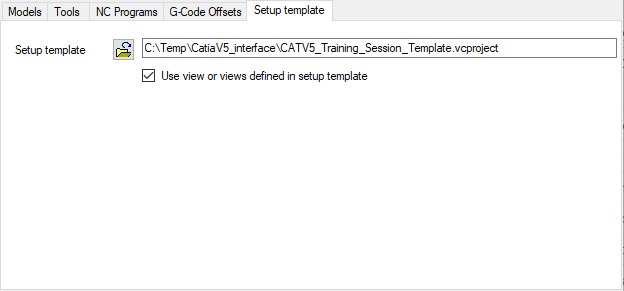
If all part operations in the CATProcess use the same machine, and that machine is defined in the Project template file, you could leave the Setup template field blank. If there are several machines involved, you will need to have a Vericut project file for each one, and will specify which file each setup should use in this field.
CATV5 can generate a single Vericut view for each setup, with the stock in the same orientation as it appears in CATIA V5. Alternatively, if you wish to Use the view or views defined in setup template already established in the setup (or project) template file, you can click on the check-box.
Options
Application
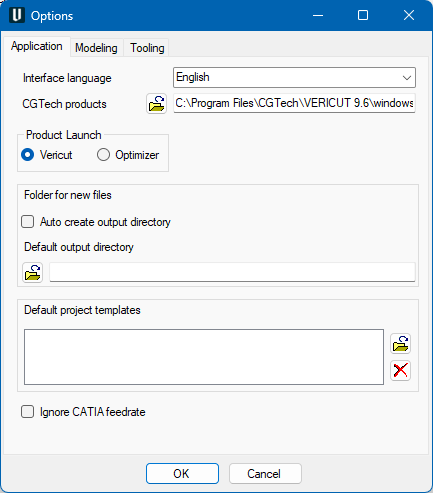
User can change the language of the interface here, runtime, by selecting any of the language on the drop-down menu provided. User can edit/specify here the path for ‘commands’ folder which contains the Vericut batch file, inside Vericut installation directory. Use the CGTech products Browse button to display a file selection window and use it to select the ‘commands’ folder
The Product Launch option allows the user to select the desired application to launch, Vericut or Optimizer
User can choose to have interface 'auto create' output directory so that user does not have to provide one explicitly. This is possible by checking 'Auto Create Output Directory' check-box. In this case, every time user opens interface, a directory named 'output' will be created (if does not already exist) underneath the main directory in which corresponding Catia project is located. This newly created 'output' directory will be chosen as an interface output directory and will be displayed to the user. Un-checking 'Auto Create Output Directory' checkbox enables 'Default Output Directory' text box and button which otherwise are disabled. If user wants to output all interface exported files to one default folder, it is possible by providing path to the 'Default Output Directory' text box. User can also locate path using the Browse button. User defined path here will be chosen as interface output directory and displayed on the interface in all future interface sessions.
List of Vericut project file that can be used as project templates can be specified here. Files listed here will be displayed in 'Project Directory' pull-down list on the main interface window. Use the Browse button to display a file selection window and use it to display a file selection window and use it to select the required Project Template. Use to Remove button to delete the highlighted Project Template from the List.
The Ignore CATIA feedrate is checked if the user does not want to override the maximum feed rate specified in the project or setup template.
Modeling
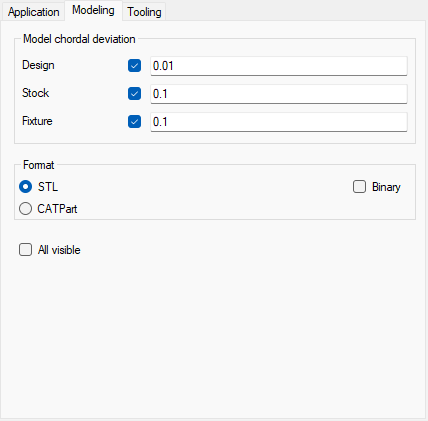
Model chordial deviation By default the precision of the created STL files is controlled by settings within CATIA V5, and will be the same for all design, stock and fixture models. Alternatively, you can specify a different chordal deviation for any or all of the three types of model, by "checking" types and providing maximum deviation distances. These options pertain to all setups.
For each "checked" model type, when an STL file is generated, the chordal deviation value provided is temporarily inserted into CATIA V5's "Tools > Options > Display > Performance > 3D Accuracy > Fixed" field, and the "Fixed" option is selected. For each "unchecked" model type, the user's settings for "3D Accuracy" apply. CGTech's staff does not pretend to understand CATIA V5's physical interpretation of the "Fixed" accuracy value, which appears to be non-dimensional and is limited to lie between 0.01 and 10.
Format Vericut can accept part models in a variety of formats, including STL and native CATPart files. You can adjust the precision of STL model types by performing the following procedure in CATIA V5. This only needs to be done once.
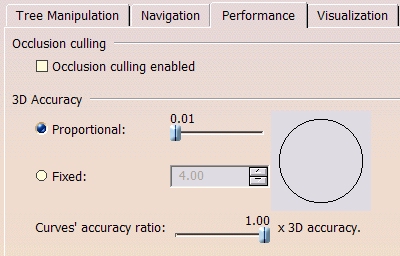
- Pick "Tools" > "Options ..." from the CATIA V5 menus.
- In the "Options" dialog, expand the "General" branch of the tree.
- Pick the "Display" sub-branch.
- Bring the "Performance" tab to the front.
- Under "3D Accuracy" pick "Proportional", and move the corresponding slider to the extreme left. The displayed value will then be "0.01".
- Click on the "OK" button.
Using CATParts is the fastest choice for CATV5 because the files are simply referenced, but there is a performance penalty when Vericut has to first access these files. Because some models may be used in several setups, this is a "project wide" parameter, so that we avoid having more than one version of the same model.
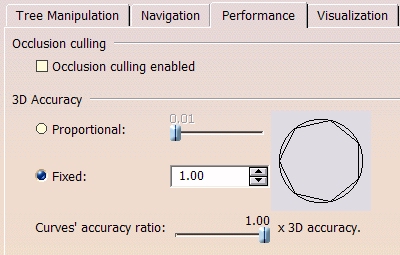
Check Binary if the user wishes to generate binary STL files instead of ASCII STL files. The All visable setting is checked used if the user wishes to ignore hidden state of models in the CATProcess set.
Tooling
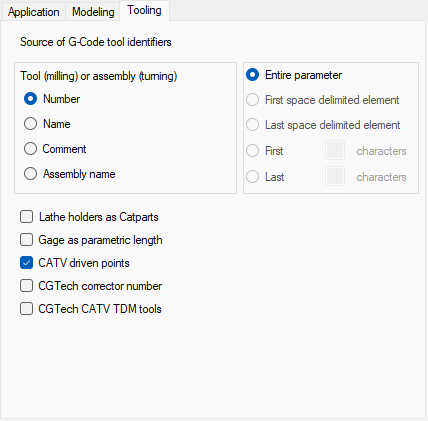
When CATIA V5 uses a post to generate the NC programs, the Source of G-Code tool identifiers within the G-Code can be extracted from several of the tool or assembly's parameters. Typically, the tool Number (for a milling tool) or the Assembly name (for a turning tool) are used. But a post could access Names or Comment fields too.
In the second box you can select which field contains the tool identifiers, and in the lowest box you can specify how identifiers are to be extracted from the chosen field.
The Lathe holders as Catparts set if the user has Turning tool defined as a ".CATPart". This option looks for a coordinate system called "Tool Holder Axis System" which defines a tool assembly's gage point. Gage as parametric length is used to set the length specified in the parametric definition of a holder as the gage length. Check CATV driven points if the user does not want to export driven point data to Vericut. CGTech corrector number is set if the user wishes to use the "Corrector number" to identify driven points, instead of the "Corrector Id". CGTech CATV TDM tools is set if the user wishes to rotate exported 3D TDM tools by 90 degrees.
Press the OK button when you have defined all the options as desired and the Options dialog will disappear.
PPR

If you set many of the parameters above but then decide that you are not ready to transfer the data to Vericut, you can click on this button to save all the project and setup parameters in the active PPR document. You would still need to save that document as a ".CATProcess" file to preserve your work.
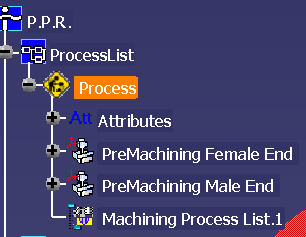
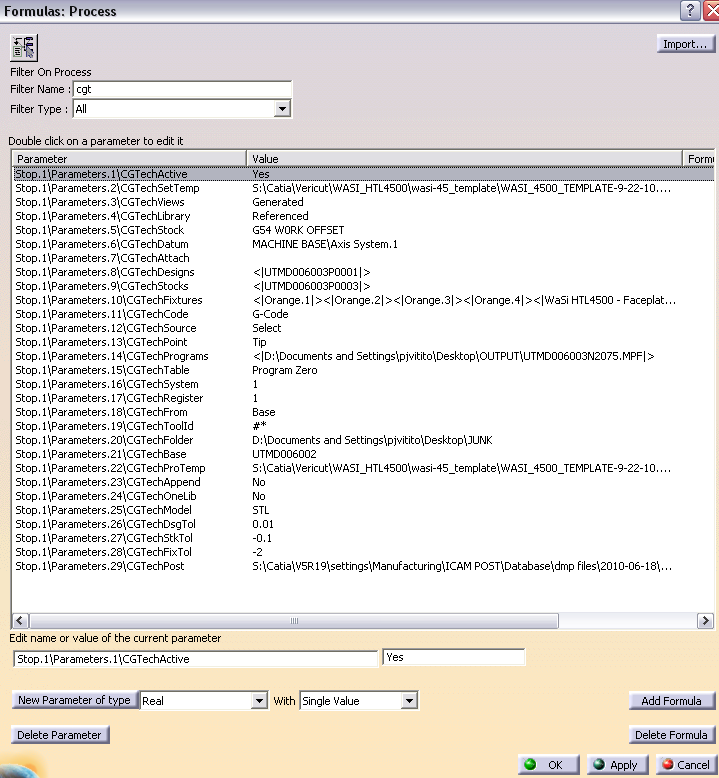
CATV stores data as Parameters within Catia. To access these Parameters, make the Process active in the tree, then select Formula  and then set Filter Name equal to "cgt"
Update
 CATIA V5 can have more than one CATProcess file open at once. CATV5 is not aware when you switch between files in CATIA V5. The Update button forces the program to refresh the interface content from the currently active CATProcess file. If the active CATIA V5 file is not a CATProcess (it could be a CATPart for example) the program will display a warning message.
Generate buttons

When you have provided CATV5 with all the information it needs, you can perform the transfer of data to, and triggering of, Vericut/Optimizer.
Click on the Generate files button to create the tool libraries, models and NC programs without triggering Vericut/Optimizer. Once you have all the files needed, you can fire up Vericut or Optimizer with the Run Vericut/Optimizer button.
You can perform both of these steps at once with the Generate and run button. Data transfer, particularly if you are generating and post-processing large NC programs, can be time consuming, so a dialog is presented which provides a simple indication of progress. The Exit CATV5 button terminates the program.
Preferences
Preferences File

Also known as 'prefs' file, stores all user specified 'global' settings for interface operation. The settings stored are called 'global' because they are responsible for overall look & feel and operational behavior of the interface. They are not tied to any specific CATIA V5 project. By default, 'Preferences' file is generated at C:\Users\username\catv5_user.prefs.
Custom Data
CATV5 stores it fields as parameters within Catia. To access these parameters, make the Process active in the tree and select formula and then select type "cgt" in the Filter Name