License
Location:
Help tab >  (License)
The License command button opens the License window showing the status of Vericut licenses on your license server.
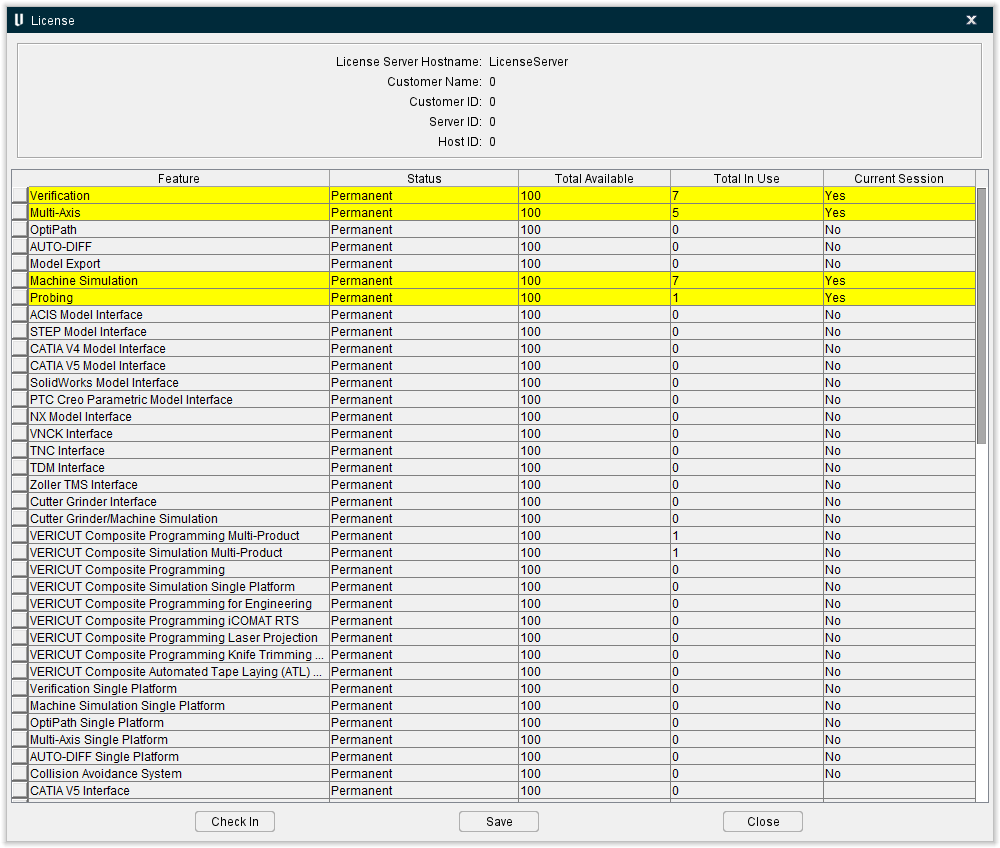
License Server Hostname — The name of the license server that has the Vericut Licenses.
Customer Name — The name of the company that purchased and is running the Vericut Software.
Customer ID — The company’s ID number. This is the number that you will be asked for when you call for Technical Support.
Server ID — The license server ID number.
Host ID — The physical address of the computer that is running Vericut.
Feature — This column shows the Vericut feature licenses that are available on your license server.
Status — This column shows the expiration date of the Vericut feature license.
Total Available — This column shows the total number of Vericut feature licenses that are available on your license server.
Total in Use — This column shows the total number of Vericut feature licenses that are currently in use.
Current Session — This column shows the total number of Vericut feature licenses that you are using in your session.
Check In — This feature enables you to return any “optional” license that is being used by the current session to the license server. Vericut licenses that are in use by the current session are highlighted and indicated by a Yes in the Current Session column as shown in the picture above.
Optional licenses used by Vericut that can be returned to the license server are:
-
Multi-Axis
-
OptiPath
-
AUTO-DIFF
-
Model Export
-
Machine Simulation
-
Probing
-
840D VNCK
-
NX Interface
-
CAD Model Interfaces
These are the only licenses that can be checked in. Once an optional license is returned to the license server it may be checked out immediately by another user, including the same user who just returned it.
Selecting the Check In button in the License window displays the License Check In window shown below.
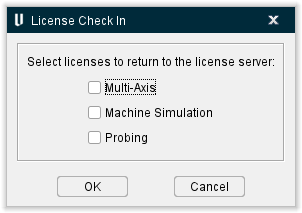
The License Check In window will display all licenses that are being used by the current session that are eligible to be checked in. Use the checkboxes next to the licenses to specify which license, or licenses that you want to check in then select OK. Use the Cancel button to close the License Check In window without checking in any licenses.
Save — Opens a file selection window enabling you to save the contents of the License window as a text file.
Close — Closes the License window.