Configure Attach Component menu
Location:
Project Tree > Attach Component branch (Configure “on”)
An Attach Component is a special case since it is contained in the machine configuration but is displayed in the Project Tree, even when the Show Machine Components feature is toggled "off".
The Attach component is used to connect "setup" components in the project file to the machine.
-
Setup components are saved in the project file, not the machine file.
-
Stock/fixture/design components are "setup" components
- "Setup" components can be axes and have kinematics relationships
- Auxiliary devices can be connected to the Attach component
How does the "Attach" component work?
- A machine must have at least one Attach component, but multiple Attach components are allowed. If none is found, one is automatically created at the end of the first non-tool branch of the machine kinematics tree.
-
Components are contained in both in the machine, and in the setup.
-
A parent component in a "setup" references an Attach component in a machine.
The Configure Attach Component menu will display differently depending on whether the Show Machine Components feature is toggled "on" or "off".
Show Machine Components toggled “off”
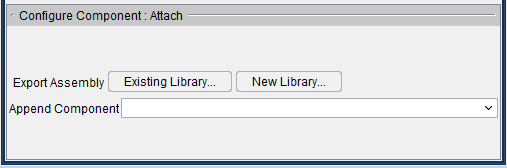
When the Show Machine Components feature in the Project Tree is toggled "off" or not available at all:
-
Components can be appended to the Attach Component.
-
Models under the Attach Component are not displayed in the tree.
- Models cannot be added to the Attach Component.
- Attach Component attributes are not displayed in the Configure Attach Component menu.
Append Component — The Append Component pull-down list contains all of the component types that are valid "setup" components. Select from the following component types: Stock, Fixture, Design, Design Point, Electrode, or Deflector. Each of these "project" component types is described in the Configure Component menu section.
Show Machine Components toggled “on”
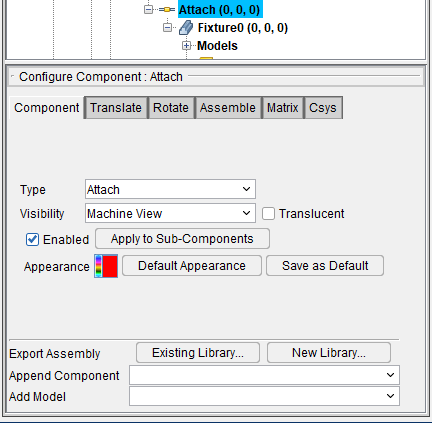
When the Show Machine Components feature in the Project Tree is toggled "on":
-
Components can be appended to the Attach component.
-
Models under the Attach component are displayed in the tree.
- Models can be added to an Attach component.
- Attach component attributes are displayed in the Configure Component: Attach menu.
Features: Component Type, Color, Visibility and Mixed Mode are common to all component types and are described in detail in the Configure Component menu: Component tab section.