Binary CL Converter
Binary to ASCII CL Converter window
Location:
Utilities tab >  (Binary CL)
The Binary CL Converter converts binary APT CL data into ASCII low level APT tool path files. Binary CL data is the pre-processed NC data typically sent to a post-processor. Binary CL data files can be converted interactively in Vericut, via batch processing, or as a stand-alone utility outside of Vericut by running the "bincl2v" command file located in the "commands" directory of your Vericut installation.
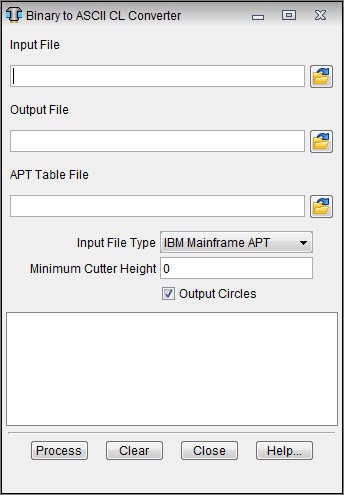
Input File — The name of the file containing the binary CL data to convert. Enter the /path/filename in the Input File text field or click on the  (Browse) icon to display the Select Input File file selection window and use it to specify the /path/filename.
Output File — The name of the file to receive converted APT tool path records. Enter the /path/filename in the Output File text field or click on the (Browse) icon to display the Select Output File file selection window and use it to specify the /path/filename.
APT Table File — Name of the APT Table file containing information for converting binary APT data into ASCII APT NC program records. Enter the /path/filename in the APT Table File text field or click on the (Browse) icon to display the Select APT Table File file selection window and use it to specify the /path/filename.
Input File Type — The type of binary input file to read.
Options are:
- IBM Mainframe APT (APT/360, APT/370, APT/AC, or MDCAPT)
- Workstation IBM APT
- Workstation CATIA APT
- VAX APT
Minimum Cutter Height — Default height used when cutter height is not defined in the binary APT data.
Output Circles — When active, outputs CIRCLE records for circular motion. Clearing this check box causes chordal GOTO points to be output representing each circle.
Process — Processes (converts) the binary CL data according to the current window settings. Converted tool path records are written to the Output File. Error and informational messages from the process are sent to the Binary CL Converter window message area.
Clear — Clears the Binary CL Converter window message area.
Close — Closes the Binary CL Converter window.
Help — Displays this Help page. (You can also use the F1 key to display this Help page.)