Configure Control menu
Location:
Project Tree > Control branch (Configure “on”)
The Configure Control menu enables you to select the Control file to use for the current setup.
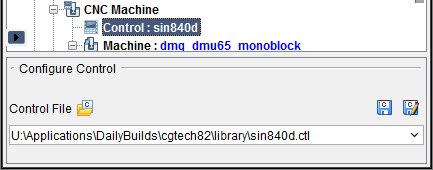
The features in the Configure Control menu provide exactly the same functionality as the Control File features in the Configure CNC Machine menu section.
📝 NOTE: In some environments, the Save File and Save As File icons will not be displayed. This is because the CGTECH_MACHINE_CONFIG environment variable has been set in the vericut.bat file to restrict access to Vericut’s machine configuration features.
Saving or Opening an NC Control Configuration
The NC control configuration, including rules for how machine codes are interpreted, associated subroutines, and more, are saved in a Control file. When combined with a Machine file, Vericut can simulate how an NC machining center will respond to G-Code NC program files.
Use the procedures below to save and open Control files. Note that many control configurations are available in the Vericut library. See Library Control Files in the in the Getting Started section of Vericut Help for more information.
See Library Control Files section of Vericut Help for more information.
To save a new Control file:
-
Use one of the following methods to display the "Save Control File" file selection window:
In the Project Tree, right-click on a Control branch and select Save As from the menu that displays. You can also left-click on a Control branch to display the Configure Control menu and click on the (Save Control As) icon.
In the Vericut Toolbar, click on the (Save Control As) icon.
In the main menu ribbon, click on Machine/Control tab > Save As (Control). -
In the "Save Control File" file selection window that opens, select
 (Folder) in the upper left corner to display the “standard” file selection Folder Tree structure in the left panel.
 -
Select the folder in the tree on the left side of the window that you want to save the file to. Use the
 (Up One Level) icon, located in the upper right corner of the file selection window, to quickly move up one level in the folder tree structure.
You can also select the folder from the Shortcut pull-down list, located in the upper right corner of the file selection window, if it is found there.
If you want to create a new folder, use the (New Folder) icon, located in the upper right corner of the file selection window, to display the New folder window. Use it to add the name of the sub-folder to be added. Click OK in the New folder window to add the new sub-folder inside the folder highlighted in the folder tree.
 -
Once you select the folder in the folder tree, the files in that folder are displayed in the center section of the file selection window. Use the Filter feature to specify the type of files that you want displayed.
- Enter the name of the file that you want to save in the File text field, or select a file from those displayed in the center section of the file selection window if you want to replace it.
- Click on Save in the lower right corner of the window to save the file and close the file selection window.
You can click on Cancel in the lower right corner of the window to close the file selection window without saving the file. The Control file is saved. You can open saved Control files as described below to reload the NC control configuration.
To save a new Control file to a Favorite Folder:
-
Use one of the following methods to display the "Save Control File" file selection window:
In the Project Tree, right-click on a Control branch and select Save As from the menu that displays. You can also left-click on a Control branch to display the Configure Control menu and click on the (Save Control As) icon.
In the Vericut Toolbar, click on the (Save Control As) icon.
In the main menu ribbon, click on Machine/Control tab > Save As (Control). -
In the "Save Control File" file selection window that opens, select
 (Favorite) in the upper left corner to display the Favorites Listing Area section of your Favorites panel in the left panel.
See Favorites panel in the Configuration tab section of Vericut Help for complete information. -
Select the “favorite” folder in the Favorites List, on the left side of the window, where you want to save the file. You can also select the folder from the Shortcut pull-down list if it is found there.
-
Once you select the “favorite” folder in the Favorites List, the files in that folder are displayed in the center section of the file selection window, filtered according to the setting of the Filter feature when the “favorite” folder was created.
- Enter the name of the file that you want to save in the File text field, or select a file from those displayed in the center section of the file selection window if you want to replace it.
- Click on Save in the lower right corner of the window to save the file and close the file selection window.
You can click on Cancel in the lower right corner of the window to close the file selection window without saving the file.
To open an existing Control file:
-
Use one of the following methods to display the "Open Control" file selection window:
In the Project Tree, right-click on a Control branch and select Open from the menu that displays. You can also left-click on a Control branch to display the Configure Control menu and click on the (Open Control) icon.
In the Vericut Toolbar, click on the(Open Control) icon.
In the main menu ribbon, click on Configuration tab > Open Control. -
In the "Save Control File" file selection window that opens, select
(Folder) in the upper left corner to display the “standard” file selection Folder Tree structure in the left panel.
Select the folder in the tree on the left side of the window containing the file you want to open. Use the(Up One Level) icon, located in the upper right corner of the file selection window, to quickly move up one level in the folder tree structure. You can also select the folder from the Shortcut pull-down list if it is found there. -
Once you select the folder in the folder tree, the files in that folder are displayed in the center section of the file selection window. Use the Filter feature to specify the type of files that you want displayed.
- Select the file that you want to open from those displayed in the center section of the file selection window so that it becomes highlighted.
- Click on Open in the lower right corner of the window to open the file and close the file selection window.
You can click on Cancel in the lower right corner of the window to close the file selection window without opening a file.
💡 Tips:
-
Use the LIBRARY shortcut to see control files available in the Vericut library.
-
Use the Help on Samples feature to go to a Help section that provides information on the Control files that are available to you.
📝 NOTE: Always reset Vericut, press  (Reset Model), after opening or changing Machine or Control files.
To open an existing Favorite Control file:
-
Use one of the following methods to display the "Open Control" file selection window:
In the Project Tree, right-click on a Control branch and select Open from the menu that displays. You can also left-click on a Control branch to display the Configure Control menu and click on the(Open Control) icon.
In the Vericut Toolbar, click on the(Open Control) icon.
In the main menu ribbon, click on Configuration tab > Open Control. -
In the "Save Control File" file selection window that opens, select
(Favorite) in the upper left corner to display the Favorites Listing Area section of your Favorites panel in the left panel.
See Favorites panel in the Configuration tab section of Vericut Help for complete information. -
Select the “favorite” folder in the Favorites List, on the left side of the window, containing the file you want to open. You can also select the folder from the Shortcut pull-down list if it is found there.
-
Once you select the “favorite” folder in the Favorites List, the files in that folder are displayed in the center section of the file selection window, filtered according to the setting of the Filter feature when the “favorite” folder was created.
- Select the file that you want to open from those displayed in the center section of the file selection window so that it becomes highlighted.
- Click on Open in the lower right corner of the window to open the file and close the file selection window.
You can click on Cancel in the lower right corner of the window to close the file selection window without opening a file.
📝 NOTE: Always reset Vericut, press (Reset Model), after opening or changing Machine or Control files.
To Save an existing Control file:
Use one of the following methods to save an existing Control file:
- In the Project Tree, right-click on a Control branch and select Save from the menu that displays. You can also left-click on a Control branch to display the Configure Control menu and click on the
 (Save Control) icon.
 - In the Vericut Toolbar, click on the (Save Control) icon.
- In the main menu ribbon, click on Machine/Control tab > Save Control.
For details about Vericut library machines and controls, and other sample files you can reference when simulating G-Code NC program files, see Library Control Files and Library Machine Files section of Vericut Help.