Controlling Vericut with Comment Records
Comment records, for example "PPRINT/COMMENT TEXT" in APT or CLS NC programs, or "(COMMENT TEXT)" in G-Code NC programs, typically have no affect on the tool motion simulated by Vericut. However, special "Vericut comment" records are available to help control the NC program simulation in Vericut. For example, Vericut comments can be used to change cut colors, set Vericut user interface values, or cause Vericut to perform certain actions, such as: AUTO-DIFF model comparisons, reversing the view, etc. Some simple examples follow.
Note that for G-Code NC programs, the NC control must be configured to interpret the comment record format for that control, for example "begin comment" word, "end comment" word (if present), etc. See Word Format Table in the Configuration Menu section of Vericut Help, in the Vericut Help Library.
Examples of Vericut comment records that reverse the model view:
APT or CLS NC programs:
PPRINT/VERICUT-COMMAND reverse
G-Code NC programs:
Fanuc control configured with "(" begin comment word, and ")" end comment word —

  (VERICUT-COMMAND reverse)
Cincinnati Acramatic control configured with "(MSG," begin comment word, and ")" end comment word —
(MSG,VERICUT-COMMAND reverse)
Heidenhain control configured with ":" begin comment word (no end comment word) —
:VERICUT-COMMAND reverse
Note that for G-Code NC programs, the NC control must be configured to interpret the comment record format for that control, for example "begin comment" word, "end comment" word (if present), etc. See Word Format Table in the Configuration Menu section of Vericut Help, in the Vericut Help Library for additional information.
The available Vericut comment records with specific formats and examples are described in the following sections.
APT CBOX record
Defines a stock block via min/max corner points. This record is processed by Vericut when a stock model is loaded and the model is not yet cut. A new stock block is defined and fit into all displayed views.
Format:
APT/CLS: PPRINT/ATP CBOX xmin,ymin,zmin,xmax,ymax,zmax

G-Code (Fanuc): (ATP CBOX xmin,ymin,zmin,xmax,ymax,zmax)
Example:
APT/CLS: PPRINT/ATP CBOX -1,-2,-1,5,7,2 -defines a 6 x 9 x 3 block positioned X= -1, Y= -2, Z= -1

G-Code (Fanuc): (ATP CBOX -1,-2,-1,5,7,2) -defines a 6 x 9 x 3 block positioned X= -1, Y= -2, Z= -1
VERICUT-BEGINTABLE Record
Special comment record that, when used with VERICUT-ENDTABLE record, enables specifying the contents of a table, for use in a Vericut report, from PPRINT statements within the NC program file. The general format is PPRINT/Vericut-BEGINTABLE "tagname", for APT or CLS tool paths, or (VERICUT-BEGINTABLE "tagname") for G-code NC programs.
Example of use:
Use to specify the contents for a "Table" type User-Defined Tag:
(VERICUT-BEGINTABLE "setup_info")

( 1ST OP, METALDYNE PUNCH SLEEVE BODY )

( PART #,H0070-0243 )

( REV.,"A" )

( NC Program File,L1H0070-0243.TXT)

( DATE ORIGINALLY PROGRAMMED,10/24/03 )

( PROGAMMED BY,CHARLIE WILSON )

( STOCK,6-1/2" H-13 CUT +.150 )

(- ,CHUCK ON STOCK DIA. 3.00" DEEP )

(- ,WITH FULL CHUCK PRESSURE )

(- ,UNDERCUT YOUR JAWS FOR A GOOD GRIP )

(VERICUT-ENDTABLE)
where setup_info is the User-Defined Tag name, and the remaining statements represent the content of the table, with the exception if the VERICUT-ENDTABLE statement which indicates the end of the table data. Each comment record represents a row in the table and the "," character is used to separate the column entries.
📝 NOTE: See VERICUT-USERTAG record for information on populating a table in a Vericut report using a text file.
VERICUT-COMMAND Record
VERICUT-COMMAND Records are special comment records that perform Vericut commands or operations. The commands available via comment records are listed below with examples of use.
Note that for G-Code NC programs, the NC control must be configured to interpret the comment record format for that control, for example "begin comment" word, "end comment" word (if present), etc.
auto-diff
Performs an AUTO-DIFF comparison, and then restores the cut model.
Examples of use:
APT/CLS — PPRINT/VERICUT-COMMAND auto-diff

G-Code (Fanuc) — (VERICUT-COMMAND auto-diff)
CGC
Used to turn On/Off the Constant Gouge Check feature and set the tolerance value for gouge or excess checking during the execution of the NC program. This option can be followed by the word GOUGE or EXCESS and a tolerance value, or OFF for turning the feature off.
Example of use:
APT/CLS — PPRINT/VERICUT-COMMAND CGC GOUGE 0.05
display_fixtures
Displays all defined fixture models. (See also "remove_fixtures".)
Examples of use:
APT/CLS — PPRINT/VERICUT-COMMAND display_fixtures

G-Code (Fanuc) — (VERICUT-COMMAND display_fixtures)
FIT
Does a "fit" of the active view. (See also "FIT_ALL".)
Example of use:
PPRINT/VERICUT-COMMAND,FIT
FIT_ALL
Does a "fit" of all views. (See also "FIT".)
Example of use:
PPRINT/VERICUT-COMMAND,FIT_ALL
load_model_by_name "\
Makes a pre-defined model(s), referenced by its component name, "visible" in Workpiece views in the Vericut display. (See also "remove_model_by_name")
Examples of use:
Display the model(s) referenced by the component named "Fixture" in the Project (or Component) Tree:
APT/CLS — PPRINT/VERICUT-COMMAND load_model_by_name "Fixture"

G-Code (Fanuc) — (VERICUT-COMMAND load_model_by_name "Fixture")
load_fixture_by_seq \
Displays in the Vericut display the model(s) associated with the fixture component, referenced by the sequential order in which the fixture components appear in the Project (or Component) Tree. (See also "remove_fixture_by_seq")
Examples of use:
Display the model(s) referenced by the second fixture component (Fixture B) in the Project (or Component) Tree:
APT/CLS — PPRINT/VERICUT-COMMAND load_fixture_by_seq 2

G-Code (Fanuc) — (VERICUT-COMMAND load_fixture_by_seq 2)
repaint
Repaints solid objects with colors assigned via the Colors: Assign tab. See the Vericut Help section, in the Vericut Help Library, for additional information.
Examples of use:
APT/CLS — PPRINT/VERICUT-COMMAND repaint

G-Code (Fanuc) —(VERICUT-COMMAND repaint)
reset_cutcolor
Resets all model colors to the "Reset Cut Color" color. (Ref. Colors: Assign tab in the Vericut Help section, in the Vericut Help Library.)
Examples of use:
APT/CLS — PPRINT/VERICUT-COMMAND reset_cutcolor

G-Code (Fanuc) — (VERICUT-COMMAND reset_cutcolor)>
reverse
Reverses the view of the Vericut model. (Ref. View menu > Orient: Reverse in the Vericut Help section, in the Vericut Help Library. )
Examples of use:
APT/CLS — PPRINT/VERICUT-COMMAND reverse

G-Code (Fanuc) — (VERICUT-COMMAND reverse)
remove_fixtures
Removes all displayed fixture models. (See also "display_fixtures".)
Examples of use:
APT/CLS — PPRINT/VERICUT-COMMAND remove_fixtures

G-Code (Fanuc) — (VERICUT-COMMAND remove_fixtures)
remove_model_by_name "\
Removes a pre-defined model(s), referenced by its component name, "not visible" in Workpiece views in the Vericut display. (See also "load_model_by_name")
Examples of use:
Remove the model(s) referenced by the component named "Fixture", in the Project (or Component) Tree, from the Vericut display:
APT/CLS — PPRINT/VERICUT-COMMAND remove_model_by_name “Fixture”

G-Code (Fanuc) — (VERICUT-COMMAND remove_model_by_name “Fixture ”)
remove_fixture_by_seq \
Removes from the Vericut display, the model(s) associated with the fixture component, referenced by the sequential order in which the fixture components appear in the Project (or Component) Tree. (See also "load_fixture_by_seq”)
Examples of use:
REMOVE the model(s) referenced by the second fixture component (Fixture B) in the Project (or Component) Tree:
APT/CLS — PPRINT/VERICUT-COMMAND remove_fixture_by_seq 2

G-Code (Fanuc) — (VERICUT-COMMAND remove_fixture_by_seq 2)
SAVE_IP,filename
Saves an In-Process file, named "filename" to the current working directory. ".ip" is appended if no extension is specified.
Examples of use:
Saves an IP file named setup1.ip to the current working directory.
PPRINT/VERICUT-COMMAND,SAVE_IP,setup1
See in In-Process File in the Getting Started with Vericut section of Vericut Help, in the Vericut Help Library, for additional information on In-Process files.
SAVE_VCT,filename,FEATURES,YES (or NO)
SAVE_VCT,filename,stockname
Saves a Vericut Solid file, named "filename" to the current working directory. ".vct" is appended if no extension is specified.
📝 NOTE: If "filename" contains spaces or a drive letter, include double quotes in the command. See examples below.
FEATURES, YES indicates that the Vericut Solid file is to be saved with features. FEATURES, NO indicates that the Vericut Solid file is to be saved without features.
Use "stockname" to specify which stock is to be saved when more than one stock component is present.
Examples of use:
Save a Vericut Solid file named stock1.vct, using the first stock component, to the current working directory. Save the file with features.
PPRINT/VERICUT-COMMAND,SAVE_VCT,stock1
or
PPRINT/VERICUT-COMMAND,SAVE_VCT,stock1,FEATURES,YES
Save a Vericut Solid file named stock1.vct, using the first stock component, to the current working directory. Save the file without features.
PPRINT/VERICUT-COMMAND,SAVE_VCT,stock1,FEATURES,NO
Save a Vericut Solid file named "stock2.vct", using the stock component named "Cut_Stock2", to the current working directory. Save the file with features.
PPRINT/VERICUT-COMMAND,SAVE_VCT,stock2,Cut_Stock2
or
PPRINT/VERICUT-COMMAND,SAVE_VCT,stock2,FEATURES,YES,Cut_Stock2
Save a Vericut Solid file named "stock2.vct", using the stock component named "Cut_Stock2", to the current working directory. Save the file without features.
PPRINT/VERICUT-COMMAND,SAVE_VCT,stock2,FEATURES,NO,Cut_Stock2
Save a Vericut Solid file named "my stock1.vct", using the first stock component, to the "n:\my files\" directory.
PPRINT/VERICUT-COMMAND,SAVE_VCT,"n:\my files\my stock1"
or
(VERICUT-COMMAND,SAVE_VCT,"n:\my files\my stock1")
Save a Vericut Solid file with features named "my stock1.vct", using the first stock component, to the "n:\my files\" directory.
PPRINT/VERICUT-COMMAND,SAVE_VCT,"n:\my files\my stock1", FEATURES,YES
or
(VERICUT-COMMAND,SAVE_VCT,"n:\my files\my stock1",FEATURES,YES)
See Vericut Solid File, in the Getting Started with Vericut section of Vericut Help, in the Vericut Help Library, for additional information on Vericut Solid files.
ZOOM_OUT
Zooms out in the active view.
Example of use:
PPRINT/VERICUT-COMMAND,ZOOM_OUT
VERICUT-CUTCOLOR Record
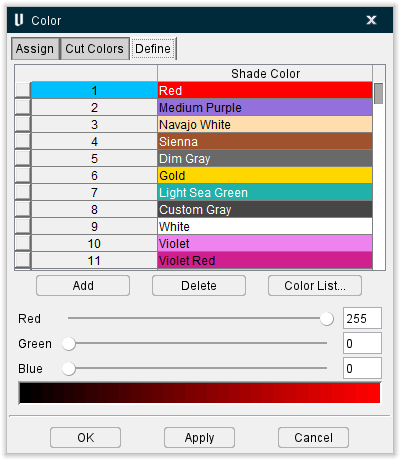
Special comment records that assign the cut color for the active tool. Cut colors are referenced via an index corresponding to the colors defined for use via the "Shade Color list" on the Colors: Define tab (See the Vericut Help section, in the Vericut Help Library for additional information). Color index numbers range from 0-n where "0" refers to the first color in the list-typically assigned to be the Error color. "1" refers to the second listed color, and so on. The index number is always 1 less than the index seen in the user interface. Examples follow.
Note that for G-code tool paths, the NC control must be configured to interpret the comment record format for that control, for example "begin comment" word, "end comment" word (if present), etc.
Examples of use:
Set the cut color to "Light Steel Blue", as referenced in the sample Color window below:
APT/CLS — PPRINT/VERICUT-CUTCOLOR 2

G-Code (Fanuc) — (VERICUT-CUTCOLOR 2)
VERICUT-ENDTABLE Record
Special comment record that, when used with VERICUT-BEGINTABLE record, enables specifying the contents of a table, for use in a Vericut report, from PPRINT statements within the toolpath file. The general format is PPRINT/VERICUT-ENDTABLE, for APT or CLS tool paths, or (VERICUT-ENDTABLE) for G-code tool paths.
Example of use:
Use to specify the contents for a "Table" type User-Defined Tag:
(VERICUT-BEGINTABLE "setup_info")

( 1ST OP, METALDYNE PUNCH SLEEVE BODY )

( PART #,H0070-0243 )

( REV.,"A" )

( NC Program File,L1H0070-0243.TXT)

( DATE ORIGINALLY PROGRAMMED,10/24/03 )

( PROGAMMED BY,CHARLIE WILSON )

( STOCK,6-1/2" H-13 CUT +.150 )

(- ,CHUCK ON STOCK DIA. 3.00" DEEP )

(- ,WITH FULL CHUCK PRESSURE )

(- ,UNDERCUT YOUR JAWS FOR A GOOD GRIP )

(VERICUT-ENDTABLE)
where the VERICUT-BEGINTABLE statement indicates the start of the table data, setup_info is the User-Defined Tag name, the remaining statements represent the content of the table, and the VERICUT-ENDTABLE statement indicates the end of the table data. Each comment record represents a row in the table and the "," character is used to separate the column entries.
📝 NOTE: See VERICUT-USERTAG record for information on populating a table in a Vericut report using a text file.
VERICUT-MODAL Record
This comment record controls both VERICUT-MODAL FASTFEED and VERICUT-MODAL FASTFPR
To control Fast Feed settings in Vericut via a comment record, follow these detailed step-by-step instructions:
- Understand Fast Feed Modes:
-
Vericut supports Fast Feed in two modes: Feed per Revolution (FPR) and Feed per Minute (FPM).
-
When in FPR mode and the Fast Feed (FPR) value is non-zero, Vericut checks the fast feed rate against the Fast Feed (FPR) value.
- For Tapping and Threading operations (even if in FPR mode), the Fast Feed (FPM) value is used instead because tapping/threading speeds are typically higher.
- Default Settings:
-
The default Fast Feed (FPR) value is zero, meaning it is not used unless explicitly set.
-
If you want to apply multiple FPR fast feed values, you can specify them as a comma-separated list.
-
Using Vericut MODAL Comment Record:
-
Vericut allows you to control Fast Feed values via comment records in your NC program.
-
Use the following syntax within a comment to set the Fast Feed (FPR) value:
-
VERICUT-MODAL FASTFPR = "X.X"
-
Replace "X.X" with the desired fast feed value.
- For multiple values, use a comma-separated list, e.g., "X.X, Y.Y, Z.Z".
-
-
Example:
- To set the Fast Feed (FPR) to 100 units per revolution, include this comment in your NC code:
-
(VERICUT-MODAL FASTFPR = "100")
-
To set multiple Fast Feed (FPR) values, for example 100, 150, and 200, use:
* (VERICUT-MODAL FASTFPR = "100,150,200")- Placement:
- Insert the comment record at appropriate locations in your NC program where you want the Fast Feed setting to take effect.
-
Vericut will read and apply the Fast Feed values from the comment as it processes the program.
- Notes:
- Tapping and Threading operations will always use the Fast Feed (FPM) value, not the Fast Feed (FPR) value set via the comment.
-
Make sure the Fast Feed (FPR) value is non-zero to activate this setting.
-
If the Fast Feed (FPR) is zero or not set, Vericut will not apply any Fast Feed limit based on this parameter.
By following these steps and using the VERICUT-MODAL FASTFPR comment record, you can effectively control Fast Feed settings in Vericut directly from your NC program.
VERICUT-MOTION record
This special comment record is used to control when tool motions and cutting are simulated. When off, motion commands and tool positions are processed, but simulation, cutting, collision detection, and axis over-travel detection are suspended (ignored) during subsequent moves. When motion is turned on, the tool and/or NC machine "jumps" to its current position. The motion "on" condition is automatically set when a reset is done.
Note that for G-code tool paths, the NC control must be configured to interpret the comment record format for that control, for example "begin comment" word, "end comment" word (if present), etc.
Examples of use:
Turn motion off:
APT/CLS — PPRINT/VERICUT-MOTION off

G-Code (Fanuc) — (VERICUT-MOTION off)
Turn motion on:
APT/CLS — PPRINT/VERICUT-MOTION on

G-Code (Fanuc) — (VERICUT-MOTION on)
VERICUT-OPTIMIZE record
VERICUT-OPTIMIZE records are special comment records that control when tool motions are optimized via Optimization.
Initially Optimization must be turned on by setting the Optimization Mode feature, on the Optimize Control window: Settings tab to "On". After that, VERICUT-OPTIMIZE off and VERICUT-OPTIMIZE on records can be used to suspend and restart the writing of optimized NC program records.
When a VERICUT-OPTIMIZE off record is encountered, Optimization is not turned off, but the writing of "optimized" NC Program records to the Optimized File is suspended (ignored) during subsequent moves. During this time, un-optimized NC program records continue to be written to the Optimized File just as they were programmed. The writing of optimized NC program records remains suspended until the next VERICUT-OPTIMIZE on record is encountered. A VERICUT-OPTIMIZE on record must be used prior to the next tool change.
Examples of use:
Suspend writing optimized NC program records:
APT/CLS — PPRINT/VERICUT-OPTIMIZE off

G-Code (Fanuc) — (VERICUT-OPTIMIZE off)
📝 NOTE: Using either of the above "OPTIMIZE off" record suspends the writing of optimized NC program records until the next "OPTIMIZE on" record is encountered. During this time the OPTI status light in the Vericut window will display yellow.
Resume writing optimized NC program records:
APT/CLS — PPRINT/VERICUT-OPTIMIZE on

G-Code (Fanuc) — (VERICUT-OPTIMIZE on)
A format also exists for specifying which Stock Material record to use:
VERICUT-OPTIMIZE DESC="description"
where "description" is an alpha-numeric text string that matches an existing Stock Material record Tool/Operation description defined for a cutter. The description must be enclosed in double quotes. This record syntax specifies one of the three values needed to identify which Stock Material record to use. The other two values come from Stock Material and Machine settings on the Optimize Control window: Optimization tab (ref. Optimize Control window: Optimization tab in the Optimize Control window section of Vericut Help, in the Vericut Help Library. If an optimization record matching the four values is not found, Vericut continues to write un-optimized tool path records to the Optimized File.
Consider the following Stock Material records defined for a cutter in the Tool Library. The Blue "F" icon indicates the Stock Material record with Tool/Operation description ".625D 1.50H FEM-Finish" is active.

Examples of specifying a different Stock Material record for use:
APT/CLS: PPRINT/VERICUT-OPTIMIZE DESC=".625D 1.50H FEM-Rough"

G-Code (Fanuc): (VERICUT-OPTIMIZE DESC=".625D 1.50H FEM-Rough")
📝 NOTE: For G-Code NC programs, the NC control must be configured to interpret the comment record format for that control, for example "begin comment" word, "end comment" word (if present), etc. See Word Format Table in the Configuration Menu section of Vericut Help, in the CGTech Help Library for additional information.
"VERICUT-OPTIMIZE OVERRIDEPERCENT=n" record- applies the specified % override to subsequent optimized feedrates. The value "n" is the percent multiplication applied to optimized feedrates.
VERICUT-OPTIMIZE OVERRIDEPERCENT=100 causes subsequent optimized feedrates to not be overridden, and will be output at 100% of their calculated value.
Examples of specifying an override percentage to optimized feedrates:
APT/CLS: PPRINT/VERICUT-OPTIMIZE OVERRIDEPERCENT=50

G-Code (Fanuc): (VERICUT-OPTIMIZE OVERRIDEPERCENT=50)
See Tool Manager, Tool Table and Optimization window in the Project Tree section of Vericut Help, in the Vericut Help Library for additional information on Optimization records.
See Optimization Control window in Vericut Help, in the Vericut Help Library for additional information on Optimization Control window features.
📝 NOTE: For G-Code NC programs, the NC control must be configured to interpret the comment record format for that control, for example "begin comment" word, "end comment" word (if present), etc. See Word Format Table in the Configuration Menu section of Vericut Help, in the Vericut Help Library for additional information.
Specify an Optimization library record for use with the current tool:
APT/CLS — PPRINT/VERICUT-OPTIMIZE DESC=".5 Dia Ball EM, Carbide" TEETH=4

G-C>ode (Fanuc) — (VERICUT-OPTIMIZE DESC=".5 Dia Ball EM, Carbide" TEETH=4)
VERICUT-TC record
This special comment record is used to define the shapes of cutters, shanks or holders in a tool assembly. Interpreted like a CUTTER record, anything allowed to follow "CUTTER/" is also allowed to follow "Vericut-TC". Like "CUTTER", this record is processed by default via Tool Change By in the NC Programs window set to: "Cutter Desc." or "Vericut TC". See the Vericut Help section, in the Vericut Help Library, for additional information.
Note that for G-code tool paths, the NC control must be configured to interpret the comment record format for that control, for example "begin comment" word, "end comment" word (if present), etc.
Examples of use:
Defines an APT-type seven parameter cutter shape- 1.0 diameter x .125 corner radius x 3.0 height:
APT/CLS — PPRINT/VERICUT-TC 1.0,.125,0,0,0,0,3.0

G-Code (Fanuc) — (VERICUT-TC 1.0,.125,0,0,0,0,3.0)
Defines a profile cutter shape:
APT/CLS — PPRINT/VERICUT-TC XCUT,PTS,0,0,.5,0,ARC,1,0,.5,PTS,1,.5,1,1

G-Code (Fanuc) — (VERICUT-TC XCUT,PTS,0,0,.5,0,ARC,1,0,.5,PTS,1,.5,1,1)
As above, except in APT/CLS multi-line record format using the "$" continuation:
PPRINT/VERICUT-TC XCUT,PTS,0,0,.5,0,$

PPRINT/VERICUT-TC ARC,1,0,.5,PTS,1,.5,$

PPRINT/VERICUT-TC 1,1
Defines a profile shank shape:
APT/CLS — PPRINT/VERICUT-TC SHANK,PTS,0,0,.5,0,.5,1,0,1

G-Code (Fanuc) — (VERICUT-TC SHANK,PTS,0,0,.5,0,.5,1,0,1)
Defines a profile holder shape:
APT/CLS — PPRINT/VERICUT-TC HOLDER,PTS,0,0,1,0,1.5,.5,1.5,3,0,3

G-Code (Fanuc) — (VERICUT-TC HOLDER,PTS,0,0,1,0,1.5,.5,1.5,3,0,3)
Incorrect examples:
Continuation record missing "VERICUT-TC":
PPRINT/VERICUT-TC XCUT,PTS,0,0,.5,0,ARC,$

PPRINT/1,0,.5,PTS,1,.5,1,1,0,1
The word "ARC" split between lines:
PPRINT/VERICUT-TC XCUT,PTS,0,0,.5,0,AR$

PPRINT/VERICUT-TC C,1,0,.5,PTS,1,.5,1,1,0,1
Continuation record does not have the same keyword "TC":
PPRINT/VERICUT-TC XCUT,PTS,0,0,.5,0,1,.5,1,1 $

PPRINT/VERICUT-COMMAND reverse
VERICUT-TOOLID record
This special comment record is used to- specify the ID of a tool to use from a Vericut Tool Library file. This record is acted on only when Vericut is configured to retrieve tools from a Tool Library, for example: Tool Change By in the NC Programs window set to: "Tool Number". See the Vericut Help section, in the Vericut Help Library, for additional information.
Note that for G-Code tool paths, the NC control must be configured to interpret the comment record format for that control, for example "begin comment" word, "end comment" word (if present), etc.
Example of use:
Use tool in the library having ID #100002:
APT/CLS — PPRINT/VERICUT-TOOLID 100002

G-Code (Fanuc) — (VERICUT-TOOLID 100002)
📝 NOTE: This feature is intended to be used only for Verification. Using it with Machine Simulation will result in an incorrectly positioned tool being displayed only in a Workpiece view.
VERICUT-USERTAG record
This special comment record enables specifying User-Defined Tag values, for use in a Vericut report, from within the NC program file. The general format is PPRINT/VERICUT-USERTAG "tagname"="tagvalue", for APT or CLS tool paths, or (VERICUT-USERTAG "tagname"="tagvalue") for G-code tool paths.
Examples of use:
Use to specify the value for a "Text" type User-Defined Tag:
PPRINT/VERICUT-USERTAG "text_entry"="This is the text that will appear in the Vericut report.")

(VERICUT-USERTAG "text_entry"="This is the text that will appear in the Vericut report.")
where text_entry is the User-Defined Tag name, and "This is the text that will appear in the Vericut report.", is what will be written out in the report.
Use to specify the value for a "Table" type User-Defined Tag:
PPRINT/VERICUT-USERTAG "table_name"="/path/filename")

(VERICUT-USERTAG "table_name"="/path/filename")
where table_name is the User-Defined Tag name, and /path/filename represents the path and file name of the text file containing the data for the table.
📝 NOTE: See VERICUT-BEGINTABLE record and VERICUT-ENDTABLE record for information on populating a table in a Vericut report using the PPRINT statements in the NC program file.
Use to specify the value for a "Picture From File" type User-Defined Tag:
PPRINT/VERICUT-USERTAG "picture"="/path/filename")

(VERICUT-USERTAG "picture"="/path/filename")
where picture is the User-Defined Tag name, and /path/filename represents the path and file name of the image file containing picture for the report.
User-defined tags defined using a VERICUT-USERTAG record can be used within a "Toolpath Loop", or a "Tool Change Loop" in a Vericut report. See Report Template window in the Vericut Help section, in the Vericut Help Library for additional information.
VERICUT-VARTAG record
A special comment record that enables assigning the value of an NC variable to a User-Defined Tag, from within the NC program file, for use in a Vericut report. The general format is PPRINT/VERICUT-VARTAG "user-defined tag name"="NC variable name", for APT, or CLS, NC programs, or (VERICUT-VARTAG "user-defined tag name"="NC variable name") for G-Code NC programs.
Note that for G-Code NC programs, the NC control must be configured to interpret the comment record format for that control, for example "begin comment" word, "end comment" word (if present), etc.
The user-defined tag value will be the NC variable's value at the time the comment statement is processed. If you have multiple comment statements, defining the same user-defined tag, with the same tool and NC program, the user-defined tag value will be NC variable's value at the time that the last comment statement is processed.
Example of use:
Assign the value of NC variable 5043 to user-defined tag Tool Tip Z :
APT/CLS — PPRINT/VERICUT-VARTAG "Tool Tip Z"="5043"

G-Code (Fanuc) — (VERICUT-VARTAG "Tool Tip Z"="5043")
📝 NOTES:
-
NC variable name is the name of the NC variable as long as the variable is not an array variable. If the variable is an array variable, NC variable name must be a single array element, like text[0, 1], or frame[1, X, TR]. See Variables window in the Vericut Help section, in the Vericut Help Library for additional information on NC Variables.
-
User-defined tags defined using a VERICUT-VARTAG record can be used within a "Toolpath Loop", or a "Tool Change Loop" in a Vericut report. See Report Template window in the Vericut Help section, in the Vericut Help Library for additional information.