File Tab
The File tab contains various features related to saving, loading, summarizing, and exporting various important file types. All features will be summarized on this page but each hyperlinked feature can be clicked on to see a more detailed description for more information.
Project File group
-
New Project — loads a blank project file for you to begin working with.
-
Open Project — loads an already saved project to continue working on.
-
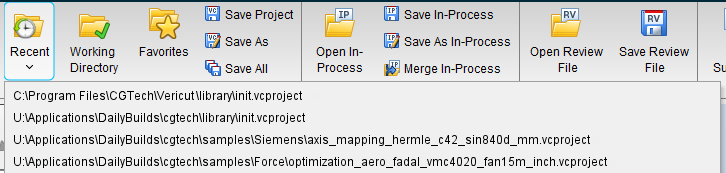
Recent — displays a dropdown list of recently opened Project files or User files (up to the ten most recent). Select the desired file from the list to load it. The list contents are stored in the Vericut Preferences file. Here is a sample dropdown list:
-
Working Directory — opens the Working Directory file selection window enabling you to set a preferred location where Vericut files will be stored.
-
Favorites — opens the Favorites panel enabling you to set and manage which files are favorites.
-
Save buttons — these are used to save one or more projects at a time. Options are: Save, Save As, and Save All.
In Process group
-
Open In-Process — loads an In-Process file.
-
Save In-Process buttons — saves In-Process file. Options are: Save and Save As.
-
Merge In-Process — loads an In-Process file without removing the current project from Vericut session.
Reviewer group
-
Open Review File — loads a review file.
-
Save Review File — saves the review file.
Utilities group
-
File Summary — opens the File Summary window which provides a summary of all currently loaded files with their creation dates, environment directories, and more.
-
Save Cut Stock — opens the Save Cut Stock window enabling you to save the selected Cut Stock model as a Vericut Solid file (.vct), Stereo lithography (STL) file, Vericut Polygon model file, or IGES data.
-
Export CAD Model Settings — opens the Export CAD Model window enabling you to specify various options related to exporting CAD models.
- Export CAD Model — exports the CAD model as it was defined in Export CAD Model Settings.