Check For Updates
Location:
Help tab >  Check For Updates
The Check For Updates command button opens the Update window which notifies users if there are any newer versions of the software available or if the software is as up to date as possible. When a new update is available, the window will look like this:
When an update is available, users will be prompted with above window. It will list your current version and whether there is an update available along with clickable links to get the newest update or learn about it.
Get Latest Update — When clicked, the computer's default internet browser launches and begins downloading the newest update. The Update window will also close automatically.
For info about the update, click here — When clicked, user will be redirected to Vericut's latest release notes. Clicking this will not close the Update window.
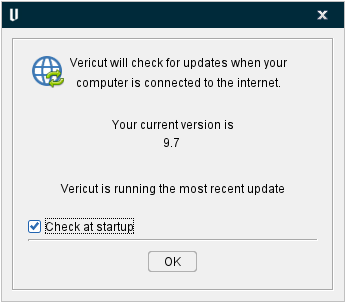
Check at startup — When toggled on (checked), Check For Update will run as soon as the software opens. When toggled off (not checked) Check For Update will only run when the Check For Update command button or icon is manually clicked.
If there are no updates, the window will replace the Get Latest Update section with the message: "Vericut is running the most recent update."
When you are finished with the window, simply click OK to exit.