Configuring the Teamcenter Interface (TCI)
This section documents the necessary steps make to the Teamcenter Interface to work in your environment. There are several configuration steps that need to be completed and several software versions that must be met. These instructions apply only when connecting Vericut with Teamcenter.
Software Prerequisites
The Teamcenter Interface has several software version requirements.
Siemens software prerequisites:
- NX version 10 or higher
- Teamcenter version 10 or higher
- MRL (Manufacturing Resource Library) version3.1.5 or higher, if MRL is being used
- SFC (ShopFloor Connect) version 2017.4 or higher
- Vericut software prerequisites:
- Vericut 8.2 or higher
- NXV Interface
- Teamcenter Interface
License Prerequisites
The Teamcenter Interface requires an additional software license from Siemens to work:
- (TCM55072) Siemens 3rd party CAM access to Teamcenter MRL license
Configuration
- SFC (ShopFloor Connection) Configuration
- Contact Vericut technical support for help in configuring SFC to work with the Teamcenter Integration
- This process must be done in order for the interface to work properly.
- Local Computer Configuration
- Ensure the correct environment variables are set for the current version of NX that is being used.
| Variable | Value |
|---|---|
| UGII_BASE_DIR | C:\Program Files\Siemens\NX 10.0\ |
| UGII_ROOT_DIR | C:\Program Files\Siemens\NX 10.0\UGII |
UGII_ROOT_DIR is not needed for NX Continuous Releases.
Vericut Configuration
-
There are 2 methods to use for logging into the Teamcenter Interface
-
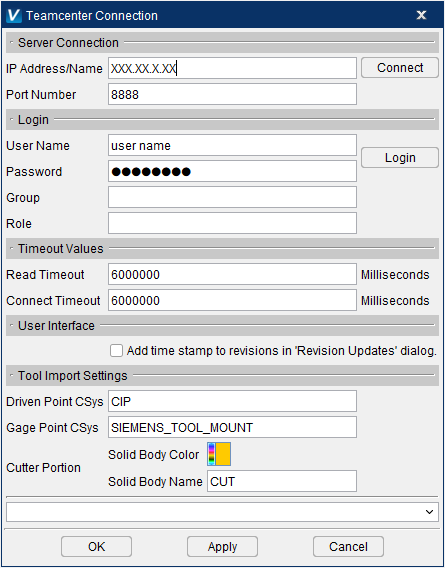
Conventional login
-
This authentication method requires the user to enter a user name and password each time when opening Vericut’s Tool Manager to access the Teamcenter
-
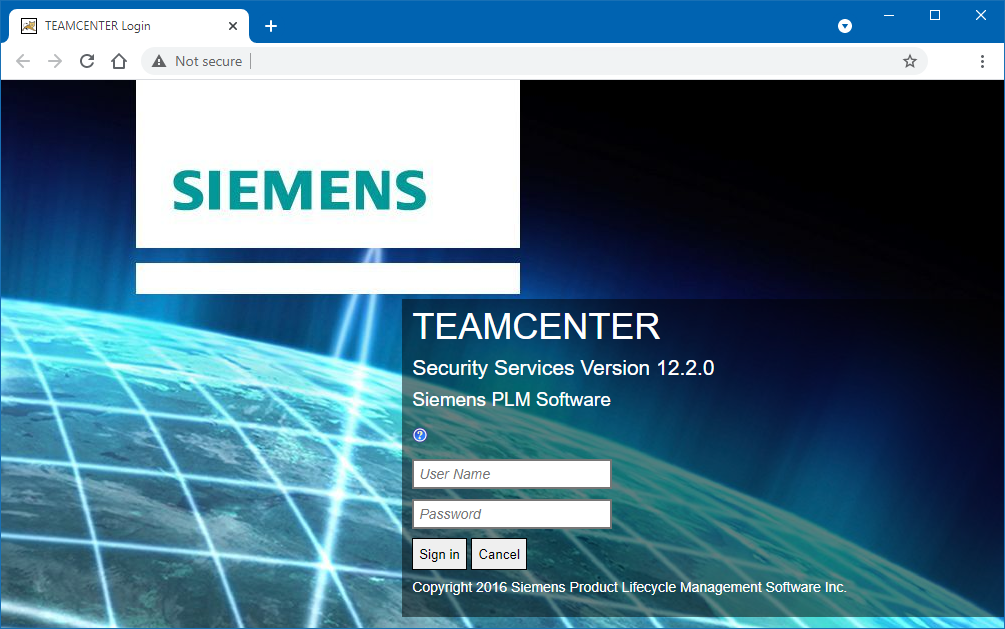
Single Sign On (SSO)
-
This an is an authentication method that enables users to securely authenticate with multiple applications and websites by using just one set of credentials. SSO is an initiative that is typically setup as a corporate level. Contact your IT department to inquire about SSO at your company if you are not familiar with this application.
-
SSO does not require any additional licensing from either Siemens or CGTech, only what licensing is mentioned above in the prerequisites sections.
-
Several variables need to be set depending on which method of logging in is desired.
-
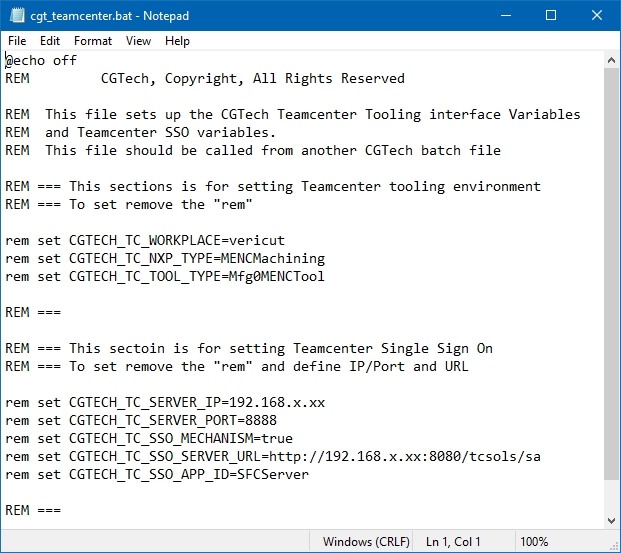
All necessary variables are preset in:
\CGTech\Vericut X\windows64\commands\cgt_teamcenter.bat but rem’ed out by default.
-
For either login method remove the “rem” from the following:
-
set CGTECH_TC_WORKPLACE=vericut
-
set CGTECH_TC_NXP_TYPE=MENCMachining
-
set CGTECH_TC_TOOL_TYPE=Mfg0MENCTool
Note:
-
A workplace named ‘vericut’ should be defined when SFC is configured. If a different workplace name is used during the configuration that name should be used for this variable.
-
If different item types are used in Teamcenter for NX CAM projects and cutting tool assemblies, those item names need to be entered as values for the above variables.
-
For the Single Sign On method remove the “rem” from the following and set the appropriate address and port values for the appropriate variables: