Status (Status panel)
Location:
Info tab >  (Status)
Toolbar short cut: 
📝 NOTE: The image that is displayed in the top of the Status icon and the Quick Access Toolbar short cut will change depending on which Status panel was last displayed.
The Status command button opens the Status panel that provides status information about the simulation, and what would be occurring on the NC machine. Status information includes: NC Program record being processed, machine and tool tip locations, information about the cutting tool, machining conditions, errors and warnings detected by Vericut. The Status panel can be left open for monitoring, minimized, closed and opened at any time. Information displayed is configurable, and is updated after each NC program record is processed. You can re-configure the window at any time.
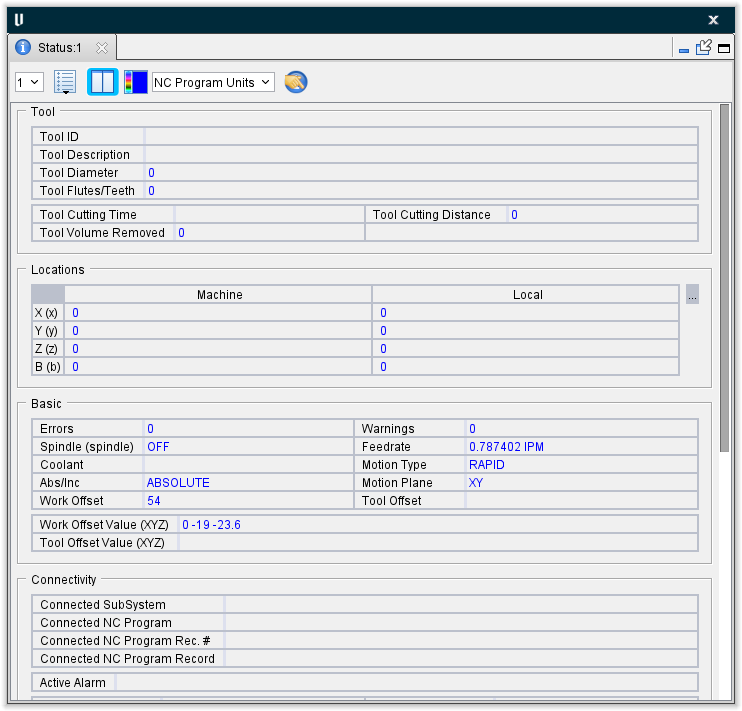
The Status panel is one of the dockable panels enabling you to dock it inside the Vericut main window if you choose. See Dockable Panels section of Vericut Help for additional information.
📝 NOTE: When the Status panel is docked, make sure that you click in the panel so that it becomes the "active" panel before using F1 to get help specific to the panel. Otherwise F1 will go to the Vericut Help Library.
 (Close) — Located at the end of the tab, this icon enables you to close the Status panel.
 (Close) — Closes the Status panel. This icon is only displayed when the Status panel is not docked.
Icon Bar

The items in the Icon Bar enable you to specify the SubSystem that you want the information in the Status panel to apply to, specify which groups that you want displayed in the Status panel, specify whether you want the Status panel displayed vertically or horizontally, and specify the color that you want the data displayed in.. Holding the cursor over the icon will display a short description of what the icon is used for.
 (SubSystem) — When a machine with more than one subsystem is in use, use this feature to specify which subsystem that you want the information in the Status panel to apply to. Select the Subsystem from the pull-down list.
 (Set Group Visibility) — Click on this icon to display the menu shown below which enables you to specify which information groups you want displayed in the Status panel.
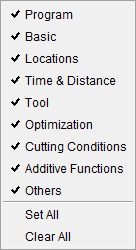
Click in the box next to each information group’s name to toggle between display (checked) and do not display (unchecked). Use the Set All feature to set all information groups to display (checked). Use the Clear All feature to set all information groups to do not display (unchecked). You can select any combination of groups to be displayed in the Status panel. You can change the order of the information groups by clicking in an information group displayed in the Status panel and dragging it to the desired location.
 /
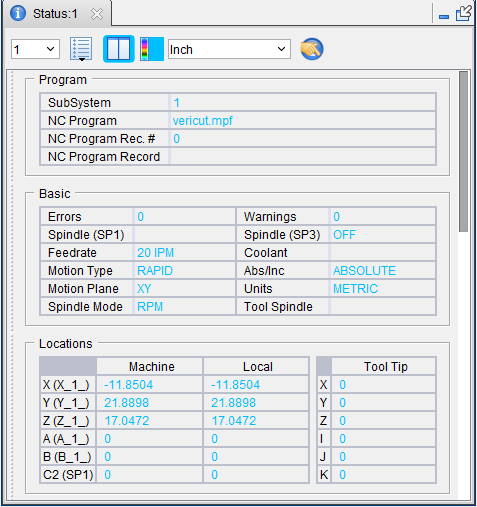
/ (Tile Groups Horizontally/Vertically) — This icon toggles between Horizontally and Vertically enabling you to specify whether you want to display the Status panel in a vertical orientation or in a horizontal orientation.
Click on the (Horizontally) icon to display the Status panel in a horizontal orientation as shown in the picture below.
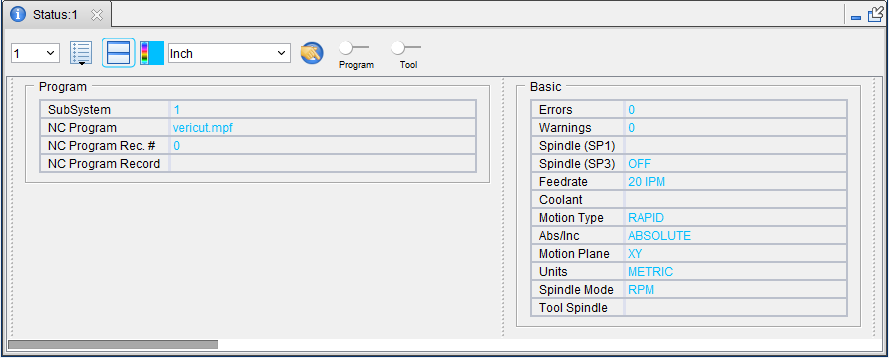
Notice that 2 sliders is are added to the Icon Bar as shown in the picture below.

The first slider enables you to adjust the width of the Program column so that you can see the complete records.
The second slider enables you to adjust the width of the Tool column so that you can see the complete records.
Both sliders are only available when the Status window is in a Horizontal orientation.
Click on the  (Vertically) icon to display the Status panel in a vertical orientation as shown in the picture below.
 (Set Value Text Color) — Use the (Set Value Text Color) icon display a color palette enabling you to specify the color that you want the information in the Status panel to be displayed in.
The right side of the (Set Value Text Color) icon shows the current color being used for the information in the Status panel. To change the color for the information, click on the (Set Value Text Color) icon to display the color palette window shown below.
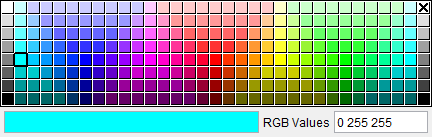
Click on a color in the color palette window, to specify the color for the information in the Status panel. The color palette will close and the right side of the  (Set Value Text Color) icon in the Status panel icon bar will update to reflect the selected color.
To close the color palette window without changing the color, click on the  in the upper right corner of the color palette.
Program Units dropdown menu — Use this dropdown menu to choose between NC Program Units, Inch, and Millimeter measurement systems.
 Status Info Preferences — Opens the Preferences window, Status Info tab which enables you to set group visibilities and specify decimal places displayed.
Information Groups
Program Group
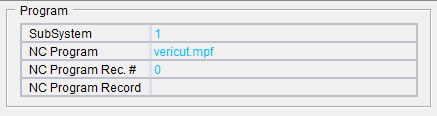
The following information is available for display in the Program Group:
SubSystem — When a machine with more than one subsystem is in use, this option controls which subsystem status to show.
NC Program — The name of the current NC program file.
NC Program Rec. # — The line number of the current NC program record.
NC Program Record — Current NC Program record being processed. Both the record text and sequential line number in the file are shown.
Right-click in a Program Group displayed in the Status panel to display the following window that enables you specify the features that you want displayed in the Program Group.
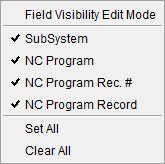
A  next to a feature indicates that the feature is to be displayed in the Program Group.
The absence of a next to a feature indicates that the feature is not to be displayed in the Program Group.
Use Field Visibility Edit Mode to manage how the group displays.
Use Set All to select all features for display in the Program Group.
Use Clear All to remove the from all features in the Program Group.
Basic Group
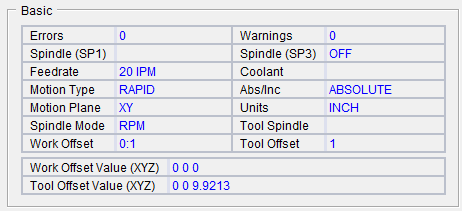
The following information is available for display in the Basic Group:
Errors — Displays the number of errors detected by Vericut during processing. A blank field indicates that no errors were detected. Consult the Log file for details about the errors.
Warnings — Similar to Errors above, except that the number of warnings detected is displayed.
Spindle — Current programmed spindle speed. A blank field indicates no records that control spindle speed that have been processed.
Machines with multiple spindles will have multiple Spindle entries in the Status window.
The name used for a particular Spindle in the Project Tree will be shown in parentheses as shown in the examples below:
Spindle (Tool_Spindle)

Spindle (Spindle)

Spindle (Spindle2)
Feedrate — Current programmed feed rate. A blank field indicates no records that control feed rate that have been processed.
Coolant — Current programmed coolant condition. A blank field indicates no records that control coolant that have been processed.
Abs/Inc — Absolute / Incremental
Motion Plane — XY / YZ / ZX
Units — Inch / Metric
Spindle Mode — CSS / RPM
Tool Spindle — Displays which spindle is active.
Work Offset — Displays work offset.
Tool Offset — Displays tool offset.
Work Offset Value (XYZ) — Displays csys of work offset value.
Tool Offset Value (XYZ) — Displays csys of tool offset value.
Right-click in a Basic Group displayed in the Status panel to display the following window that enables you specify the features that you want displayed in the Basic Group.
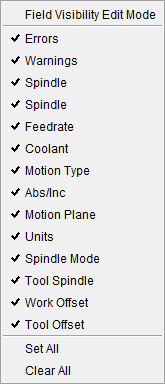
A next to a feature indicates that the feature is to be displayed in the Basic Group.
The absence of a next to a feature indicates that the feature is not to be displayed in the Basic Group.
Use Field Visibility Edit Mode to manage how the group displays.
Use Set All to select all features for display in the Basic Group.
Use Clear All to remove the from all features in the Basic Group.
Connectivity Group
The Connectivity Group fields will only populate when using the CNC Machine Monitoring option. The data that will be displayed in the fields will be populated from data streaming from the CNC machine.
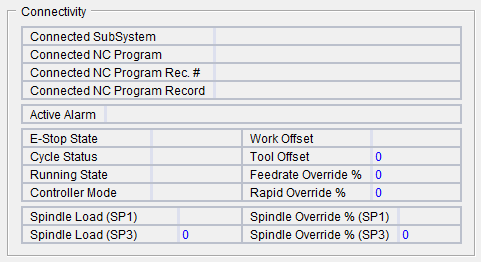
The following options are features that will show up on the HUD when toggled on:
Connected SubSystem — Displays the number of the active subsystem.
Connected NC Program — Displays the filename of the NC Program.
Connected NC Program Rec. # — Displays the record number.
Connected NC Program Record — Displays the record pathway.
Active Alarm — Displays any warnings that generate with a red background color.
E-Stop State — Displays whether the feature is on "Standby" (inactive) or is "Engaged" (active). When Engaged, the background of this feature turns red.
Cycle Status — Displays whether the feature is on "Cycling" (active) or is "Not Cycling" (inactive). When Not Cycling, the background of this feature turns red.
Running State — Displays the following potential options:
"Stop" text appears in field with a RED background color.

"Start" text appears in field with a GREEN background color.

"Hold" text appears in field with a YELLOW background color.

"Reset" text appears in field with a YELLOW background color.

"MSTR" text appears in field with a YELLOW background color.

Otherwise, it will be the integer value for any unexpected/undefined values, text appears in field with a YELLOW background color.
Controller Mode — Displays various potential modes including things like "MDI" and "Jog". If the mode is unknown, this feature will display the integer value for any unexpected/undefined values.
Work Offset — Text description of current work offset active on machine.
Tool Offset — Numerical value of current tool offset active on machine.
Feedrate Override % — Displays feedrate value.
Rapid Override % — Displays override value.
Spindle Load (SP1) — Displays spindle value.
Spindle Load (SP3) — Displays secondary spindle value.
Spindle Override % (SP1) — Displays spindle override.
Spindle Override % (SP3) — Displays secondary spindle override.
Right-click in a Connectivity Group displayed in the Status panel to display the following window that enables you specify the features that you want displayed in the Connectivity Group.
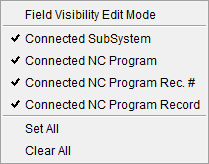
A next to a feature indicates that the feature is to be displayed in the Connectivity Group.
The absence of a next to a feature indicates that the feature is not to be displayed in the Connectivity Group.
Use Field Visibility Edit Mode to manage how the group displays.
Use Set All to select all features for display in the Connectivity Group.
Use Clear All to remove the from all features in the Connectivity Group.
Locations Group
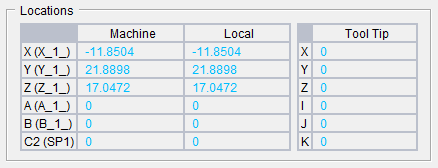
The following information is available for display in the Locations Group:
Machine — Current locations of machine axes (X, Y, Z, A, B, C, U, V, W, A2, B2, C2) resulting from processing the current G-Code NC program record. Only the axes that exist for the selected subsystem will be shown.
The name used for a particular Machine axis in the Project Tree will be shown after the dash mark as shown in the examples below:
Machine — X

Machine — A

Machine — C2
Local — The display will be similar to the Machine Axes (only showing the axes that exist for the selected subsystem). The contents of the "Local Axes" fields will represent the current axis (X, Y, Z, A, B, C, U, V, W, A2, B2, C2) locations in the local coordinate system. Typically, this will correspond to the values entered in the NC program file (except when specifying machine coordinates, or incremental values).
The name used for a particular Machine axis in the Project Tree will be shown after the dash mark as shown in the examples below:
Local — Y

Local — B
Tool Tip — Current X Y Z tool tip location and I J K tool axis orientation with respect to the active NC program coordinate system.
Right-click in a Locations Group displayed in the Status panel to display the following window that enables you specify the features that you want displayed in the Locations Group.
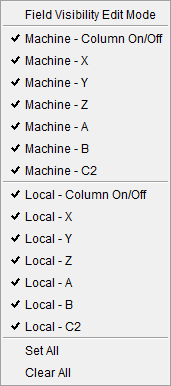
A next to a feature indicates that the feature is to be displayed in the Locations Group.
The absence of a next to a feature indicates that the feature is not to be displayed in the Locations Group.
Use Field Visibility Edit Mode to manage how the group displays.
Use Set All to select all features for display in the Locations Group.
Use Clear All to remove the from all features in the Locations Group.
Time & Distance Group
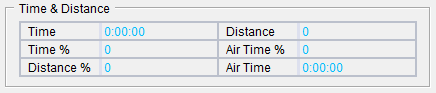
The following information is available for display in the Time & Distance Group:
Time — Time anticipated to machine the part (as simulated by Vericut). To calculate anticipated machining time, Vericut records time for tool motions based on specified cutting feed rates and rapid rates. Time is expressed in hours:minutes:seconds (to the 1/10 of a second).
Distance — The tool movement distance, in inches or millimeters, depending on the Vericut session configuration.
Time % — Percentage of time in feed rate mode. This value can be helpful when judging tool path efficiency. For example, a high value suggests an efficient tool path, since a value less than 100 percent means that the tool is moving at rapid feed and is probably not removing material.
Air Time % — The percent of time cutter air. This is the “Air Time” divided by the “Time” and converted into a percentage.
Distance % — Percentage of tool movement distance in feed rate mode. Similar to the Time versus Time% relationship described above, this value can also be helpful when judging tool path efficiency.
Air Time — The time spent cutting air. For each motion or dwell, if material was not cut, we add the time for the motion/dwell to the “Air Time”.
Right-click in a Time & Distance Group displayed in the Status panel to display the following window that enables you specify the features that you want displayed in the Time & Distance Group.
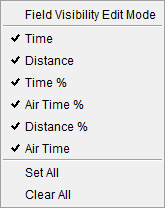
A next to a feature indicates that the feature is to be displayed in the Time & Distance Group.
The absence of a next to a feature indicates that the feature is not to be displayed in the Time & Distance Group.
Use Field Visibility Edit Mode to manage how the group displays.
Use Set All to select all features for display in the Time & Distance Group.
Use Clear All to remove the from all features in the Time & Distance Group.
Tool Group
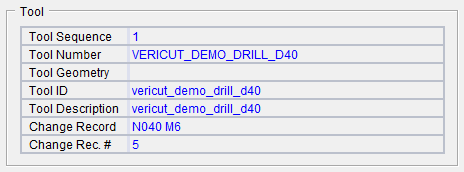
The following information is available for display in the Tool Group:
Tool Sequence — Sequential number of the last tool change event.
Tool Number — Tool number in use (if specified). Examples follow.
| NC program type: | Sample tool chg record: | Status window "Number": |
|---|---|---|
| G-Code data | T10M6 | 10 |
| APT | CUTTER/... | none |
| APT | PPRINT/Vericut-TC... | none |
| APT | LOADTL/1 | 1 |
| UG CLS | LOAD/TOOL,4,... | 4 |
Tool Geometry — Cutter shape geometry. The method used to define the cutter shape is shown in square brackets "[ ]" followed by the description. "PROFILE" indicates a profile type of cutter definition.
Tool ID — ID of a tool retrieved from a Vericut Tool Library file, if any. A blank field indicates the current tool did not come from a tool library or that the specified tool did not exist in the Tool Library.
If the ID differs from the Number field value described above, the specified tool shown in the Number field could not be found in the Tool Library.
Tool Description — Description of a tool retrieved from a Vericut Tool Library file. A blank field indicates a description for this tool was not defined in the library, or the tool did not come from a tool library.
Change Record — The last tool change record processed. Both the record text and sequential line number in the file are shown.
Change Rec. # — The line number of the last tool change record.
Right-click in a Tool Group displayed in the Status panel to display the following window that enables you specify the features that you want displayed in the Tool Group.
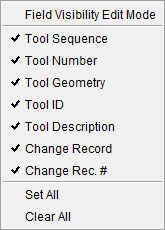
A next to a feature indicates that the feature is to be displayed in the Tool Group.
The absence of a next to a feature indicates that the feature is not to be displayed in the Tool Group.
Use Field Visibility Edit Mode to manage how the group displays.
Use Set All to select all features for display in the Tool Group.
Use Clear All to remove the from all features in the Tool Group.
Optimization Group
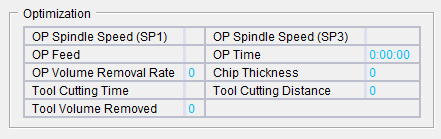
The following information is available for display in the Optimization Group:
Spindle Speed — Optimized spindle speed, as calculated by Optimization.
Machines with multiple spindles will have multiple Optimization Spindle Speed entries in the Status window.
The name used for a particular Spindle in the Project Tree will be shown in parentheses as shown in the examples below:
Optimization Spindle Speed (Tool_Spindle)

Optimization Spindle Speed (Spindle)

Optimization Spindle Speed (Spindle2)
Feed — Optimized feed rate, as calculated by Optimization
Time — Time anticipated to machine the part with an optimized tool path file. This field is only updated when the current tool path if being optimized by Optimization. To estimate machining time saved by Optimization, compare this value against the Time field value.
📝 NOTE: OP Time does NOT consider feedrates output as a result of Acceleration/Deceleration optimization adjustments.
The following features are in effect when Optimization Mode is set to On, Prompt While Cutting, or Learn From NC Program. They report maximum volume removal rate and chip thickness for each cut calculated by Optimization for the programmed feedrate.
Volume Removal Rate — Volume Removal Rate is calculated for any Optimization Method and for any tool valid for Optimization. See the Cutting Conditions Note below.
Chip Thickness — Chip Thickness is calculated only if the Optimization Method for the current tool is either Chip Thickness, or Chip Thickness and Volume Removal Rate. Chip Thickness is not calculated when Optimization optimizes by any other method. When Optimization Mode is set to Learn From NC Program, Chip Thickness is calculated only for tools, which have a convex profile. See the Cutting Conditions Note below.
📝 Optimization NOTE: The Record Cutting Conditions feature on Settings window: Properties tab (Project tab > Settings dropdown menu > Properties) must be toggled "on" (checked) for the values of the following features to be displayed in the Status panel when Optimization is not active. This feature is only valid for jobs that could normally be optimized using Optimization.
Tool Cutting Time — Displays the amount of time that the current tool has been removing material. See the Tool Notes below.
Tool Cutting Distance — Displays the distance that the current tool has moved while removing material. See the Tool Notes below.
Tool Volume Removed — Displays the volume of material that the current tool has removed. See the Tool Notes below.
📝 Tool Notes:
-
The Check Cutting Limits feature on the Project Tree Configure Setup menu, Motion tab must be toggled on (checked) for the values of the following features to be displayed in the Status window.
Tool Cutting Time
Tool Cutting Distance
Tool Volume Removal -
Each Load Tool in the NC program resets these values (even if the same tool from Tool Manager is loaded again and again).
Right-click in an Optimization Group displayed in the Status panel to display the following window that enables you specify the features that you want displayed in the Optimization Group.
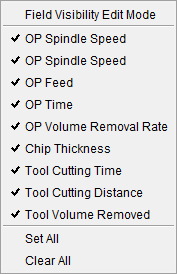
A next to a feature indicates that the feature is to be displayed in the Optimization Group.
The absence of a next to a feature indicates that the feature is not to be displayed in the Optimization Group.
Use Field Visibility Edit Mode to manage how the group displays.
Use Set All to select all features for display in the Optimization Group.
Use Clear All remove the from all features in the Optimization Group.
Cutting Conditions Group

The following information is available for display in the Cutting Conditions Group:
Record Cutting Conditions — Toggle this feature on (toggle to the right) for the values of the following features to be displayed in the Status panel when Optimization is not active. This feature is only valid for jobs that could normally be optimized using Optimization.
📝 Cutting Conditions NOTE: The Record Cutting Conditions feature must be toggled on for the values of the following features to be displayed in the Status panel when Optimization is not active. This feature is only valid for jobs that could normally be optimized using Optimization.
 — Opens the Preferences window, Graphs tab, enabling you to set various Graphs preferences for your project.
Axial Depth — Displays the current depth of the cut. See the Cutting Conditions Note above.
Radial Width — Displays the current width of the cut. See the Cutting Conditions Note above.
Angular Contact — Displays the area of the tool that is in contact with the material. The effective cut diameter is the diameter of the cut stock at the highest point of contact between the cut stock and the insert. See the Cutting Conditions Note above.
Contact Area — Displays the area of the tool that is in contact with the material. The effective cut diameter is the diameter of the cut stock at the highest point of contact between the cut stock and the insert. See the Cutting Conditions Note above.
Surface Speed (d1) — Displays the current surface speed with d1 defining the minimum contact radius. See the Cutting Conditions Note above.
Surface Speed (d2) — Displays the current surface speed with d2 defining the maximum contact radius. See the Cutting Conditions Note above.
Volume Removal Rate — Displays the rate at which volume is removed. See the Cutting Conditions Note above.
Chip Thickness — Displays the chip thickness. See the Cutting Conditions Note above.
Right-click in a Cutting Conditions Group displayed in the Status panel to display the following window that enables you specify the features that you want displayed in the Cutting Conditions Group.
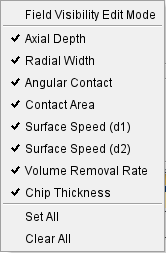
A next to a feature indicates that the feature is to be displayed in the Cutting Conditions Group.
The absence of a next to a feature indicates that the feature is not to be displayed in the Cutting Conditions Group.
Use Field Visibility Edit Mode to manage how the group displays.
Use Set All to select all features for display in the Cutting Conditions Group.
Use Clear All to remove the from all features in the Cutting Conditions Group.
Additive Functions Group
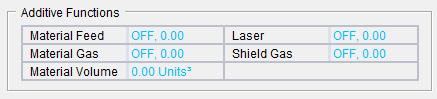
The following information is available for display in the Additive Functions Group:
Material Feed — Displays whether the material feed is on and the feedrate value.
Laser — Displays whether the laser is on and the laser power value.
Material Gas — Displays whether the material gas is on and the material gas flowrate value.
Shield Gas — Displays whether the shield gas is on and shield gas flowrate value.
Material Volume — Displays how much material has been used during additive processes.
Right-click in an Additive Functions Group displayed in the Status panel to display the following window that enables you specify the features that you want displayed in the Additive Functions Group.
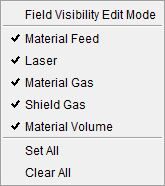
A next to a feature indicates that the feature is to be displayed in the Additive Functions Group.
The absence of a next to a feature indicates that the feature is not to be displayed in the Additive Functions Group.
Use Field Visibility Edit Mode to manage how the group displays.
Use Set All to select all features for display in the Additive Functions Group.
Use Clear All remove the from all features in the Additive Functions Group.
Others Group
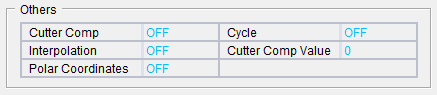
The following information is available for display in the Others Group:
Cutter Comp — This feature displays the current cutter compensation status. ON / ON-COMP /OFF
Cycle — Off / Drill / Face / Deep / Tap /Bore / Mill / Thru / Bore Orient / Bore Drag
Interpolation — None / Polar / Cylindrical
Cutter Comp Value — The current cutter compensation value.
Polar Coordinates — Display the status of polar coordinate input (ON/OFF).
Right-click in an Others Group displayed in the Status panel to display the following window that enables you specify the features that you want displayed in the Others Group.
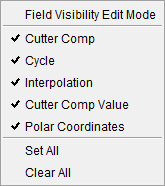
A next to a feature indicates that the feature is to be displayed in the Others Group.
The absence of a next to a feature indicates that the feature is not to be displayed in the Others Group.
Use Field Visibility Edit Mode to manage how the group displays.
Use Set All to select all features for display in the Others Group.
Use Clear All to remove the from all features in the Others Group.
💡 Tip: You can send status information to a text file. To accomplish this, set the CGTECH_STATUS environment variable to the name of the file before or when Vericut is executed.