Favorites panel
Location:
Configuration tab >  (Favorites)
The Favorites command button opens the Favorites panel, enabling you to quickly access frequently used directories and files without using a file selection window each time. The Favorites panel is completely configurable so that it can be set up to be the most beneficial for your work process. The Favorites panel is stored in your user preferences file so that it remains available when you change project files.
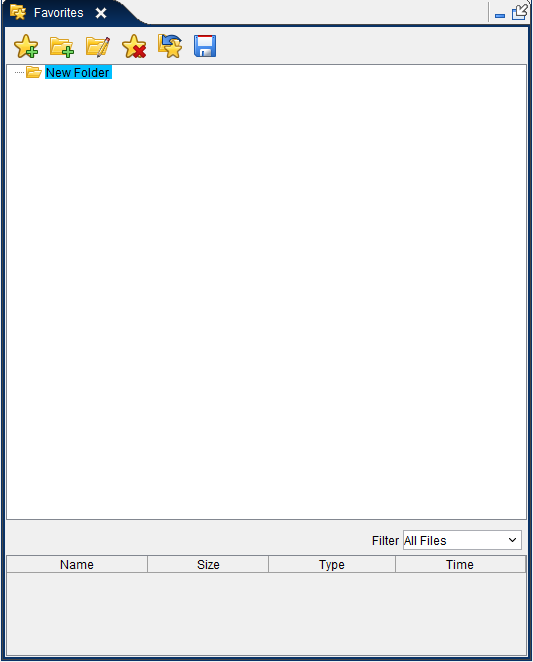
The Favorites panel is one of the dockable panels enabling you to dock it inside the Vericut main window if you choose. See Personalizing the Vericut Main Window section of Vericut Help for additional information.
📝 NOTE: When the Favorites panel is docked, make sure that you click in the window so that it becomes the "active" window before using F1 to get help specific to the window. Otherwise F1 will go to the Vericut Help Library.
 (Close) — Located at the end of the tab, this icon enables you to close the Favorites panel.
 (Close) — Closes the Favorites panel. This icon is only displayed when the Favorites panel is not docked.
Toolbar

 (Add a Favorite) — Opens the Add a Favorite window enabling you to add a “favorite” folder or “favorite” file to your Favorites panel. A ”favorite” is a link to a folder of files or a link to an individual file.
 (Add a Folder) — Opens the Add a Folder window enabling you to add a folder to your Favorites panel. Unlike a “favorite”, a folder is not a link. Folders are used to organize the “favorite” directories and “favorite” files in your Favorites panel. Folders can be used to group similar favorites as shown with the “Tools” structure in the Favorites panel on the previous page.
 (Edit) — The Edit icon opens the Edit Favorite window enabling you to edit the information related to the “favorite” folder or “favorite” file that is highlighted in your Favorites panel.
 (Delete) — Enables you to delete the highlighted folder, “favorite” folder or “favorite” file from your Favorites panel. Note that if a folder that is part of a structure that has child entities associated with it is deleted, the child entities will also be deleted. The “Tools” structure in the Favorites panel on the previous page is an example.
 (Import Favorites from a file) — Displays the Import Favorites file selection window enabling you to select the Favorites file that you want to use. You have the option of appending to the current Favorites file or replacing the current Favorites file.
 (Save Favorites to a file) — This feature enables you to save the Favorites settings to an external file. Selecting Save Favorites to a file displays the Save Favorites to a File file selection window enabling you to specify the /path/filename for the file to be saved.
Favorites Listing Area
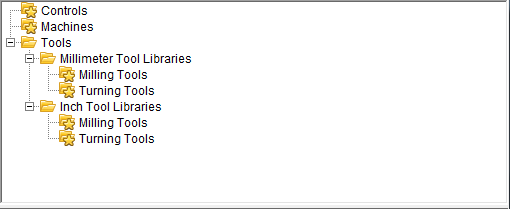
The Favorites Listing Area displays all of the “favorite” directories and “favorite” files that you have defined.
💡 Tips:
-
Hold the cursor over a “favorite” folder in the Favorites Listing Area to display the full folder path and file extensions associated with the the “favorite” folder. Hold the cursor over a “favorite” file to display the full folder path to the file.
-
You can change the order of the items in the Favorites Listing Area by clicking on the item with the left mouse button and while holding the mouse button down, drag the item to the desired location and release the mouse button.
Filter

The filter shows the file extension, or extensions, that you have associated with the highlighted “favorite” folder.
For example, if the Controls “favorite” folder and the Machines “favorite” folder shown in the Favorites Listing Area above are linked to the same location (like the library folder of a Vericut installation). When the Controls “favorite” folder is highlighted, the Filter is set to only display files with a .ctl extension in the File Information section of the Favorites panel. When the Machines “favorite” folder is highlighted, the Filter is set to only display files with a .mch extension in the File Information section of the Favorites panel.
File Information
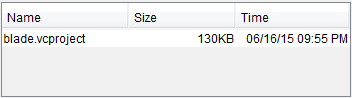
The File Information section of the Favorites panel displays the files that are associated with the highlighted “favorite” folder. It also shows the Names of the files, the Size of the files, and the Time (date and time) when the file was last modified. The picture below shows the display resulting from the Machines “favorite” folder described above in the Filter section.
💡 Tips:
-
Holding the cursor over a machine or project file in the File Information section will display a thumbnail picture of the machine described by the machine file or the machine used in the project file.
-
You can click on a file in the File Information section of the Favorites panel with the left mouse button and while holding the mouse button down, drag the file to the appropriate location in the Project Tree then release the mouse button.
- You can double-click with the left mouse button on a project (.vcproject), machine (.mch), control (.ctl) or tool library (.tls) file in the File Information section of the Favorites panel to load the file.
- Click with the right mouse button in the Favorites listing area to display the following menu:
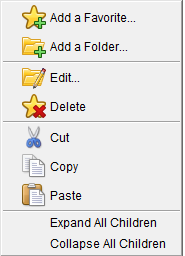
The options Add a Favorite, Add a Folder, Edit, and Delete provide the same functionality as described in the Toolbar section above.
Cut — Cuts the highlighted “favorite” folder/file from the Favorites panel and puts it in the paste buffer.
Copy — Copies the highlighted “favorite” folder/file from the Favorites panel to the paste buffer.
Paste — Adds the contents of the paste buffer after the highlighted “favorite” folder/file in the Favorites panel.
Expand All Children — Expands all branches below the highlighted folder. If no directories are highlighted, all branches in the Favorites Listing Area will be expanded.
Collapse All Children — Collapses all branches below the highlighted folder. If no directories are highlighted, all branches in the Favorites Listing Area will be collapsed.
Add a Favorite window
The Add a Favorite window enables you to add a new “favorite” folder or “favorite” file to your Favorites panel.
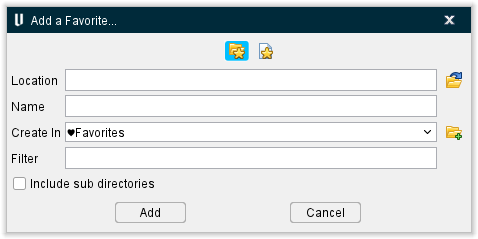
 (Favorite Directory) — Toggle on (depressed), to add a new “favorite” folder to your Favorites panel.
 (Favorite File) — Toggle on (depressed), to add a new “favorite” file to your Favorites panel.
Location — Enter the path to the “favorite” folder/file that you want to add or click on the  (Browse) icon and use the Add a Favorite file selection window that displays to specify the path to the “favorite” folder/file.
Name — Enter a name in the text box for the “favorite” folder/file that you are adding.
Create In — Select the desired path from the pull-down list. The list will contain all “favorite” folder/folder paths defined in your Favorites panel. The default folder path is the path of the “favorite” folder or “favorite” file that is highlighted in your Favorites panel. Click on the  (Add a Folder) to add a folder to the end of the Create In path.
Filter — Enter one or more file extensions, separated by commas, for the types of files associated with a “favorites” folder.
Include sub directories — When toggled on (checked), sub-directories of the selected new “favorite” folder that contain files that match the specified filter will be added to your Favorites panel. If a sub-directory does not contain any files that match the specified filter, it will not be added to your Favorites panel. This feature is only active when  (Favorite Directory) is selected.
Add — Adds the newly defined “favorite” folder/file to your Favorites panel and then closes the Add a Favorite window.
Cancel — Closes the Add a Favorite window without adding anything to your Favorites panel.
Add a Folder window
The Add a Folder window enables you to add a new folder to your Favorites panel.
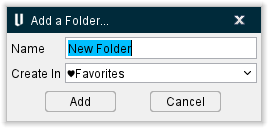
Name — Enter a name in the text box for the folder that you are adding.
Create In — Select the desired path from the pull-down list. The list will contain all “favorite” folder/folder paths defined in your Favorites panel. The default folder path is the path of the “favorite” folder or “favorite” file that is highlighted in your Favorites panel. The new folder will be added to the end of the Create In path.
Add — Adds the newly defined folder to your Favorites panel and then closes the Add a Folder window.
Cancel — Closes the Add a Folder window without adding anything to your Favorites panel.
Edit Folder window
The Edit Folder window enables you to modify the information associated with an existing folder in your Favorites panel.
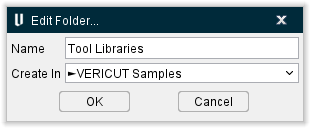
Name — Use the text field to modify the name of the folder.
Create In — Select the desired path from the pull-down list. The list will contain all “favorite” folder/folder paths defined in your Favorites panel. The default folder path is the path of the “favorite” folder or “favorite” file that is highlighted in your Favorites panel.
OK — Applies the modifications to the folder in your Favorites panel and then closes the Edit Folder window.
Cancel — Closes the Edit Folder window without adding anything to your Favorites panel.
Import Favorites file selection window
The Import Favorites file selection window enables you to select the Favorites file that you want to use in the Favorites panel. It also enables you to import the Favorites data in a Vericut preferences file (.prefs) so that you can import the Favorites data from a previous Vericut release to a new Vericut release.
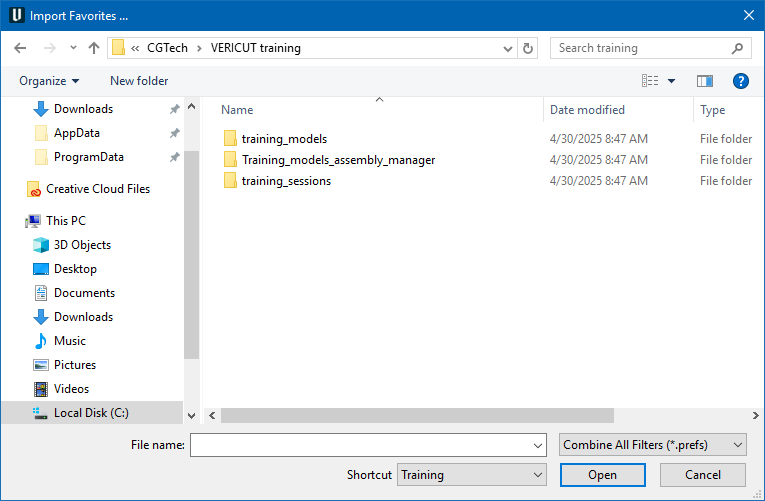
Most features on this window are standard Vericut file selection window features that enable you to navigate through directories, filter files, and type, or select, /path/filenames. See Introduction to Vericut File Selection Windows section of Vericut Help for Complete information.
The following features are specific to the Import Favorites file selection window.
Append — Select this option to append the favorites contained in the selected file to the favorites currently displayed in the Favorites Listing Area in the Favorites panel.
Replace — Select this option to replace the favorites currently displayed in the Favorites Listing Area with the favorites contained in the selected file.
Using the Import Favorites file selection window
Import the Favorites data from a preferences file
-
Select Configuration tab > Favorites to display the Favorites window.
-
In the Favorites window, click on the
 (Import Favorites from a file) icon to display the “Import Favorites” file selection window.
 - Use the “Import Favorites” file selection window to specify the /path/filename of the preferences file, for example C:\Users\user\cgtech_version#_user.prefs, that you want imported to the Favorites panel.
- Specify whether you want to Append the imported Favorites to the current Favorites in the Favorites panel or Replace the current Favorites in the Favorites panel with the imported Favorites.
- Click on Open to Import the Favorites. The Favorites will be stored in the preferences file of the current Vericut version.
Import Favorites data from a file
-
Select Configuration tab > Favorites to display the Favorites window.
-
In the Favorites window, click on the
(Import Favorites from a file) icon to display the “Import Favorites” file selection window. - Use the “Import Favorites” file selection window to specify the /path/filename of the file containing the Favorites that you want imported to the Favorites panel.
- Specify whether you want to Append the imported Favorites to the current Favorites in the Favorites panel or Replace the current Favorites in the Favorites panel with the imported Favorites.
- Click on Open to Import the Favorites. The Favorites will be stored in the preferences file of the current Vericut version.
Save Favorites to a file, file selection window
The “Save Favorites to a file” file selection window enables you to save the current Favorites in the Favorites panel to a file that can be imported at a later time.
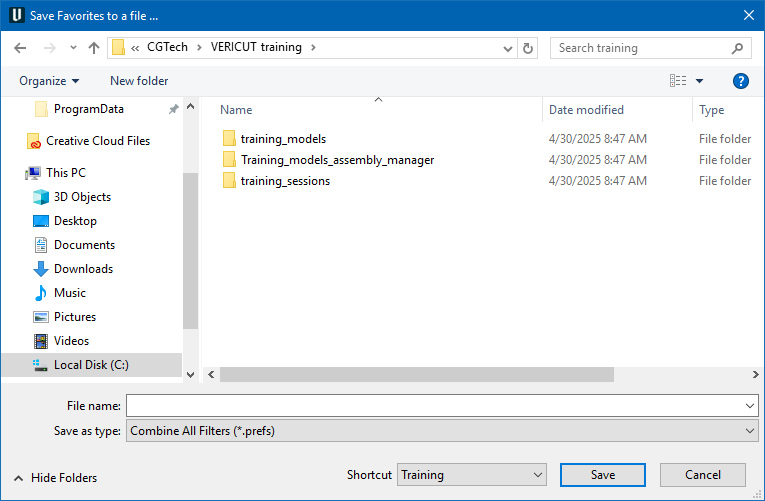
Most features on this window are standard Vericut file selection window features that enable you to navigate through directories, filter files, and type, or select, /path/filenames. See Introduction to Vericut File Selection Windows section of Vericut Help for Complete information.
Using the Save Favorites to a file, file selection window
Save Favorites to a File
-
Select Configuration tab > Favorites to display the Favorites window.
-
In the Favorites window, click on the
 (Save Favorites to a file) icon to display the “Save Favorites to a file” file selection window.
 - Use the “Save Favorites to a file” file selection window to specify the /path/filename of the file where you want the Favorites in the current Favorites panel saved.
- Click on Save to save the Favorites to the specified file.