View G-Code Report
Location:
Info tab >  (View G-Code Report)
Report tab > (View G-Code Report)
Toolbar short cut: 
The ViewG-Code Report command button enables you to create a G-Code Report file containing information about how the current NC control configuration will interpret a G-Code NC program file. Reported information includes: machine codes present in the NC Program and macros (actions) they will call, variables used (if any), cutting tools used, subroutines defined and referenced, and more. This report is for the active setup. If your project contains multiple setups, first select the desired setup in the project tree.
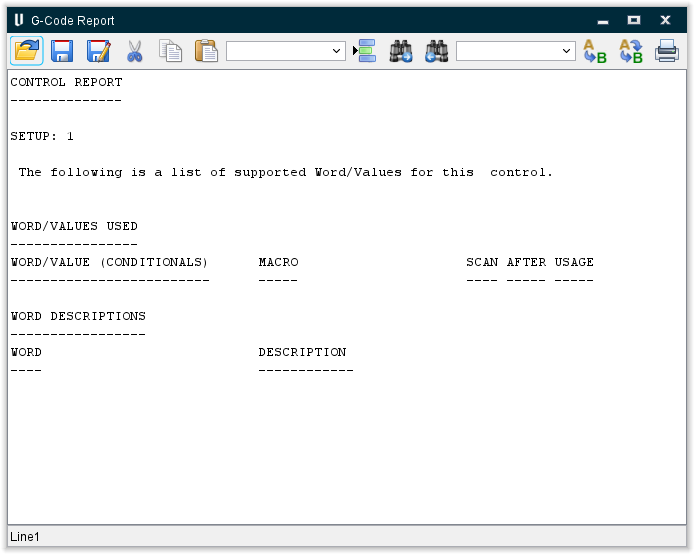
Click here to see a sample G-Code Report file.
Icon Bar:

The items in the Icon Bar enable you to search for, and/or replace, specific items in the file listing, print the file, or exit the window. Moving the cursor over the icon will display name of the option. Each feature (from left to right) is described below.
 Open — Open a file.
 Save — Save the current file.
 Save As — Save the current file under a different name.
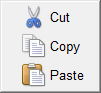
 Cut — Cuts the highlighted text in the file listing and puts it in the paste buffer.
 Copy — Copies the highlighted text in the file listing to the paste buffer.
 Paste — Puts the contents of the paste buffer at the location of the cursor in the file listing.
Line Number or Search Text — Use this text field to enter a line number, or a string of text, to search for.
 Go to Line Number — Moves the cursor in the file listing to the line number specified in the Line Number or Search Text field.
 Search Forward — Searches forward in the file listing for the text string specified in the Line Number or Search Text field.
 Search Backward — Searches backward in the file listing for the text string specified in the Line Number or Search Text field.
Replacement Text — Use this text field to enter a "replacement text" string.
 Replace One — Replace one occurrence of text string in the Line Number or Search Text field (or the highlighted text in the file listing) with the text string in the Replacement Text field.
 Replace All — Replace all occurrences of the text string in the Line Number or Search Text field with the text string in the Replacement Text field.
 Print — Print the file.
 Close — Closes the window.
↘️ Shortcut: Right-click in the Text File Edit window to display the following menu: