Introduction to 3DLive™ Interface
The 3DLive™ Interface enables Vericut to read in a GDML file that can contain data for CNC machines, fixtures, or cutting tool holders for use in simulations.
CNC machines (Machine Import)
- 3D geometry of components
- Kinematic data
- Travel Limits
- Min/max feed rates
- Initial machine location
- 3D Geometry colors
Fixtures (Component Import)
- 3D geometry of components
- Kinematic data
- Travel Limits
- 3D geometry colors
Tool holder component 3D models (Holder Import)
- 3D geometry colors
3DLive™ Interface
Location:
Machine/Control tab > 3DLive Machine Import
Project Tree > Configure Machine > Import 3DLive Machine
Project Tree > Machine component right-click > 3DLive Machine Import
Project Tree > Base component right-click > Append > 3DLive Machine Import
Tool Manager > Tools tab > Add Component > 3DLive Machine Import
Tool Manager > Tool List Area right-click > Add Tool Component > 3DLive Machine Import
Using the 3DLive™ Interface
3DLive™ Machine Import window
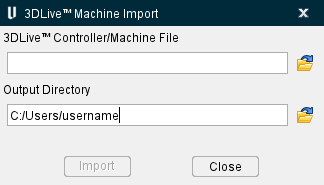
3DLive™ Controller/Machine File — Use this field to specify the file to import.
Output Directory — Use this field to specify where the .ply file will be output.
Import — Imports the .gdml file.
Close — Closes the window without making any changes.
📝 NOTE: When importing a 3DLive™ machine in a new or empty .vcproject session, after import the geometry may likely not display in the View(s). In order to get the geometry to display, go to the Project Tree > Configure Project > Check out a Machine Simulation license > check ON. Then click Reset Model to reset the simulation. Geometry will appear.
3DLive™ Component Import window
The 3DLive™ Component Import command button opens the 3DLive Component Import window enabling you to read or import component data to be used in a Vericut session. It will allow you to read in a fixture that may include 3D geometry, colors, axes configuration, and travel limits.
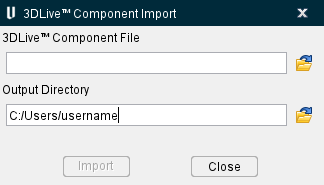
3DLive™ Component File — Use this field to specify the file to import.
Output Directory — Use this field to specify where the .ply files will be output.
Import — Imports the .gdml file.
Close — Closes the window.
3DLive™ Holder Import window
The 3DLive™ Holder Import command button opens the 3DLive Holder Import window enabling you to read or import holders into Tool Manager.
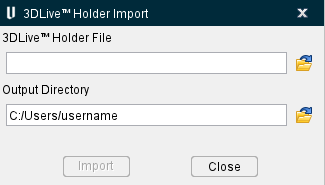
3DLive™ Holder File — Use this field to specify the file to import.
Output Directory — Use this field to specify where the .ply files will be output.
Import — Imports the .gdml file.
Close — Closes the window.