Variables panel
Locations:
Project Tree > Setup Branch Right Mouse Shortcut Menu > G-Code > Variables
Info tab >  (Variables)
Project tab > (Variables)
Machine/Control tab >  (Control Variables)
Quick Access Toolbar short cut: 
📝 NOTE: The image that is displayed in the top of the Variables icon and the Quick Access Toolbar short cut will change depending on which Variables panel (Tracking, Recent, Project, Control, or All) was last displayed.
Features on the Variables panel, are used to monitor, initialize, and maintain G-Code variables. Most Variables windows are “read only” in that they display information. Variables are assumed to have zero for a default value. However, the Variables Project panel allows you to initialize variables with any numeric or text value. Variables are saved to the .VcProject file if an initial value or a description is entered, or if the variable is included in the Variables Tracking panel.
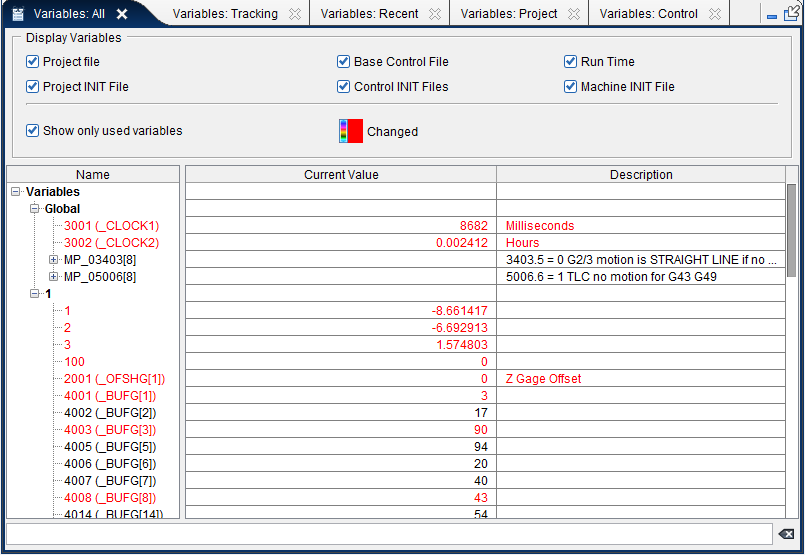
📝 NOTE: The above picture shows all four Variables panels as a tabbed panel.
Variables panels are one of the “dockable” features enabling you to be able to re-position it if you choose. See “Personalizing the Vericut Main Window” section of Vericut Help, for more information.
The following describes the Variables panels that are available and the variable information that is contained in them:
Variables: Tracking — Enables you to select variables to be tracked and delete variables from being tracked. When this window is open during processing, it gives immediate feedback when variables are set or changed by the NC program file.
Variables: Recent — Displays the variables modified or referenced directly within the last 1-100 lines. You specify the number of lines. The list is for display only and cannot be edited.
Variables: All — Enables you to select the types of variables that are displayed and the information that is displayed for the variables.
Variables: Project — Enables you to create, add, and delete variables that are specific to the project file and are stored in the project file.
Variables: Control — Enables you to create, add, and delete variables that are specific to the project file and are stored in the project file.
Variables List:
The Variables List displays all variables initialized and encountered during NC Program processing. Variable data displayed in red text indicates that the variable value changed while processing the current block.
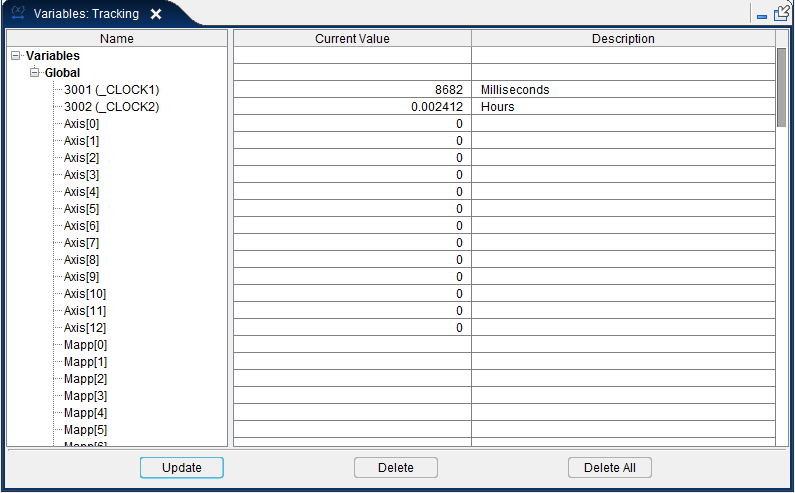
Name — The Name column displays a tree structure showing a list of all variables, and how each variable relates to the overall structure of the NC program (subsystem, NC program, subroutines, etc.). Tree is constantly updated as the NC program is processed.
Description — A description of the variable. This field enables you to enter a description for the NC Variable. This feature enables you to document variables for later use, as well as simplifying the tracking of states. Instead of just seeing 4001, a more meaningful "Motion Type" description can be added. Descriptions that end with an " * " has been automatically generated by Vericut. Automatically generated descriptions can result from any of the following:
-
Setting a variable on the G-Code Processing window.
-
Calling one of the Autoset… macros.
-
Calling the SetDynamicVars macro.
Type — Type of variable (Number, Text, Number Array, String Array, Frame, Frame Array, Axis, Axis Array, Integer, or Integer Array); also indicates the type of data that can be assigned to the variable. See Variable Add window section of Vericut Help for more detailed descriptions of these variable types.
Current Value — The current value of the variable.
Initial Value — Use to specify an initial value for the variable.
📝 NOTE: For Number or Integer type variables it is possible to create a “vacant” variable with no defined values. This is done by leaving the Initial Value field blank. This is significant because Vericut treats variables differently depending on whether the variable exists (defined within Vericut) versus whether the variable has an undefined value.
If you try to access a non-existing variable (a variable that does not show up in Variables panel) Vericut outputs an error message saying; “un-initialized variable, defaulting to zero”.
When you call a G65 subroutine, variables 1-33 get initialized to “undefined” or “vacant” except those, which are set on the call to the subroutine. If you try to access an “undefined” variable, then Vericut does not output an error message, or default to zero.
Add — Opens the Variable Add window enabling you specify the characteristics of a new variable and add it to the variable list.
Delete — Deletes the highlighted variable from the variable list.
Delete All — Opens a confirmation window asking you whether or not to delete all variables. Selecting “Yes” deletes “all” variables in the Variables panel Variables List as well as all control variables in the Variables: Control panel Variables List. Selecting “No” closes the window and returns you to the Project Variables panel.
Variables: Tracking panel
Locations:
Project Tree > Setup Branch Right Mouse Shortcut Menu > G-Code > Tracking Variables
Info tab > (Variables) > Tracking
The Variables: Tracking panel enables you to easily track variables of special interest without having to scroll through all variables. When this panel is open during processing, it gives immediate feedback when variables are set or changed by the NC program file.
The Variables: Tracking panel is one of the “dockable” features enabling you to dock it inside the Vericut main window if you choose. See “Dockable Panels” section of Vericut Help, for more information.
The following information is displayed for all variables selected for tracking:
Name — The Name column displays a tree structure showing a list of all variables being tracked, and how each variable relates to the overall structure of the NC program (subsystem, NC program, subroutines, etc.).
SubSystem — Indicates the subsystem (if any) that the variable being tracked is associated with.
📝 NOTE: SubSystem in this case pertains to the subsystems defined in the Variables panel variable tree, NOT the subsystems defined by the machine.
Subroutine — Subroutine (if any) that the variable being tracked is associated with.
Description — The description of the variable being tracked.
Type — Type of variable (Number, Text, Number Array, String Array, Frame, Frame Array, Axis, Axis Array, Integer, or Integer Array). See Variable Add window section of Vericut Help for more detailed descriptions of these variable types.
Current Value — The current value of the variable.
Initial Value — The initial value of the variable.
📝 NOTE: You can change the order in which the columns are displayed by clicking on the column header and dragging it to the desired position.
Update — Opens the Update Tracking window enabling you specify the variables you want to track and add them to the Variables: Tracking panel.
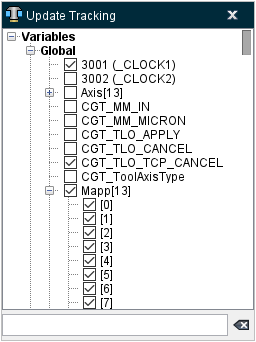
The Update Tracking window displays all variables initialized and encountered during NC program processing.
Click on a variable’s checkbox to toggle on (checked) on the variables that you want to track. The variables are added to the Variables: Tracking panel as soon as you toggle it on. Click on a checked variable’s checkbox to immediately remove a variable from the Variables Tracking panel. Click on  to close the Update Tracking panel and add the selected variables to the Variables: Tracking panel.
To search for a specific variable, type the variable name in the text field. Text entered is not case sensitive. As you enter text characters in the text field, the list of variables is automatically filtered to show only those variables that match the entered text string.
 (Clear Text) — Use this icon to clear the text from the text field and redisplay the full list of Variables.
Delete — Removes one or more of the highlighted variables from the Variables: Tracking panel.
Tip: Use one of the following methods to highlight multiple variables in the Variables: Tracking panel.
-
Use the “Shift” key to select a consecutive range of variables. Click on the first variable in the range so that it becomes highlighted, and then while holding down the “Shift” key, click on the last variable in the range. All of the variables between the first and last should now be highlighted. You can also click on the first variable in the range, then while keeping the mouse button depressed, drag the cursor to the last variable in the range.
-
Use the “Ctrl” key to select multiple individual blocks. Click on the first block so that it becomes highlighted, and then while holding down the “Ctrl” key, select additional blocks. Each block will become highlighted when it is selected.
Delete All — Removes “all” variables in the Variables: Tracking panel.
↘️ Shortcut: Right-click in the Variables: Tracking panel to display the following menu:
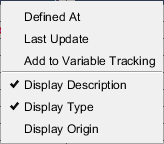
Defined At — Opens the Variables: Control panel with the relevant variable highlighted.
Last Update — Opens the Variables: Control panel with the relevant variable highlighted where it was last updated.
After using the Defined At and Last Update features, use the  (Back to NC Program) icon in the NC Program panel to re-display the currently running NC program. See Back to NC Program in the in the NC Program panel section of Vericut Help for additional information.
Display Description — Selecting this option will display the Description column on the Variables: Tracking panel. De-selecting this option will hide the Description column on the Variables: Tracking panel.
Display Type — Selecting this option will display the Type column on the Variables: Tracking panel. De-selecting this option will hide the Type column on the Variables: Tracking panel.
Display Origin — Selecting this option will display the Origin column on the Variables: Tracking panel. De-selecting this option will hide the Origin column on the Variables: Tracking panel.
Display Initial Value — Selecting this option will display the Initial Value column on the Variables: Tracking panel. De-selecting this option will hide the Initial Value column on the Variables: Tracking panel.
Variables: Recent panel
Locations:
Project Tree > Setup Branch Right Mouse Shortcut Menu > G-Code > Recent Variables
Info tab > (Variables) > Recent
Quick Access Toolbar short cut:
📝 NOTE: The image that is displayed in the top of the Variables icon and the Quick Access Toolbar short cut will change depending on which Variables panel (Tracking, Recent, Project, Control, or All) was last displayed.
The Variables: Recent panel displays the variables modified or referenced directly within the last 1-20 lines of the current program/subroutine. You specify the number of lines. The list is for display only and cannot be edited. Variables are sorted first by Scope then by Name.
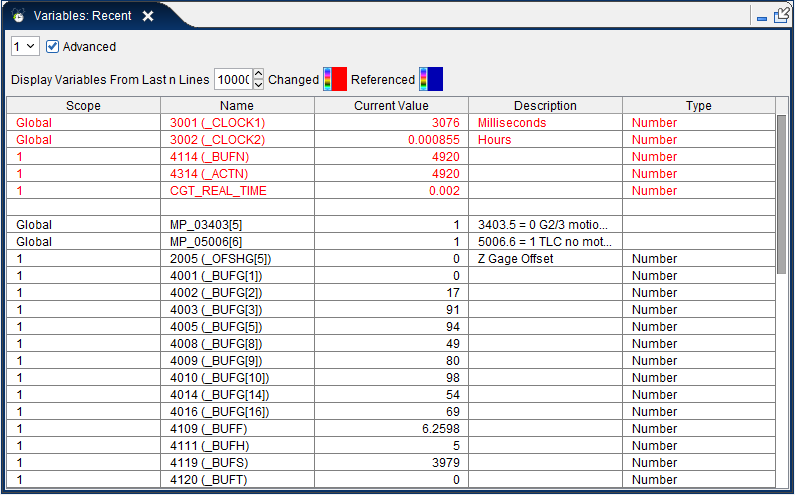
The Variables: Recent panel is one of the “dockable” features enabling you to dock it inside the Vericut main window if you choose. See “Dockable Panels” section of Vericut Help, for more information.
Subsystem/Channel selection – The display shows the variables updated or referenced in the last n lines for the selected channel.
Advanced — By default, this window will show variables that are seen in the NC Program file. It will also show variable 1-33 when entering a G65 Fanuc subroutine. If advanced is checked, it will show ALL variables that are updated or referenced.
Display Variables From Last n Lines — Enter the number of lines, between 1 and 20, for which you want to display variables that have been modified or referenced by the NC program.
Changed — Use the Color Palette to select the text color to be used to display variables that have been updated by the NC program.
Referred — Use the Color Palette to select the text color to be used to display variables that have been referenced by the NC program.
 (Color Palette) — The Color Palette icon enables you to specify the text color used to display the Referred and Updated variables. The right side of the Color Palette icon shows the current color for the variable. To change the color for the variable, click on the (Color Palette) icon to display the color palette window shown below.
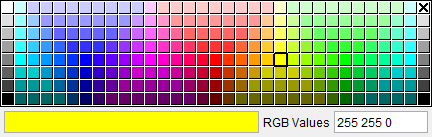
Click on the color in the color palette window, to specify the color for the variable. The color palette window will close and the Variables: Recent panel will update to reflect the selected color.
To close the color palette window without changing the color, click on the  in the upper right corner of the color palette window.
Scope — The scope of the variable. There are three possible values: Global, Subsystem name, Subsystem name – Subroutine name.
Name — The name of the variable that was updated or referenced.
Current Value — The current value of the variable.
Description — The description of the variable.
Type — Type of variable (Number, Text, Number Array, String Array, Frame, Frame Array, Axis, Axis Array, Integer, or Integer Array).
Origin — Specifies where the variable was initially defined.
↘️ Shortcut: Right-click in the Variables: Recent panel to display the following menu:
Defined At — Opens the Variables: Control panel with the relevant variable highlighted.
Last Update — Opens the Variables: Control panel with the relevant variable highlighted where it was last updated.
After using the Defined At and Last Update features, use the (Back to NC Program) icon in the NC Program panel to re-display the currently running NC program. See Back to NC Program in the in the NC Program panel section of Vericut Help for additional information.
Add to Variable Tracking — Adds the selected variable to the Variable Tracking window and opens the Variable Tracking window.
Display Description — Selecting this option will display the Description column on the Recent Variables window. De-selecting this option will hide the Description column on the Recent Variables window.
Display Type — Selecting this option will display the Type column on the Recent Variables window. De-selecting this option will hide the Type column on the Variable Tracking window.
Display Origin — Selecting this option will display the Origin column on the Recent Variables window. De-selecting this option will hide the Origin column on the Recent Variables window.
Variables: All panel
Locations:
Project Tree > Setup Branch Right Mouse Shortcut Menu > G-Code > All Variables
Info tab > (Variables) > All
Quick Access Toolbar short cut:
📝 NOTE: The image that is displayed in the top of the Variables icon and the Quick Access Toolbar short cut will change depending on which Variables panel (Tracking, Recent, Project, Control, or All) was last displayed.
The Variables > All panel allows you to select the types of variables that are displayed and the information that is displayed for the variables.
The Variables: Recent panel is one of the “dockable” features enabling you to dock it inside the Vericut main window if you choose. See “Dockable Panels” section of Vericut Help, for more information.
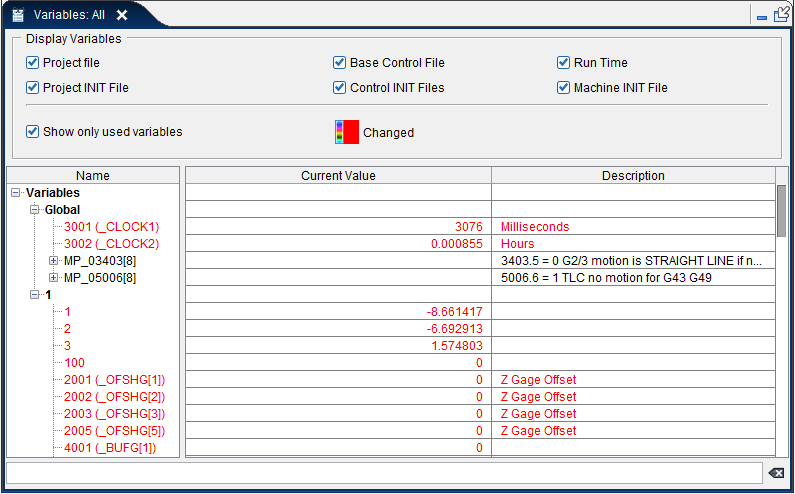
Filter Variables — Enables you to toggle on (checked) which variables you wish to display in the Variables: All panel.
-
Project file — When toggled on (checked), all local variables are displayed. When toggled off (not checked), all local variables are hidden. Local Variables are added through the main NC Program.
-
Project INIT File — When toggled on (checked), all Setup variables are displayed. When toggled off (not checked), all Setup variables are hidden.
Setup Variables are added using a Setup Initialization file. See Initialization File in the Configure Setup menu: G-Code tab section, also in the Project Tree section of Vericut Help for complete information.
- Control File — When toggled on (checked), all Control variables are displayed. When toggled off (not checked), all Control variables are hidden.
Control Variables are added using the Variables: Control panel (Project tab > Variables pull-down menu > Control Variables or Machine/Control tab > Control Variables). See Variables: Control panel in the Project Tree section of Vericut Help for complete information.
- Control INIT File — When toggled on (checked), all Control variables added through the Control Initialization file are displayed. When toggled off (not checked), all Control variables added through the Control Initialization file are hidden.
See the Initialization File feature on the Machine/Control tab > Control Settings window: General tab, in the Machine/Control tab section of Vericut Help for complete information.
- Run Time — When toggled on (checked), all User Defined variables are displayed. When toggled off (not checked), all user defined variables are hidden.
User Defined Variables are added using the Variable Add window.
- Machine INIT File — When toggled on (checked), all Machine variables are displayed. When toggled off (not checked), all Machine variables are hidden.
Machine Variables are added using a Machine Initialization file. See the Initialization File feature on the Machine/Control tab: Machine Settings tab, in the Machine/Control tab section of Vericut Help for complete information.
Show only used variables — When toggled on (checked), the Variables: Project panel displays only variables that are currently in use in the Vericut program.
Name — The name of the variable.
Description — The description of the variable.
Type — Type of variable (Number, Text, Number Array, String Array, Frame, Frame Array, Axis, Axis Array, Integer, or Integer Array). See Variable Add window section of Vericut Help for more detailed descriptions of these variable types.
Initial Value — The initial value of the variable.
Changed — Use this color palette to to change the display color of changed variables within the panel.
(Color Palette) — The Color Palette icon enables you to specify the text color used to display the Referred and Updated variables. The right side of the Color Palette icon shows the current color for the variable. To change the color for the variable, click on the (Color Palette) icon to display the color palette window shown below.
Click on the color in the color palette window, to specify the color for the variable. The color palette window will close and the Variables: Recent panel will update to reflect the selected color.
To close the color palette window without changing the color, click on the in the upper right corner of the color palette window.
↘️ Shortcut: Right-click in the All Variables panel to display the following menu:
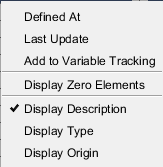
Defined At — Opens the Variable Control window and displays the file and line of code where the variable is defined.
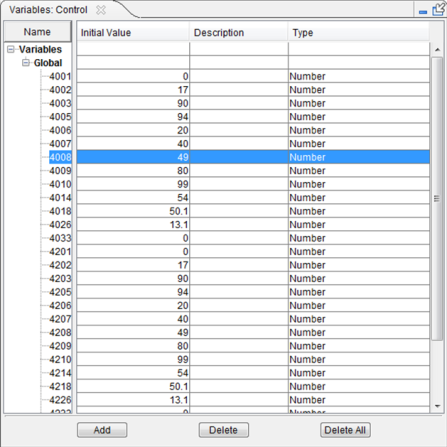
Last Update — Opens the Variable Control window and displays the file and line of code where the variable was last updated. The line of code where the variable was last updated is highlighted.
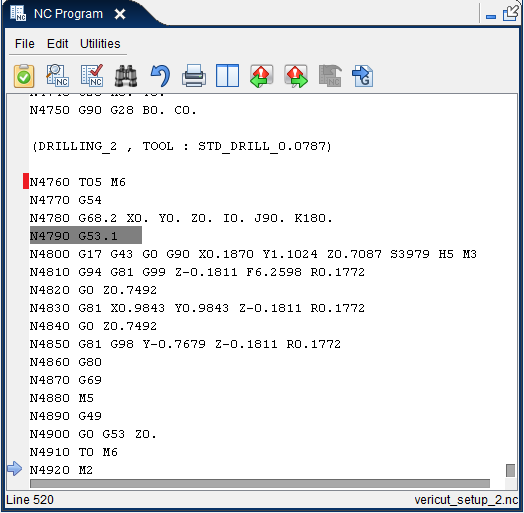
After using the Defined At and Last Update features, use the (Back to NC Program) icon in the NC Program panel to re-display the currently running NC program. See Back to NC Program in the in the NC Program panel section of Vericut Help for additional information.
Add to Variable Tracking — Adds the selected variable to the Variables: Tracking panel.
Add to Variable Tracking — Adds the selected variable to the Variables: Tracking panel.
Display Zero Elements — When selected, the zero elements in a big array are displayed. A big array is one having more than 100 array elements. When cleared, the zero elements in a big array are hidden.
Display Description — Selecting this option will display the Description column on the Variables: All panel. De-selecting this option will hide the Description column on the Variables: All panel.
Display Type — Selecting this option will display the Type column on the Variables: All panel. De-selecting this option will hide the Type column on the Variable: All panel.
Display Origin — Selecting this option will display the Origin column on the Variables: All panel. De-selecting this option will hide the Origin column on the Variables: All panel.
Display Initial Value — Selecting this option will display the Initial Value column on the Variables: All panel. De-selecting this option will hide the Initial Value column on the Variables: All panel.
Variables: Project panel
Locations:
Project Tree > Setup Branch Right Mouse Shortcut Menu > G-Code > Project
Info tab >  (Variables) > Project
Quick Access Toolbar short cut: 
📝 NOTE: The image that is displayed in the top of the Variables icon and the Quick Access Toolbar short cut will change depending on which Variables panel (Tracking, Recent, Project, Control, or All) was last displayed.
The Variables: Project panel allows you to create, add, and delete variables that are specific to the project file and are stored in the project file.
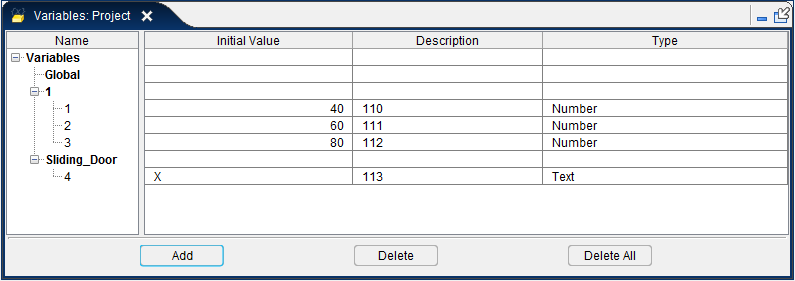
The Variables: Project panel is one of the “dockable” features enabling you to dock it inside the Vericut main window if you choose. See “Dockable Panels” section of Vericut Help, for more information.
The following information is displayed in the Project Variables panel:
Name — The name of the variable.
Initial Value — The initial value of the variable.
Description — The description of the variable being tracked.
Type — Type of variable (Number, Text, Number Array, String Array, Frame, Frame Array, Axis, Axis Array, Integer, or Integer Array). See Variable Add window section of Vericut Help for more detailed descriptions of these variable types.
Add — Opens the Variable Add window enabling you specify the characteristics of a new variable and add it to the variable list. See Variable Add window section for details on this window
Delete — Deletes the highlighted variable from the variable list.
Delete All — Removes all variables from the Variables: Project window.
↘️ Shortcut: Right-click in the Project Variables panel to display the following option:

Add to Variable Tracking — Adds the selected variable to the Variables: Tracking panel.
Variable Add window
Accessed by selecting Add in the Variables: Project panel, the features in this window enable you to specify the characteristics of a new variable.
The Variable Add window is used to define a new User Defined variable and add it to the Variables List in the Variables: Project panel. User Defined Variables are automatically added to the Word Format window.
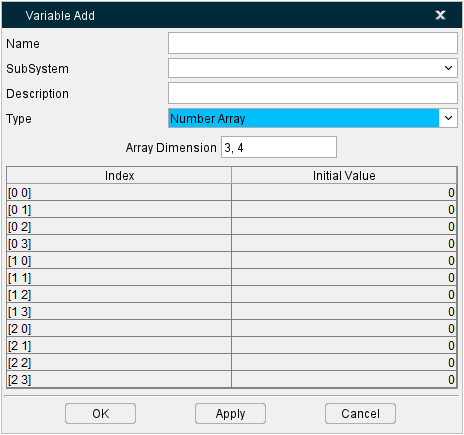
Name — Name of the variable being added.
SubSystem — Use this feature to specify the subsystem that the variable is associated with.
📝 NOTE: SubSystem in this case pertains to the subsystems defined in the Variables List variable tree, NOT the subsystems defined by the machine.
Description — Use this field to add descriptive information about the variable
Type — Select the Type of variable from the pull-down list; also indicates the type of data that can be assigned to the variable.
-
Number — The variable is a real number. For example, value =“0010” => the numeric value “10” is used.
-
Text — The variable is a text string. For example, value =“0010” => the text string “0010” is used.
-
Number Array — The variable is an array. When Number Array is selected as the variable type, an Array Dimension field and an array table are added to the Add Variable window.
-
Array Dimension — Use to specify the dimensions of the array that the variable represents, for example “3, 4”, for a 3x4 array.
-
Array Table — Use the array table to initialize specific array values if desired. Vericut automatically adjusts the size if the array based on the dimension set with Array Dimension and all values are defaulted to 0.
📝 NOTES on using Array Variables:
1. Non-numeric variables must be defined in the Words window to enable proper parsing.
2. In the Variables panel, Type must be set to Array, and Array Dimension must also be defined.
3. In the MCD file, the syntax must be of the form: name[2,1]=5 where the square brackets are left and right precedence, and indexes are separated by commas. Each index can also be defined as an expression. For example: name[#7+1,1]=3.
4. Array variables are also supported in the Word Format window as a variable to be set. Non-numeric variables cannot be used with override values. -
String Array — The variable is an array. When String Array is selected as the variable type, an Array Dimension field and an array table are added to the Add Variable window.
-
Array Dimension — Use to specify the dimensions of the array that the variable represents, for example “3, 4”, for a 3 x 4 array.
-
Array Table — Use the array table to initialize specific array values if desired. Vericut automatically adjusts the size if the array based on the dimension set with Array Dimension and all values are defaulted to 0.
-
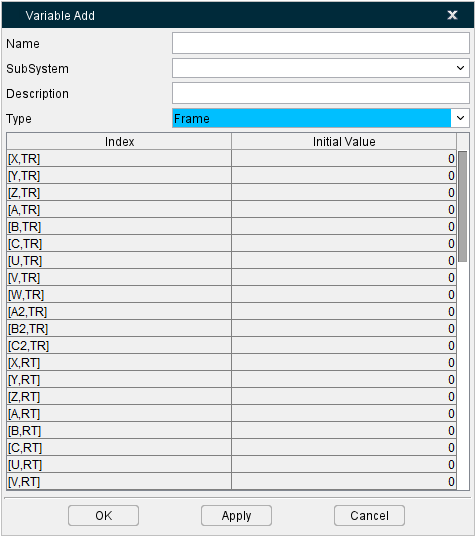
Frame — When Frame is selected as the variable type, a frame table is added to the Add Variable window.
-
Frame Table — Use the array table to initialize specific frame values if desired.
-
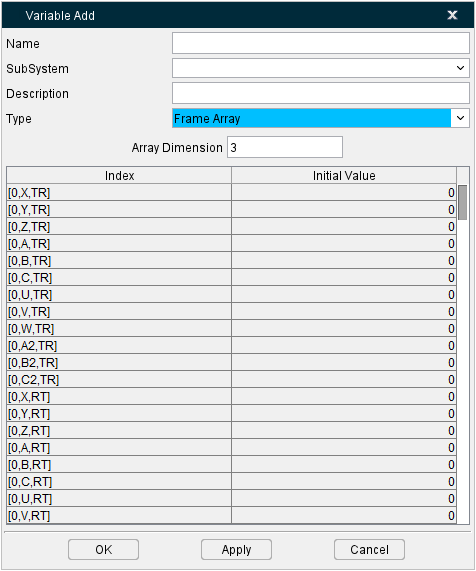
Frame Array — The variable is an array. When Frame Array is selected as the variable type, an Array Dimension field and a frame array table are added to the Add Variable window.
-
Array Dimension — Use to specify the dimensions of the array that the variable represents, for example “3, 4”, for a 3x4 array.
-
Array Table — Use the array table to initialize specific array values if desired. Vericut automatically adjusts the size if the array based on the dimension set with Array Dimension and all values are defaulted to 0.
-
Axis — the variable is an axis name. For example, $P_AXN1 =“X” => the text value “X” is used. Use to define Siemens 840D AXIS variables.
-
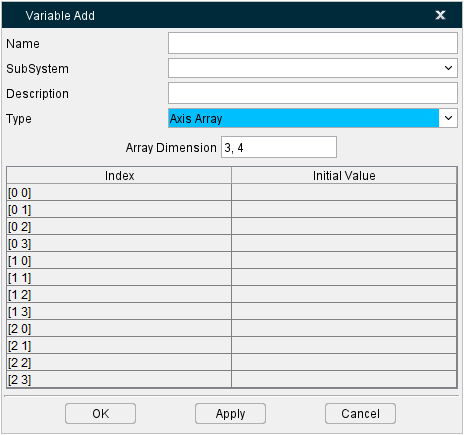
Axis Array — The variable is an array. Use to define Siemens 840D AXIS array variables. When Axis Array is selected as the variable type, an Array Dimension field and an array table are added to the Add Variable window.
-
Array Dimension — Use to specify the dimensions of the array that the variable represents, for example “3, 4”, for a 3x4 array.
-
Array Table — Use the array table to initialize specific array values if desired. Vericut automatically adjusts the size if the array based on the dimension set with Array Dimension and all values are defaulted to 0.
-
Integer — Integer variables are similar to Number variables (described above), except that their input values are automatically be rounded to the closest integer value. For example, a value of 1.3 will be rounded to the integer 1. A value of 1.9 will be rounded to the integer 2.
-
Integer Array — The variable is an array. When Integer Array is selected as the variable type, an Array Dimension field and an array table are added to the Add Variable window.
-
Array Dimension — Use to specify the dimensions of the array that the variable represents, for example “3, 4”, for a 3 x 4 array.
-
Array Table — Use the array table to initialize specific array values if desired. Vericut automatically adjusts the size if the array based on the dimension set with Array Dimension and all values are defaulted to 0. Integer Array variables are similar to Number Array variables (described above), except that their input values are automatically be rounded to the closest integer value.
-
Initial Value — Use to specify an initial value for the variable.
📝 NOTE: For Number or Integer type variables it is possible to create a “vacant” variable with no defined values. This is done by leaving the Initial Value field blank. This is significant because Vericut treats variables differently depending on whether the variable exists (defined within Vericut) versus whether the variable has an undefined value.
If you try to access a non-existing variable (a variable that does not show up in variables panel) Vericut outputs an error message saying; “un-initialized variable, defaulting to zero”.
When you call a G65 subroutine, variables 1-33 get initialized to “undefined” or “vacant” except those, which are set on the call to the subroutine. If you try to access an “undefined” variable, then Vericut does not output an error message, or default to zero.
OK — Adds the variable to the Variables List in the Variables: Project panel. The variable is also added to the Word Format window and then closes the Variable Add window.
Apply — Adds the variable to the Variables List in the Variables: Project panel. The variable is also added to the Word Format window and then leaves the Variable Add window open enabling you to specify additional variables.
Cancel — Closes the Variable Add window without adding the variable to the Variables List in the Variables: Project panel.
Variables: Control panel
Location:
Project tab > (Variables) > Control
Machine/Control tab >  (Control Variables)
Quick Access Toolbar short cut:
📝 NOTE: The image that is displayed in the top of the Variables icon and the Quick Access Toolbar short cut will change depending on which Variables panel (Tracking, Recent, Project, Control, or All) was last displayed.
The Control Variables command button opens the Variables: Control window enabling you to add and remove variables to and from the control. These variables will be defined and initialized when the Control file is loaded.
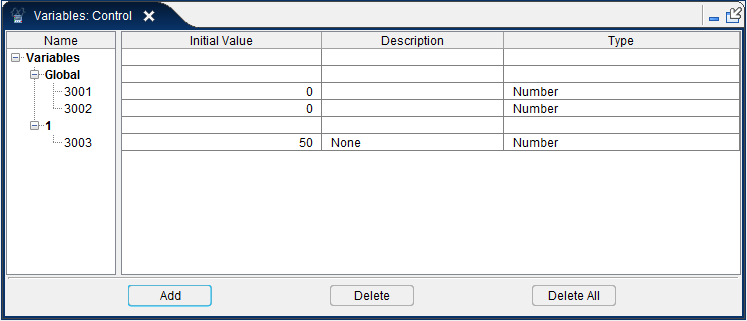
The control variables window is one of the dockable panels enabling you to dock it inside the Vericut main window if you choose. See Personalizing the Vericut Main Window section of Vericut Help for additional information.
The following information is displayed in the Variables: Control panel:
Name — The name of the variable.
Initial Value — The initial value of the variable.
Description — The description of the variable.
Type — Type of variable (Number, Text, Number Array, String Array, Frame, Frame Array, Axis, Axis Array, Integer, or Integer Array). See Variable Add window section of Vericut Help for more detailed descriptions of these variable types.
Add — Opens the Variable Add window enabling you specify the characteristics of a new variable and add it to the variable list.
Delete — Deletes the highlighted variable from the variable list.
Delete All — Removes all variables from the Variables: Control panel.
↘️ Shortcut: Right-click in the Variables: Control panel to display the following option:
Add to Variable Tracking — Adds the selected variable to the Variables: Tracking panel.