Compare Files (Compare NC Programs window)
Location:
Optimize tab >  (Compare Files)
Toolbar short cut: 
The Compare Files command button opens the Compare NC Program Files window enabling you to select and compare the original NC program file and the optimized NC program file.
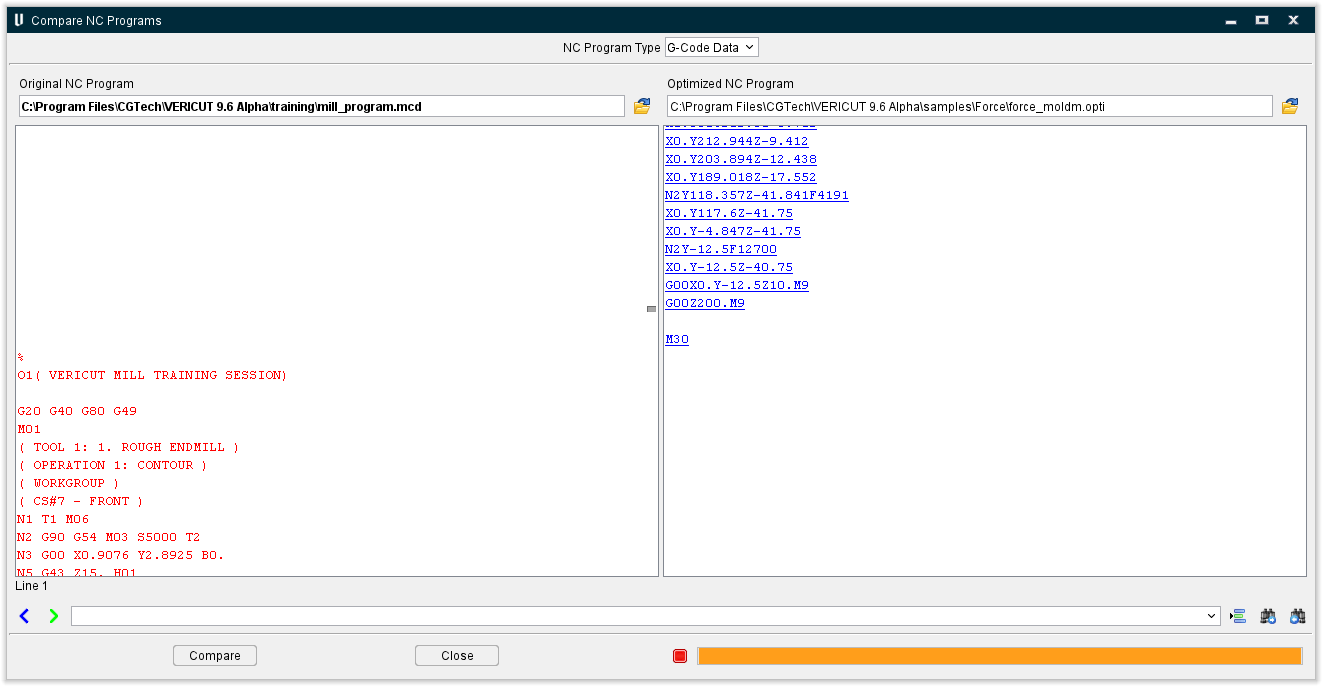
Toolpath Type — Select APT or G-Code Data.
Original NC Program — Enter the /path/filename in the Original NC Program text field of the file containing the original NC program records, or click on the  (Browse) icon and use the Original NC program file selection window to specify the file.
Optimized NC Program — Enter the /path/filename in the Optimized NC Program text field of the file containing the optimized NC program records, or click on the (Browse) icon and use the Optimized NC Program file selection window to specify the /path/filename.
Previous Difference — Use the  icon to step back through the file to the previous difference.
Next Difference — Use the  icon to step forward through the file to the next difference.
Line Number or Search Text — Use to enter a line number or a string of text to search for.
Go to Line Number — Use the  icon to move the cursor in the file listing to the line number specified in the Line Number or Search Text field.
Search Forward — Use the  icon to search forward in the file listing for the text string specified in the Line Number or Search Text field.
Search Backward — Use the  icon to search backward in the file listing for the text string specified in the Line Number or Search Text field.
Compare — Starts the compare of the two specified NC program files.
Close — Closes the Compare NC Programs window.
Stop — Use the  icon to stop the compare.