Basic Vericut Product Installation
You can request a download of the Vericut installation files from the Vericut website.
Once downloaded, the zip file must be unzipped it to a temporary folder. While unzipping the file you’ll be prompted for a password. This password will be in the email that was sent to you with the download link.
From the temporary folder where you unzipped your installation, double click (or right click > Open) on the setup.exe. Next, follow the on-screen instructions.
Run the setup.exe from the folder containing the downloaded installer. A standard installer screen will generate with the current version number and a language selection dropdown menu. Select the desired language from the dropdown list at the bottom and click on the "OK" button.
The Introduction page will be displayed next. It contains basic information about the installation process for you to read thorough. Click the “Next” button to continue once you have read the info on this page.
The License Agreement page will then be displayed next for you to read. Select the “I accept the terms and conditions” and click the “Next” button to continue.
The Choose Install Folder page will then be displayed. You can browse for your preferred location to install Vericut or accept the default installation suggestion. When you’re satisfied with the location, click the “Next” button to continue.
The Choose Type of Installation page will then be displayed.
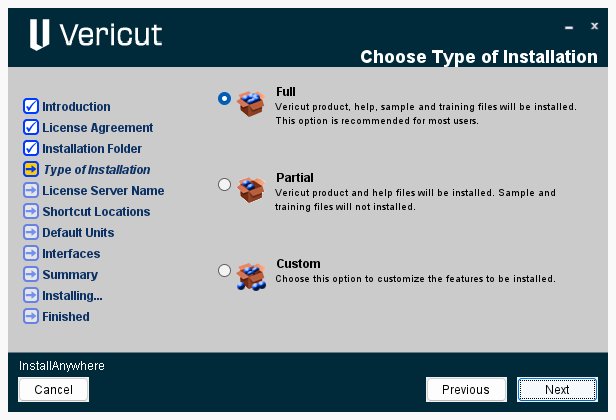
Chose between the following options:
-
Full installs the product, license server, help, samples and training files. This is the recommended setting.
-
Partial installs the product, license server and help files.
-
Custom allows you individually to choose which items get installed.
If you’ve chosen the Custom option the next screen will allow you to select which components of the product to install. Make your selections and click the “Next” button to continue.
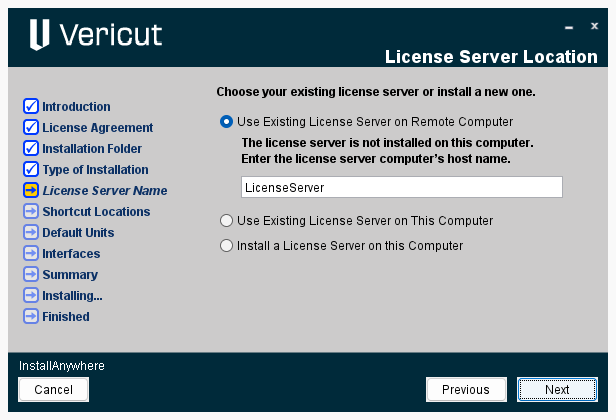
Choose which license server to access.
-
Use Existing License server on Remote Computer.
-
Use Existing License server on This Computer
-
Install a License Server on this Computer.
📝 NOTE: Installing new license server requires administrative privileges. See Optional License Server Installation section for details on this process.
Click the “Next” button to continue.
Vericut Shortcut Locations page will be displayed next. Choose where you want you shorts to be located. On the Desktop, in your Quick Launch bar or in a program group in your start menu. You may select as many of these option as you want.
📝 NOTE: It is recommended that you always keep the program group as a selection. The group in the start menu will contain several utilities that you may wish to access later on. Click the “Next” button to continue.
Vericut Product Shortcuts page will then be displayed. Select which product(s) you which to install and create shortcuts for. Make sure you know which products you purchased prior to making your selection. Click the “Next” button to continue.
Default Units page will be displayed next. Choose the default units to use when opening Vericut. During normal Vericut operation, the units can also be selected when starting a new project. Once a unit has been selected it’s saved with the project file. Click the “Next” button to continue.
Help Documentation page will then be displayed. Select which Help Documentation you would prefer: Online or Local. Click the “Next” button to continue.
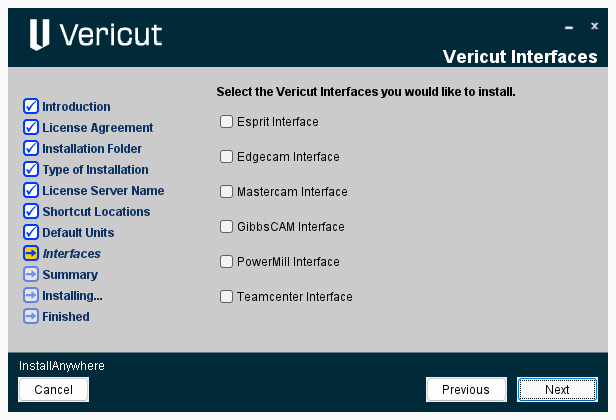
Vericut Interfaces page will be displayed next. Select Additional interfaces. If you purchased additional interfaces in the list, select them to have them installed.
📝 NOTE: there may be more options available than this image depicts. Click the “Next” button to continue.
If you selected the Esprit, EdgeCam, or Mastercam interface, you will be prompted for the location of installation. If it’s not the default installation listed then click on the “Choose” button to choose where the installation should go.
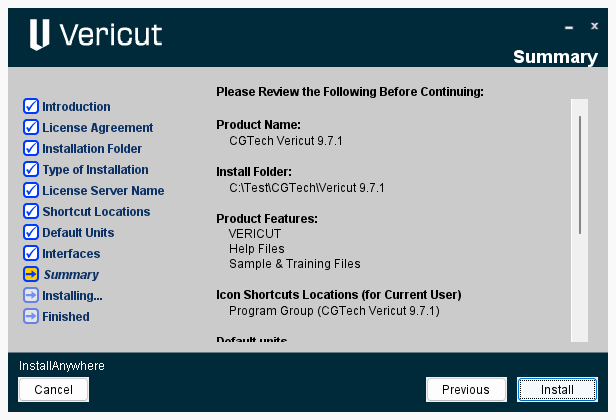
After going through all of the preceding pages, the Summary page will then be displayed. Review your choices. If you need to go back and make any changes click on the “Previous” button to return to the topic that needs a correction. Clicking the “Install” button will begin the installation process.
Installation will begin. An installation progress screen will be displayed during the installation.
Once the installation is complete, an Install Complete window will be displayed asking if you would like to view the post-installation instructions. This will launch your browser and provide a link to take you to the Vericut website to the on-line post-installation instructions. If you wish to install a license server on this PC then check the box and click "Next" button.
Click the “Done” button to exit the Installer.
Choose an Installation Configuration
There are several different ways to configure your Vericut software installation. The following are common configurations: a simple single computer or stand-alone installation and multiple-computer installations.
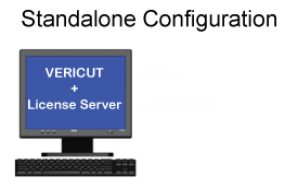
Both the License Server and the Vericut software run on the same computer
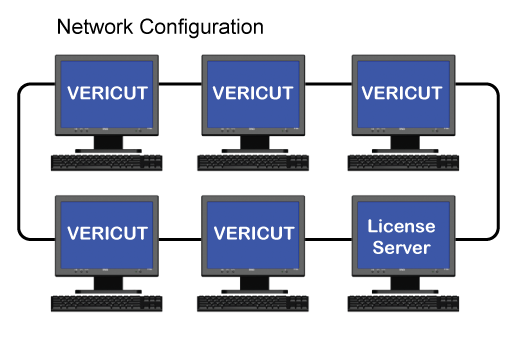
License server running on a different PC on the network
📝 NOTE: The license server computer may also run the Vericut application.
Optional License Server Installation
If you opted to install the license server, an Introduction page will be displayed.
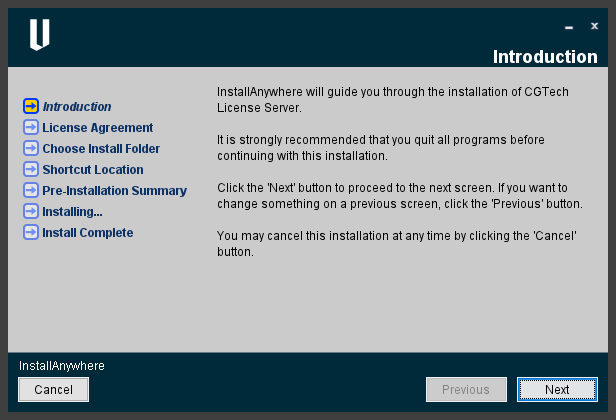
Click on the "Next" button to continue. A License Agreement page will be displayed. Read the agreement, click on the button to accept the terms, and then click "Next" to continue.
A Choose Install Folder page will be displayed next. Choose a new location or click next to accept the default location to continue. Click the "Next" button when you are ready to proceed.
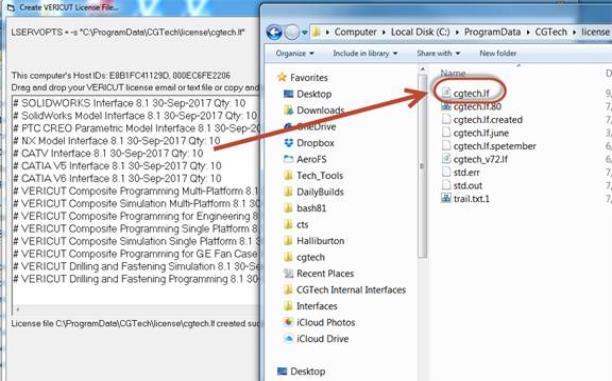
A License Server Shortcut Location page will be displayed. Check the program group option (recommended) to create a program group in the start menu. This group contains additional utilities for configuring the license server as shown on the next page.
This picture shows the additional available utilities using the program group option.
Click "Next" button when you are finished with the Shortcut installation.
The Pre-Installation Summary page is now displayed. Examine the install options selected. If necessary, click the "Previous" button to go back and change any options. Otherwise click "Install" button to begin the installation.
An installation progress screen will display during the duration of the installation. When the installation has been completed, a Summary page will be displayed showing that the installation has been successful. Click the "Done" button to finish.
Uninstall Vericut
Uninstalling is recommended when a Vericut software version is no longer needed, or when disk space is limited. Use the appropriate procedure below to remove a version of Vericut software from your computer.
To remove Vericut software from a Windows computer:
-
Remove the license server service by selecting Start > All Programs > Vericut License Server > License Server Only > Remove License Server Service. Do this BEFORE uninstalling!
-
Uninstall Vericut by selecting Start > Programs > Vericut Vericut x.x > Utilities > Uninstall Vericut x.x (where "x.x" is the version of Vericut to be uninstalled) and follow the prompts of the "uninstall" program. You can also start the "uninstall" program using the UninstallVERICUT.exe, located in the UninstallerData folder of your Vericut software installation.
📝 NOTE: There may be program folder/files that are not removed by uninstalling. These were created after Vericut was installed and will have to be removed manually.
During the uninstall process a dialog may appear prompting you to restart. You do not have to do a system restart and may just press the “continue” button to proceed.