Basic License Server Configuration
Prerequisites
Sentinel License Server — Version 9.1 required.
Network — standard Windows network configuration with TCP/IP.
Admin Privileges — Admin privileges are required to install the license server. If you do not have such privileges, contact your system admin before continuing.
Situational Prerequisite
If running the Sentinel License Server on a Virtual Machine, specifically request a Virtual Machine Enabled (VME) license file from Vericut. Attempting to run a license without VME on a Virtual Machine will fail.
Configure the License Server
First, install and configure the license manager service by going to CGTech License Server > License Server Only. Run the Configure License & Setup Server utility shown below.
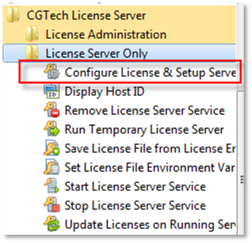
This utility performs an automated update that:
-
creates the license file and sets the LSERVOPS environment variable
-
stops and removes the outdated license server service
- installs and configures the new license server service
For all errors during this process, please go to the troubleshooting section.
If no errors are reported, verify the License Server using the Sentinel LM License Administrator (wlmadmin.exe) from Start Menu > Vericut Installation > License Administration.
Verify the License Server
When the license administrator launches, expand the subnet servers (+) and then display the computer name. You should see all your license features appear. Selecting the license feature in the list will display the name of the feature and how many licenses of the feature you have available.
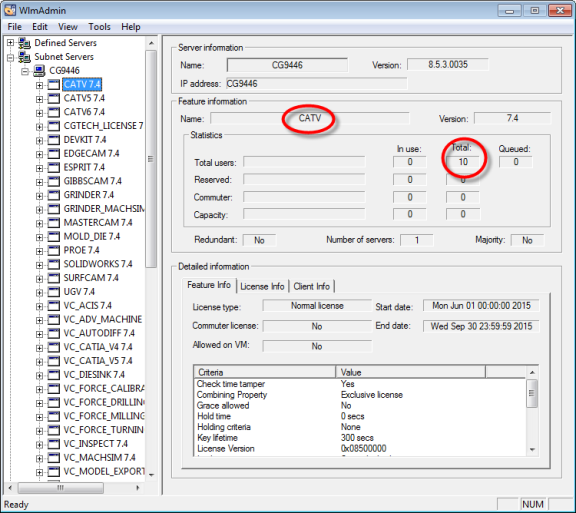
Client PCs should now be able to run Vericut. All available license features are displayed under the license server, including the feature name and number of available licenses.
If Vericut fails to launch, take note of the error message and go to the troubleshooting section.
Request a License
Request your license from the Vericut website using the license request form. The form will be sent to the email address you specified on the form.
To request your license, you must provide some key information. Consult the following table for the key information and where to find it.
| What to Provide | Where to Find It |
|---|---|
| Company ID (6 digits) |
Contact your Vericut Sales Engineer or the Technical Support department. |
| Host Name | Open the Control Panel > select System. The host name is the Computer name. |
| Host ID (12 digits) |
Run the HOST ID utility from the Start Menu. 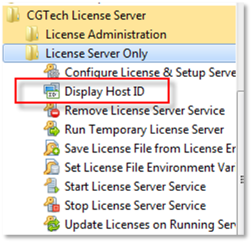 This will display a command window with one or more 12-digit Ethernet addresses. For example: Ethernet 1: 0001CF45A789 Ethernet 2: 2001BC23B123 Consult with your system admin for advice on which Ethernet address to select. |