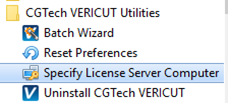
Windows Start Menu License Administration Choices
The following describes the different Windows "Start Menu" choices under Start > All Programs > CGTech Vericut 9.7.1 > License Administration. Some of these choices only display information and some require a Windows administrative user in order to make changes to system settings.
License Utilities
"License Utilities" choices are intended to help set up licensing or diagnose license problems on either the license server computer or the Vericut client computer.
Display Local License Servers
View all Sentinel RMS license servers on this subnet. This choice uses the Sentinel RMS lswhere utility to display all Sentinel RMS license servers that can be communicated with. It uses Sentinel RMS's 'broadcast' feature to contact and collect information about various Sentinel RMS license servers on the same subnet as the current computer. It reports on any Sentinel RMS license servers, which may or may not have Vericut licenses. For more information about advanced license server configuration options, see the
Sentinel — Sentinel RMS License Manager System Administrator's Guide
Display Network Information
Check IP and Ethernet addresses of network devices on this computer. This choice uses the Windows command IPCONFIG /ALL to display important network information, especially TCP/IP configuration information. This can be used to determine if the TCP/IP configuration is valid (i.e. displays a valid IP address of the current computer). It also shows if multiple network devices are present, and their status.
Sentinel RMS License Administrator (WlmAdmin)
View licenses and status of running Sentinel RMS license servers using the Sentinel RMS Windows’ license utility WlmAdmin. WlmAdmin is configured with the Vericut license server identified during installation as a "Defined Server" in WlmAdmin's defined server list. For more information about the WlmAdmin utility see the Sentinel RMS License Manager System Administrator's Guide.
Specify License Server Computer
(requires privileges to write to the Vericut installation folders)
Direct Vericut to get its licenses from a different license server computer. The choice opens the Vericut configuration file, cgtenv.bat in Windows' Notepad text editor. Comments in the file identify the LSHOST environment variable and how to change it to specify a different Vericut license server computer's host name.
The LSHOST environment variable is used on a computer that is running a protected application. It tells the application about one or more License Managers that it can contact.
When this variable is not set then the application will perform a broadcast for any License Manager that is available and can authorize the application to run.
When the variable is set, the application will send a directed call to the License Managers that are in the LSHOST list along with broadcast to the network. The application will traverse the list of License Managers that respond beginning with the first License Manager in the list and moving down the list. If none of the specified License Managers is found, then the application will pick the first License Manager that responds to the broadcast call. The wait during the License Manager response time when LSHOST is set is the same as the broadcast interval.
Separate License Manager host names with a tilde (~).
For example:
Operating System | Example  | Outcome
---|---|---
Windows |  SET LSHOST=ACCT_SERVER~FINANCE_SRV |
|  |  Tells licensed applications to send license requests first to ACCT_SERVER and thereafter FINANCE_SRV
UNIX |  export LSHOST=ACCT_SERVER~FINANCE_SRV |
For more information about the LSHOST environment variable see the Sentinel RMS License Manager System Administrator's Guide.
License Server Only
"License Server Only" choices are only intended to be used on the license server computer, to help set up licensing or diagnose license problems.
Configure License & Setup Server
📝 NOTE: This requires administrative privileges
This is typically the only selection used when setting up a Windows license server. It does the following:
-
Opens the Create License program and instructs the administrator to drag/drop the Vericut license email into the screen. This creates the 'cgtech.lf' license file in the license folder.
-
Sets the system environment variable LSERVOPTS to point to the license file just created.
- Removes any previous Sentinel RMS license server service, then adds and starts the license server service from the current installation folder. When the server starts (via the service) it looks for the license file defined in LSERVOPTS, and adds the license keys.
Display Host ID
Display the Ethernet address of all enabled network adaptors on this computer. The user selects one of these displayed Ethernet addresses as the HOST ID used to lock the license server to this computer. The program that displays the Ethernet addresses uses the exact same logic as the license server program. When a license is added to the license server program, it is compared against enabled network adaptors. If the network adaptor encrypted in the license key does not match any of the enabled network adaptors, the key is not added to the license server.
Remove License Server Service
(requires administrative privileges)
Stops the license server and removes the license server service on this computer. You can use Start License Server Service to restart a license server that is installed as a service.
Run Temporary License Server
(requires administrative privileges)
Starts a temporary license server from the current user's login. You may use this choice to temporarily start the license server program, such as for testing or if it is not possible to add a service. The license server is temporary because it is terminated when the user logs out of the current session. Use Configure License & Setup Server for a permanent installation of the server via Windows Services.
Save License File from License Email
(requires privileges to write to the Vericut installation folders)
Creates the Vericut license file from a license email or text file containing the license keys. This choice opens a utility program that reads the license keys in the Vericut license email and creates the cgtech.lf license file in the local installation's 'license' folder. The utility program reads the license email via:
-
Drag/drop the email directly from Microsoft Outlook or Outlook Express.
-
Drag/drop a saved email message file (.msg or .eml).
- Copy/paste the email's text. For example you can select all the text (typically Edit > Select All in your email program), then paste it into the Create License panel with the right-mouse button menu > Paste menu button.
- Drag/drop a plain text file saved from the license email.
The Create License panel's text area displays all the added license keys, followed by the message "License file C:\cgtech70\windows\license\cgtech.lf created successfully". The license server program reads the cgtech.lf license file when it starts, and adds valid license keys to the running license server.
Set License File Environment Variable
📝 NOTE: This requires administrative privileges
Set the LSERVOPTS system environment variable, used by the license server to find the cgtech.lf license file when the Windows service starts the license server. This setting is only used by the license server started as a Windows service. For more information about LSERVOPTS and its options see the Sentinel RMS License Manager System Administrator's Guide.
📝 NOTE: A restart is required after the environment variable is changed.
Start License Server Service
(requires administrative privileges)
Stops and removes any existing license server service, then installs and starts the license server service from the current installation. This choice is only effective when using a license server service.
Stop License Server Service
(requires administrative privileges)
Stops a running license server service on this computer. The service is not removed, only stopped.
Update Licenses on Running Server
(requires administrative privileges if used on a license server service)
Causes the running license server to re-read the license file. The server must be running when this selection is used. This selection uses the Sentinel RMS lslic program to remove the current licenses, then re-reads the license keys in the cgtech.lf license file and adds them to the running license server. For more information about the lslic program see the Sentinel RMS License Manager System Administrator's Guide.
Windows License Server Configuration
Move Windows License Server
It is sometimes desirable (or necessary), due to hardware upgrades or network changes, to move your Vericut license server to a different license server computer. To move the license server in an existing installation, do the following:
-
Request a license for the new license server computer using Vericut's on-line license Transfer Request form. (Once you receive the license email containing your new license keys, continue with the following steps).
- Follow the Vericut Installation Steps to install Vericut on the new license server computer.
- Modify Vericut client computer installations to use the newly installed license server computer.
Do step 4 for each Vericut software installation in your network.
Modify Vericut on Windows to Use a Different License Server Computer
To change an existing Vericut Windows installation to access Vericut licenses on a different license server computer:
- Select Start > All Programs > CGTech Vericut 9.7.1 > Utilities > Specify License Server Computer (opens the file in Notepad)
-
Change the line:
set LHOST=server1 -
Replace "server1" (or the name of your old license server computer) with the host name of the new license server computer.
- Save the file cgtenv.bat.
Update a License on Windows License Server
These instructions assume you have received a new license from Vericut via email. If you have not, and you need to request a new license, see Determine the HOST ID and Request a License. To update your Vericut license on a Windows license server, do the following (on the license server computer):
Create the license file from the license email or saved text file.
-
Select Start > All Programs > Vericut License Server > License Server Only > Save License File from License Email.
-
Drag and drop the Vericut license email from Microsoft Outlook, or Outlook Express, into the Create License File panel. If you use another email program, or cannot access the license email from the license server computer, then save the license email as a "Text Only" or plain text file and drag/drop the saved file into the Create License File panel.
- Close the Create License File panel after the "success" message displays.
Update the licenses on the running license server.
Select Start > All Programs > Vericut License Server > License Server Only > Update Licenses on Running Server. Do not attempt to do this action unless you know your license server is running. If you are not sure, you can verify that the server is running using Start > All Programs > Vericut License Server > License Utilities > Display Local License Servers. Your server's Host Name should appear in the resulting panel.
If errors occur, contact Vericut technical support via our website, just click on the support link.
Stop and Remove a Windows License Server
Only one license server can run on the license server computer. The license server from the newest installed version should be used. The old license server should be stopped and removed before configuring and starting the new license server.
Stop and remove a Windows license server service
📝 NOTE: The following must be done by an Administrator user.
Start > All Programs > Vericut License Server > License Server Only > Remove License Server Service
Stop and remove a temporary license server process
Right-mouse click on the SentinelLM task in the Windows taskbar, and choose Close.
Remove any mechanism which might have been configured to automatically start the temporary server. For example, you may need to remove a shortcut to the temporary server startup batch file from the Start > All Programs > Startup folder.
If errors occur, contact Vericut technical support via our website, just click on the support link.
Starting a Temporary Windows License Server
The following describes how to start a temporary license server. But, it is strongly recommended that you configure the license server program to automatically start using Windows services. If for some reason you cannot configure the license server service, then it can be temporarily started.
To start a temporary license server select:
Start > All Programs > Vericut License Server > License Server Only > Run Temporary License Server.
You could add a Windows shortcut to your desktop to make access to this procedure easier.
This Start menu item could also be added to the Windows Startup folder so that it automatically starts when you log-in.
📝 NOTES:
-
A temporary license server can only be started by an Administrator user.
-
The temporary license server process is owned by the specific user that starts it. When that user logs out, the license server program terminates.
- Starting a temporary license server stops the Windows license server service if it is running.
If errors occur, contact Vericut technical support via our website, just click on the support link.
Redundant License Server Setup
Prerequisites
A redundant license server configuration requires three license server computers and a special license configured for three license servers.
⚠️ Warning: Redundant license server configuration should only be performed by experienced system administrators.
Before configuring the redundant license servers, make sure you have:
-
Identified the three license server computers.
-
Provided their Host IDs to Vericut.
- Received the license email containing the special redundant-license keys.
- Specified the desired license server as the primary (or "leader") and the other servers as followers during Vericut installation.
📝 NOTE: Each redundant server should use a stable network address. If IP addresses are used in the redundant license configuration, use addresses that will not change.
Setup Steps
Follow the steps below to set up a Windows redundant license server configuration. These steps must be done by an "Administrator" user. The steps assume you have received the license email from Vericut.
📝 NOTE: For more detailed information about setting up a redundant license server configuration, see the Sentinel RMS License Manager System Administrator's Guide.
If errors occur, contact Vericut technical support via our website, just click on the support link.
Step 1: Save License File from License Email
📝 NOTE: This step requires privileges to write to the Vericut installation folders.
Select Start > All Programs > Vericut License Server > License Server Only > Save License File from License Email.
When the Create Vericut License File screen displays, drag and drop the Vericut license email from Microsoft Outlook, or Outlook Express, into the Create Vericut License File screen. If you use another email program or cannot access the license email from the license server computer, save the license email as a "Text Only" or plain text file, then drag and drop the saved file into the Create Vericut License File screen. You can also Copy/Paste the email contents into the Create Vericut License File screen.
The Create Vericut License File screen's text area displays all the added license keys, followed by the message:
"License file C:\ProgramData\CGTech\license\cgtech.lf created successfully".
Close the Create Vericut License File screen after the license file has been created.
You should also determine the IP address of each of the 3 license servers. These will be used in the redundant license file configuration in the following steps.
Step 2: Use WRlfTool.exe to create the redundant license file
Run \windows\license\WrlfTool.exe from the installed source (e.g., C:\Program Files\Vericut\License Server folder of your Vericut installation).
In the WRlfTool panel select File > New.
Press the Add Server button (in the upper half of the window).
In Add Server to Pool panel, enter the Hostname and IP Address (or IPX Address) for the primary or "leader" license server computer, and then press OK.
Press the Add Server button two more times to add the Host Names and IP addresses for each of the two "follower" license server computers. All three redundant server host names and IP addresses should now appear in the Redundant Servers list.
Press the Add License button (in the lower half of the window).
In the Add Redundant License panel, select "Read License(s) from file".
Press Browse and navigate to, and select, the cgtech.lf file you saved during Step 1 above. Press Open, and then press OK.
The Edit License panel opens, showing the first Vericut license key in the License Code field on the right side of the panel, and the number of available licenses displayed in the Number of Tokens field (lower left in the panel).
On the right side of the panel the 3 license server host names appear in the Server column. Check the Include checkboxes for all 3.
Enter the value from Number of Tokens (lower left) in the Num Tokens column to the right of the first or "leader" server. This assigns all tokens for the displayed license key to the leader license server. Make sure that the Num Tokens values, for the two "follower" servers, is set to zero.
Select Next License >> at the bottom of the panel to display the information for the next Vericut feature. Repeat the previous step to assign all tokens for this license key to the leader license server.
Repeat for each license key.
Press Done at the bottom of the panel after the last license key is completed.
Select File > Save As and save the redundant license file as "cgtech.lf" in the C:\ProgramData\CGTech\license folder of the leader license server's Vericut installation.
Step 3: Copy the redundant license to the other license servers.
Copy the file cgtech.lf into the C:\ProgramData\CGTech\license folder of the Vericut installation on each of the other two license server computers.
Vericut strongly recommends you configure the license server program to automatically start when you start your computer.
📝 NOTE: The license server computer requires TCP/IP network protocol installed on the network adaptor. See the section, Check Windows Network Configuration for more information.
The following steps must be done by an Administrator user.
If you are installing on a computer running Windows 10 Pro you will need to do the following before continuing with the Configure License & Setup Server steps.
Go to Control Panel > User Accounts > Change User Account Control settings (aka UAC).
Change it from "Default" to "Never notify".
Step 4: Start and configure the license server service
On the "leader" license server computer: Select Start > All Programs > Vericut License Server > License Server Only > Start License Server Service. This will automatically remove any existing service and add and start the service from the current folder.
Next, select Start > All Programs > Vericut License Server > License Server Only > Set License File Environment Variable. Folder Location: C:\Program Files\CGTech\License Server\set_lservopts.bat
Modify the system environment variable LSERVOPTS using the following method:
- Find the "My Computer" icon, right-mouse click on it, and select Properties.
- In the System Properties panel, select the Advanced tab. Press the Environment Variables button located near the bottom of the panel.
- In the Environment Variables panel, scroll the lower System Variables list, select LSERVOPTS, and press the Edit button.
- In the Edit System Variable panel change the Variable Value by replacing the "-s" with "-rlf"
- Press OK in the Edit System Variable panel, and all remaining panels.
-
Select Start > All Programs > CGTech License Server > License Server Only > Stop License Server Service.
-
Select Start > All Programs > CGTech License Server > License Server Only > Start License Server Service.
Repeat steps 1-5 for the two follower computers.
📝 NOTE: Be sure to start the 3 redundant license server computers in the same order specified when the redundant license file was created. Starting them out-of-order could cause problems designating the “leader” computer and assigning tokens. You should wait 1 or 2 minutes between starting each license server computer to make sure that it is fully started and ready to communicate with the next one. There is no "maximum" time limit between starting the license server computers.
When starting a redundant license server, the error message "lservrc not found" may display. This message can be ignored.
Step 5: Verify the license servers started
All 3 redundant license servers should now be running and should be configured to automatically start. You can confirm that the server program is running using the Sentinel License Administrator program.
Select Start > All Programs > Vericut License Server > License Utilities> Sentinel License Administrator (WlmAdmin). You should see all 3 license server computers' host names appear under the Defined Servers list under the 'tree' displayed on the left side of the window.
If they do not display you may need to add them using Edit > Defined Server List in the WlmAdmin panel. In a few seconds your Vericut licenses should appear under the server computer's name (you may have to expand it).
The redundant license server computers are now configured to automatically start the license server program, the Vericut license keys exist in C:\ProgramData\CGTech\license, and the license server programs are configured to read Vericut license keys from the file.
📝 NOTE: During Vericut installation you should have specified the 3 license servers when prompted for the license server name. If you did not enter the three license server host names during installation, you can modify the name by selecting Start > All Programs > Vericut x.x > License Administration > Specify License Server Computer. When the Notepad editor opens, change the line "set LSHOST=..." to be:
set LSHOST=hostname1:hostname2:hostname3
Where "hostname1", etc. are the names of your 3 redundant license servers. The names MUST be specified in the same order used when the redundant license file was created. The three hostnames are separated by colons ( : ).
Commuter Tool
The "CGTech Commuter Tool" is a utility to check out/in (borrow) licenses. A commuter license allows users to borrow a license from their license server to continue to use Vericut while away from their own network. Or when they need or are forced to work offline. Commuter licenses can be borrowed for a maximum of 14 days, and it will be subtracted from the number of licenses that are available on the license server. Commuter licenses can be checked back in anytime before the borrow expiration time. An expired borrowed license will be automatically checked into the license server.
Installation
Run commuter_tool_install.exe
Step through the installation (📝 NOTE: Administrator rights are required.)
-
Select language
-
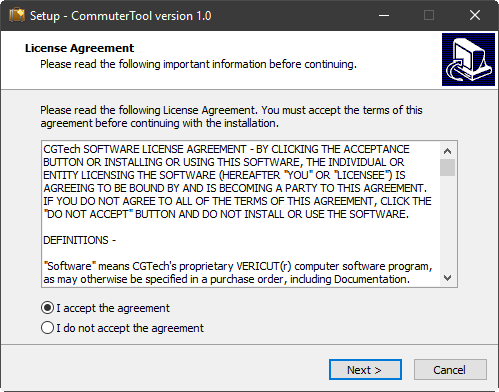
License Panel
-
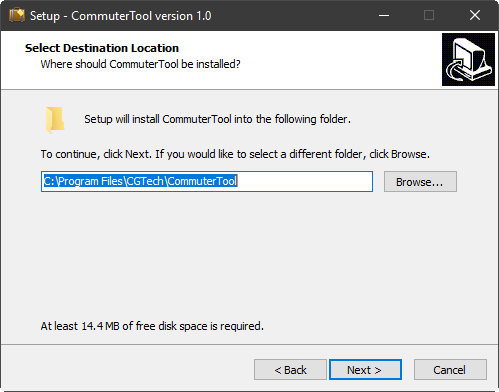
Install Location Panel
-
Program Menu Group Panel
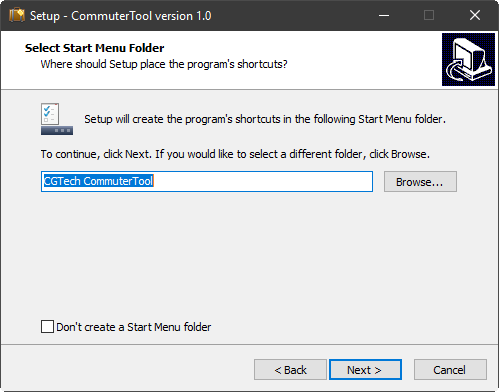
-
Shortcuts Panel
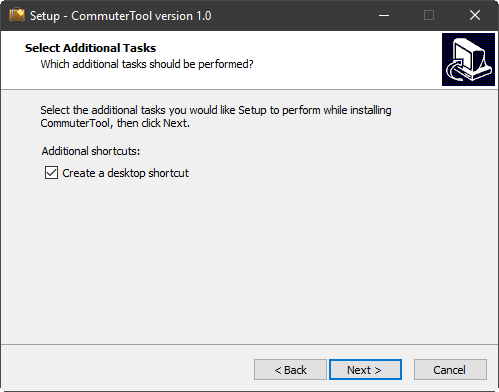
-
Install… Panel
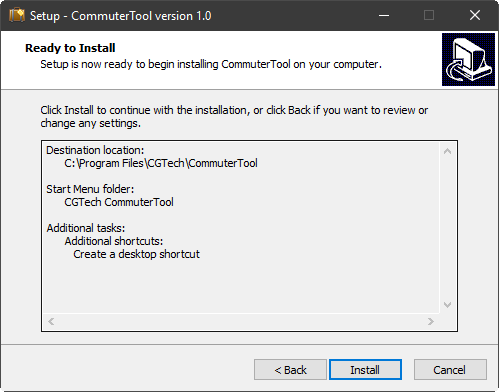
-
Post-install (lsinit.exe check) Panel
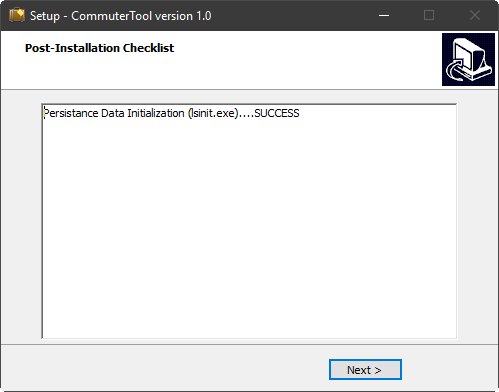
-
Complete Panel
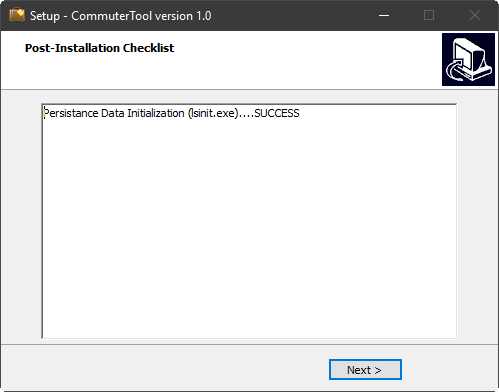
CGTech Commuter Tool
Run Commuter Tool from Start window
or from desktop icon 
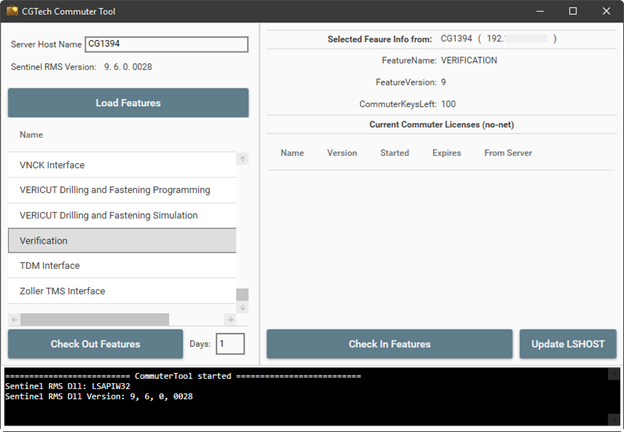
Server Host Name — Specify the server host name or the IP address.
Load Feature — Loads the license keys that are allowed to be commuted.
License keys that are not allowed to be commuted will gray out.
Checking Out Features — This bottom checks out all the different license keys that a user selected Enter the Host Name.
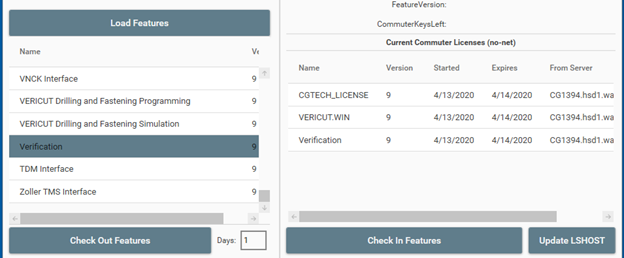
Days — Specifies the number of days a license can be selected from a minimum 1 to a maximum of 14.
Update LSHOST — This will update the location [Vericut Install Directory]\windows64\commands\cgtenv.bat file to include the line: "set LSFORCEHOST=no-net"
📝 NOTE: Once a commuter license is checked out it will be unavailable on the network License Server for the remainder of the days that it was checked out for or until it is manually checked back in to the network License Server.
Checking In Features — Allows the user to manually check in borrowed unexpired licenses.
[Vericut Install Directory]\windows64\commands\cgtenv.bat file will be reverted back to its original state if all CGTech commuter licenses have been checked back into the server.
📝 NOTE: If the borrowed license is Expired, the user will have to manually edit [Vericut Install Directory]\windows64\commands\cgtenv.bat file or use the Specify License Server Computer from the CGTECH Vericut Utility xx menu in Windows Start menu.