Control Branch
Right-click on a Control branch in the Project Tree panel to display the following menu:
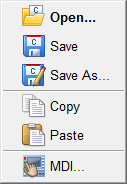
Open — Opens the Open Control window enabling you to open a control file.
Save — Opens the Save Control File window enabling you to save the current control file.
Save As — Opens the Save Control File window enabling you to save the current control file under a different name or path.
Copy — Copies the highlighted control file from the Project Tree to the paste buffer.
Paste — Uses the contents of the paste buffer to replace the highlighted control file in the Project Tree.
MDI — Opens the MDI window enabling you to manually enter and process blocks of G-Code data.
If the Configure icon is toggled “on”, the Configure Control menu displays at the bottom of the Project Tree.
↘️ Shortcut: Double clicking on a Control Branch will open the Open Control file selection window enabling you to open a control file.
Open Control window
Locations:
Project Tree > Control Branch Right Mouse Shortcut Menu > Open
Project Tree > Configure CNC Machine menu
Machine/Control tab >  (Open Control)
Toolbar short cut: 
The features on the Open Control window enable you to open (load) a Control file (ref. Control File in the Getting Started section of Vericut Help). Control files contain data that describes how the NC control processes machine code data.
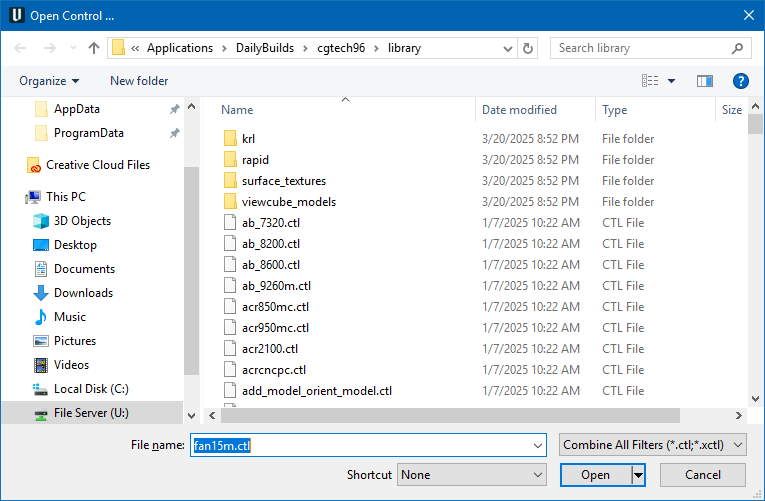
Most features on this window are standard file selection window features that enable you to navigate through directories, filter files, and type, or select, /path/filenames. A description of features specific to Vericut can be found in the Introduction to Vericut File Selection Windows section of Vericut Help.
See Saving or Opening an NC Control Configuration section of Vericut Help for additional information.
Save Control File window
Locations:
Project Tree > Configure CNC Machine menu
Project Tree > Configure Control menu
Machine/Control tab >  (Save)
Machine/Control tab >  (Save As)
Toolbar short cut for saving Control files: 
Any of the above buttons opens the Save Control File window enabling you to save a Control file (ref. Control File in the Getting Started section of Vericut Help). Control files contain data that describes how the NC control processes machine code data.
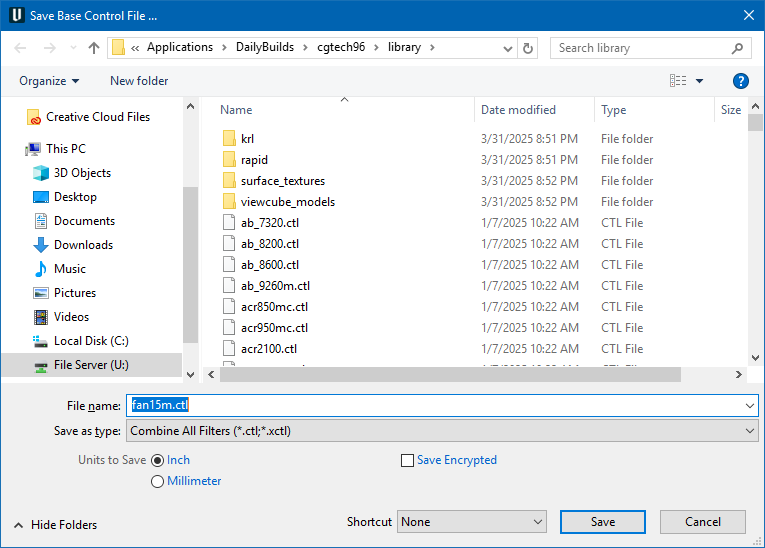
Most features on this window are standard file selection window features that enable you to navigate through directories, filter files, and type, or select, /path/filenames. A description of features specific to Vericut can be found in the Introduction to Vericut File Selection Windows section of Vericut Help.
To save space, the features described below are unique to this window.
Units to Save — Controls the units (Inch or Millimeter) in which to store control configuration data. If the session units are different than the units to save, then values are converted accordingly when stored in the new file.
Save Encrypted — Saves the control file as a standard encrypted (X-File) with an .xctl extension.
A "standard" encrypted control file:
-
works with a standard Vericut license.
-
is a compressed binary file.
- contains all files referenced by the Control file (no external subroutines).
- simulates exactly the same as a standard control file (.ctl)
- disables the Configuration menu features when used in a setup.
- cannot be decrypted/expanded except by Vericut so retain your original control (.ctl) file.
See Saving or Opening an NC Control Configuration section of Vericut Help for additional information.