NC Programs Branch
Double clicking on an NC Programs branch in the Project Tree panel will display the NC Programs file selection window enabling you to add one, or more, NC programs to the setup.
Right-click on an NC Programs branch in the Project Tree panel to display the following menu:
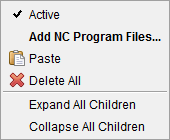
Active — When toggled “on” (checked), all NC program files in the NC Programs branch are designated “active”. When toggled “off”, all NC program files in the NC Programs branch are designated as “inactive”. Only NC program files designated as “active” are processed by Vericut. "Inactive" NC program files are indicated by red text in the Project Tree panel.
Add NC Program Files — Displays the NC Programs file selection window enabling you to add one, or more, NC programs to the setup.
Paste — Adds the contents of the paste buffer to the highlighted NC Program branch in the Project Tree.
Delete All — Deletes all NC Programs from the NC Program branch.
Expand All Children — Expands the NC Programs branch so that all of the NC Program files are shown.
Collapse All Children — Collapses the NC Programs branch.
If the Configure icon is toggled “on”, the Configure NC Programs Branch menu displays at the bottom of the Project Tree.
NC Program File
Right-click on an NC Program file highlighted in the Project Tree to display the following menu:
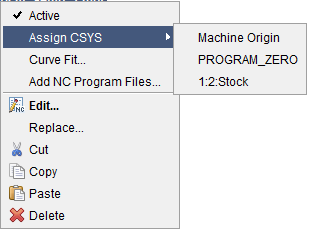
Active — When toggled “on” (checked), the highlighted NC program file is designated as “active”. When toggled “off”, the highlighted NC program file is designated as “inactive”. Only NC program files designated as “active” are processed by Vericut. "Inactive" NC program files are indicated by red text in the Project Tree panel.
Assign CSYS — Use to assign a coordinate system (CSYS) to the highlighted NC program file. Select the desired CSYS from the pull-down list. Vericut will append the selected CSYS to the NC program file in the Project Tree as shown in the picture following picture.

Edit — Opens the highlighted NC program in the NC Program Editor window.
Replace — Opens the NC Programs file selection window enabling you select one, or more NC programs to replace the NC program highlighted in the Project Tree.
Cut — Cuts the highlighted NC Program file from the Project Tree and puts it in the paste buffer.
Copy — Copies the highlighted NC Program file from the Project Tree to the paste buffer.
Paste — Replaces the highlighted NC Program file, with the NC Program file contained in the paste buffer.
Delete — Deletes the highlighted NC Program file from the Project Tree.
↘️ Shortcut: Double clicking on an NC Program file in the Project Tree panel will open the NC program in the NC Program Editor window.
Right-click with multiple NC Program files highlighted in the Project Tree to display the following menu:
To use the above features for multiple NC program files at the same time, select the desired NC program files using one of the following methods:
Select multiple files in sequence — Click first file name in the sequence, then press and hold the <Shift> key while clicking the last file name
Select additional or non-sequential files — Press and hold the <Control> key while selecting each additional file.
With either method, selecting a file name a second time while holding down the
Each of the features in the above menu behave exactly as described for a single highlighted NC program file except that the selected feature is applied to all of the highlighted NC program files.
Active — makes all of the highlighted NC programs active/inactive.
Assign CSYS — assigns the selected coordinate system to all of the highlighted NC programs.
Add NC Program Files — Displays the NC Programs file selection window enabling you to add one, or more, NC program files to the setup.
Edit — Opens the NC Program Editor enabling you to edit the NC Program.
Replace — Opens the NC Programs file selection window enabling you select one, or more NC programs to replace the NC programs highlighted in the Project Tree.
Cut — Cuts the highlighted NC Program files from the Project Tree and puts it in the paste buffer.
Copy — Copies the highlighted NC Program files from the Project Tree to the paste buffer.
Paste — Replaces the highlighted NC Program files, with the NC Program files contained in the paste buffer.
Delete — deletes all of the highlighted NC program files.
NC Program CSYS
Right-click on a coordinate system (CSYS) assigned to an NC program file in the Project Tree to display the following menu:

Add — Adds a CSYS to the Project Tree.
Delete — Deletes the highlighted CSYS from the Project Tree.
If the Configure icon is toggled “on”, the Configure Coordinate System menu displays at the bottom of the Project Tree.