Configure Project menu
Location:
Project Tree > Project branch (Configure “on”)
The features on the Configure Project menu, Files tab enable you to open and save Vericut project (.VcProject) files and save, view and reset the Vericut Log file.
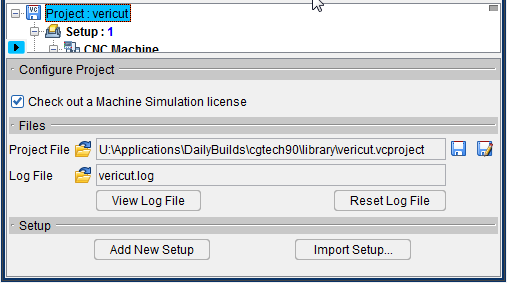
Check out a Machine Simulation license — Toggle this feature "on" (checked) to use a Machine Simulation license from the Vericut license server. Toggle this feature "off" (not checked) to not use. If you do toggle this feature off, Vericut will generate a pop up asking if you want to turn off Machine Collision Detection. If you select yes, this will turn off all Machine Collision Detection for the entire project, not just the current setup. This feature is on by default.
If your project already has a Machine Simulation license checked out, then turning off the feature (not checked) does not return the license. You will need to go to the Help tab > License feature to check it in.
NOTE: If this feature is set to "off" (not checked), then the machine models will not be displayed in the Machine View. In order to have the models visible, you need to toggle this feature "on" (checked).
Project File — Use the Project File features to open and save project files (ref. Project File in the Getting Started with Vericut section of Vericut Help).
 (Open File) — Displays the Open Project file selection window enabling you to open Vericut project (.VcProject) files.
 (Save File) — Use Save Project to save existing Vericut project (.VcProject) files with the current session settings.
 (Save As File) — Displays Save Project As window enabling you to save a new Vericut project (.VcProject) file or save existing project files with a different name or in a different location.
Log File — Use the Log File features to save, view and clear log files (ref. Log File in the Getting Started section of Vericut Help).
(Open File) — Opens a file selection window enabling you to save the Vericut Log file.
View Log File — Opens the Vericut Log window enabling you to view the log file.
Reset Log File — Use to clear the contents of the Vericut Log file.
Add New Setup — Add New Setup appends a new setup after the current setup. All settings from the current setup are copied to the new setup. Once the new setup is added, it becomes the current setup.
Import Setup — Opens the Import Setup window, enabling you to copy a setup from another project file and append it after the current setup.