Configure CNC Machine menu
Location:
Project Tree > CNC Machine branch (Configure “on”)
The Configure CNC Machine menu enables you to select the Machine and Control file to use for the current setup.
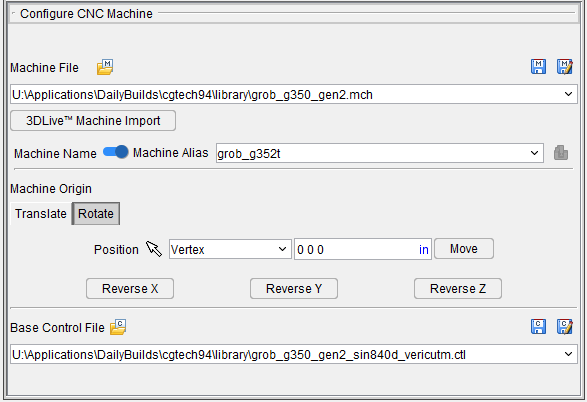
Machine File — Use the Machine File features to open and save machine files which contain data that describes NC machine construction, kinematics, and other properties (ref. Machine File in the Getting Started section of Vericut Help).
 (Open Machine) — Displays the Open Machine window enabling you to open machine (.mch, .xmch) files.
 (Save Machine) — Saves (updates) an existing machine file (.mch, .xmch) with the current NC machine settings. Vericut will save the machine file if you have sufficient permissions to save the file in its present folder. Otherwise, the Save Machine File window will display enabling you to specify a location to save where you have write permissions.
 (Save Machine As) — Displays the Save Machine File window enabling you to save a new control (.ctl, .xctl) file or save an existing control file with a different name or in a different location.
See Saving or Opening an NC Machine Configuration section of Vericut Help for additional information.
📝 NOTE: In some environments, the Save File and Save As File icons will not be displayed. This is because the CGTECH_MACHINE_CONFIG environment variable has been set in the vericut.bat file to restrict access to Vericut’s machine configuration features.
Machine File Pull-down List — Click on the arrow button  at the end of the Machine File text field to display a list of all of the Machine files contained in the /library/ folder of your Vericut installation and select the desired machine file from the list.
3DLive Machine Import — Opens the 3DLive Machine Import window enabling you to read or import machine date for a .mch file. See 3DLive Machine Import section for more info.
Machine Name|Machine Alias toggle — Switch between using the default file name for your machine (Machine Name) or a nickname you can enter for yourself in the text field to the right of the toggle (Machine Alias).
 (Change Machine) — When the above toggle is set to Machine Name, this icon becomes active. Clicking it will open the Machine Settings window enabling you to edit which machine is active in the Project Tree.
Machine Origin
Translate tab
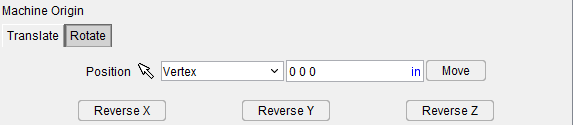
Position — This feature is used to translate the location of the CNC machine through several means. By using the  icon, the translation can be selected by clicking within the Graphical Display area by any of the following means: Vertex, Circle Center, Component Origin, Model Origin, CSYS Origin, 3 Planes. By using the Position text field, the specific coordinates can be manually entered.
Move — Click this button once the Position has been specified to translate the CNC machine.
Reverse X, Y, and Z buttons — Clicking these buttons will alter the placement of the machine along the X, Y, or Z axis depending on which button was clicked. For instance, if Reverse Y was clicked while the Y CSYS was position was set to 10, then the machine would be reverse by 10 degrees along the Y axis.
Rotate tab
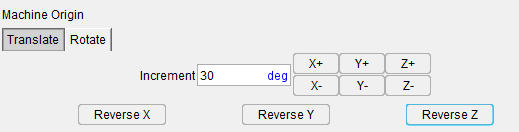
Increment field — Use this field to specify the degrees by which the CNC machine will be rotated.
Axis icons — Use these icons to specify the axis by which the CNC machine will be rotated. Options include: X+, Y+, Z+, X-, Y-, and Z-.
Base Control File — Use the Base Control File features to open and save control files which contain data that describes how the NC control processes machine code data (ref. Control File in the Getting Started section of Vericut Help).
 (Open Control) — Displays the Open Control window enabling you to open control (.ctl, .xctl) files.
 (Save Control) — Saves (updates) an existing Control file with the current NC control settings. Vericut will save the control file if you have sufficient permissions to save the file in its present folder. Otherwise, the Save Control File window will display enabling you to specify a location to save where you have write permissions.
 (Save Control As) — Displays the Save Control File window enabling you to save a new control (.ctl, .xctl) file or save an existing control file with a different name or in a different location.
📝 NOTE: In some environments, the Save File and Save As File icons may not be displayed. This is because the CGTECH_MACHINE_CONFIG environment variable has been set in the vericut.bat file to restrict access to Vericut’s machine configuration features.
Control File Pull-down List — Click on the arrow button at the end of the Control text field to display a list of all the Control files contained in the "library" folder of your Vericut installation and select the desired Control file from the list.