Review
Location:
File tab >  (Open Review File)
The Vericut Review command buttons Open Review File and Save Review File enable you to create review files and view them in the Vericut Reviewer. The Vericut Reviewer features are similar to the features are similar to the ones found in NC Program Review. The difference is that Vericut Reviewer can be used within Vericut or as a standalone tool outside of Vericut.
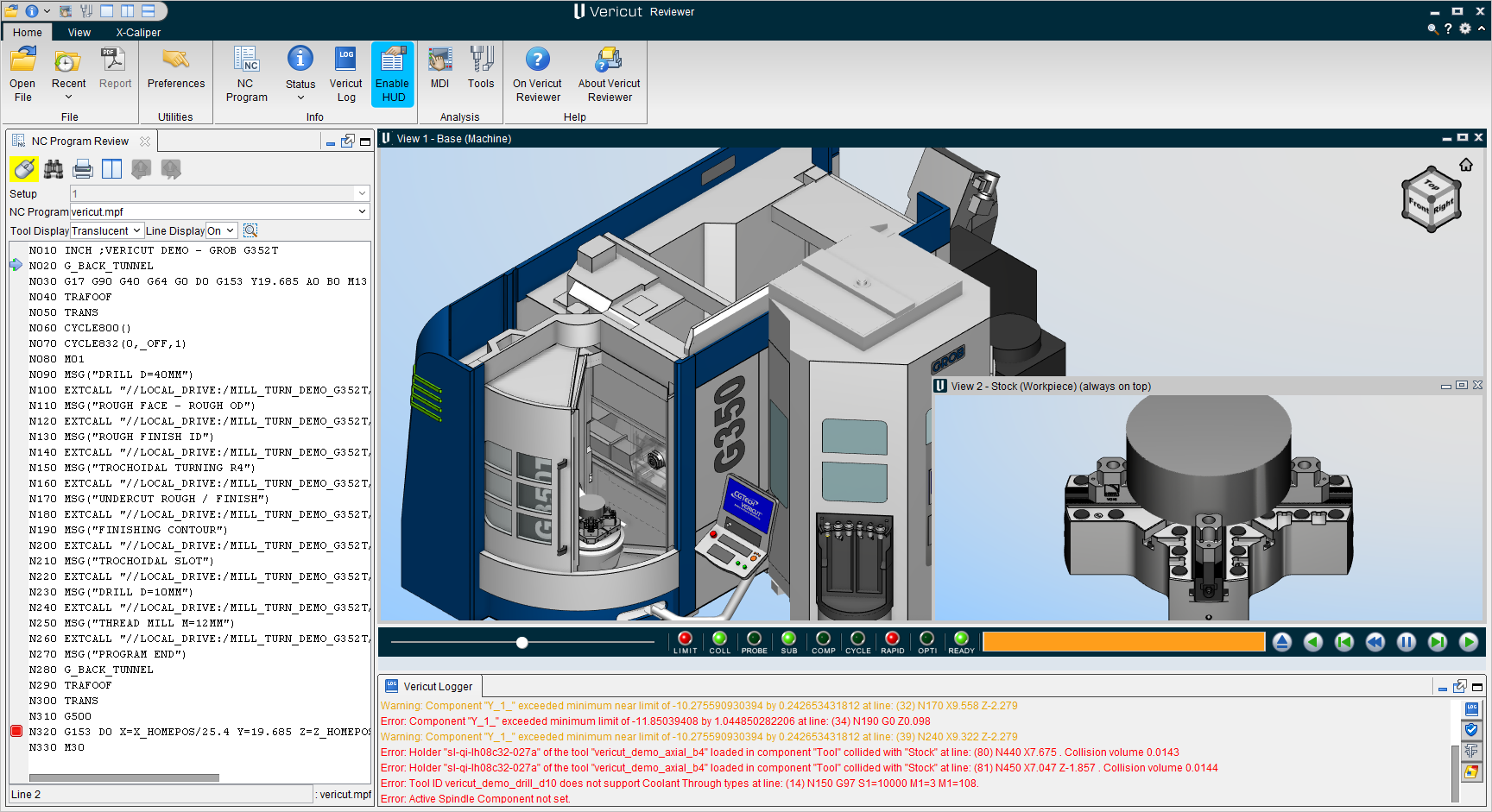
The Vericut Reviewer enables you to quickly and easily view, replay a previously processed Vericut Project file. The input to the Vericut Reviewer is a Vericut Review file (.vcreview). The Vericut Review file contains all of the information required to replay the toolpath and machine simulation that was created in Vericut.
The Review file is a binary file that contains all of the information required to simulate a Vericut Project file. It contains the model information required to display machine, cut stock, tools etc. It also contains the NC program(s) used to cut the part, tool path data, original view settings and a copy of the Log file.
For complete information about the Vericut Reviewer, see Vericut Reviewer Help in the Vericut Help Library.
Open Review File
Location:
File tab >  (Open Review File)
The Open Review File command button opens the Open Vericut Review File file selection window enabling you to specify the review file that you want to view in the Vericut Reviewer.
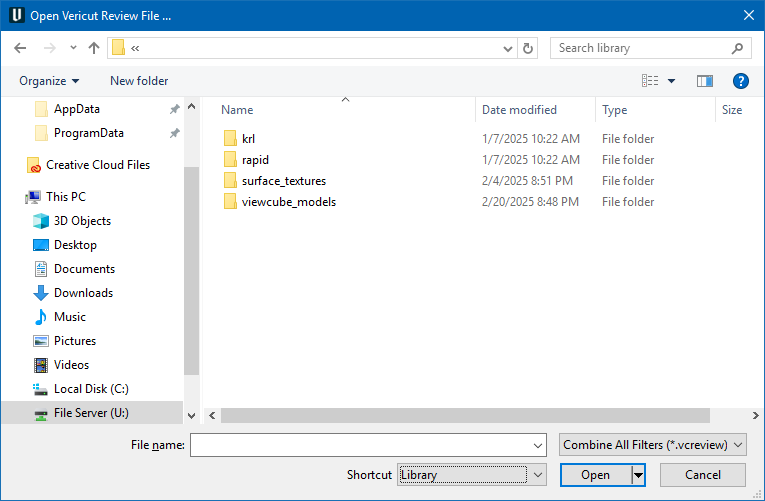
Most features on this window are standard file selection window features that enable you to navigate through directories, filter files, and type, or select, /path/filenames. A description of features specific to Vericut can be found in the Introduction to Vericut File Selection Windows section of Vericut Help.
After selecting the /path/filename of the review file that you want to view, click on Open to open the Vericut reviewer with the specified review file displayed.
For complete information about the Vericut Reviewer, see Vericut Reviewer Help in the Vericut Help Library.
Save Review File
Location:
File tab > v (Save Review File)
The Save Review File command button opens the Save Vericut Review File file selection window, enabling you to save a review file (.vcreview) that can be viewed in the Vericut Reviewer.
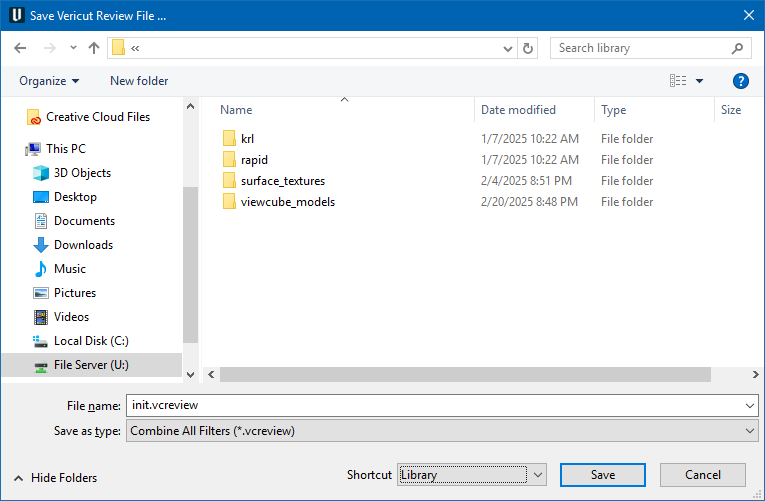
Most features on this window are standard file selection window features that enable you to navigate through directories, filter files, and type, or select, /path/filenames. A description of features specific to Vericut can be found in the Introduction to Vericut File Selection Windows section of Vericut Help.
📝 NOTE: The Enable NC Program Review option in the Settings window : Properties tab (Project tab > Settings) must be toggled "on" (checked) to activate the Save Review File feature.
See Creating a Vericut Review File section of Vericut Help for additional information.
Creating a Review File
The Vericut Review file is a binary file that contains all of the information required to simulate a Vericut Project file. It contains the model information required to display machine, cut stock, tools etc. It also contains the NC program(s) used to cut the part, tool path data, original view settings and a copy of the Log file. The following assumes that you have a Vericut session up and running.
-
Use one of the following methods to display the Open Project file selection window.
-
In the Project Tree, right-click on the Project Branch and select Open from the menu that displays.
-
In the Vericut menu ribbon, select File tab > Open Project.
-
-
In the Open Project file selection window that opens, select, or type the /path/filename of the file to open.
-
Click Open. The Project file is opened. The current Project file name and unit measurement system are displayed in the Vericut window title bar.
-
In the Vericut Simulation Controls, press on the
 (Play / Start-Stop Options) icon to start the simulation. You can save a part of the simulation, or the entire simulation in the Vericut Review file. Use the (Pause) simulation control to stop the simulation before the end.
 -
When you have created the simulation data, select File tab > Save Review File in the Vericut main menu ribbon to display the Save Vericut Review File file selection window.
📝 NOTE: The Enable NC Program Review option in the Settings window: Properties tab (Project tab > Settings dropdown menu > Properties) must be toggled "on" (checked) to activate the Save Review File feature. -
In the Save Vericut Review File file selection window, specify the /path/filename for the review file to be saved and then click Save to save the review file.