G-Code Log File window
Location:
Info tab >  (View G-Code Log File)
The View G-Code Log File command button opens the G-Code Log File. This features is grayed out until the G-Code Log File is created and Debug settings are specified in the Settings window > G-Code Outputs tab. Inputs, Words, and Macros will be displayed in bold with different colors to help distinguish them from each other while looking at the file. If you highlight a line of the NC Program before clicking this button, the corresponding line in the G-Code Log File will also be highlighted.
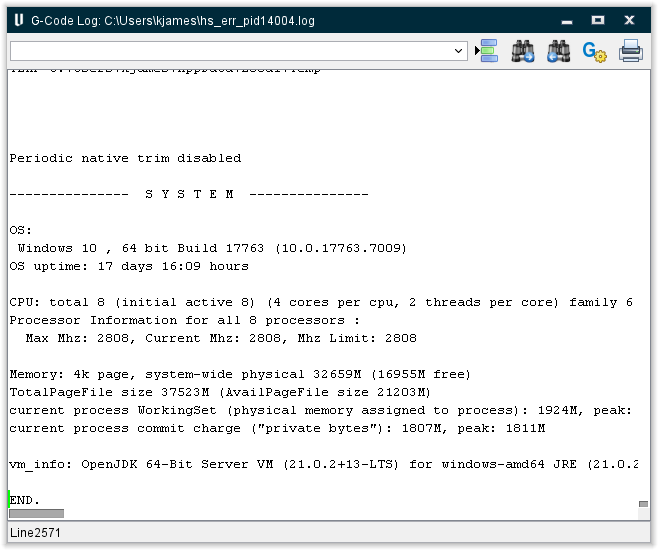
The items in the Icon Bar enable you to search for specific items in the file listing, print the file, or exit the window. Moving the cursor over the icon will display name of the option. Each feature (from left to right) is described below.
 (Go To Line Number) — Moves the cursor in the G-Code Log File listing to the line number specified in the text field.
 (Search Forward) — Use to search forward in the G-Code Log File listing for the text string specified in the text field.
 (Search Backward) — Use to search backward in the G-Code Log File listing for the text string specified in the text field.
 (Go To Definition) — Highlight a word or line in the G-Code Log and then click this button to pull up the G-Code Processing window and the relevant Search for window tab if applicable. You can also right click any term in the G-Code Log to access this feature through the right mouse button menu that displays:
Example 1:
In the G-Code Log file, assume there is an entry like the following:
P1 (G 10)

  WorkCoordIndex “1” 1

  TableIndex “1” 1
If you highlight the “P1 (G10)”, and click on the (Go To Definition) icon, the G-Code Processing window will display and the corresponding entry in the Word/Address section of the window will be highlighted.
Example 2:
In the G-Code Log file, assume there is an entry like the following:
N10000 $MN_ORIENTATION_NAME_TAB[1]="YH"
If you highlight “$MN_ORIENTATION_NAME_TAB[1]”, and click on the (Go To Definition) icon, the Search for window: Variable tab will display with the highlighted variable entered. Click on one of the Search icons and the Variables panel will open with the corresponding variable highlighted.
💡 Tip: Click with the right mouse button in the G-Code Log file listing to display the following option that you can use as an alternative to the Go To Definition icon.
 Print — Use to print the G-Code Log File.
 Close — Closes the G-Code Log File window.