Vericut Log window
Locations:
Project Tree > Configure Project menu: Files tab
Info tab >  (Vericut Log)
Report tab > (Vericut Log)
Toolbar short cut: 
The Vericut Log window displays the Vericut Log file. This file contains session information, such as error, warning and informational messages about the verification session. In this window, you can view, print, change then name, or reset Log file contents.
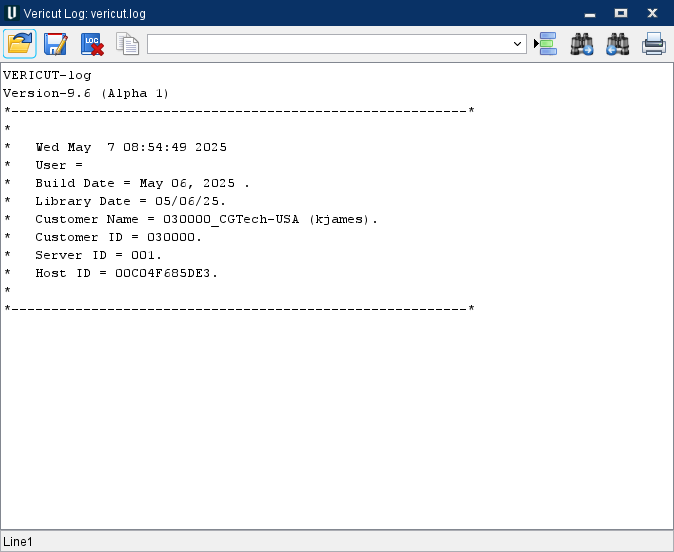
Toolbar

 Open — Opens a file selection window enabling you to open an existing log file.
 Save As — Opens a file selection window enabling you to save the Vericut Log file.
 Reset Log File — Use to clear the contents of the Vericut Log file.
 Copy — After highlighting the desired text in the Vericut Log file, use this feature to copy the highlighted text to a paste buffer which can then be pasted to a text file, email, etc.
Line Number or Search Text — Use this text field to enter a line number, or a string of text, to search for.
 Go to Line Number — Moves the cursor in the file listing to the line number specified in the Line Number or Search Text field.
 Search Forward — Searches forward in the file listing for the text string specified in the Line Number or Search Text field.
 Search Backward — Searches backward in the file listing for the text string specified in the Line Number or Search Text field.
 Print — Print the Vericut Log file.
 Close — Closes the Vericut Log window.
Click here to see a sample Vericut Log file.
📝 NOTE: In the Vericut Logfile "Cutter Stick Out" column of the Tool Summary Table, in cases where no holder has been defined, or in the case of an APT tool, the "Cutter Stick Out" column will display the length of the cutter instead of the Cutter Stick Out value.