Air Distance
Location:
Tool Manager > X-Caliper tab > Feature/History group >  (Air Distance)
X-Caliper tab > Feature/History group > (Air Distance)
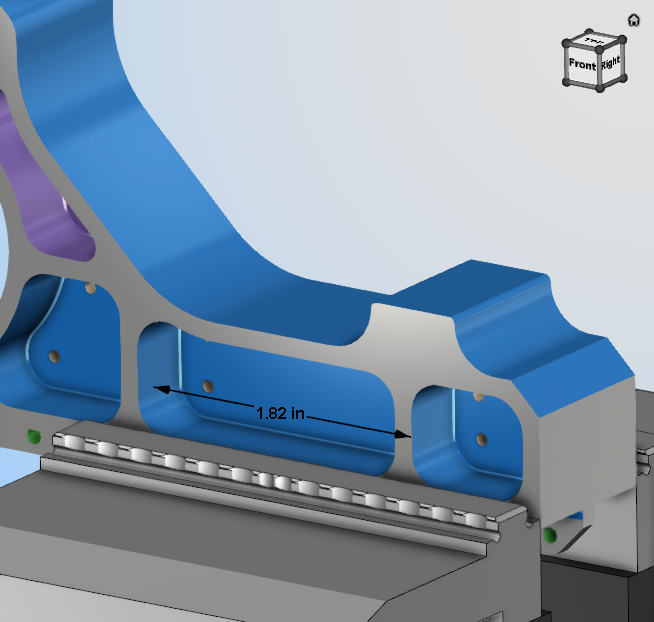
The Air Distance command button is used to measure the air gap between two solid surfaces. Select Air distance and then click on a surface in the View window to measure. A measurement line will form showing the two solid surfaces that were measured between.
This information is populated in the Vericut Logger panel as displayed below:
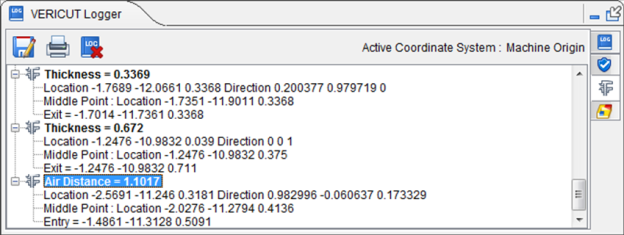
Location — Represents the XYZ coordinates of the point to measure from.
The start point of the Air Distance measurement is symbolized by a plus sign drawing on the measurement line.
Direction — Represents IJK of the measurement direction vector into material.
Measurement results are displayed in the Vericut Logger panel. Data output includes the Location and Direction values input, the XYZ point where the direction vector exits the material and the measured distance between the Location and Entry points.
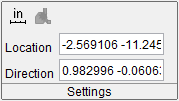
Location and Direction are also displayed in the X-Caliper Settings group after Air Distance is selected.
Middle Point — Represents the XYZ coordinates of the exact middle of the Air Distance measurement and is symbolized by the circle drawing on the measurement line.
Exit — Represents the XYZ coordinates of the end point of the Air Distance measurement and is symbolized by the diamond drawing on the measurement line.
This measurement will display only so long as any of the Feature/History group command buttons are active. All measurements will disappear once none of these buttons are active but the measurements can be viewed again by turning on one of these command buttons. This feature can also be edited by left-clicking on the measurement thus displaying the following menu:
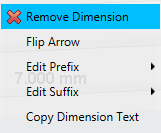
Remove Dimension — clicking the red x deletes the measurement permanently.
Flip Arrow — clicking this reverses the direction of the arrow.
Edit Prefix — use this feature to edit in text that will appear before the measurement via a text edit window. Click Default on the edit window that appears to remove entered text.
Edit Suffix — use this feature to edit in text that will appear after the measurement via a text edit window. Click Default on the edit window that appears to remove entered text.