PMI Viewer
Location:
X-Caliper tab >  (PMI Viewer)
Project Tree > Stock/Design model > PMI (Right-click) > Open PMI Viewer
The PMI Viewer in VERICUT allows users to access and display Product Manufacturing Information (PMI) embedded in 3D CAD STEP models. PMI data includes vital non-geometric metadata—such as dimensions, notes, GD&T callouts, surface finish, and material specifications—that traditionally appear on 2D manufacturing drawings. Integrating PMI into VERICUT supports Model-Based Definition (MBD) and Model-Based Enterprise (MBE) workflows and initiatives, allowing users to validate, visualize, and capture 3D annotations directly within the simulation environment.
If PMI data exists in a STEP AP242 file, it can be displayed after import for Stock and Design models.
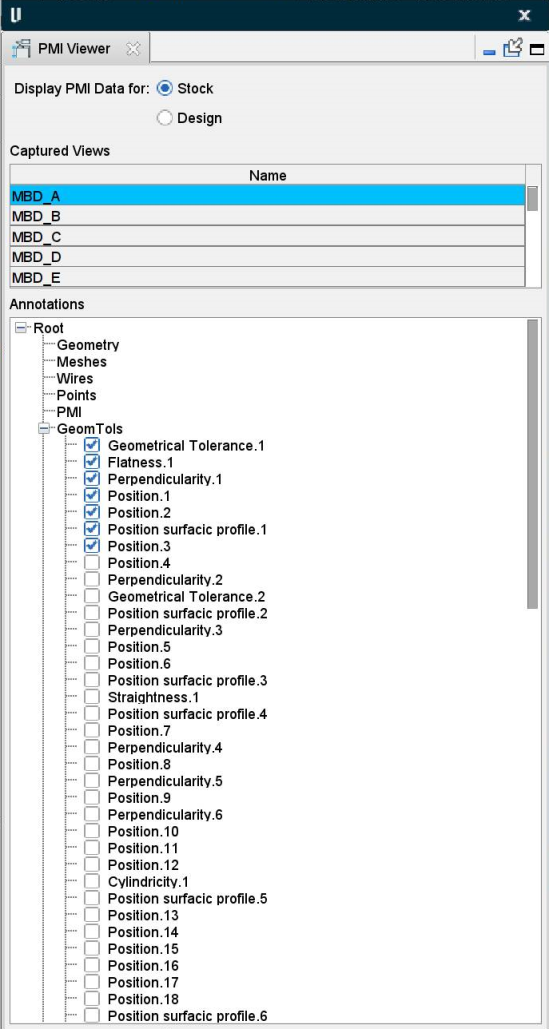
Supported PMI Concepts:
VERICUT uses terminology consistent with the STEP AP 242 standard and major CAD systems:
-
Captures — Equivalent to "Combination States" in CAD, are predefined views/orientations with associated annotations. In Vericut’s PMI Viewer window, Captures are labeled as Captured Views.
-
Views — Individual PMI annotations such as dimensions, notes, or callouts. In Vericut’s PMI Viewer window, Views are labeled as Annotations.
-
PMI may be available for both the Stock and Design models, depending on what is included in the imported CAD file.
-
PMI data in Vericut can be used in X-Caliper > Annotated Images > Inspection images
PMI Viewer Window:
The PMI Viewer provides a structured interface to manage PMI visibility.
Display PMI Data for:
- Toggle between Stock and Design models to display the respective PMI data (if available).
Captures:
-
Lists the available Combination States from the CAD model.
-
Each capture represents a saved orientation and the set of annotations linked to that view.
-
Checkboxes allow you to toggle individual captures ON/OFF.
Views:
-
Displays all annotations associated with the currently selected capture.
-
Each annotation (dimension, GD&T, note, etc.) can be individually toggled ON/OFF for display.
Behavior During Simulation:
-
If the PMI Viewer is open, only the selected Captured Views and Annotations will be visible.
-
When a simulation is started, all Annotations are hidden from all Vericut Views and the PMI Viewer window is closed
-
If the PMI Viewer window is closed, all displayed annotations are removed from view.
PMI Integration with Other Features:
-
Annotated Images > Inspection: PMI annotations for the Design model can be included in inspection images captured from the simulation.
-
PMI data and selected Captured Views/Annotations are saved with the VERICUT project and reloaded with the .vcproject file.