G-Code Processing (G-Code Processing window)
Location:
Machine/Control tab >  (G-Code Processing)
Toolbar short cut: 
The G-Code Processing command button opens the G-Code Processing window. The G-Code Processing window tree structure consists of two distinct areas as shown in the sample G-Code Processing window below, the Events section and the Word/Address section.
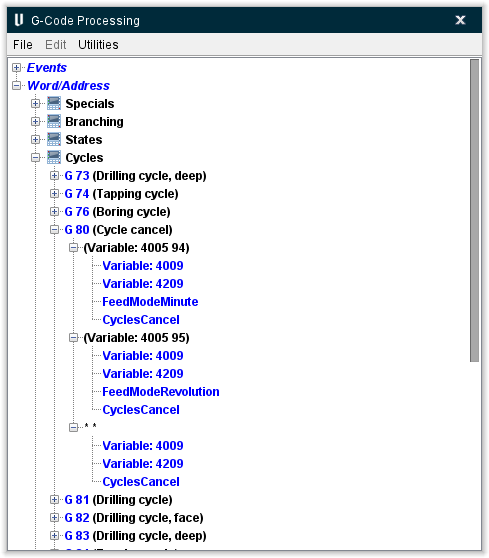
The G-Code Processing window consists of a "Menu Bar" and a "tree" structure representing the configuration of a particular NC control.
Menu Bar
File menu
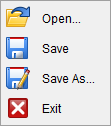
Open — Opens a window enabling you to open (load) a control file. Provides the same function as Machine/Control tab > Open Control.
Save — Saves (updates) an existing Control file with the current NC control settings. Provides the same function as Machine/Control tab > Save Control.
Save As — Opens a window enabling you to save the current control file under a different name or path. Provides the same function as Machine/Control tab > Save As (Control).
Exit — Closes the G-Code Processing window without saving the control file. You can also use the shortcut Ctrl+E.
Edit menu
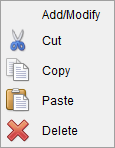
Add/Modify — The action associated with the Add/Modify option is dependent on the item that is highlighted in the G-Code Processing window tree structure.
If the highlighted item is in the Events section of the tree structure, selecting Add/Modify will display the Add/Modify Events window enabling you to add, or modify, event-based macro calls.
If the highlighted item is in the Word/Address section of the tree structure, selecting Add/Modify will display the Add/Modify Word/Address window enabling you to add, or modify, groups within the control configuration.
Cut — Enables you to "cut" the highlighted object in the control configuration "tree" structure and puts it in the paste buffer. You can also use the shortcut Ctrl+X.
Copy — Enables you to "copy" the highlighted object in the control configuration “tree” structure and puts it in the paste buffer. You can also use the shortcut Ctrl+C.
Paste — Enables you to "paste" the contents of the paste buffer after highlighted object in the control configuration “tree” structure. You can also use the shortcut Ctrl+V.
📝 NOTE: When you "Cut", "Copy", or "Paste" an object in the "tree", all objects below it in that particular "branch" (children) are cut, copied, or pasted with it.
Delete — Enables you to "delete" the highlighted object in the control configuration “tree” structure.
Utilities menu

Search — Opens the Search for window enabling you to find the groups in a control configuration that are associated with a specific word/address value, call specific macros or variables, or are associated with a specific machine state. You can also use the shortcut Ctrl+F.
Validate — Displays the Validate toolbar at the top of the G-Code processing window enabling you to validate the control configuration.
Help — Opens the Vericut Help directly to the relevant portion of whatever feature is highlighted. For instance, if nothing is highlighted then the G-Code Processing section will open but if a macro is highlighted, the documentation for that macro will open.

Validate Toolbar
 (Validate) — Starts the validation process. Vericut searches through the control checking for errors or conflicts within the Word/Address groups. If an error\conflict is detected, the validation process stops and the entity that has the problem is highlighted and a message is output to the message log area. If no errors/conflicts are found, the validation process continues until the end of the control configuration is reached.
 (Next) — Use to continue the validation process after an error/conflict is identified.
 (Previous) — Use to go back to the previous error/conflict.
 (Close) — Stops the validation process and closes the Word/Address Validate window.
The control configuration of a particular NC control is displayed as a "tree" structure. The control configuration “tree” structure consists of two distinct areas; the Events section and the Word/Address section.
Control Configuration "Tree" Structure
The control configuration of a particular NC control is displayed as a "tree" structure. The control configuration “tree” structure consists of two distinct areas; the Events section and the Word/Address section.
Events Section
The Events section of the tree structure enables you to specify the macros called and/or variables set based on key events that occur during NC program file processing. The Events section of the tree structure displays the event configurations of a particular NC control. When you expand an "event" object, the macro calls associated with that particular event are displayed.
The following Events are available:
-
Reset
-
Start of Processing
-
End of Processing
-
Start of Block Processing
-
End of Block Processing
-
Start of Type II Command
-
End of Type II Command
Each of these events is described below in the Add/Modify Events window section.
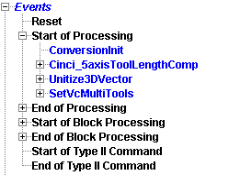
The display of event objects in the control configuration “tree” structure will be different depending on whether you are using a single channel or multi-channel (aka “sync”) control as shown in the picture below.
| Single channel event | Multi-channel ("sync") event |
|---|---|
 |
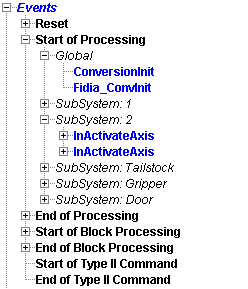 |
Notice in the single channel event example above, the Start of Processing event has one macros branch. Now look at the multi-channel ("sync") event example above. Notice that the Start of Processing event has a Global branch, a SubSystem: 1 branch, a SubSystem: 2 branch, a SubSystem: Tailstock branch, a SubSystem: Gripper, and a SubSystem: Door branch. Also notice that each of these branches has their own macros branch.
The macros specified in the Global branch can be referenced from anywhere within the NC program. The macros specified in a SubSystem branch are specific to the subsystem and can only be referenced for use with the subsystem. In the case where the same macro is used in more than one subsystem but with different values, the macro will have to be defined in both SubSystem branches.
↘️ Shortcut: "Right-click" in the Events section of the G-Code Processing window to display a shortcut menu.
Right-clicking on a macro displays a menu with the following features:
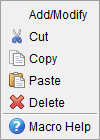
Add/Modify, Cut, Copy, Paste, and Delete — These features provide the same functionality described above under Edit menu in the Menu Bar section.
Macro Help — Opens Vericut Help to the relevant macro documentation.
See Add, Modify, or Delete Event-Driven Macros or Variables section of Vericut Help for additional information.
Word/Address Section
The Word/Address section of the tree structure enables you to "group" G-Code words previously defined in the Word Format window (Machine/Control menu > Word Format) with a range of address values, and associate them with action macros to simulate an action in the control, or on the machine.
For simplicity, we'll call each of these address/value associations a "group". Each group can be configured to call one or more action macros. This functionality allows you to virtually "wire" a custom NC control based on machine code information present in the NC program file.
Groups with similar functions are arranged into a "class". The listed order of classes in the Word/Address window helps determine the timing of when corresponding actions occur.
When you expand a "class" object, the "Word/Range" branch shows the word/address of the groups within the class. Expand a "Word/Range" object and the "Condition" branch shows conditions defined for the selected group. Finally, expanding a "Condition" object, displays the "Macro name" branch which shows the macros associated with the selected condition in the group.
To summarize, expand a "class" to display the "groups" associated with it. Expand a "group" to display the different "conditions" associated with it. Similarly, expand a "condition" to display the macros/variables associated with the condition.
Change the order of class, group, condition and macro objects in the control configuration by "left clicking" on an object and "dragging" it to the desired position. When you reposition an object, all of the objects below it in the branch (children) are also repositioned.
Example
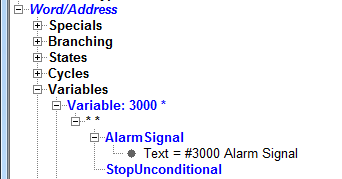
The illustration above shows an expanded "group" from the Word/Address section of the control configuration "tree".
- The top level object, "Variables", represents a "class".
- The second level object (or branch), "Variable: 3000 *", represents "Word/Variable and Range", in this case Variable and Range.
- The third level object (branch), "**", represents a "conditional Word/State/Variable and conditional Range/Value ".
- The lowest level objects (branches), "AlarmSignal" and "StopUnconditional", represent Macro Names with associated data.
- Each lower level (or branch) is considered to be "a child or children" of the next higher level.
↘️ Shortcut:
"Right click" in the Word/Address section of the G-Code Processing window to display a shortcut menu with the following features:
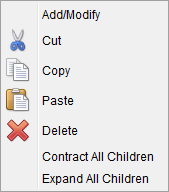
Add/Modify, Cut, Copy, Paste, and Delete — These features provide the same functionality described above under Edit Menu in the Menu Bar section above.
Contract All Children — Use to contract (remove the display) all "children" of the highlighted object.
Expand All Children — Use to expand (display) all "children" of the highlighted object.
📝 NOTES:
-
Always reset Vericut (press
 (Reset Model) on the Vericut main window) after making changes to the control configuration.
 -
Use the Debug Macro Arguments feature on the Settings window: G-Code Outputs tab (Project tab > Settings dropdown menu > G-Code outputs tab), to output the macro name, the word, the text string value, and the numeric value for each macro as it is called.
To learn more about how Vericut processes G-Code data, see "About Building NC Controls", in the Building NC Controls section of Vericut Help.
Add/Modify Events window
The Add/Modify Events window is opened by right-clicking in the Events section of the G-Code Processing window tree structure and then selecting Add/Modify in the menu that displays. You can also highlight an item in the Events section of the G-Code Processing window tree structure and then select Edit tab > Add/Modify in the G-Code Processing window menu bar. The features in this window enable you to add, or modify, event-based macro calls.
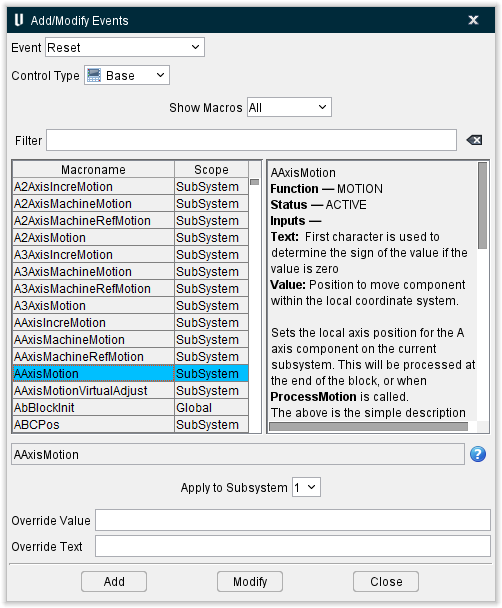
Event — Enables you to select the event that you want to add to or modify. Select the event in the dropdown menu. The following events are available:
-
Reset — The Reset event occurs before the NC program file is scanned.
-
Start of Processing — The Start of Processing event occurs after the NC program file has been scanned, but before the NC program file is processed.
📝 NOTE: The ConversionInit macro must always be the first macro listed for this event. -
End of Processing — The End of Processing event occurs after the NC program file has been processed.
📝 NOTE: The ConversionFinish macro must always be the last macro listed for this event. -
Start of Block Processing — The Start of Block Processing event occurs at the start of processing each G-Code data block.
📝 NOTES:
1. The BlockInit macro must always be the first macro listed for this event.
2. Variables CGT_F_FLAG and CGT_J_FLAG, which are defined in the Start of Block Processing event with a call to the UpdateVariableBlockProcessing macro, are subsystem specific. -
End of Block Processing — The End of Block Processing event occurs at the end of processing each G-Code data block.
📝 NOTE: The BlockFinish macro must always be the last macro listed for this event. -
Start of Type II Command — The Start of Type II Command event occurs at the start of processing a Type II data command.
-
End of Type II Command — The Start of Type II Command event occurs at the end of processing a Type II data command.
Control Type — Use to specify between Base, Add On, and Custom control types.
Show Macros — Enables you to specify the macros that you want displayed in the Macroname list based on a macro's scope. Choose one of the following from the pull-down list.
-
All — Displays "all" macros in the Macroname list.
-
SubSystem — Display only macros with a "SubSystem" scope in the Macroname list.
-
Global — Use to display only macros with a "Global" scope in the Macroname list.
Macroname List
You can the select a macro name from the list, or type a macro name in the Macroname text field below the list. Text entered is not case sensitive. Use the automatic filtering capability to help you find macros. As you enter text characters in the Macroname text field, the list of macros is automatically filtered to show only those that match the specified text.
To get information about any macro in the list, select the macro from the list so that it is displayed in the Macroname text field and then press F1 key on your keyboard to display the documentation for the selected macro.
Use the  (Clear Text) icon on the right side of the Macroname text field to clear the text field.
Apply to SubSystem — This feature enables you to specify which subsystem that the macro specified in the Macroname list is to be applied to. This feature is inactive when the selected macro is defined as "Global". Choose the subsystem from the pull-down list. The list contains all subsystems defined in the current control.
Override Value — Use the Override Value field to specify a value to be passed to the macro specified in the Macroname text field. If the Override Value field is left blank, the address value accompanying the word is passed.
Mathematical expressions, and variables understood by the control, are supported. Enter "$" to specify using the address value accompanying the word. Enter "#", followed immediately by the variable name/number, followed by a space, to specify a variable value. Multiple variables can be added, separated by a blank space. If the override expression does not contain either of these characters, it is evaluated immediately and only the value is retained. If the expression cannot be evaluated immediately, the full expression is retained in the control configuration and evaluated separately for each block that activates the group.
Examples of using Override Value: (given that the variable, #2 = 3)
| Text entered in Override Value field | What is retained in control configuration | Sample G-Code data block | Resulting value when processed |
|---|---|---|---|
| SIN(30) | .5 | X5 | .5 (constant value- not affected by G-Code data) |
| SIN(30) | .5 | X10 | .5 (see note above) |
| $*10 | $*10 | X5 | 50 |
| ($+#2)*10 | ($+#2)*10 | X5 | 80 |
Override Text — Similar to Override Value, except that it enables you to specify text to pass to the macro. Only certain macros are designed to accept override text values.
To get information about a specific macro in the list, select the macro from the list so that it is displayed in the Macroname text field and then press F1 key on your keyboard to display the documentation for the selected macro.
You can also consult the Vericut Macros section of the Vericut Help Library for additional information.
Expression(s) can be used in macro override text. If the override text contains the sequence "{expression}" the expression text inside the curly-braces is evaluated and replaced with the calculated value.
For example, if the MessageMacro is used with the following override text:
"The spindle speed is {#speed} rpm"

The variable "#speed" is evaluated and if set to 500, the resulting message would be:

"The spindle speed is 500 rpm"
The syntax for the expression(s) is the same as defined for override values.
Add — Select when adding a new macro to the event.
Modify — Select when modifying an existing macro for the event.
Close — Closes the Add/Modify Events window.
See Add, Modify, or Delete Event-Driven Macros section of Vericut Help for additional information.
Add/Modify Word/Address window
The Add/Modify Word/Address window is opened by right-clicking in the Word/Address section of the G-Code Processing window tree structure and then selecting Add/Modify in the menu that displays. You can also highlight an item in the Word/Address section of the G-Code Processing window tree structure and then select Edit tab > Add/Modify in the G-Code Processing window menu bar.
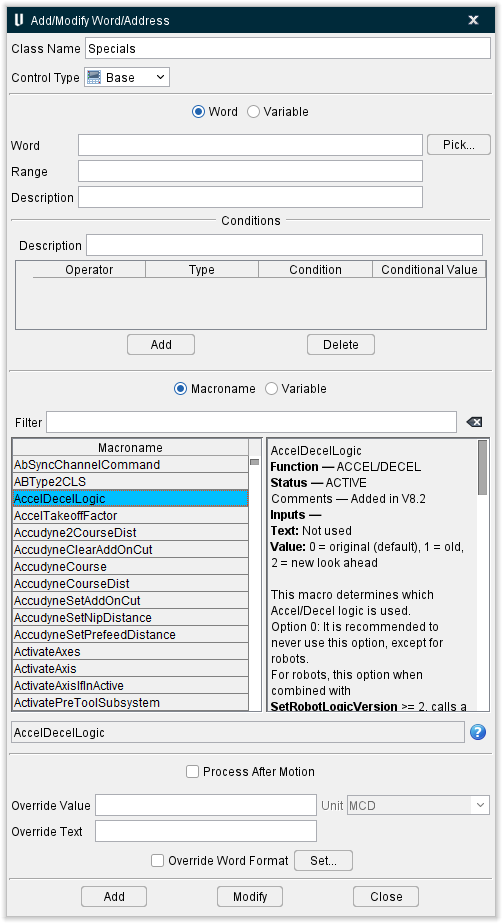
The features on the Add/Modify Word/Address window enable you to maintain groups/conditions in the control configuration. Vericut will attempt to add a new group after the group selected in the list. A new group condition is added after the selected condition, and so on. However, if the word and range of an added group matches that of a previously defined group, the new group is automatically added as a condition to the previously defined group. This occurs even when the previously defined group resides in a different class.
Class Name — Enables you to add a new "class" or rename an existing "class".
See Add, Modify, or Delete Word/Address Classes section of Vericut Help for additional information.
Control Type — Use to specify between Base, Add On, and Custom control types.
Word / Variable — Enables you to specify the type of group being defined.
Word Options are Word, Range, and Description. Variable Options are Variable, Range, and Description.
Word — These features define a group whose actions are performed when a G-Code having a corresponding word and address value is processed. Enter the group word in the text field. The word must be previously defined in the Word Format window.
You can type the word character(s) in the Word text field, or click on the Pick button to display the Pick Word window and then use it to select the word from the list of defined words that displays. The list contains all words defined in the Word Format window for the “current” control file.
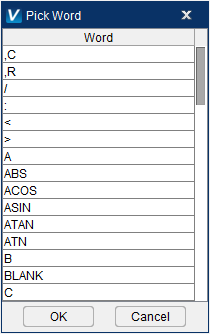
Select the desired word so that it becomes highlighted and then press OK. Use Cancel to close the Pick Word window without selecting a word.
Range — Use the Range text field to specify a value, or range of values, that will cause the specified action to be processed. The Range value commonly specifies a single address. However, you can also specify multiple range values (separated by spaces or commas), inclusive ranges, or use "*" as a wildcard to denote "all values". The following shows all valid Range value entries and their meanings:
| Range Entry | Meaning |
|---|---|
| * | Any value |
| value | A specific value like 7, or 9 |
| 7,9 | A series of numbers |
| 5-9 | Integer values between 5 and 9 inclusive (5, 6, 7, 8, and 9) |
| 5.0-9.0 | All numbers between 5.0 and 9.0 |
| #2 | A variable. The variable must be prefixed with a # |
| $ | The current value associated with the word. 📝 NOTE: This really only make sense with a "Conditional Value" |
| <n | Less than n, where n is a value, a variable (designated with the #), or a $ |
| <=n | Less than or equal to n, where n is a value, a variable (designated with the #), or a $ |
| >n | Greater than n, where n is a value, a variable (designated with the #), or a $ |
| >=n | Greater than or equal to n, where n is a value, a variable (designated with the #), or a $ |
| \<>n | Not Equal to n, where n is a value, a variable (designated with the #), or a $ |
| =n | Equal to n, where n is a value, a variable (designated with the #), or a $ |
| #3-$ | A range of values specified using a variable and a $ |
| NONE | Supports processing words without values differently from the same words with values. For example, you can configure N010X to be handled differently from N010X0. |
📝 NOTE: Typically, Range values are integers. If you need to specify a group of NC codes, some of which contain decimal values (for example, G45, G45.1 G46) define the group Range as a series (45 45.1 46), rather than as an "inclusive" Range (45-46). Inclusive Ranges of real values may be defined by including a decimal point with the value. For example, the Range (45.0-46.0) will select all values between 45 and 46.
The following are typical examples of how Word and Range can be used to specify G-Codes acted on for a specific group "L".
| Group Word | Range | G-Codes acted on by the group |
|---|---|---|
| L | 2 | L2 |
| L | 1 5 | L1, L5 |
| L | 1 5-10 | L1, L5, L6, L7, L8, L9, L10 |
| L | NONE | L ("L" without a numeric value) |
| L | * | Ln (where "n" is any value) |
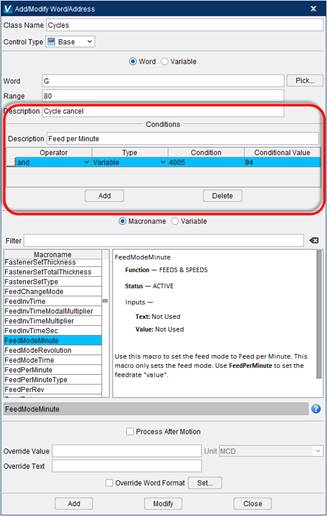
Description — Use the Description text field to enter a description that will display in the G-Code Processing window with the Conditional group that you are defining. See the example below.
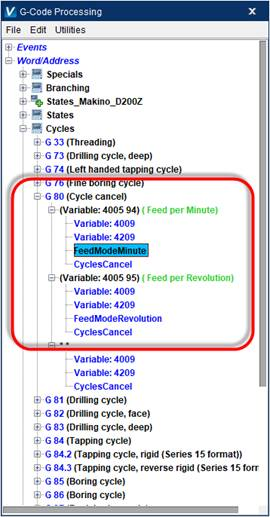
Creating a Word/Range group with a Word of G, a Range of 80, and a Description of Cycle cancel will be displayed in the G-Code Processing window as shown below.
| Before | After |
|---|---|
 |
 |
Variable Options:
Variable — Use to define a group whose actions are performed when a specified variable is set to a corresponding value, or range of values. Enter the group variable name in the Variable text field.
Range — Use the Range text field to specify a value, or range of values, that will cause the specified action to be processed. Variable ranges are specified in the same manner as described above for Word ranges.
Description — Use the Description text field to enter a description that will display in the G-Code Processing window with the Variable/Range group that you are defining. See the example below.
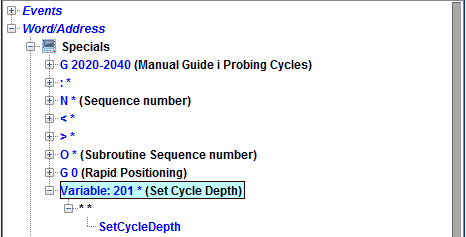
Creating a Variable/Range group with a Variable of 201, a Range of *, and a Description of Set Cycle Depth will be displayed in the G-Code Processing window as shown below.
📝 NOTE: Variables set based on some action in the Word/Address table are subsystem specific. For example, F150 will cause variable CGT_FEED to be set to 150. This variable is subsystem specific.
Conditions — Use to specify one or more conditions, which if met, causes the group to perform different action(s).
-
Operator — Choose and or not from the pull-down list.
-
Type — Use to specify the type of condition. Type options include: Word, State, and Variable.
Word — When Type is set to Word, the Condition is based on another word and address value range appearing in the G-Code data block. This is the most common condition type. Select the desired Condition from the pull-down list, and then enter the Conditional Value(s). Conditional Values are specified in the same manner as described above for Word ranges. See the example on the following page.
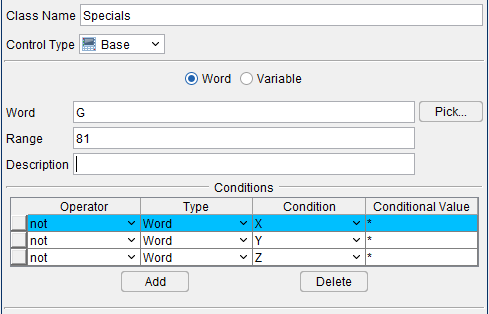
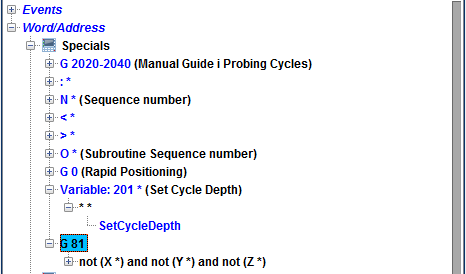
For example: G 81 not (X *) and not (Y *) and not (Z *) calls ErrorMacro, creating conditions as shown in the Add/Modify Word/Address window below:
will be displayed in the G-Code Processing window as shown below.
State — When Type is set to State, the Condition is based on a machine state. Choose the desired Condition from the pull-down list, and then choose a value from the Conditional Value pull-down list. Notice that only values that are valid for the selected Condition appear in the Conditional Value list.
Creating conditions as shown in the Add/Modify Word/Address window below,
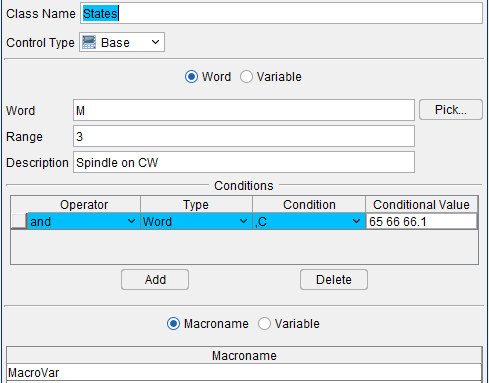
will be displayed in the G-Code Processing window as shown below.
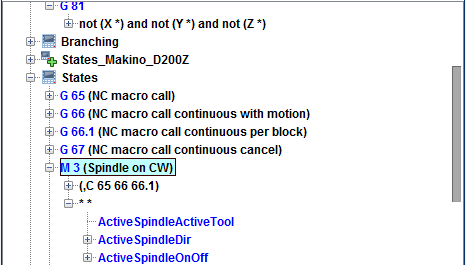
Variable — When Type is set to Variable, the Condition is based on when a variable is set to a corresponding Conditional Value. In the Condition column enter the variable name, and then enter the Conditional Value(s). Conditional Values are specified in the same manner as described above for Word ranges.
Creating conditions as shown in the Add/Modify Word/Address window below,
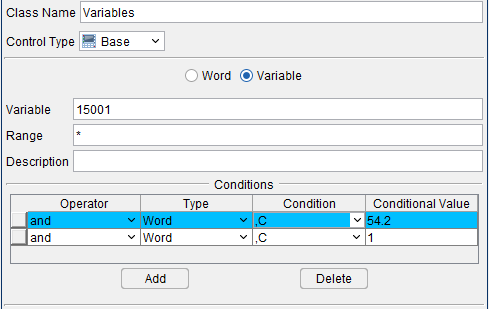
will be displayed in the G-Code Processing window as shown below.
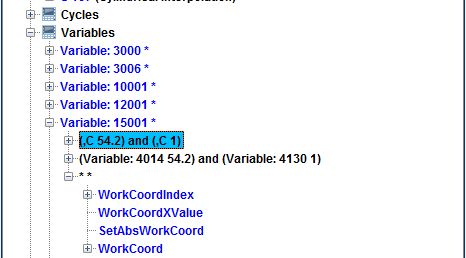
Add — Use to add a condition to the conditions list. The new condition will be added after the highlighted condition in the list.
📝 NOTE: It is never necessary to have the list in any specific order since all items in the list must be TRUE for the corresponding macro to be executed. As a personal preference, you might want to read the list in a specific order. To this end, the new condition is always added after the highlighted condition in the list. You can also change the position of a condition in the list by clicking on the button, on the left side of each row, and drag the condition to the desired position in the list.
Delete — Use to delete the highlighted condition from the conditions list.
Macroname / Variable — Use to specify whether a group calls a macro, or sets a variable.
Macroname —
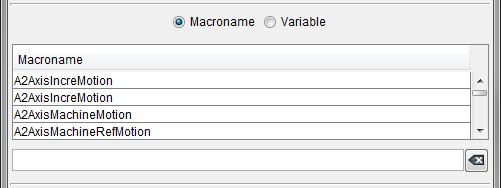
You can the select a macro name from the list, or type a macro name in the Macroname text field below the list. Text entered is not case sensitive. Use the automatic filtering capability to help you find macros. As you enter text characters in the Macroname text field, the list of macros is automatically filtered to show only those that match the specified text. In the window adjacent to macroname, Vericut displays documentation for the highlighted macro.
To get information about any macro in the list, select the macro from the list so that it is displayed in the Macroname text field and then press F1 key on your keyboard to display the documentation for the selected macro.
Use the  (Clear Text) icon on the right side of the Macroname text field to clear the text field.
Variable —
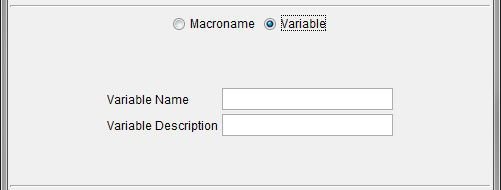
Use the Variable Name and Variable Description text fields to specify, and describe, the variable to be set. Use the Override Value text field, described below, to specify the variable value.
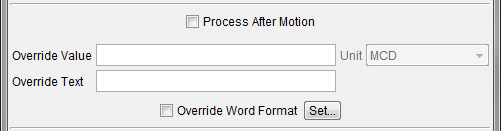
Process After Motion — When active, performs the group action after motion commands in the data block have been processed. The default condition is to perform the group action according to the rules of normal G-Code data processing.
Override Value — This feature acts differently, depending on if Macroname, or Variable, is selected:
When the Macroname feature is selected, use the Override Value text field to specify a value to be passed to the macro specified in the Macroname text field. If the Override Value text field is left blank, the address value accompanying the word is passed.
When the Variable feature is selected, use the Override Value text field to specify a value to be assigned to the variable specified in the Variable Number field.
Mathematical expressions and variables, understood by the control, are supported. Enter "$" to specify using the address value accompanying the word. Enter "#", followed immediately by the variable name/number, followed by a space, to specify a variable value. Multiple variables can be added, separated by a blank space. If the override expression does not contain either of these characters, it is evaluated immediately and only the value is retained. If the expression cannot be evaluated immediately, the full expression is retained in the control configuration and evaluated separately for each block that activates the group.
If the Override Value is set to "#0", then the variable will be set to "empty" (vacant, null, non-initialized …)
Examples of using Override Value: (given that the variable, #2 = 3)
| Text entered in Override Value field | What is retained in control configuration | Sample G-Code data block | Resulting value when processed |
|---|---|---|---|
| SIN(30) | .5 | X5 | .5 (constant value- not affected by G-Code data) |
| SIN(30) | .5 | X10 | .5 (see note above) |
| $*10 | $*10 | X5 | 50 |
| ($+#2)*10 | ($+#2)*10 | X5 | 80 |
Unit — This field allows you to define the units of the Override Value.
Internally, for all macros that are unit sensitive, the “Value” is converted into Project units. For example: the value passed to XAxisMotion will be converted. The value passed to AXisMotion will not.
If an Override Value is specified, and the macro is unit sensitive, the Unit field determines the units of the Override Value.
The Unit field should become desensitized if the macro is not unit sensitive.
MCD: The units will be the same as the current MCD units

INCH: The units is INCH.

MM: The units is MM.

Project Units: The units are in Project Units. No unit conversion will take place.
Override Text — Similar to Override Value, except that it is used to specify text to be passed to the macro. Enter the text in the Override Text text field. Only certain macros are designed to accept text values.
To get information about a specific macro in the list, select the macro from the list so that it is displayed in the Macroname text field and then press F1 key on your keyboard to display the documentation for the selected macro.
Consult the Vericut Macros section of the Vericut Help Library for more information.
Expression(s) can be used in macro override text. If the override text contains the sequence "{expression}" , the expression text inside the curly-braces is evaluated, and then replaced with the calculated value.
The syntax for the expression(s) is the same as defined above for Override Values.
Examples:
-
If the MessageMacro is used with the following override text:
Override Text = "The spindle speed is {#speed} rpm"
The variable "#speed" is evaluated and if set to 500, the resulting message would be:
"The spindle speed is 500 rpm" -
$$ within {} enables you to include the incoming text string. For example:
Override Text = Operation Name: {$$} -
Text variables are also supported. For example: if the variable "NAME" was set to the operation name, you could have:
Override Text = Operation Name: {#NAME}
If the contents within {} has either a "$\(" or a text variable, then the expression will be evaluated as a text string. When dealing with text, it is recommended that you have only have 1 item within the {}. For example, if the variable "DATE" contained "May 2007", you could have: <br><br>Override Text = Operation Name: {\)\(}, {#DATE}. This syntax is preferable to: Override Text = Operation Name: {\)$ : #DATE}
The output would be: Operation Name: 1-TOP0-FOAM-LICKA, May 2007
Override Word Format — When toggled "on", the word format specified with the macro will be used rather than the default word format. Use the Set button, described below, to display the Override Word Format window, and then use its features to define the word format for the specific macro.
For example, this feature would enable you to define a P with a G71 to be decimal, and a P with a G76 to be Trailing 3.4.
📝 NOTE: This feature does not support expressions. For example, you could not use this feature with: X=54000 + 30000
Set — Used in conjunction with Override Word Format, described above. Displays the Override Word Format window enabling you to specify a word format for a specific macro.
Add — Select when adding a new group or condition.
Modify — Select when modifying an existing group or condition.
Close — Close the Add/Modify Word/Address window.
See Add, Modify, or Delete Word/Address Groups section of Vericut Help for additional information.
Override Word Format window
Used in conjunction with the Override Word Format feature, on the Add/Modify Word/Address window, to specify a word format to be used with a specific macro rather than use the default word format specified in the Word Format window.
Use the Set button, on the Add/Modify Word/Address window, to display the Override Word Format window.
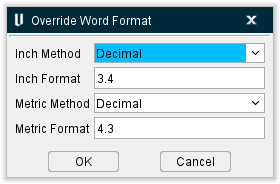
**Inch Method / Metric Method —**Specifies how to interpret inch (or metric) address values. This feature is significant only for values that do not contain a decimal point. Values with a decimal are always interpreted via the "Decimal" method. Options:
-
Decimal — This option interprets values as floating point decimals.
-
Leading or Decimal — Interprets values without a decimal as having leading zeros. Depending on the active unit system (inch or metric), values are interpreted as described by the corresponding "Format" (see below).
-
Trailing or Decimal — Similar to Leading or Decimal, except that values are interpreted as having trailing zeros.
Inch Format / Metric Format — Specifies the number of digits before and after the decimal point when interpreting leading or trailing zero values. Data entry format is: a.b where "a" specifies the number of digits before, and "b" specifies the number of digits after the decimal point.
OK — Applies the settings and closes the Override Word Format window.
Cancel — Closes the Override Word Format window without accepting the settings.
Using the G-Code Processing window
Add, Modify, or Delete Event-Driven Macros
Similar to calling macros via words/addresses, you can also call macros based on key events that occur during NC program file processing. Event driven macro calls are configured in a similar fashion to those described for word/address groups on the Add/Modify Word/Address window.
To learn more about how Vericut processes G-Code data, see "About Building NC Controls" section of Vericut Help.
📝 NOTES:
- Always reset Vericut (press on
 (Reset Model) the Vericut main window) after making changes to the control configuration.
 -
Use the Debug Macro Arguments feature in the Debug group of the Settings window: G-Code Outputs tab (Project tab > Settings > G-Code Outputs tab) to see the macro name, the word, the text string value, and the numeric value for the macro being called.
See Settings window: G-Code Outputs tab section of Vericut Help for more information. -
IMPORTANT! The macro events listed below are required for G-Code processing and should NOT be disturbed:
| EVENT | MACRO | |
|---|---|---|
| Start of Processing | => | ConversionInit |
| End of Processing | => | ConversionFinish |
| Start of Block Processing | => | BlockInit |
| End of Block Processing | => | BlockFinish |
To add a new event-driven macro to the control configuration:
-
Click on
 (G-Code Processing) in the Toolbar or Machine/Control tab > G-Code Processing in the Vericut menu ribbon, to display the G-Code Processing window.
 -
In the Events group of the G-Code Processing window, click on the + sign to the left of the event, that you want to add the new macro to, so that it expands.
- Click on the + sign to the left of the Global or SubSystem label that you want to add the new macro to, so that it expands.
- Select the existing macro that you want to add the new macro after so that it becomes highlighted.
- Right-click in the Events group of the G-Code Processing window and then select Add/Modify in the menu that displays to display the Add/Modify Events window. You can also select Edit tab > Add/Modify in the G-Code Processing window menu bar to display the Add/Modify Events window.
-
Use the features in the Add/Modify Events window to configure the event macro:
Specify the macro to be called by selecting from the Macroname list or by typing the macro name in the Macroname text field. Text entered is not case sensitive. Use the automatic filtering capability to help you find macros. As you enter text characters in the Macroname text field, the list of macros is automatically filtered to show those that match the entered text.
To get information about any macro, select the macro from the list so that it is displayed in the Macroname text field and then press F1 on your keyboard to display the documentation for the selected macro.
Use the (Clear Text) icon on the right side of the Macroname text field to clear the text field.
Use the Override Value and Override Text fields, as needed, to supply supporting data for the selected macro.
See the Vericut Macros section of the Vericut Help Library for additional information. -
Click on Add to add the macro to the event in the G-Code Processing window.
- Repeat steps 3, 4, 5, and 6 to add additional macros or click on Close to close the Add/Modify Events window.
To modify an existing event-driven macro in the control configuration:
-
Click on
(G-Code Processing) in the Toolbar or Machine/Control tab > G-Code Processing in the Vericut menu ribbon, to display the G-Code Processing window. -
In the Events group of the G-Code Processing window, click on the + sign to the left of the event, that you want to modify so that it expands.
- Click on the + sign to the left of the Global or SubSystem label that you want to modify so that it expands.
- Select the existing macro that you want to modify so that so that it becomes highlighted.
- Right-click in the Events group of the G-Code Processing window and then select Add/Modify in the menu that displays to display the Add/Modify Events window. You can also select Edit tab > Add/Modify in the G-Code Processing window menu bar to display the Add/Modify Events window.
- In the Add/Modify Events window, enter the necessary changes.
- Click on Modify to update the entry in the G-Code Processing window.
- Repeat steps 4, 5, 6, and 7 to modify additional macros or click on Close to close the Add/Modify Events window.
To delete an event-driven macro from the control configuration:
-
Click on
(G-Code Processing) in the Toolbar or Machine/Control tab > G-Code Processing in the Vericut menu ribbon, to display the G-Code Processing window. -
In the Events group of the G-Code Processing window, click on the + sign to the left of the event, that you want to modify so that it expands.
- Click on the + sign to the left of the Global or SubSystem label that you want to modify so that it expands.
- Select the existing macro that you want to delete so that so that it becomes highlighted.
- In the G-Code Processing menu bar, select Edit tab > Cut (or click the right mouse button on the highlighted macro and select Cut). You can also use the Delete key on your keyboard.
- The macro and all data associated with it is removed.
See G-Code Processing window and Add/Modify Events window sections of Vericut Help for more information.
Add, Modify, or Delete Word/Address Classes
Groups with similar functions are arranged into a "class". The listed order of classes in the G-Code Processing window helps to determine the timing of when corresponding actions occur. Class, group, condition, and macro order is changed via dragging them with the right mouse button.
To learn more about how Vericut processes G-Code data, see "About Building NC Controls" section of Vericut Help.
📝 NOTE: Always reset Vericut (press on  (Reset Model) the Vericut main window) after making changes to the control configuration.
To add a new class to the control configuration:
-
Click on
 (G-Code Processing) in the Toolbar, or Machine/Control tab > G-Code Processing in the Vericut menu ribbon, to display the G-Code Processing window.
 -
In the G-Code Processing window, select the class (Specials, States, Cycles, etc.) to add the new class after so that it becomes highlighted.
- In the G-Code Processing window menu bar, select Edit tab > Add/Modify (or click the right mouse button on the highlighted class and select Add/Modify) to display the Add/Modify Word/Address window.
- In the Add/Modify Word/Address window, enter a unique name in the Class Name text field.
- Enter the information to create a valid Word/Address record. See To add a new group to the control configuration, in the Add, Modify, or Delete Word/Address Groups topic section of Vericut Help for more information.
- Press Add. The new class is added after the class you initially selected.
- Press Close to return to the G-Code Processing window.
To rename an existing class in the control configuration:
-
Click on
(G-Code Processing) in the Toolbar or Machine/Control tab > G-Code Processing in the Vericut menu ribbon, to display the G-Code Processing window. -
In the G-Code Processing window, select the class (Specials, States, Cycles, etc.) that you want to rename so that it becomes highlighted.
- In the G-Code Processing window menu bar, select Edit tab > Add/Modify (or click the right mouse button on the highlighted class and select Add/Modify) to display the Add/Modify Word/Address window.
- In the Add/Modify Word/Address window, edit name in the Class Name text field.
- Press Modify.
- Press Close to return to the G-Code Processing window.
To delete a class and its groups from the control configuration:
-
Click on
 (G-Code Processing) in the Toolbar or Machine/Control tab > G-Code Processing in the Vericut menu ribbon, to display the G-Code Processing window.
 -
In the G-Code Processing window, select the class (Specials, States, Cycles, etc.) that you want to Delete so that it becomes highlighted.
- In the G-Code Processing window menu bar, select Edit tab > Cut (or click the right mouse button on the highlighted class and select Cut). You can also use the Delete key on your keyboard.
The class and all groups associated with it are removed.
To change the position of a class and its groups within the control configuration:
-
Click on
(G-Code Processing) in the Toolbar or Machine/Control tab > G-Code Processing in the Vericut menu ribbon, to display the G-Code Processing window. -
In the G-Code Processing window, left-click on the class (Specials, States, Cycles, etc.) to be repositioned and drag it to the desired location.
See G-Code Processing window and Add/Modify Word/Address window section of Vericut Help for more information.
Add, Modify, or Delete Word/Address Groups
Groups can call one or more action macros to perform various actions, or set variables. This functionality allows you to virtually "wire" a custom NC control based on machine code data to be processed. Class, group, condition, and macro order is changed via dragging them with the left mouse button.
To learn more about how Vericut processes G-Code data, see "About Building NC Controls" section of Vericut Help.
📝 NOTES:
-
Always reset Vericut (press on
 (Reset Model) the Vericut main window) after making changes to the control configuration.
 -
Use the Debug Macro Arguments feature in the Debug group of the Settings window: G-Code Outputs tab (Project tab > Settings dropdown menu > G-Code Outputs tab) to see the macro name, the word, the text string value, and the numeric value for the macro being called.
See Settings window: G-Code Outputs tab section of Vericut Help for more information.
To add a new group to the control configuration:
- Click on
 (G-Code Processing) in the Toolbar or Machine/Control tab > G-Code Processing in the Vericut menu ribbon, to display the G-Code Processing window.
 - In the G-Code Processing window, click on the + sign to the left of the class (Specials, States, Cycles, etc.) that you want to add the new group to so that it expands.
- Select the existing group to add the new group after so that it becomes highlighted.
- In the G-Code Processing window menu bar, select Edit tab > Add/Modify (or click the right mouse button on the highlighted class and select Add/Modify from the menu that displays) to display the Add/Modify Word/Address window.
-
In the Add/Modify Word/Address window, specify how to activate the group:
To act based on a word/value: Select Word, then enter the word name in the Word text field and the one, or more, values (e.g. perform an action when M10 is encountered) in the Range text field.
To act based on a variable value: Select Variable, then enter the variable name in the Variable text field, and one, or more values (e.g. perform an action when #100=1) in the Range text field. -
Specify if one, or more, conditions are to be checked for:
In the Conditions group of the window, click on Add to add a condition record to the table. In the conditional record that is added follow one of the following sequences depending on what you are basing the condition on.
To check for another word/value in the block:
- Select and or not from the Operator pull-down list.
- Select Word from the Type pull-down list.
- Select the word that the condition is based on from the Condition pull-down list.
- Enter the value(s) of the word that the condition is based on in the Conditional Value text field.
To check a machine state:
- Select and or not from the Operator pull-down list.
- Select State from the Type pull-down list.
- Select the machine state that the condition is based on from the Condition pull-down list.
- Select the value of the machine state that the condition is based on from the Conditional Value pull-down list. Only values appropriate for the specified machine state will appear in the list.
To check another variable value:
- Select and or not from the Operator pull-down list.
- Select Variable from the Type pull-down list.
- Specify the variable name that the condition is based on in the Condition text field.
- Specify the value(s) of the machine state that the condition is based on in the Conditional Value text field.
Repeat the above steps to add additional conditions. -
Configure the group action:
To call a macro:
- Select Macroname.
- Specify the macro to be called by selecting from the Macroname list or by typing the macro name in the Macroname text field. Text entered is not case sensitive. Use the automatic filtering capability to help you find macros. As you enter text characters in the Macroname text field, the list of macros is automatically filtered to show those that match the entered text.
- To get information about any macro in the list, select the macro from the list so that it is displayed in the Macroname text field and then press F1 key on your keyboard to display the documentation for the selected macro.
- Use the Override Value and Override Text fields, as needed, to supply supporting data for the selected macro.
- See the Vericut Macros section, in the Vericut Help Library for additional information.
To set a variable:
- Select Variable.
- Enter the variable name in the Variable Name text field.
- Enter a description in the Variable Description text field.
- Enter the value for the variable in the Override Value text field.
- The remaining window features are seldom used. For descriptions, see Add/Modify Word/Address window section of Vericut Help. -
Press Add at the bottom of the Add/Modify Word/Address window. The new group is added after the highlighted group you initially selected.
To modify an existing group in the control configuration:
-
Click on
(G-Code Processing) in the Toolbar or Machine/Control tab > G-Code Processing in the Vericut menu ribbon to display the G-Code Processing window. -
In the G-Code Processing window, click on the + sign to the left of the class (Specials, States, Cycles, etc.) containing the group that you want to modify to so that it expands.
- Select the group to modify so that it becomes highlighted.
- In the G-Code Processing window menu bar, select Edit tab > Add/Modify (or click the right mouse button on the highlighted class and select Add/Modify from the menu that displays) to display the Add/Modify Word/Address window.
- In the Add/Modify Word/Address window, modify window values as required.
- Press Modify.
To delete a group from the control configuration:
-
Click on
(G-Code Processing) in the Toolbar Machine/Control tab > G-Code Processing in the Vericut menu ribbon to display the G-Code Processing window. -
In the G-Code Processing window, click on the + sign to the left of the class (Specials, States, Cycles, etc.) containing the group that you want to delete so that it expands.
- Select the group to delete so that it becomes highlighted.
- In the G-Code Processing menu ribbon, select Edit tab> Cut (or click the right mouse button on the highlighted group and select Cut). You can also use the Delete key on your keyboard.
The group and all data associated with it is removed.
See G-Code Processing window, and Add/Modify Word/Address window section of Vericut Help for more information.
Search for window
The Search for window is opened using Utilities menu > Search on the G-Code Processing window menu bar. The features on this window enable you to find all occurrences in a control configuration that are associated with a specific word/address value, call specific macros or variables, are associated with a specific machine state, or a specific Override Value, or Override Text, value.
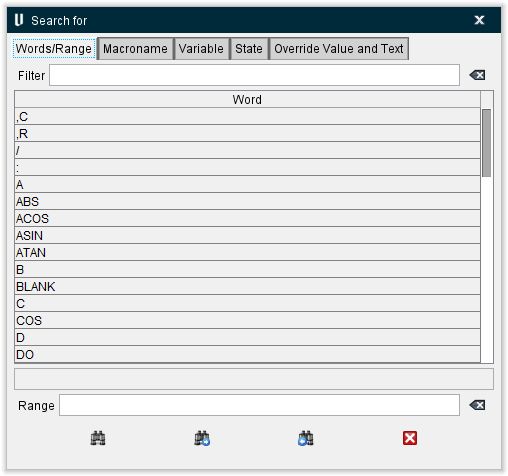
Words/Range tab — the features on the Words/Range tab enable you to find all occurrences in the G-Code Processing window based on a specific Word/Range combination.
Macroname tab — the features on the Macroname tab enable you to find all occurrences in the G-Code Processing window that call a specific macro.
Variable tab — the features on the Variable tab enable you to find all occurrences in the G-Code Processing window of a specific variable.
State tab — the features on the State tab enable you to find all occurrences in the G-Code Processing window associated with a specific machine state.
Override Value and Text tab — the features on the Override Value and Text tab enable you to find all occurrences in the G-Code Processing window associated with a specific machine state.
The following icons are common to all Search Word window tabs:
 (Clear Text) — Use this icon to clear the text from the text field that it is associated with.
 (Search First) — After configuring the tab with the desired search criteria, use this icon to find the first occurrence in the control configuration that matches the search criteria.
 (Search Next) — Use this icon to find the next occurrence in the control configuration that matches the search criteria. Repeat using this icon to find additional occurrences.
 (Search Previous) — Use this icon to find the previous occurrence in the control configuration that matches the search criteria.
 (Close) — Use this icon to close the Search Word window.
Search for window, Words/Range tab
The features on the Words/Range tab enable you to find all occurrences in the control configuration displayed in the Word/Address window based on a specific Word/Range combination. For example, when the Word is "G" and the Range is "4", the group record G4 and the condition (G4) are both found.
Specify the G-Code Word/Range combination to be searched for in the control configuration. Start by selecting the word from the list, or by typing the word in the Word text field. Text entered is not case sensitive. Use the automatic filtering capability to help you find the desired word. As you enter text characters in the Word text field, the list of words is automatically filtered to show those that match the entered text. Next enter the range value in the Range text field. For example, to find a G0 command, enter a G in the Word text field and the 0 in the Range text field.
After configuring the window to find the desired Word/Range combination, use the (Search First), (Search Next), and (Search Previous) icons at the bottom of the window to find the first, next, or previous occurrence of the Word/Range combination in the control configuration. See the example in the Using the Search for window section of Vericut Help for additional information.
Search for window, Macroname tab
The features on the Macroname tab enable you to find all occurrences in the control configuration displayed in the Word/Address window that call a specific macro.
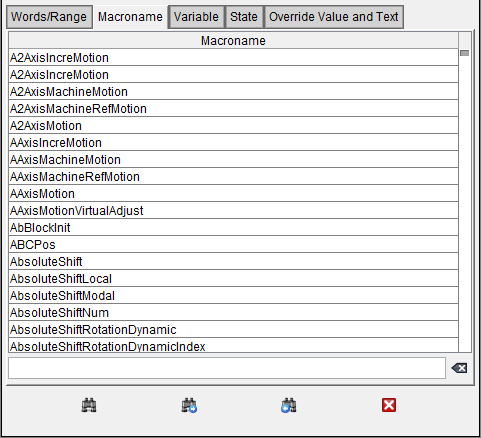
Specify the macro to be searched for by selecting from the list or by typing the macro name in the text field. Text entered is not case sensitive. Use the automatic filtering capability to help you find macros. As you enter text characters in the Macroname text field, the list of macros is automatically filtered to show those that match the entered text.
After configuring the window to search for the desired macro, use the (Search First), (Search Next), and (Search Previous) icons at the bottom of the window to find the first, next, or previous occurrence of the macro in the control configuration. See the example in the Using the Search for window section of Vericut Help for additional information.
Search for window, Variable tab
The features on the Variable tab enable you to find all occurrences in the control configuration displayed in the Word/Address window that call a specific variable.
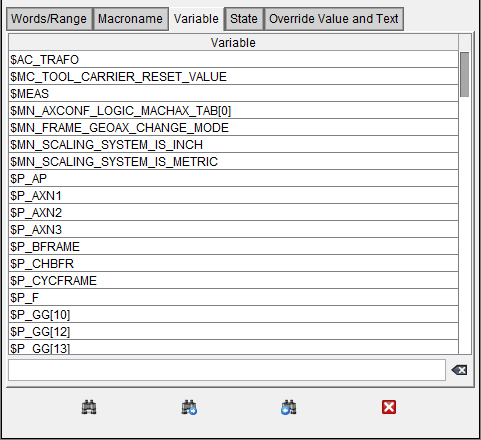
Specify the variable to be searched for by selecting from the list or by typing the variable name in the text field. Text entered is not case sensitive. Use the automatic filtering capability to help you find variables. As you enter text characters in the Variable text field, the list of variables is automatically filtered to show those that match the entered text.
After configuring the window to search for the desired variable, use the (Search First), (Search Next), and (Search Previous) icons at the bottom of the window to find the first, next, or previous occurrence of the variable in the control configuration. See the example in the Using the Search for window section of Vericut Help for additional information.
Search for window, State tab
The features on the State tab enable you to find all occurrences in the control configuration displayed in the in the Word/Address window associated with a specific machine state.
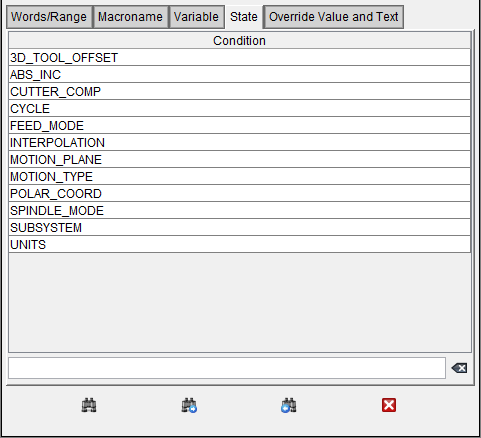
Specify the machine state to be searched for by selecting from the Condition list or by typing the machine state in the text field. Text entered is not case sensitive.
After configuring the window to find the desired macro, use the (Search First), (Search Next), and (Search Previous) icons at the bottom of the window to find the first, next, or previous occurrence of the machine state in the control configuration. When finished, use the  (Close) icon to close the Search Word window.
See the example in the Using the Search for window section of Vericut Help for additional information.
Search for window, Override Value and Text tab
The Override Value and Text tab enables you to find all occurrences in the control configuration displayed in the in the G-Code Processing window associated with a specific Override Value and/or Override Text value.

Override Value — Specify the value to be searched for by typing the value in the Override Value text field. The value entered is not case sensitive. In this context Override Value is understood to be an override expression. That is, Override Values that are just numbers, like "1", will be ignored.
Override Text — Specify the text to be searched for by typing the text in the Override Text text field. The text entered is not case sensitive.
After specifying the value or text to be searched, use the (Search First), (Search Next), and (Search Previous) icons at the bottom of the window to find the first, next, or previous occurrence of the value/text in the control configuration.
If only one of the text fields is filled in, then that is what will be searched for. If both text fields are filled in, then the Search Word utility will search to match the contents of both text fields. If both text fields are empty, no searching will take place.
When finished, use the  (Close) icon to close the Search Word window.
See the example in the Using the Search for window section of Vericut Help for additional information.
Using the Search Word Window
To find a group associated with specific G-Code word/range value:
- Click on
 (G-Code Processing) in the Toolbar or select Machine/Control tab > G-Code Processing in the Vericut menu ribbon to display the G-Code Processing window.
 - In the G-Code Processing window menu bar, select Utilities tab > Search to display the Search for window.
- In the Search Word window, click the Words/Range tab.
- From the Word list, select the word that you want to find in the control configuration. You can also type the word in the Word text field.
-
Enter the Range value in the Range text field.
For example, if you want to find G0, enter the G in the Word text field and the 0 in the Range text field. -
Press
 (Search First). Vericut will find and highlight the first occurrence in the G-Code Processing window containing the specified Word/Range value.
Press (Search Next), to find the next occurrence in the G-Code Processing window containing the specified Word/Range value.
Press (Search Previous) to find the previous occurrence in the G-Code Processing window containing the specified Word/Range value.
 -
Press the
 (Clear Text) icons to clear the Word and Range text fields, then repeat steps 4, 5, and 6 to do another search or press the (Close) icon to close the Search Word window.
To Search a specific macro in a control configuration:
- Click on (G-Code Processing) in the Toolbar or select Machine/Control tab > G-Code Processing in the Vericut menu ribbon to display the G-Code Processing window.
- In the G-Code Processing window menu bar, select Utilities tab > Search to display the Search for window.
- In the Search Word window, click the Macroname tab.
- In the Macroname list, select the name of the macro that you want to find in the control configuration. You can also type the name of the macro in the Macroname text field.
-
Press
(Search First). Vericut will find and highlight the first occurrence of the specified macro in the G-Code Processing window.
Press(Search Next), to find the next occurrence of the specified macro in the G-Code Processing window.
Press(Search Previous) to find the previous occurrence of the specified macro in the G-Code Processing window. -
Press the
(Clear Text) icon to clear the Macroname text field, then repeat steps 4 and 5 to do another search or press the (Close) icon to close the Search Word window.
To Search all occurrences of a specific variable:
- Click on (G-Code Processing) in the Toolbar or select Machine/Control tab > G-Code Processing in the Vericut menu ribbon to display the G-Code Processing window.
- In the G-Code Processing window menu bar, select Utilities tab > Search to display the Search for window.
- In the Search Word window, click on the Variable tab.
-
On the Variable tab, select the name of the variable that you want to find from the Variables list. You can also type the name of the variable in the Variable text field.
💡 Tip: Use the automatic filtering capability to help you find variables. As you enter text characters in the text field, the list of variables is automatically filtered to show only those variables that match the entered text string. -
Press
(Search First). Vericut will find and highlight the first occurrence of the specified variable in the G-Code Processing window Variables List. -
Press
(Search Next), to find the next occurrence of the specified variable in the G-Code Processing window.
Continue pressing(Search Next) to find all occurrences of the specified variable in the G-Code Processing window.
When Vericut has found the last occurrence of the specified variable in the G-Code-Processing window, pressing(Search Next) again will cause Vericut to search for the specified variable in the Variables panel (ref. Variables panel section of Vericut Help). If one or more occurrences of the specified variable are found in the Variables panel, Vericut will automatically open the Variables panel and highlight the specified variable.
Continue pressing(Search Next) to find additional occurrences of the specified variable in the Variables panel.
Press(Search Previous) to find the previous occurrence of the specified variable. -
When finished with your search, press the
(Clear Text) icon to clear the Variable text field, and then repeat steps 4, 5 and 6 to do another search or press the (Close) icon to close the Search Word window.
To Search a machine state in a control configuration:
- Click on (G-Code Processing) in the Toolbar or select Machine/Control tab > G-Code Processing in the Vericut menu ribbon to display the G-Code Processing window.
- In the G-Code Processing window menu bar, select Utilities menu > Search to display the Search for window.
- In the Search Word window, click the State tab.
- In the Condition list, select the machine state that you want to find in the control configuration. You can also type the machine state in the Condition text field.
-
Press
(Search First). Vericut will find and highlight the first occurrence of the specified machine state in the G-Code Processing window.
Press(Search Next), to find the next occurrence of the specified machine state in the G-Code Processing window.
Press(Search Previous) to find the previous occurrence of the specified machine state in the G-Code Processing window. -
Press the
(Clear Text) icon to clear the Condition text field, then repeat steps 4 and 5 to do another search or press the (Close) icon to close the Search Word window.
To Search an Override Text value in a control configuration:
- Click on (G-Code Processing) in the Toolbar or select Machine/Control tab > G-Code Processing in the Vericut menu ribbon to display the G-Code Processing window.
- In the G-Code Processing window menu bar, select Utilities tab > Search to display the Search for window.
- In the Search Word window, click the Override Text tab.
- In the Search for: text field, enter the Override Text value that you want to find in the control configuration.
-
Press
(Search First). Vericut will find and highlight the first occurrence of the specified Override Text value in the G-Code Processing window.
Press(Search Next), to find the next occurrence of the specified Override Text value in the G-Code Processing window.
Press(Search Previous) to find the previous occurrence of the specified Override Text value in the G-Code Processing window. -
Press the
(Clear Text) icon to clear the Search for: text field, then repeat steps 4 and 5 to do another search or press the (Close) icon to close the Search Word window.
See G-Code Processing window and Search for window section of Vericut Help for additional information.