Machine/Control tab
The Machine/Control tab contains various features related to managing machining and setting controls. All features will be summarized on this page but each hyperlinked feature can be clicked on to see a more detailed description for more information.
Machine group
-
Open Machine — opens the the Open Machine window enabling you to load a Machine file.
-
Save Machine buttons — these buttons open the Save Machine File window enabling you to save your Machine files. Options are: Save and Save As.
- New Machine — add a new Machine setup in the Project Tree. When accessed from the Project Tree, this feature is only displayed in the right mouse button menu when the Show Machine Components is toggled "On".
| Project Tree before using "New" | Project Tree after using "New" |
|---|---|
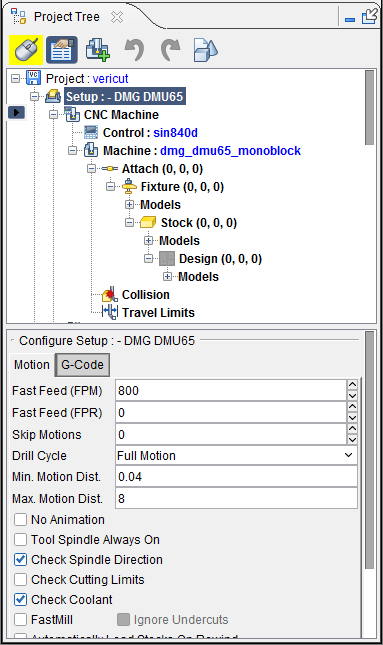 |
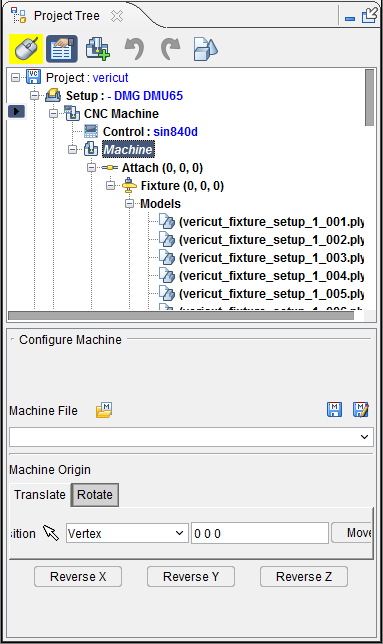 |
-
Machine Settings — opens the Machine Settings window enabling you to configure settings for an NC machine, such as: collision checking, travel limits, axis priority (for rapid motion), location tables, and when machine motions are simulated.
-
**3D Live™ Machine Import —**opens the 3DLive Machine Import window enabling you to read or import machine data for a .mch file.
Control group
-
Open Control — opens the Open Control window enabling you to load a Control file.
-
Save Control buttons — opens the Save Control file window enabling you save the control file. Options are: Save and Save As.
-
Word Format — opens the Word Format window enabling you to specify how the NC control interprets G-Code words and special characters, to specify syntax checking rules (error conditions) for checking your NC program file for valid syntax.
-
G-Code Processing — opens the G-Code Processing window enabling you to add and modify Events and Word/Addresses.
-
Control Settings — opens the Control Settings window enabling you to configure how the machine control will process machine code data.
-
Control Advanced Settings — opens the Advanced Control Options window enabling you to configure advanced NC control options, such as: specify subroutines available in the NC control, perform actions at key processing events (e.g. start of tool path processing, start processing a block, etc.), substitute text strings, and more.
-
Control Variables — opens the Variables panel to the Control tab enabling you to add and remove variables to and from the control.