Utilities tab
The Utilities tab contains various features related to converting Vericut data, managing assemblies, and managing probe programming. All features will be summarized on this page but each hyperlinked feature can be clicked on to see a more detailed description for more information.
Convert group
The features here open various converters each of which is explained in the Converters and Interfaces section of the Vericut Help Library. Options are: CAD Model, IGES, PolyFix, and Surface to Solid.
Post group
- Post-Processor — enables you to convert files for post processing.
Custom group
- Save CAS File — enables you to save files as Collision Avoidance System (CAS) files. See the Save CAS File section of Converters and CAD/Cam Interfaces in the Vericut Help Library.
-
Save Optimizer File — Saves files for use in Optimizer (VO).
-
CAS Repair Utility — repairs Vericut Solid (VCT) cut stock model files saved with the Save CAS File Utility that are encountering compatibility errors with when loaded into CAS.
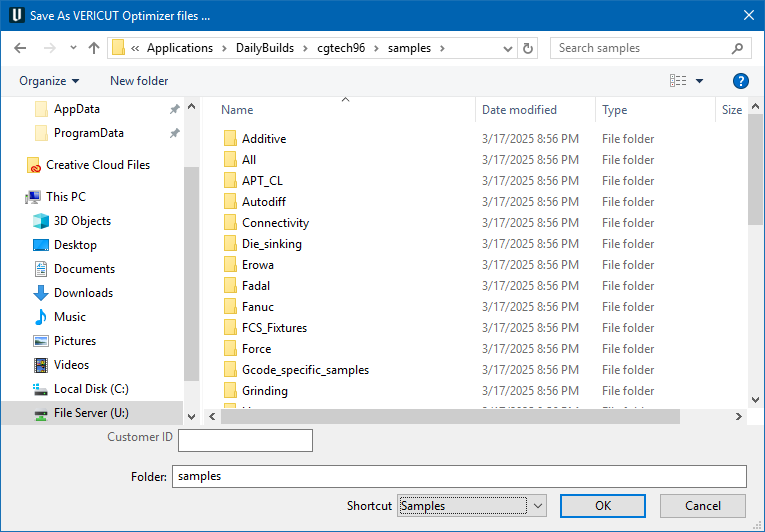
- Save Optimizer File — opens the Save As Vericut Optimizer files ... window enabling you to save an Optimizer file.
Edit group
-
Text File — opens a text editor window enabling you to open any ASCII text file and start editing.
-
NC Program — opens the NC Program Editor which displays a list of all NC programs and subroutines in the project file.
EDM group
- Die Sinking Simulation — opens the Die Sinking Simulation window enabling you to select electrodes and simulate the die sinking process.
Probe group
- Probe Programming — opens the Probe Programming window enabling you to generate probe cycles and then generate an NC program (.mcd file) from the probe cycles.
Report group
- Export robot axis kinematic data — Saves .csv files containing robotic motion data for external analysis.
Heidenhain group
- Heidenhain TNC — enables you to connect Vericut to Heidenhain TNC which allows the two programs to share information with each other.
📝 NOTE: The Heidenhain iTNC program (not a part of Vericut) must be open and running before the Heidenhain TNC command button becomes active.
Assembly Manager group
- Assembly Manager — opens the Assembly Manager window, enabling you to open, save, and import Assembly Managers (among other features).
Connectivity group
- Machine Connectivity — opens the CNC Machine Connectivity window which enables Vericut users to connect to real CNC machines, further enhancing a Vericut simulation to achieve a more accurate Digital Twin of the real asset on the shop floor.