Import Tool Spread Sheet window
Locations:
Tool Manager > Tool Bar > Import tab >  (Tool Spread Sheet)
The features on the Import Tool Spread Sheet window enable you to import tools from a spread sheet into Tool Manager.
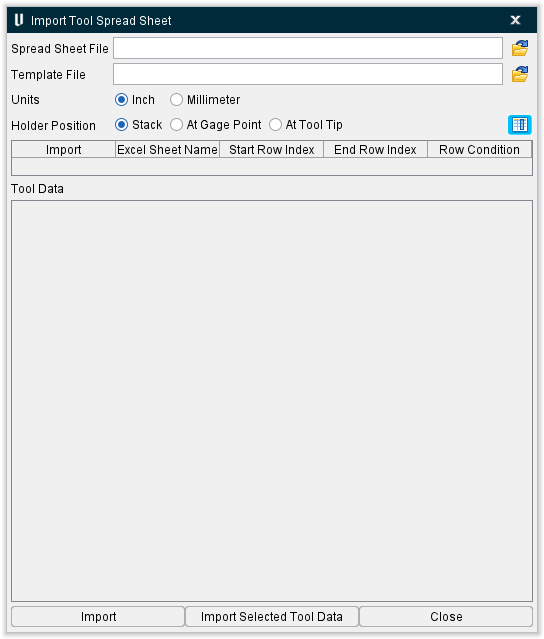
Spread Sheet File — The original spread sheet file containing the tool data.
Template File — File containing template(s) to be used to interpret the data in the Spread Sheet File.
Two file types are supported for both the Spread Sheet File and the Template File:
- *.xlsx file, created by Microsoft Excel version 2007 or later.
- *.csv file, comma separated text file.
Units — Select between inch and millimeter options for the imported file.
Holder Position — The following options enable you to specify how the holder and tools are positioned:
-
Stack — The holder is positioned on top of the cutter.
-
At Gage Point — The holder zero point is positioned at the gage point.
-
At Tool Tip — The holder zero point is positioned at the tool’s zero point.
A template table maps the columns in the tool .xlsx to the parameters in Tool Manager that define the tool, which looks like this:
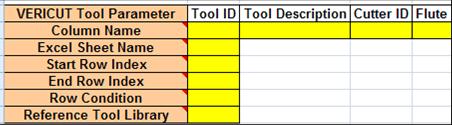
Currently the following tool types are supported: Drill, End Mill, Apt7, Tap, and Probe. Maximum of two holders are supported for now: A cone under a model or reference holder.
The template table can be in a separate Template File; or another worksheet in the Spread Sheet File. For *.xlsx files, the template table sheet has to be named “CGTECH_TLS_IMPORT” (or localized version as in VcRes.local). The template table sheet name and all tags in the template table are case insensitive.
Similarly, for csv files, you can have template tables saved in a separate Template File; or another worksheet in the Spread Sheet File.
In the case where the template table is defined both as a worksheet in the Spread Sheet File, and as a Template File, the Template File will be ignored. A template sheet/file can have multiple template tables.
Column Name — The Column ID from the original spread sheet. Formulas are supported as Column Names. A formula always starts with “=” sign. A “$” sign indicates a Column ID used in a formula.
For example, for Parameter “Diameter”, you can use “D” (Column D in the spread sheet) or “=$C*2” (Column C’s value * 2).
For text columns (Tool ID, Tool Description, Tool Comments, Cutter ID, Holder Reference ID, Holder Model File Name), the only operator supported now is “+” to concatenate strings. For example, “Holder Model File” can be “=$x+.stl”.
Excel Sheet Name — The name of the worksheet, in the original spread sheet file, containing the tool data
Start Row Index — The row number in the spread sheet/worksheet where the tool data starts.
End Row Index — The row number in the spread sheet/worksheet where the tool data ends.
Row Condition — [Column ID] = [Cell Value]. For example, “I=CH” says this mapping only applies to all rows whose Column I’s values are “CH”, i.e. only for a chamfer tool. Thus there can be a group of template rows for each of tool types.
Reference Tool Library — looks for a holder name in the “Holder Reference ID” column and references it in the tool.
The import table lists all template tables read from template sheet. Editing is allowed for Row indexes and Row Condition. The  icon applies edits to all rows in the template table; the
  icon applies edits only to current edited cell.
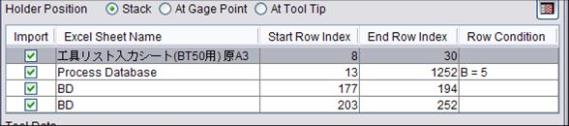
The Tool Data table is a preview of what is going to be imported for the selected template in the import table.

Import — creates tools for all templates that have “Import” toggled on, within Start Row Index / End Row Index row range and have met the Row Condition.
Import Selected Tool Data — only creates tools from selected rows in the Tool Data table.
Tools are appended in the current Tool Manager session. The first appended tool is highlighted. Unique tool IDs are ensured by appending “_#” after existing IDs. (For example, Tool 1_2).
Close — closes the Import Tool Spread Sheet window.