Search Tool window
Locations:
Project tab >  Tools: Right-click Tool list Area > Add Tool > Search Tool
Project tab > Tools: Right-click Tool list Area > Search Tool
Project tab > (Tools) > Tools tab >  (Search Tool)
The Search Tool window enables you to search existing tool libraries for tools with specific attributes.
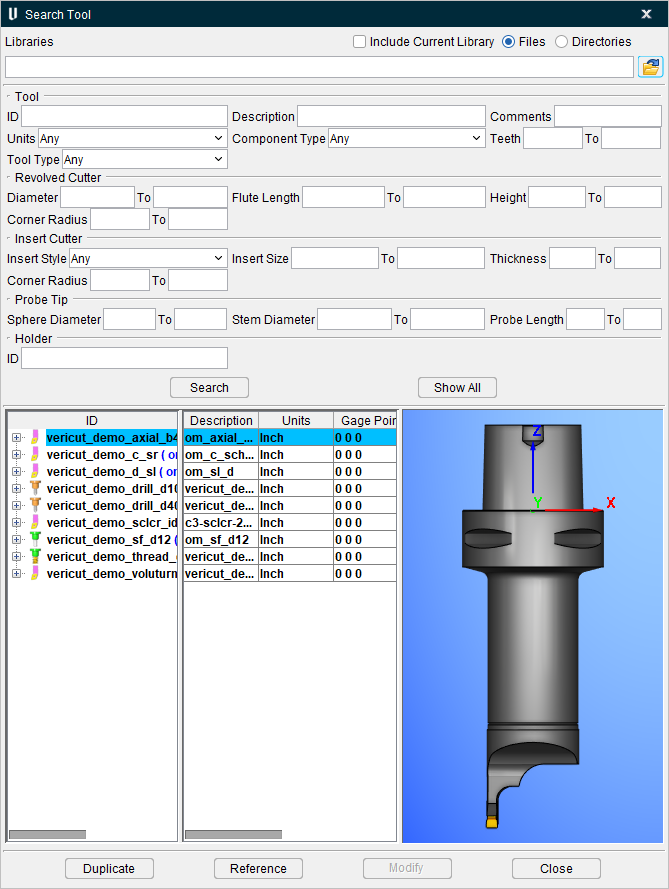
Libraries group
Include Current Library — When toggled "on" (checked), records matching the search attributes in the current library are included in the search results.
Files — Use to search one or more tool library files for tools meeting the specified search criteria.
Directories — Use to search one or more directories of tool library files for tools meeting the specified search criteria.
Browse — Displays a selection window to assist you in selecting the files/directories to be searched.
Tool group:
ID — Search for the specified tool ID.
Description — Search for a specified string of text within the tool's Description field.
Comments — Search for a specified string of text within the tool's Comment field.
Units — Select Any, Inch or Millimeter from the pull-down list.
Component Type — Use to search for tools that include a specific tool component type. Select Any, Revolved Cutter, Insert Cutter, Probe Tip, Tap, Water Jet, Knife, Polisher or Holder from the pull-down list.
Teeth — Use to search for tools containing cutters with a specific number of teeth.
To — Use with Teeth above to specify a range of number of teeth. For example, for a range of 2 to 4 teeth, enter a 2 in the Teeth field and a 4 in the corresponding To field.
Tool Type — Use to search for tools of a specified type. Select Any, Mill, Turn, Probe, Tap, Water Jet, Knife or Polish from the pull-down list.
Revolved Cutter group
Diameter — Use to search for revolved cutters with a specific diameter.
To — Use with Diameter above to specify a range of diameters. Enter one end of the range in the Diameter field and the other end of the range in the corresponding To field.
Flute Length — Use to search for revolved cutters with a specific flute length.
To — Use with Flute Length above to specify a range of flute lengths. Enter one end of the range in the Flute Length field and the other end of the range in the corresponding To field.
Height — Use to search for revolved cutters with a specific height.
To — Use with Height above to specify a range of heights. Enter one end of the range in the Height field and the other end of the range in the corresponding To field.
Corner Radius — Use to search for revolved cutters with a specific corner radius.
To — Use with Corner Radius above to specify a range of corner radii. Enter one end of the range in the Corner Radius field and the other end of the range in the corresponding To field.
Insert Cutter group
Insert Style — Use to search for a specific insert style (General, Groove, or Thread). Select one of the following insert styles from the pull-down list"
| Insert Style | Description | ||
|---|---|---|---|
| Any | |||
| General Insert A | 85 Degree Parallelogram | 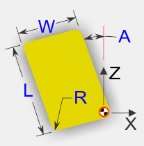 |
|
| General Insert B | 82 Degree Parallelogram | 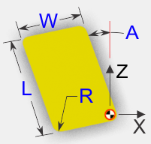 |
|
| General Insert C | 80 Degree Diamond | Inch 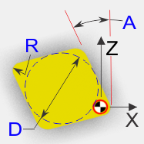 |
Millimeter 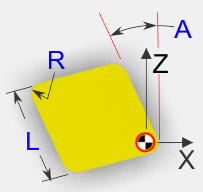 |
| General Insert C 100 | 100 Degree Diamond | Inch 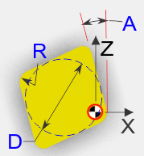 |
Millimeter 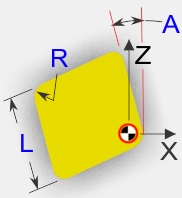 |
| General Insert D | 55 Degree Diamond | Inch 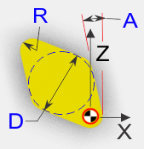 |
Millimeter 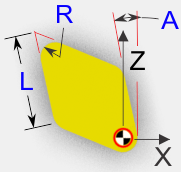 |
| General Insert E | 75 Degree Diamond | Inch 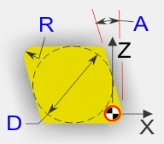 |
Millimeter |
| General Insert H | Hexagon | Inch 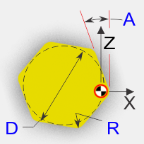 |
Millimeter 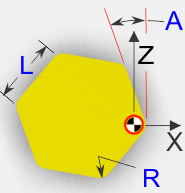 |
| General Insert K | 55 Degree Parallelogram | 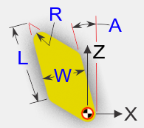 |
|
| General Insert L | Rectangle | 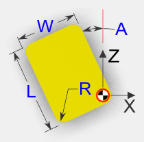 |
|
| General Insert M | 86 Degree Diamond | Inch 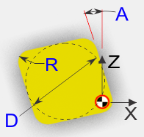 |
Millimeter 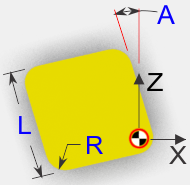 |
| General Insert O | Octagon | Inch 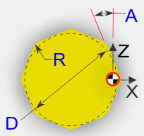 |
Millimeter 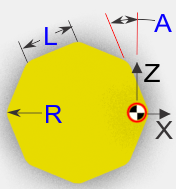 |
| GENERAL INSERT P | Pentagon | Inch 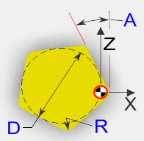 |
Millimeter 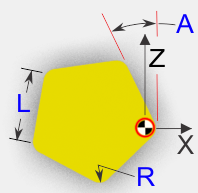 |
| GENERAL INSERT R | Round | 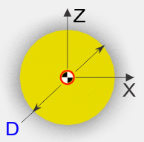 |
|
| GENERAL INSERT S | Square | Inch 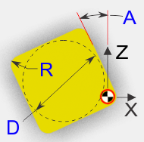 |
Millimeter 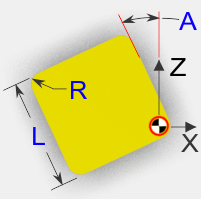 |
| GENERAL INSERT T | Triangle | Inch 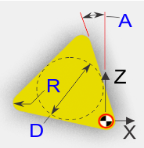 |
Millimeter 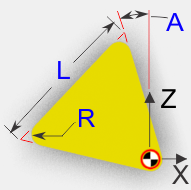 |
| GENERAL INSERT V | 35 Degree Diamond | Inch 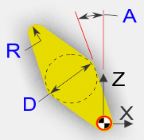 |
Millimeter 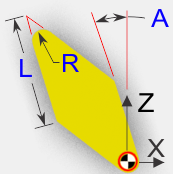 |
| GENERAL INSERT W | 80 Degree Trigon | Inch 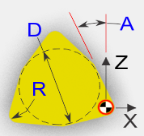 |
Millimeter 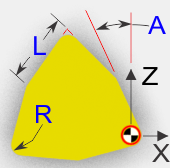 |
| GENERAL INSERT CD | Custom Diamond | Inch 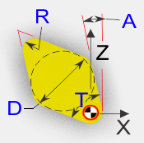 |
Millimeter 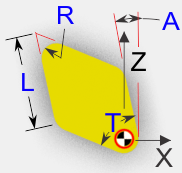 |
| GENERAL INSERT CP | Custom Parallelogram | 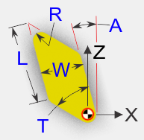 |
|
| GROOVE INSERT S2 | Square, double end | 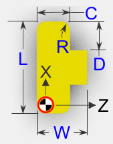 |
|
| GROOVE INSERT R2 | Radius, double end | 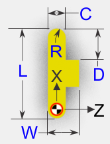 |
|
| GROOVE INSERT V2 | 40 Degree V, double end | 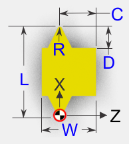 |
|
| GROOVE INSERT C2 | 45 Degree Chamfer, double end | 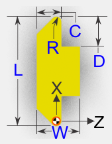 |
|
| GROOVE INSERT S1 | Square, single end | 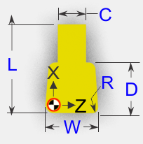 |
|
| GROOVE INSERT C1 | Chamfer, single end | 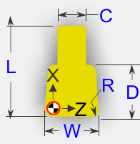 |
|
| GROOVE INSERT O1 | Round, single end | 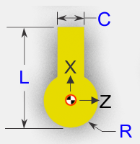 |
|
| GROOVE INSERT R1 | Radius, single end | 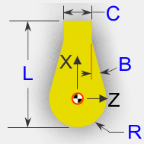 |
|
| THREAD INSERT T55 | 55 Degree, triangle | Inch 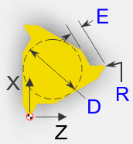 |
Millimeter 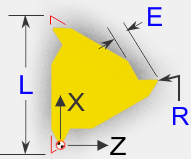 |
| THREAD INSERT T60 | 60 Degree, triangle | Inch 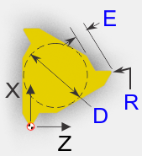 |
Millimeter 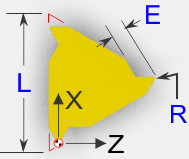 |
| THREAD INSERT TT | 30 Degree, trapeze triangle | Inch 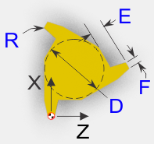 |
Millimeter 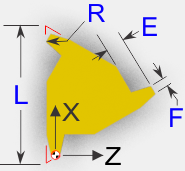 |
| THREAD INSERT TA | ACME, triangle | Inch 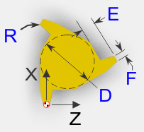 |
Millimeter 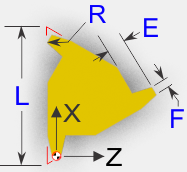 |
| THREAD INSERT TBR | Buttress, triangle, right hand | Inch 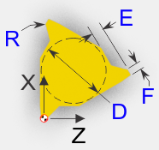 |
Millimeter 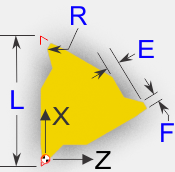 |
| THREAD INSERT TBL | Buttress, triangle, left hand | Inch 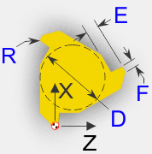 |
Millimeter 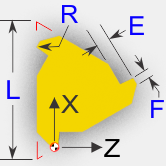 |
| THREAD INSERT A60 | 60 Degree, double end, asymmetrical | 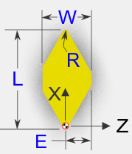 |
|
| THREAD INSERT S60 | 60 Degree, double end, symmetric | 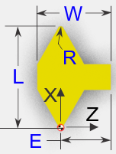 |
|
| THREAD INSERT DA | ACME, double end | 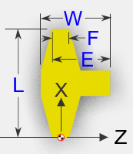 |
|
| THREAD INSERT TDB | Buttress, double end | 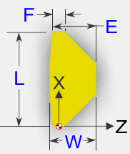 |
Insert Size — Use to search for insert cutters with a specific insert size.
To — Use with Insert Size above to specify a range of insert sizes. Enter one end of the range in the Insert Size field and the other end of the range in the corresponding To field.
Thickness — Use to search for insert cutters with a specific thickness.
To — Use with Thickness above to specify a range of insert thicknesses. Enter one end of the range in the Thickness field and the other end of the range in the corresponding To field.
Corner Radius — Use to search for insert cutters with a specific corner radius.
To — Use with Corner Radius above to specify a range of corner radii. Enter one end of the range in the Corner Radius field and the other end of the range in the corresponding To field.
Probe Tip group
Sphere Diameter — Use to search for probe tips with a specific sphere diameter (or within a diameter range).
To — Use with Sphere Diameter above to specify a range of sphere diameters. Enter one end of the range in the Sphere Diameter field and the other end of the range in the corresponding To field.
Stem Diameter — Use to search for probe tips with a specific stem diameter (or within a diameter range).
To — Use with Stem Diameter above to specify a range of stem diameters. Enter one end of the range in the Stem Diameter field and the other end of the range in the corresponding To field.
Probe Length — Use to search for probe tips with a specific length (or within a length range).
To — Use with Probe Length above to specify a range of lengths. Enter one end of the range in the Probe Length field and the other end of the range in the corresponding To field.
Holder group
ID — Use to search for a holder with a specific ID.
Search — Start the search of the specified tool library (libraries) based on the attributes specified above.
Tool List
Displays a list of the tools found during the search. The Tool List display and interaction is the same as the Tool Table in the Tool Manager, with the one exception that the tool library file name is also displayed here.
Duplicate — Duplicates the selected tool in the current tool library.
Reference — Creates a reference to the selected tool in the current tool library.
Close — Closes the Search Tool window.
See Copy a Tool Assembly or Tool Component from a Different Tool Library below for information on using the Search Tool window.
Using the Search Tool window
Copy a Tool Assembly or Tool Component from a Different Tool Library
Use the procedures below to copy a tool assembly, or tool component, from an existing Tool Library file to the current Tool Library file. The following assumes that the Tool Manager window is already open and that an existing tool library has been opened to add the new tool assembly, or tool component to. If necessary, refer to the following topics below:
Open an Existing Tool Library File
📝 NOTE: Remember to save the Tool Library file with the modified tool information when you finish. If necessary, refer to Save a Tool Library File.
-
In the Tool Manager Tool List Area, right-click on the tool ID that the copied tool is to be added after and then select Search Tool or Add Tool > Search Tool from the menu that displays to display the Search Tool window.
-
In the Search Tool window, specify the Tool Library file(s), or folder of Library Files that you want to search for the tool assembly in. Either type the /path/filename(s) of the Tool Library file(s) or the /path/ to the Tool Library file folder, or click on the
 (Browse) icon and use the file selection window that displays to specify them.
 - All of the tool assemblies contained in the specified libraries are displayed in the bottom part of the Search Tool window. Double-click the tool ID, or click on the "+" sign to expand the tool assembly in the table so that you can see its components. Click on the "-" sign to collapse the tool assembly. You can also right-click and select Expand All to expand all of the tool assemblies at one time. Right-click and select Hide Tool Components to collapse all of the tool assemblies at one time.
- Use the search criteria in the top of the Search Tool window to define the tool assembly that you are looking for then select Search. The Tool table will update showing only the tools that meet the criteria that you specified. Continue adding search criteria and selecting Search as needed to further narrow down the number of tool assemblies displayed in the Tool table. At any time during your search you can go back to the complete tool component list by selecting Show All. Then you can re-start your search using different search criteria.
-
Once you Search the tool that you are looking for, select it in the Tool table so that it becomes highlighted and click on either Duplicate to duplicate the tool assembly in the current Tool Library file, or Reference to create a reference to the tool assembly in the current Tool Library file.
-
Repeat the above procedure to search for other tools, or click on Close to close the Search Tool window.
📝 NOTE: You can also use the procedure described above to copy individual tool components (cutter, insert, or holder) from tool assemblies in a different tool library.